You pour money into ads, traffic comes in steadily, but orders stay thin. The first instinct is usually to tweak the landing page, swap product photos, or drop the price. Those are worth a look, but there’s a question few people stop to ask: are shoppers actually able to reach the exact product they want?
This is where ecommerce store navigation plays a far bigger role than it appears to. Navigation isn’t a decorative layer pasted on top of the page. It’s the path that carries a shopper from curiosity to clicking “Add to Cart.” When that path is bumpy, shoppers don’t complain — they just quietly leave. And you won’t see the reason in your reports, because the people who leave don’t leave a note.
This article looks at four sides of the same problem: how shoppers really behave on a store, which way navigation pulls revenue, the mistakes that show up most often on Shopify, and which menu types clear the bottleneck. Each part stands on its own, so you can read them in any order.
- Navigation is the first product-discovery step.
- Mobile reach decides whether shoppers keep going.
- Better menu types reduce taps before the cart.
How shoppers really behave on an ecommerce store
A shopper coming into your store doesn’t move the way you — the store owner — move through your own store. You know where every category sits. The shopper doesn’t. They arrive, glance around for a few seconds, then decide whether to stay or leave based on one simple question: “Is what I need close by?”
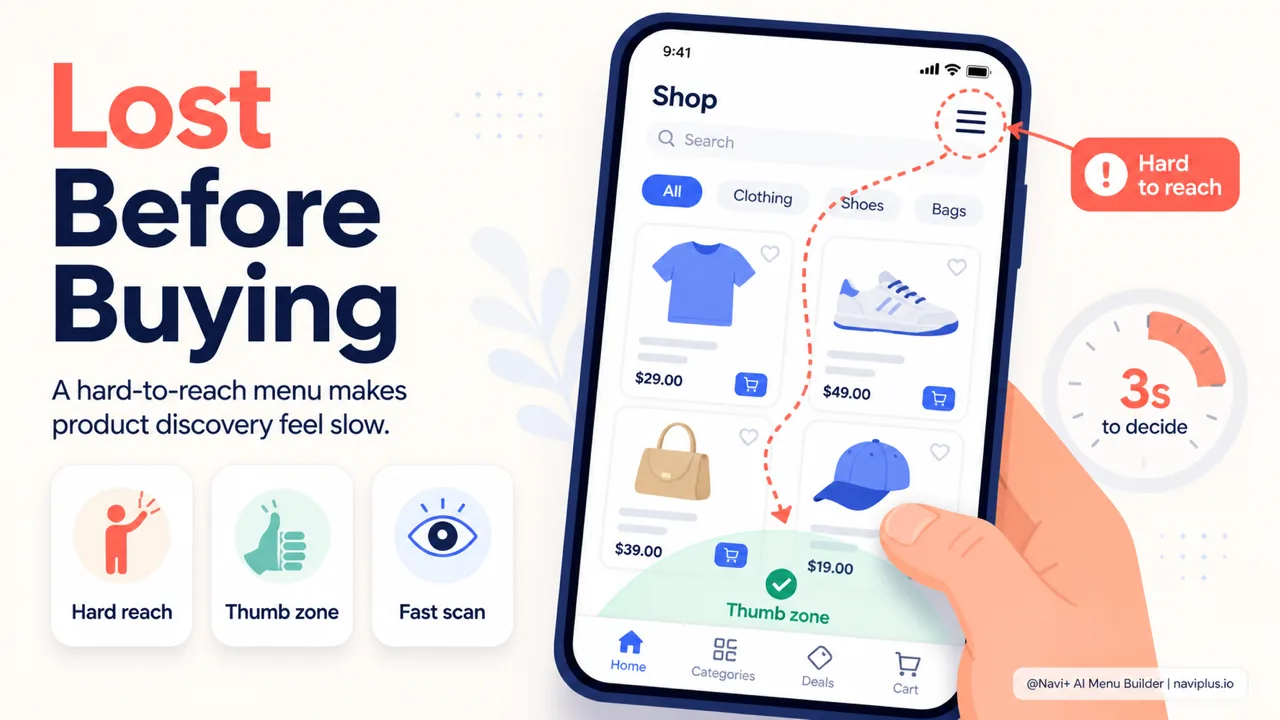
Most traffic now comes from phones — many sources put more than half of ecommerce traffic on mobile. That changes how shoppers interact. On a phone, people usually hold the device in one hand and control it with their thumb. Steven Hoober’s research (via UXmatters) observed more than 1,300 interactions and found that most of them were done with the thumb. From that came the idea of the “thumb zone”: the center-bottom of the screen is the easiest area to reach, while the two top corners are the hardest, often requiring a change of grip.
The problem is that on a lot of stores, the menu sits right in that top corner — the hardest area to reach. To switch categories, a shopper has to stretch their thumb or use two hands. Each time, that’s a little friction, and friction adds up into people leaving.
One thing often gets misunderstood: many people believe shoppers will go find the search box if they get lost. In practice, not quite. The Baymard Institute found that on fashion stores, almost all test users started with the main menu rather than search; search was only a fallback. On large sites with thousands of SKUs, the split is more even. That means for most small and mid-sized stores, the menu is still the front door — not the search box.
Once you understand that shoppers move with their thumb, decide within seconds, and rely on the menu to find their way, many design choices suddenly become clearer.
Deep-diveRead the full guide → How shoppers really behave on an ecommerce store
How navigation affects revenue
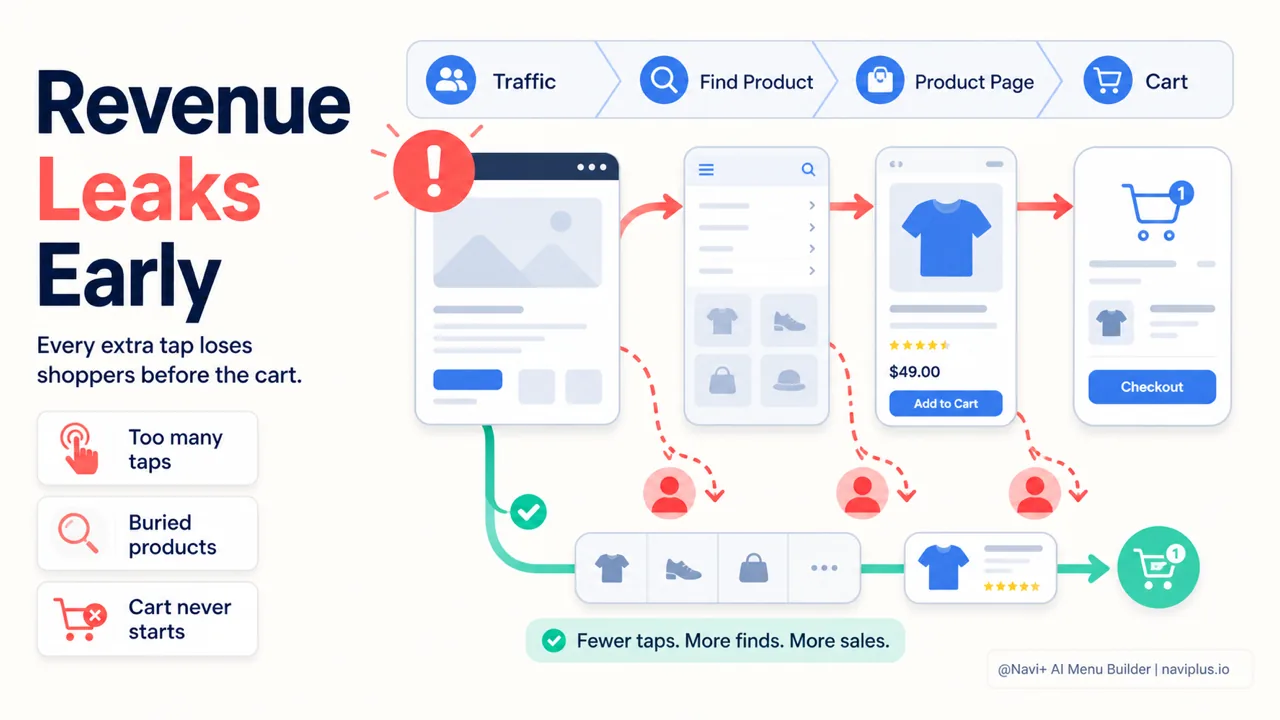
It’s easy to think of navigation as a matter of looks. But it connects straight to money, through a simple chain: a shopper has to find a product before they can view it, has to view it before they can add it to the cart, and has to add it to the cart before they can check out. Each step loses a few people. The menu is the first step, and a leak at the first step means every step after it loses people too.
One baseline number helps show the scale of the problem. According to the Baymard Institute, the average cart abandonment rate sits around 70%. And that’s only the people who managed to get something into the cart at all. Ahead of them is an even larger group: the people who came into the store but never found anything that made them want to add it to the cart. This group is almost invisible in reports, but they make up the largest share of the loss.
There are a few ways navigation quietly erodes revenue:
- The path is too long. Every extra tap needed to reach a product is a point where the shopper can drop off. A deep catalog with a shallow menu forces shoppers to guess their way.
- Shoppers get lost partway. They reach a category but can’t see a way over to an adjacent one, so they head back to the homepage or leave.
- Edge products get wasted. Items that aren’t in the menu are seen by almost no one. You have good products, but they’re buried.
- Pages slow down because of a heavy menu. Bulky navigation drags load speed down, and speed is directly tied to conversion.
The last point deserves a note of its own. Google sets fairly clear thresholds for Core Web Vitals: LCP under 2.5 seconds, INP under 200ms, CLS under 0.1. A sloppily built menu can cause the layout to shift while loading (pushing CLS up) or delay the main paint. The shopper loses patience before the menu even appears.
The good news is that the conversion rate at this stage is often more elastic than people assume. Shortening the path to a product, or bringing the menu into thumb reach, doesn’t require changing the price or the product, yet it can still nudge orders up.
Deep-diveRead the full guide → How navigation affects revenue
The most common navigation mistakes on Shopify stores
Most Shopify stores use the default menu that comes with the theme. The theme handles the looks, but it doesn’t handle guiding shoppers through your particular catalog. That’s why a handful of mistakes keep repeating from one store to the next.
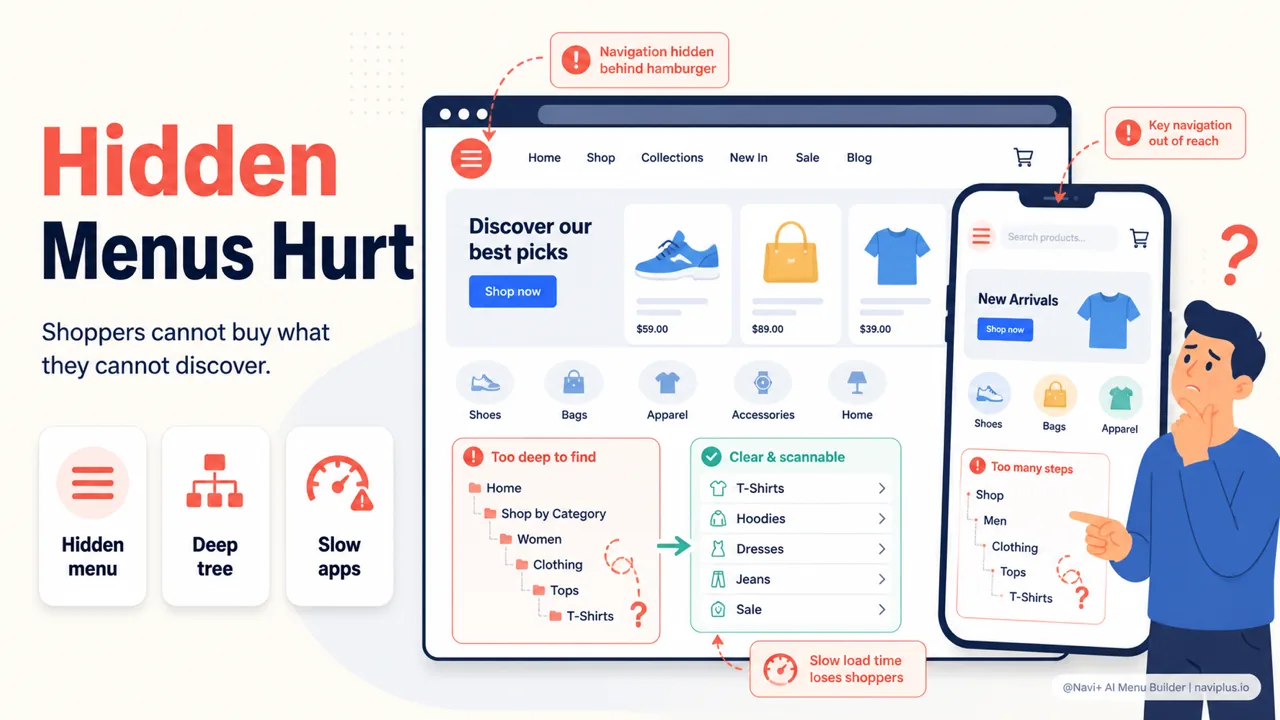
Hiding all navigation behind a hamburger button on every device. The hamburger is tidy, but it hides the options away. The Nielsen Norman Group found that hidden navigation clearly reduces how well shoppers discover items, and hidden menus get used much less than visible ones, especially on desktop. Shoppers don’t tap what they can’t see. Their advice is brief: if you don’t have to hide it, don’t.
Copying the menu exactly between mobile and desktop. A structure that’s optimized for a wide screen is usually overloaded when crammed into a narrow one. Mobile needs fewer options, placed lower, closer to the thumb.
A category tree that’s too flat or too deep. Too flat and a single category is stuffed with a hundred products, leaving shoppers scrolling until their hand aches. Too deep and shoppers have to tap through four or five levels to get there. Both are tiring.
The menu breaking every time you change theme. This is a Shopify-specific issue. Changing theme means rebuilding the navigation from scratch, so many stores avoid optimizing it for fear the effort will vanish.
Installing too many apps that slow the page down. Each app adds a bit of script. The menu is an app too — and if it’s heavy, it adds to dragging Core Web Vitals backward.
What these mistakes have in common: none of them shows up as an “error.” The store still runs, still gets orders. They just quietly block a portion of shoppers.
Deep-diveRead the full guide → The most common navigation mistakes on Shopify stores
How menu types solve navigation bottlenecks
There’s no single “right” menu type for every store. Each type solves a different bottleneck, and most stores need a combination of a few — one set for mobile, one for desktop.
The table below sums up what each type is best for:
| Menu type | Best for | The bottleneck it clears |
|---|---|---|
| Tab Bar (mobile bottom bar) | Mobile | Brings the main paths into the thumb zone |
| Mega Menu (desktop) | Desktop | Wide catalog, many categories at once |
| Slide / Hamburger Menu | Both | Tidily groups secondary categories |
| FAB (floating button) | Mobile | One key action always within reach |
| Grid Menu | Both | Shows off categories visually, with images |
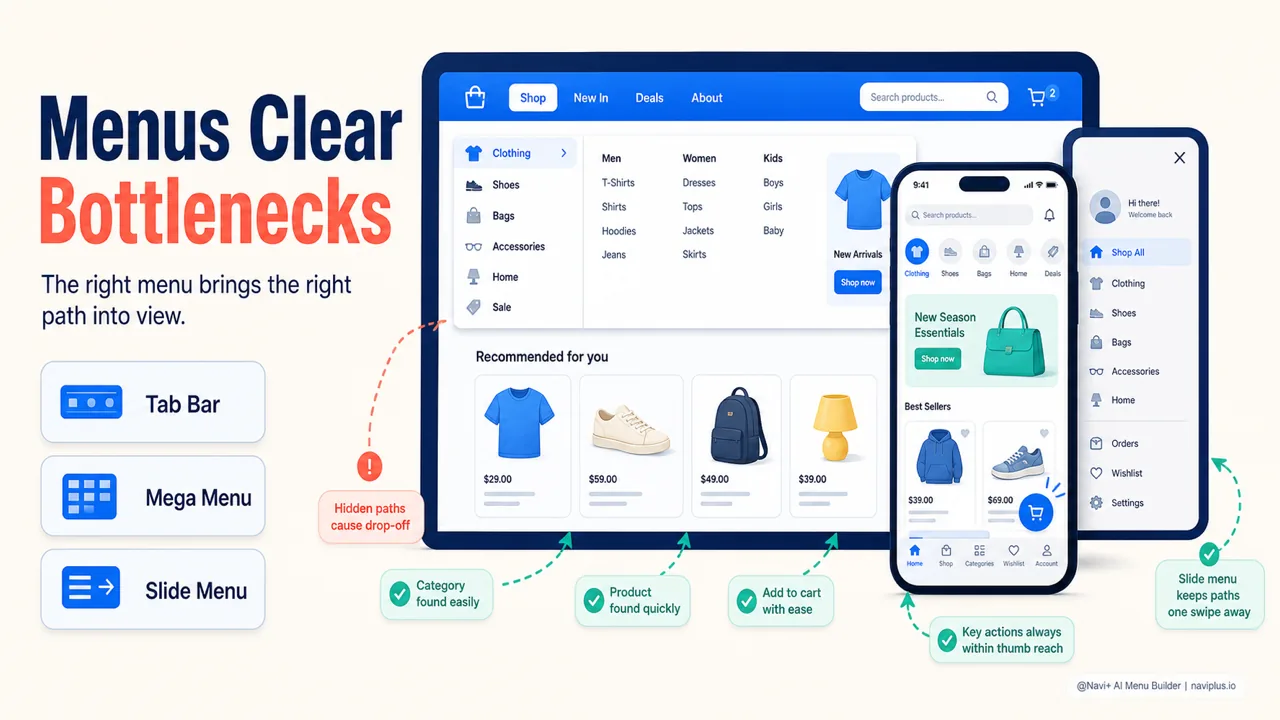
The Tab Bar deserves a special mention for mobile. It places the important paths — Home, Categories, Cart, Account — right at the bottom of the screen, in the easy-to-reach thumb zone, instead of making shoppers stretch up to the corner. The Mega Menu is the opposite, suited to desktop when you want to lay out many category branches without making shoppers click through several levels.
The key point isn’t to pick one type, but that mobile and desktop store navigation should be configured separately. This is also where a tool built specifically for menus helps. Navi+ lets you build all five types above — Tab Bar, Mega Menu, Slide Menu, FAB, Grid Menu — by drag and drop, with no code, and lets you configure mobile separately from desktop. The menu stays intact when you change theme, so there’s no rebuilding from scratch, and it’s optimized so it won’t drag load speed backward. This is the kind of Shopify menu you can shape to fit your own catalog structure instead of being stuck with the theme’s mold.
Deep-diveRead the full guide → How menu types solve navigation bottlenecks
Where to start
You don’t need to rebuild your whole store right away. A few small steps are enough to spot the problem:
- Open your store on your own phone, not a computer.
- Pick a specific product and try to find it like a first-time shopper.
- Count how many taps it takes to reach that product page.
- Notice whether the main menu sits inside or outside thumb reach.
- Run your store through Google’s Core Web Vitals tool to see if anything comes up red.
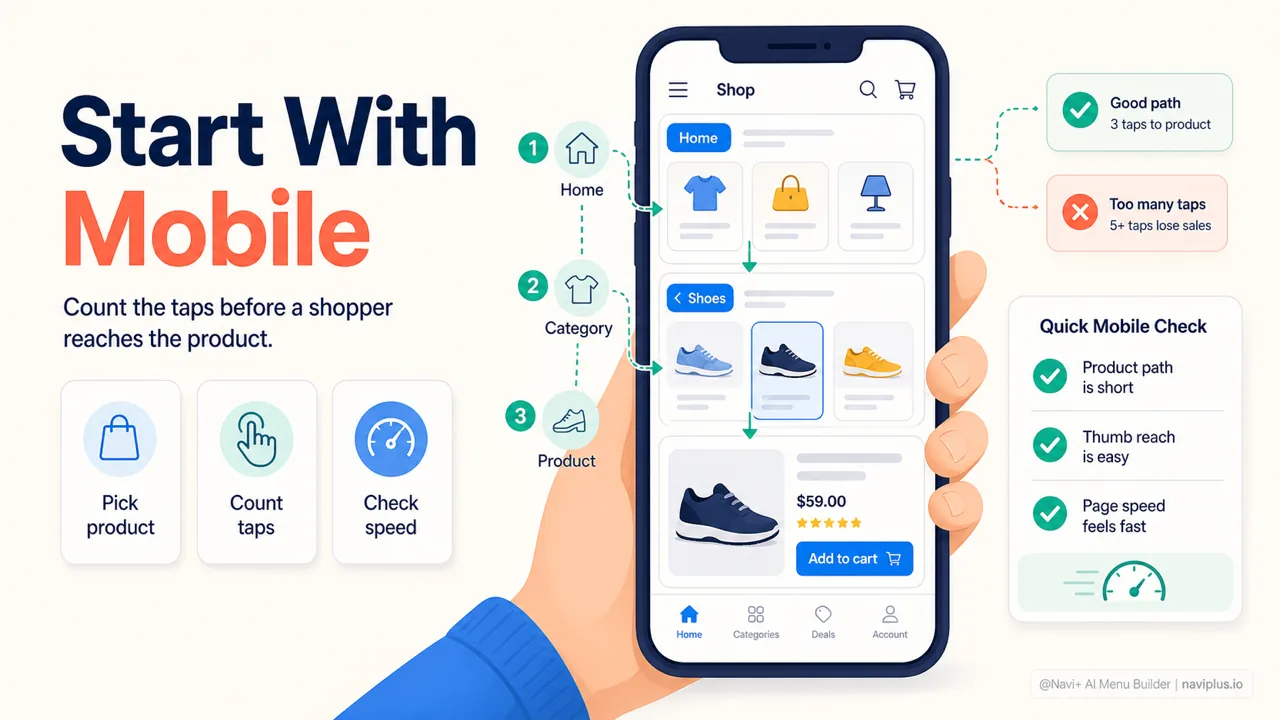
Simple auditOpen the store on your phone, pick one product, and count how many taps it takes to reach it.
If finding a single product takes too many steps, or the menu sits somewhere hard to reach, you’ve got something concrete to fix — and it’s usually far cheaper than pouring more money into ads.
Navigation isn’t something you set once and forget. The catalog grows, traffic sources shift, shopper habits change — and the menu needs to be revisited along with them. The gentlest step to start with is still the test above: pick up your phone, play the part of a stranger, and try to go find an item. How many steps until you get there? That answer usually says more than any analytics report.
Explore the topics
This guide links out to focused articles — dive deeper on each.