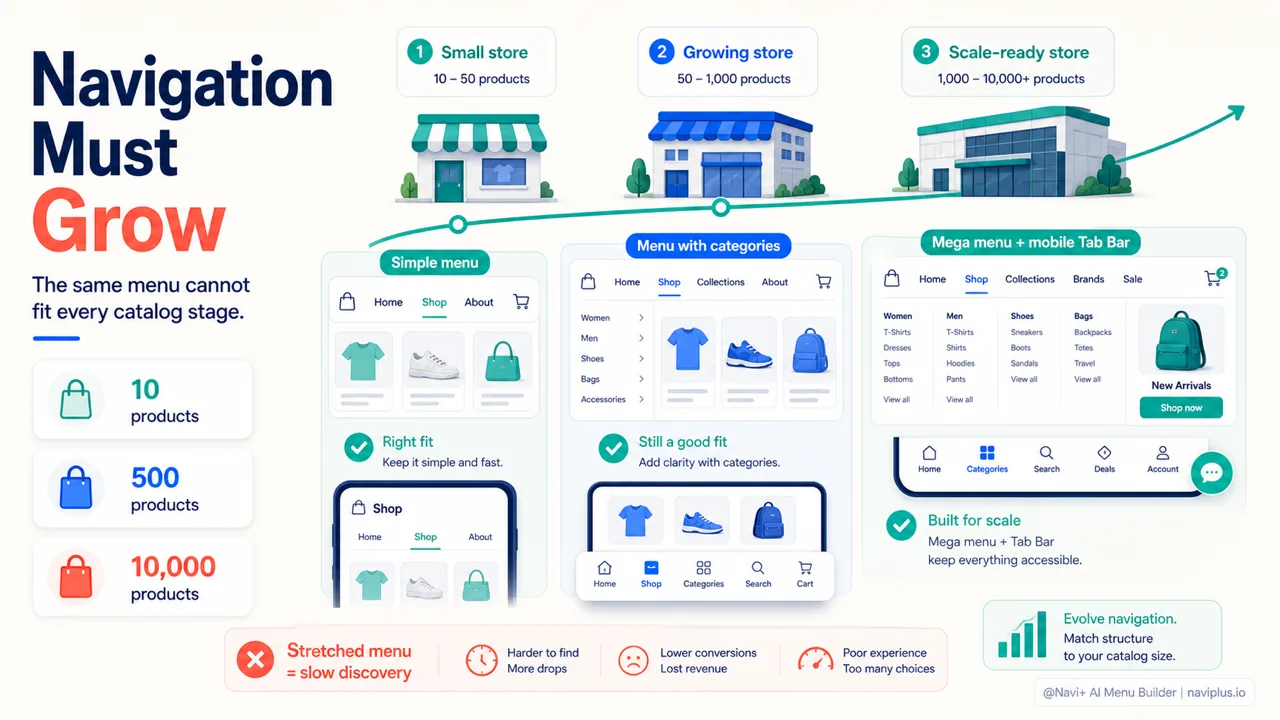
Most stores set up their menu once — when they first open — and then leave it untouched for years. But a store doesn’t stand still. The catalog grows, traffic rises, you add new collections, you open new markets. And the menu stays exactly as it was on day one. When navigation can’t keep up with how fast the store is growing, the experience slowly gets worse — even though the products, the photos, and everything else are better than before.
This article is about navigation by store stage: the same store needs a different kind of navigation at each point in its growth. More menu is not better, and you don’t always need a grand mega menu. What matters is recognizing where your store is right now, and whether your current menu structure still fits it. Below, we walk through three stages, with the signs to watch for and what to do at each one.
- Navigation should match the store stage, not the day-one setup.
- Small catalogs need simplicity; scaled catalogs need structure and speed.
- Revisit the menu whenever the catalog, theme, or market changes.
Why navigation has to change as your store grows
A menu is not a “set it once and you’re done” thing. It’s the frame that guides buyers from the homepage to the exact product they need. When a store has 10 products, that frame is very simple. When a store has 10,000 products and dozens of categories, the same old frame leaves buyers lost.
What’s worth noting is that most purchase decisions happen on a phone, where screen space is very tight. According to research by Steven Hoober (cited by Smashing Magazine), about 49% of users hold their phone with one hand and operate it mostly with their thumb. The easiest area for the thumb to reach is the bottom half of the screen — which is why a bottom navigation bar (tab bar) is becoming more and more common on mobile.
On the other hand, hiding navigation has a cost too. The Nielsen Norman Group concluded that hiding the main menu (like a hamburger) makes it harder for users to find navigation, lengthens the time it takes to act, and increases the feeling that the site is hard to use. That doesn’t mean a hamburger menu is wrong — it means every way of displaying a menu has its own cost, and that cost changes with the size of the store.
Once you understand this, dividing navigation by stage becomes much easier to picture.
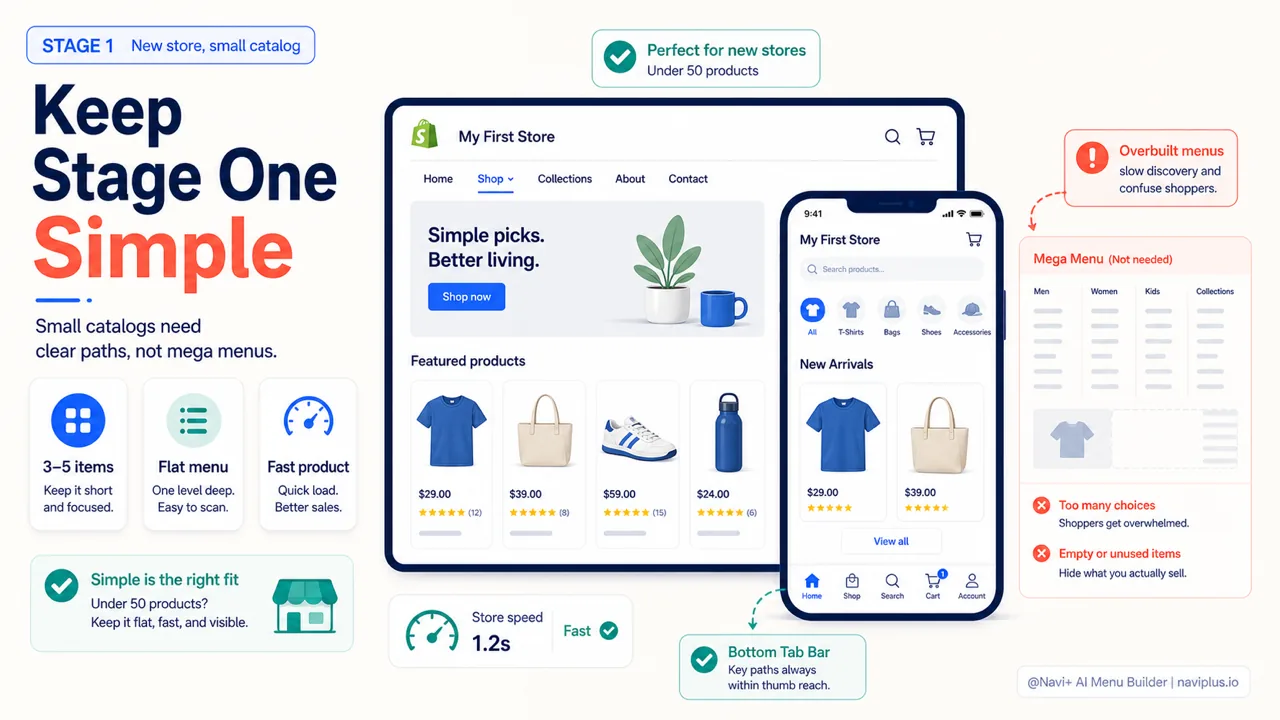
Stage 1 — New store, small catalog (under 50 products)
At this stage, the biggest enemy isn’t too little menu — it’s overdoing it. New stores often copy the structure of big brands: multi-column mega menus, dozens of sub-items, nested dropdowns. While the whole store has only thirty products.
With a small catalog, buyers don’t need a complex classification system. They need to see the few main choices right away and get there as fast as possible. A flat, low-item, clear menu almost always beats a multi-level one.
A few principles worth keeping at this stage:
- Keep the number of main items to a minimum — usually 3 to 5 is enough (for example: Products, Collections, About, Contact).
- Favor menus shown openly on desktop instead of hiding them in multi-level dropdowns.
- On mobile, consider a bottom tab bar for the 3–4 most important actions (Home, Search, Cart, Account) instead of cramming everything into a hamburger.
- Don’t create categories for things that don’t exist yet. An empty “Collections” item only disappoints buyers.
The goal is to get buyers to a product as quickly as possible, and to keep the store looking tidy and true to its real size — not showing off a structure the content hasn’t yet filled.
Deep-diveRead the full guide → Stage 1 — New store, small catalog (under 50 products)
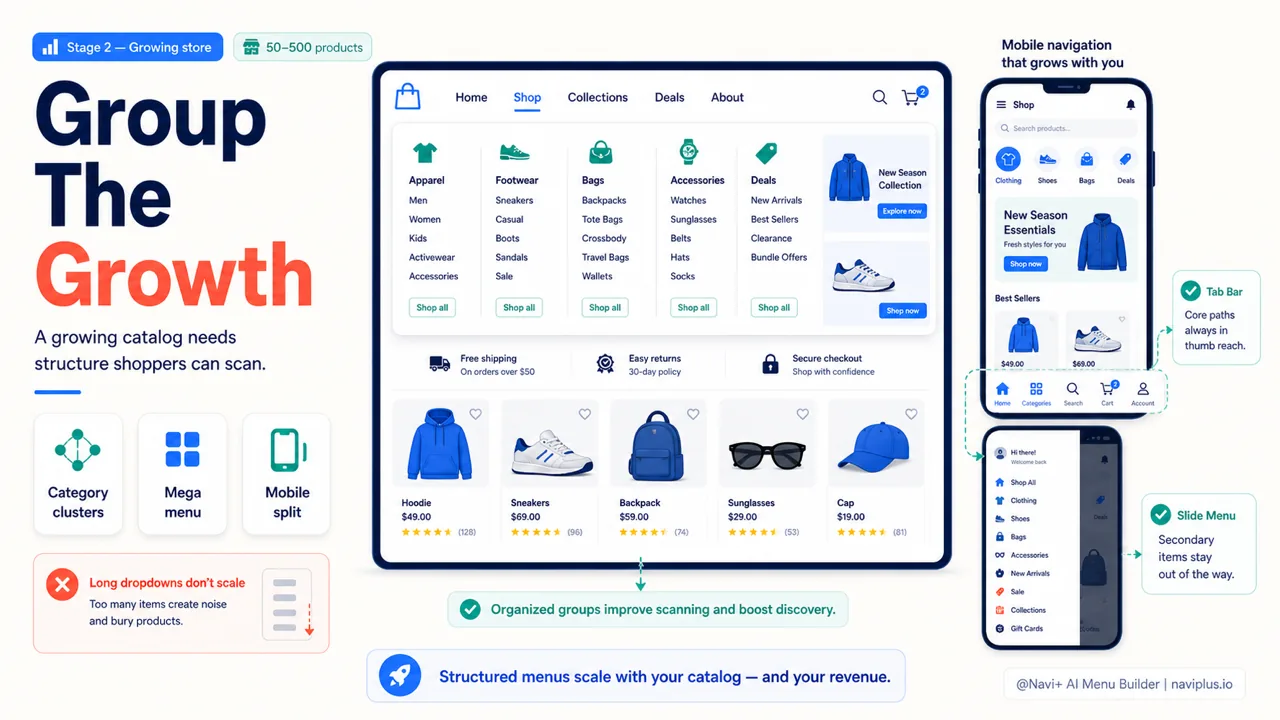
Stage 2 — Growing store (50–500 products)
This is the stage where the menu starts to “creak” without many store owners noticing. The catalog has grown enough that a flat menu can no longer carry it, but not so large that you’re forced to rethink the whole architecture. This middle ground is the easiest to overlook.
A common sign: you keep adding new collections but don’t know where to put them, so you pile them all into one ever-longer “Products” item. Or buyers have to scroll through an endless dropdown list to find what they need. At this point, grouping categories becomes necessary.
This is also when a mega menu starts to earn its place on desktop — not to show off, but to display many categories at once in an organized way, by column, instead of making buyers hunt through one dropdown at a time. On mobile, the tab bar should still hold the core actions, while category browsing can live inside a clearly grouped slide menu.
A few things worth doing as the catalog expands at this stage:
- Group collections into clusters that make sense to buyers (by product line, by occasion, by audience), rather than by how the store organizes things internally.
- Consider a mega menu on desktop when the number of categories exceeds what a normal dropdown can convey at a glance.
- Separate the mobile and desktop configurations. What works on a wide screen may not work on a narrow one, and vice versa.
- Keep an eye on speed. The more items, images, and dropdowns in a menu, the higher the risk of slowing the page down — the next section explains why this matters.
Stage 2 is the time to invest in a serious menu tool, because you’ll be making many more edits as the catalog keeps growing.
Deep-diveRead the full guide → Stage 2 — Growing store (50–500 products)
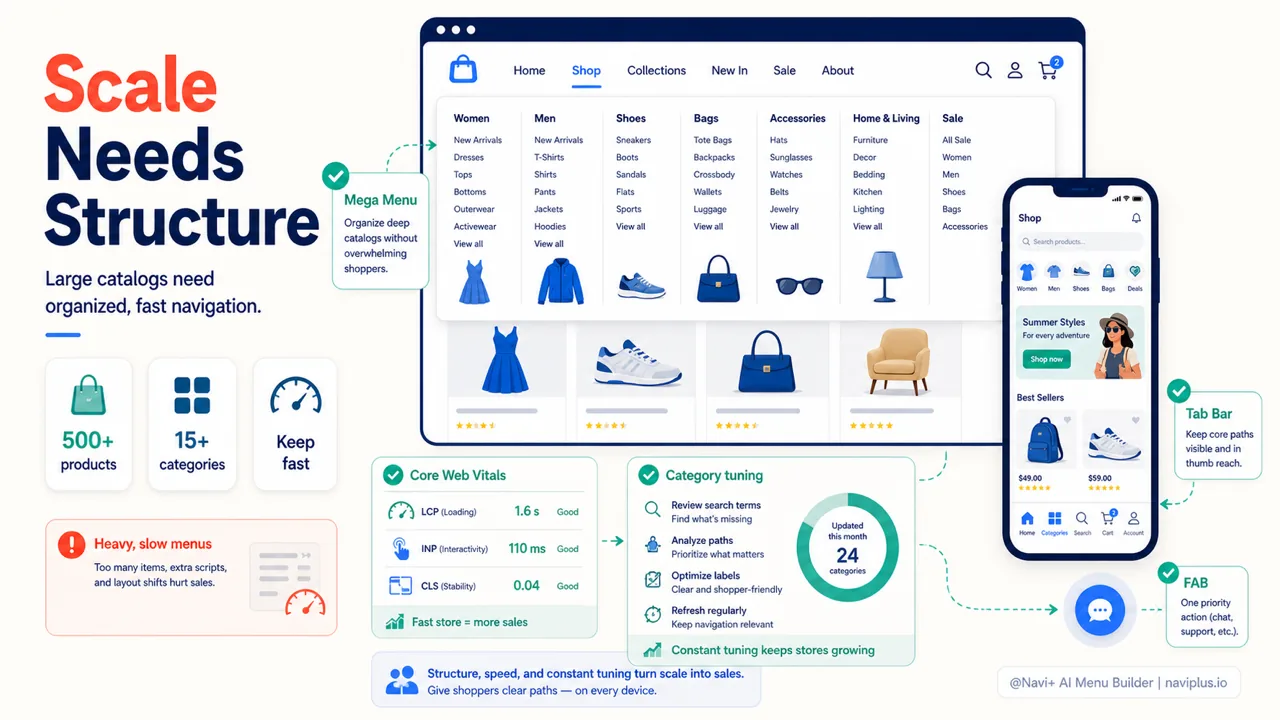
Stage 3 — Scaled store (500+ products, 15+ categories)
Once a store has scaled, navigation is no longer about convenience — it directly affects revenue. With hundreds or thousands of products spread across dozens of categories, if buyers can’t find what they want within a few seconds, they leave. According to the Baymard Institute, the average cart abandonment rate in ecommerce is around 70%; confusing navigation only pushes that number higher.
At this scale, a multi-column mega menu is almost a requirement on desktop, and the mobile tab bar has to be thought through carefully because mobile traffic usually makes up the larger share. These two environments need separate configurations — you can’t just shrink the desktop menu and call it the mobile menu.
But the biggest problem once you’ve scaled is speed. A complex menu with many images and items, if built carelessly, will slow the page down. Google measures page-load experience through the Core Web Vitals, with these “good” thresholds: LCP under 2.5 seconds, INP under 200 milliseconds, CLS under 0.1. A heavy menu can push all three out of range — hurting both the experience and SEO. At this stage, a beautiful menu that slows the page down is a failed menu.
The table below sums up how navigation needs change at each stage:
| Stage | Size | Navigation focus | Main risk |
|---|---|---|---|
| 1 — New store | Under 50 products | Simple, flat, fast to product | Overcomplicating it |
| 2 — Growing | 50–500 products | Group categories, start a mega menu | Letting the menu balloon out of control |
| 3 — Scaled | 500+ products | Mega menu, separate tab bar, keep it fast | A heavy menu slowing the page |
One thing easily overlooked: at this scale, you also have to make sure the menu doesn’t break when you switch themes or when the catalog keeps changing. This is where a dedicated tool — like Navi+, which lets you configure mobile and desktop separately, keeps the menu intact when you switch themes, and is optimized not to slow the page down — saves you a lot of time and risk.
Deep-diveRead the full guide → Stage 3 — Scaled store (500+ products, 15+ categories)
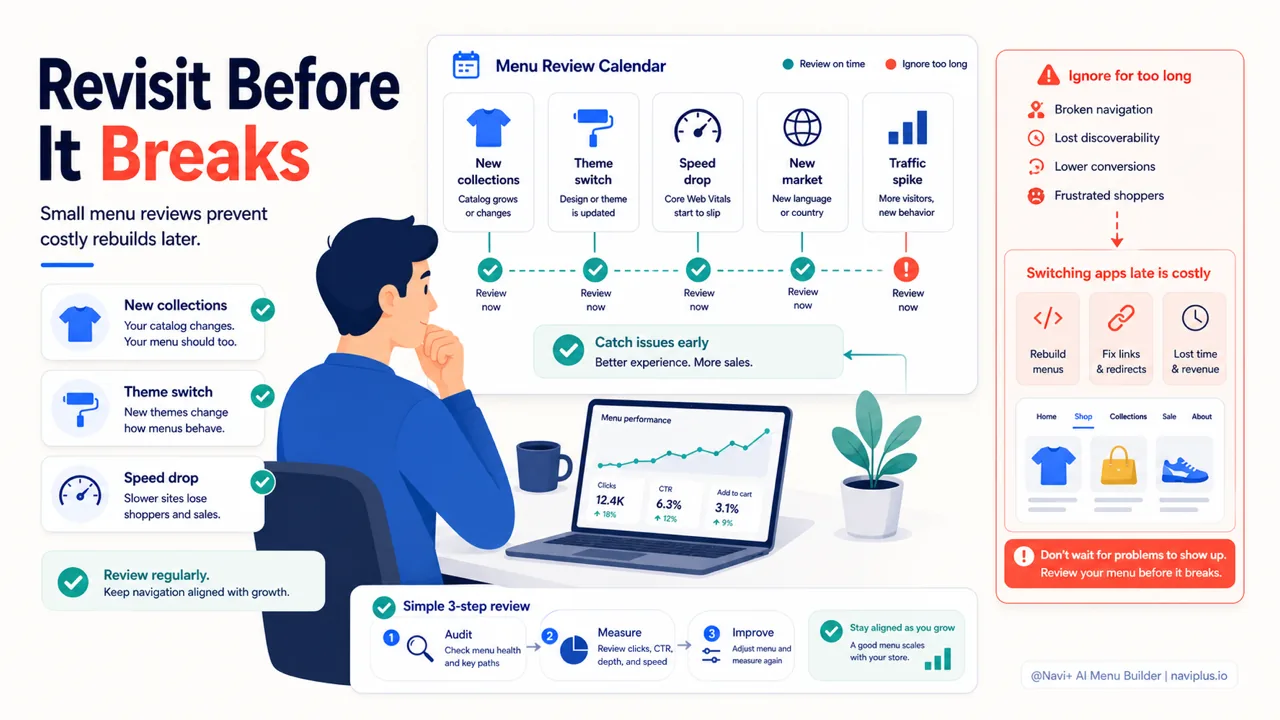
When to revisit your menu — and why switching apps after you’ve scaled is costly
A more practical question than “what does the ideal menu look like” is “when should I touch my menu.” A menu rarely breaks all at once — it gets worse slowly, and you grow so used to it that you no longer see the problem.
A few signs it’s time to take another look:
- You’ve just added a batch of new collections and the menu is starting to look messy.
- The data shows mobile users use the menu far less than desktop users.
- You’re about to switch themes, launch a new product line, or open a new market.
- Page speed has dropped and you suspect the menu is part of the cause.
There’s one trap worth calling out on its own: switching menu apps after the store has scaled is very costly. While the store is small, removing one app and installing another takes just a few minutes. Once you have dozens of meticulously configured categories, everything tightly tied to the theme and the catalog, moving to a different tool means rebuilding almost from scratch — with the risk of the interface breaking right in the middle of your selling season.
Every app you add to a store can affect its speed. That’s why choosing a menu tool you can use for the long haul, instead of having to swap it out midway, is worth considering early on.
Where to start
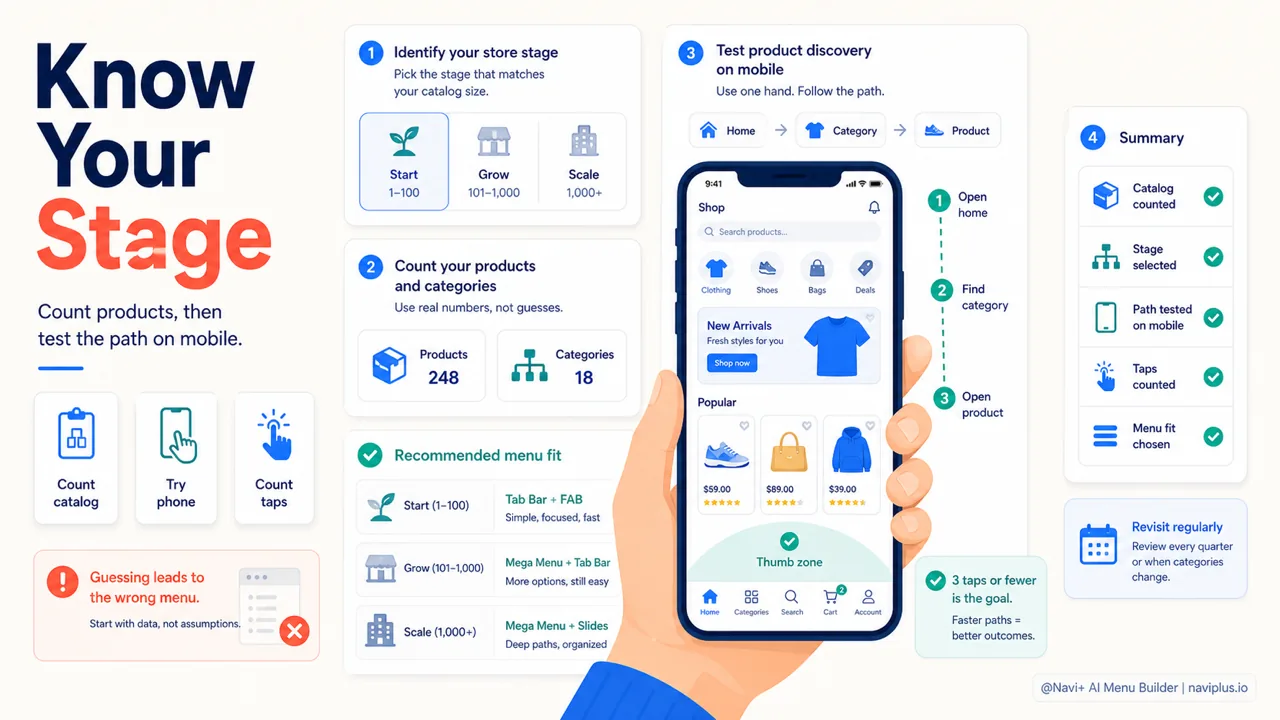
Stage checkCount products and categories first, then test how many taps it takes to reach one product.
If you’ve never thought about your menu in stages, these two steps are enough to begin. One, figure out which stage your store is in — based on the number of products and categories, not on gut feeling. Two, open your store on your phone, try to find a specific product as if you were a stranger shopping, and see how many taps it takes.
Usually, just doing that is enough to see right away whether your current menu still fits the store.
There’s no stage where navigation “doesn’t matter” — the only difference is how much complexity you need. A small store needs a lean menu; a scaled store needs one that’s organized and fast enough. Using a tool that works across all three stages means you don’t have to switch apps every time the store grows — and that’s what Navi+ aims for. What you can do today is simple: know where your store is, then check whether your current menu setup is still keeping up with it.
Explore the topics
This guide links out to focused articles — dive deeper on each.