The hamburger menu — three stacked lines in the corner of the screen — goes back to the early days of the mobile web. Screens were small back then, connections were slow, and design options were few. Tucking everything behind one small icon was a reasonable way to save room. It wasn’t wrong. But using it for every situation is where it goes wrong.
If you run a store with more than ten categories, mobile navigation is often a quiet source of lost revenue that few people notice. Customers arrive on a phone, they want to browse, but the path to your categories sits behind an icon they have to tap to open. This article looks at why the hamburger menu runs out of steam on ecommerce mobile, and at more practical alternatives: the Tab Bar, the thumb zone, and how to mix several kinds of menus to match the way people actually hold their phones.
- Hamburger menus hide the paths shoppers need most.
- The thumb zone pushes important navigation toward the bottom.
- Tab Bar plus Slide Menu is often the practical mobile setup.
The real problem with the hamburger menu on ecommerce mobile
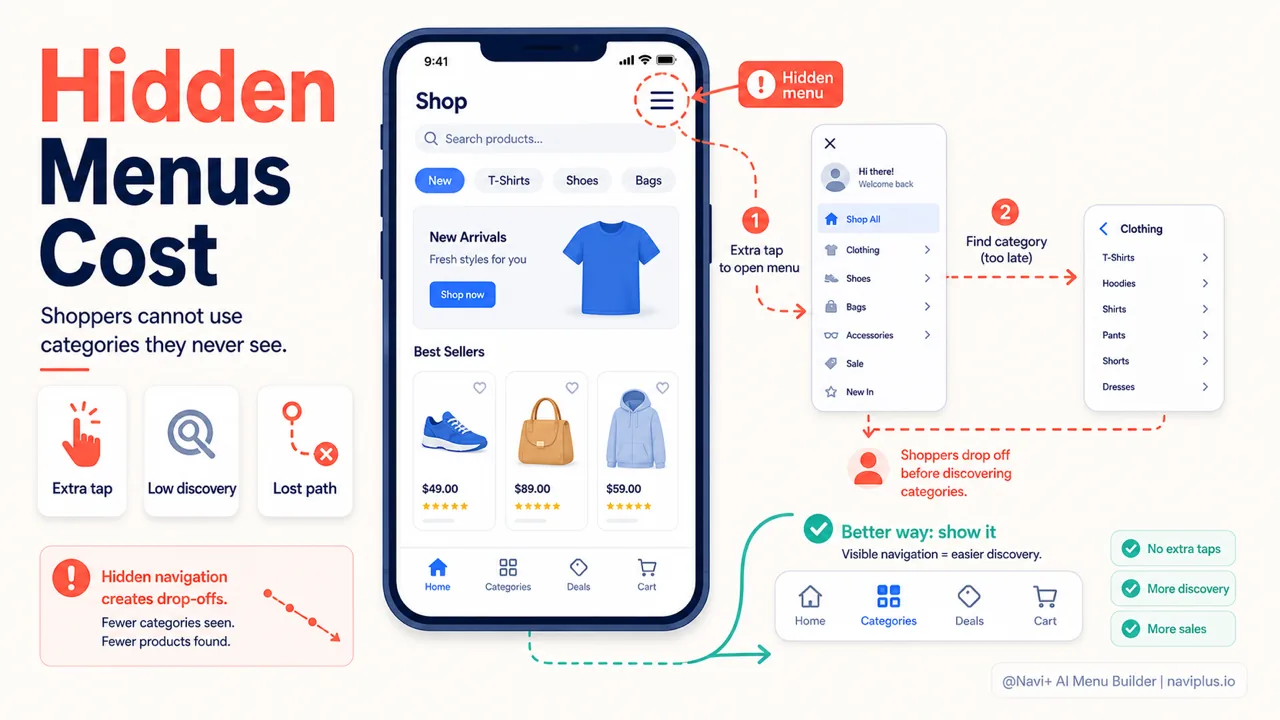
The biggest problem isn’t that the hamburger menu looks bad — it’s that it hides your navigation. Customers have to tap before they know what’s inside. That sounds like a small action, but multiplied across thousands of visits, it creates a real gap between “seeing your categories” and “not seeing them.”
The Nielsen Norman Group has measured this. In a study of 179 users across six websites, they found that hiding the main navigation cut the chance that people noticed and used it by almost half, while also lengthening task completion times and increasing how difficult the experience felt. The result held on both phones and desktop.
Another detail worth weighing: the three-line icon is familiar to most people today, but according to NN/g it still isn’t obvious to everyone, especially less tech-savvy users. If your customers aren’t all young, this is worth keeping in mind.
On ecommerce, the cost of one extra step is higher than people assume. The average cart abandonment rate sits around 70% — the Baymard Institute puts it at 70.22% based on 50 studies. Most of that happens at checkout, but the journey leading up to it plays a part too. Every small obstacle along the way sheds a few more customers. A hidden menu is one of the easiest obstacles to remove.
This doesn’t mean the hamburger is always bad. For a simple blog or a landing page with just a few links, it’s still fine. The trouble is that an ecommerce store is rarely that simple.
Deep-diveRead the full guide → The real problem with the hamburger menu on ecommerce mobile
Thumb zone — understanding how people hold their phones
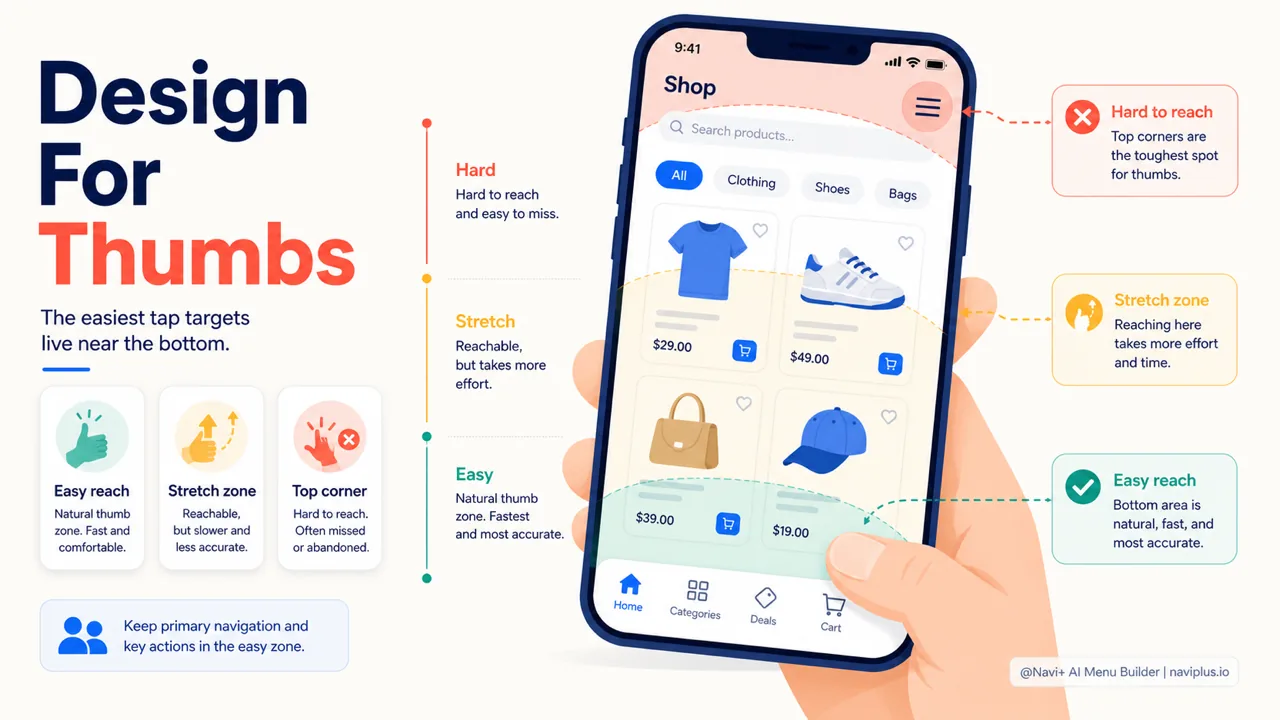
To know where to put your menu, you first have to understand how people hold their phones. The concept of the thumb zone comes from interface expert Steven Hoober, who proposed it after observing more than 1,300 interactions in real-world settings.
The core finding is simple: most actions on a phone are done with the thumb. Hoober recorded that roughly half of people held their phone in one hand and let the thumb do all the tapping. And the thumb has physical limits — it reaches some places easily, has to stretch for others, and can barely reach a few without changing grip.
People usually split the screen into three zones:
- Easy to reach: the bottom and middle of the screen, where the thumb rests naturally. This is where the important actions belong.
- Stretch to reach: the sides toward the middle of the screen, reachable but with a bit of effort.
- Hard to reach: the top corners, which usually require switching hands or using two hands.
Now look again at the hamburger menu: it sits right in the top corner — the hardest spot to reach. That means the single most important navigation element is placed where the thumb has the most trouble reaching it. The bigger the phone screen, the more obvious that distance becomes.
This is the underlying reason for moving the menu to the bottom. Not because the bottom is “prettier,” but because the bottom falls within the thumb’s natural reach. Once you understand this point, the design choices that follow are much easier to explain.
Deep-diveRead the full guide → Thumb zone — understanding how people hold their phones
Tab Bar — the main alternative
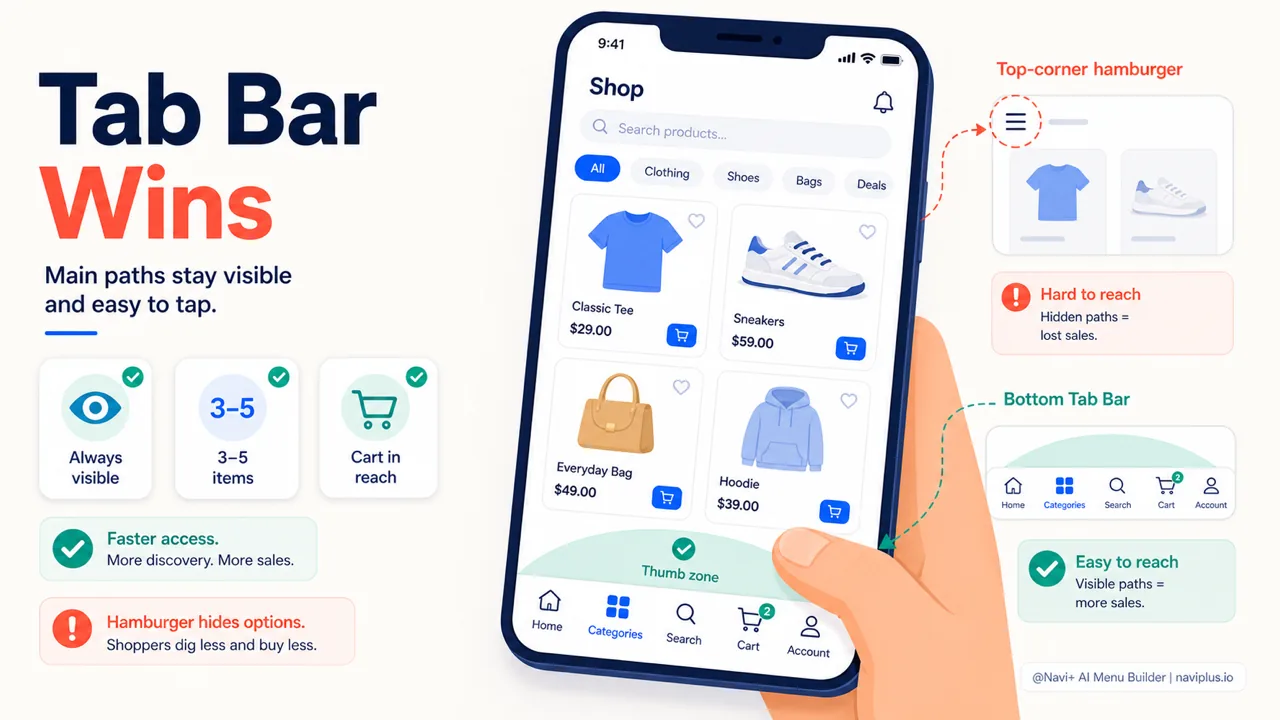
A Tab Bar is a fixed navigation bar at the bottom of the screen, with a few icons always visible. If you use a banking app, a ride-hailing app, or a social network, you’re already familiar with it. Home, search, cart, account — each gets its own slot, always visible, always within thumb’s reach.
The strength of the Tab Bar comes down to two ideas: it’s already visible and it’s within reach. Customers don’t have to tap to open it to know what’s there. The main paths are laid out right in front of them. And because it sits at the bottom, it lands squarely in the easy-to-reach part of the thumb zone.
One rule of thumb worth remembering: the Tab Bar works best with 3 to 5 items. Both Google’s Material Design and Apple’s Human Interface Guidelines recommend this. Beyond five items, the tap targets sit too close together and the thumb easily hits the wrong one. Four items is often the comfortable balance point for most stores.
A quick comparison of the two approaches:
| Hamburger menu | Tab Bar | |
|---|---|---|
| Visibility | Hidden until tapped | Always visible |
| Position on screen | Top corner (hard to reach) | Bottom (easy to reach) |
| Number of options it suits | Many, in a list | 3–5 main paths |
| Best suited for | Secondary, rarely used items | The most important paths |
One thing to watch when switching to a Tab Bar: don’t let it slow the page down or shift the layout. Google sets fairly clear Core Web Vitals thresholds — LCP under 2.5 seconds, INP under 200 milliseconds, CLS under 0.1. A fixed bar at the bottom, if it’s added carelessly, can cause layout shifts (affecting CLS) or weigh the page down. So when choosing a tool, favor one that cares about load speed.
This is also where Navi+ helps: it builds a Tab Bar by drag-and-drop, with no code, configured separately for mobile, and built so it won’t drag down your Core Web Vitals scores.
Deep-diveRead the full guide → Tab Bar — the main alternative
Combining Tab Bar + Slide Menu
At this point you might wonder: if a Tab Bar only holds 3–5 items, where do the dozens of other categories go? This is a common misunderstanding. The Tab Bar doesn’t replace your entire navigation — it only handles the most important paths.
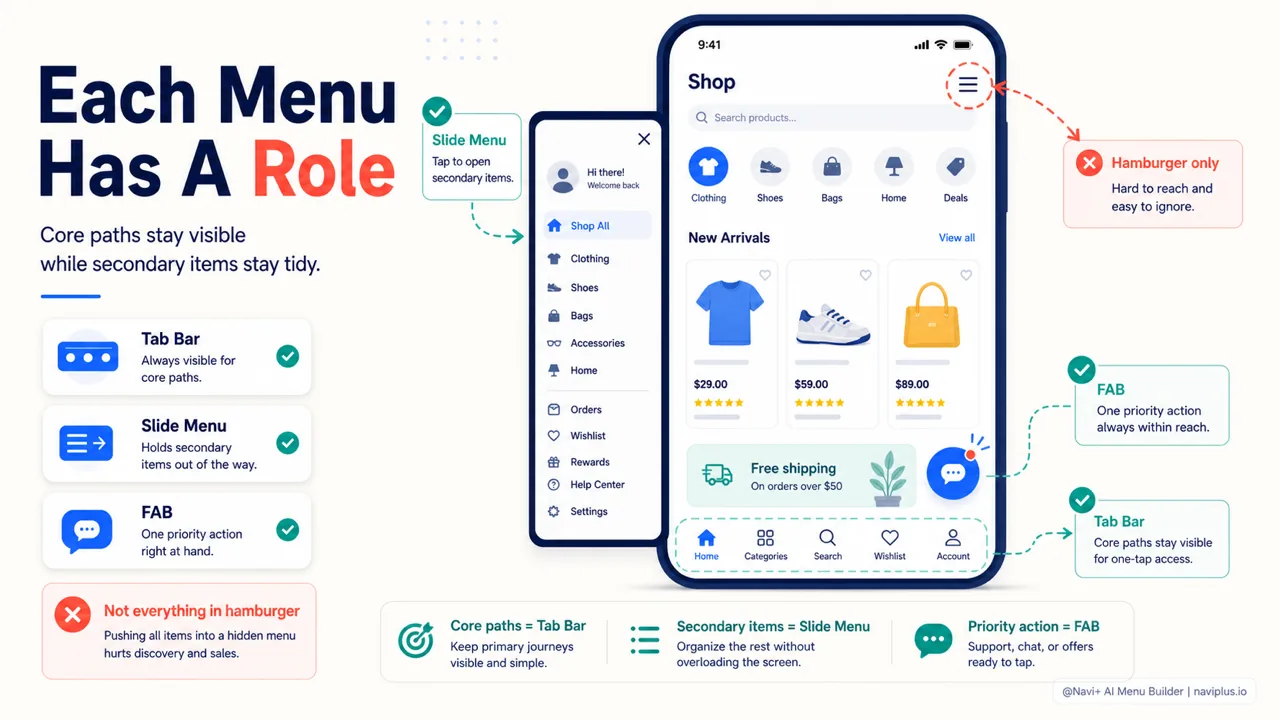
The practical approach is to combine several kinds of menus, each doing one job:
- Tab Bar holds the 3–5 core paths: home, categories, search, cart, account.
- Slide Menu (the expanded hamburger, really) holds the rest — the full category list, policy pages, contact. These items matter, but they aren’t needed every time.
- FAB (floating action button) is for one standout action if your store needs it, such as support chat or a quick add-to-cart.
Seen this way, the hamburger isn’t erased — it’s given the right role. Its job is to hold secondary information, not to carry the whole navigation. The main paths move down to the Tab Bar, where the thumb reaches them easily and the eye sees them right away.
The tricky part of this combination is having to configure mobile and desktop separately. On desktop, a Mega Menu spread across several columns still makes sense, because a mouse cursor has no “hard-to-reach zone.” But on mobile, that same menu becomes overwhelming. Two environments, two different logics.
Navi+ can do all these menu types in one place — Tab Bar, Slide Menu, Mega Menu, FAB, Grid Menu — and lets you configure mobile and desktop separately. The menus also stay in place when you change themes, so you don’t have to rebuild from scratch every time you switch your interface.
Deep-diveRead the full guide → Combining Tab Bar + Slide Menu (and the role of the FAB)
Where to start
If you have to pick one thing to do first, open your store on your own phone and walk through a purchase one-handed. Hold the phone normally, don’t switch hands. Notice how far the thumb has to stretch to get into a category.
A few questions to check yourself:
- Is the most important path already visible, or do you have to tap to open it before you can see it?
- How many taps does a customer need to reach the category they want?
- Are the most-used buttons within comfortable thumb reach?
- Does the menu slow the page down or shift the layout as it loads?
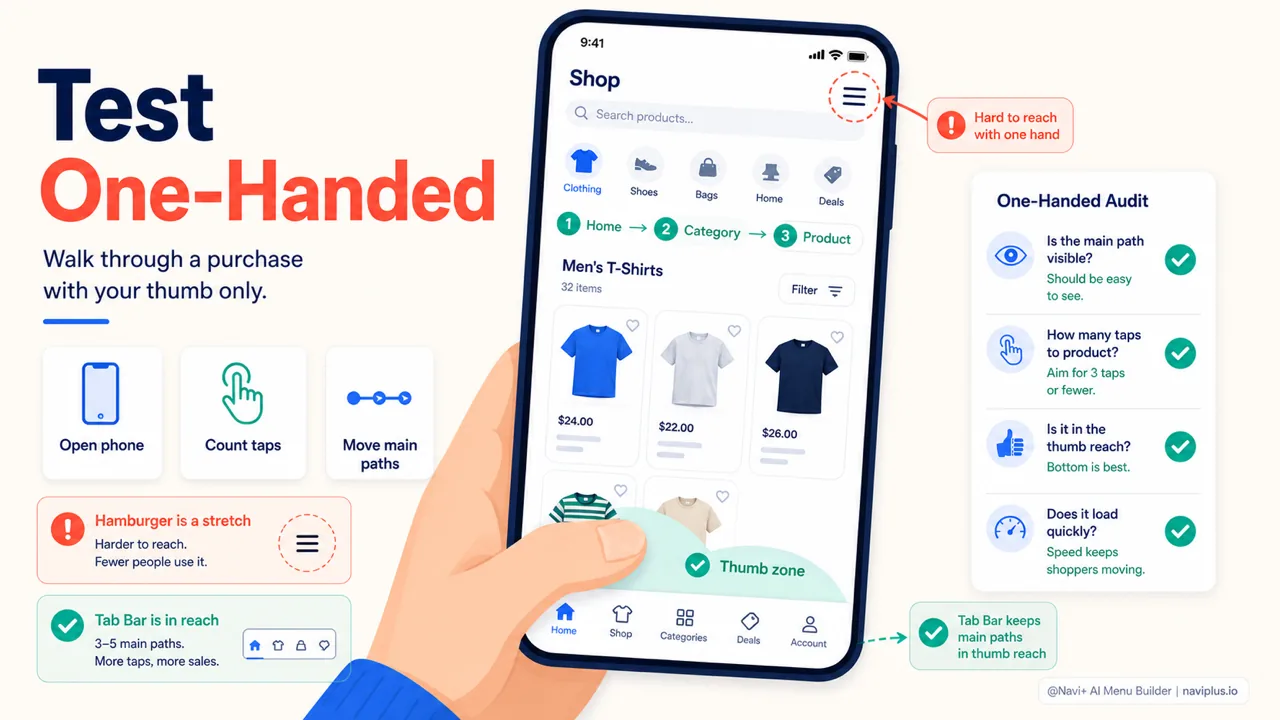
One-hand testOpen the store on your phone and walk through a purchase without switching hands.
You don’t need to redo everything at once. Usually, just moving the 3–5 main paths down into a Tab Bar and gathering the rest into a Slide Menu is enough to feel the difference. This is the kind of change that takes little effort but touches the everyday experience of your mobile customers directly.
The hamburger menu isn’t the enemy. It still has a place for secondary, rarely used items. But on a mobile-first store like today’s, letting it carry the entire navigation is no longer the best default. Moving the important paths from the hamburger to a Tab Bar is one of the cheapest, most worthwhile improvements you can make to your store.
Explore the topics
This guide links out to focused articles — dive deeper on each.