A store owner sees a big brand using a Mega Menu that looks polished, so they copy it over to their own store as-is. The problem is that store only sells twenty products, yet the menu is busier than a full marketplace. On the other end, there are stores selling hundreds of categories that settle for a single plain horizontal menu bar — customers arrive, scroll around, and never quite grasp what the store actually sells.
Both make the same mistake: they choose a menu based on what they like to look at, not on what the store truly needs. There is no single best menu type for every store. Choosing the right Shopify menu type depends on how many products you have, how customers shop, and how many of them are on a phone. This article pulls together what I have learned after running and observing many stores — not to tell you which type is best, but to help you see for yourself which one fits.
- Menu choice starts with store context, not taste.
- Mobile and desktop often need different patterns.
- The best menu solves one clear shopping bottleneck.
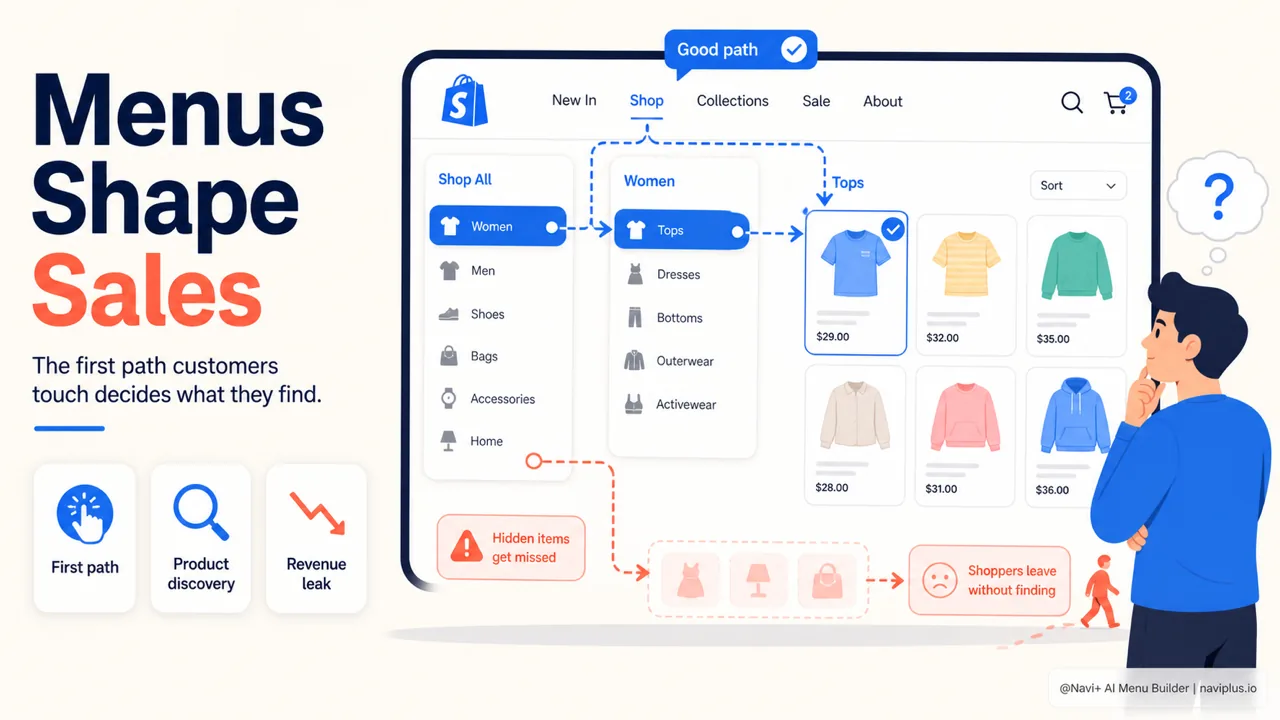
Why menus matter more than you think
The menu is what customers touch before they even look at a product. If they can’t find their way, they don’t buy. It sounds obvious, but it ties directly to a number few people pay attention to.
According to the Baymard Institute, the average cart abandonment rate in e-commerce is around 70%, drawn from dozens of studies and holding steady around that level for years. The menu is of course not the only cause, but some customers leave simply because they couldn’t find what they needed fast enough. Good navigation doesn’t create revenue, but bad navigation leaks it bit by bit.
There’s one more point: most store traffic now comes from phones. The way customers use a menu on a small screen is very different from on a computer, so a menu that works on desktop won’t necessarily work on mobile. This is why tools like Navi+ let you configure mobile and desktop separately instead of forcing one menu to serve both.
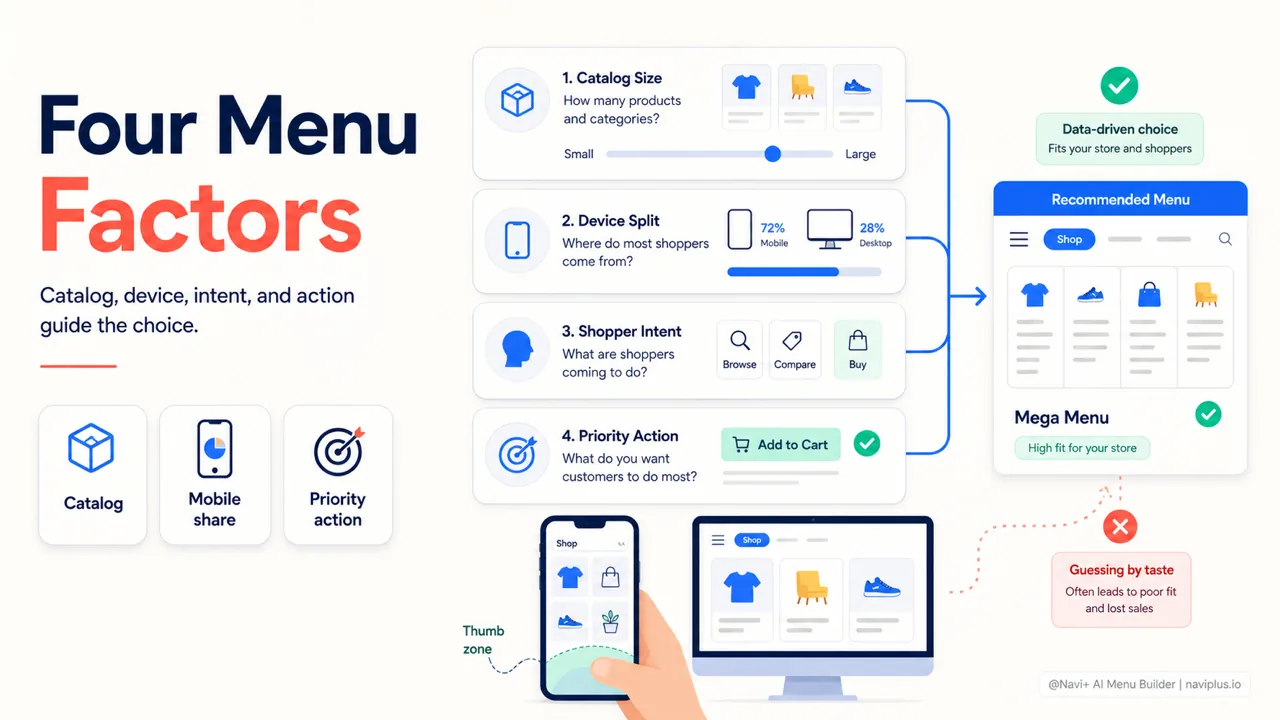
Four factors that decide which menu type you need
Before looking at each menu type, answer four questions about your own store. These four factors decide almost everything.
- Number of products and categories. A store with twenty products and a store with two thousand products need very different structures. The more categories you have, the more you need a way to let customers see the depth without feeling overwhelmed.
- Mobile share versus desktop. Open Google Analytics and actually look. If most customers are on phones, the mobile menu is the main menu, and desktop is secondary.
- How customers shop. Do they know exactly what they want and head straight for it, or do they come to browse and explore? Intentional buyers need shortcuts; browsers need prompts.
- The store’s most important action. Every store has one thing you most want customers to do — start a chat, open the cart, or jump to a promotion page. That action should always be within reach.
The second factor deserves a bit more. Steven Hoober’s research on more than 1,300 users found that most people operate their phone with their thumb, and the area the thumb reaches most comfortably is the lower half of the screen. That’s why a button or navigation bar placed at the bottom usually gets tapped more than something tucked into the top corner.
Deep-diveRead the full guide → Four factors that decide which menu type you need
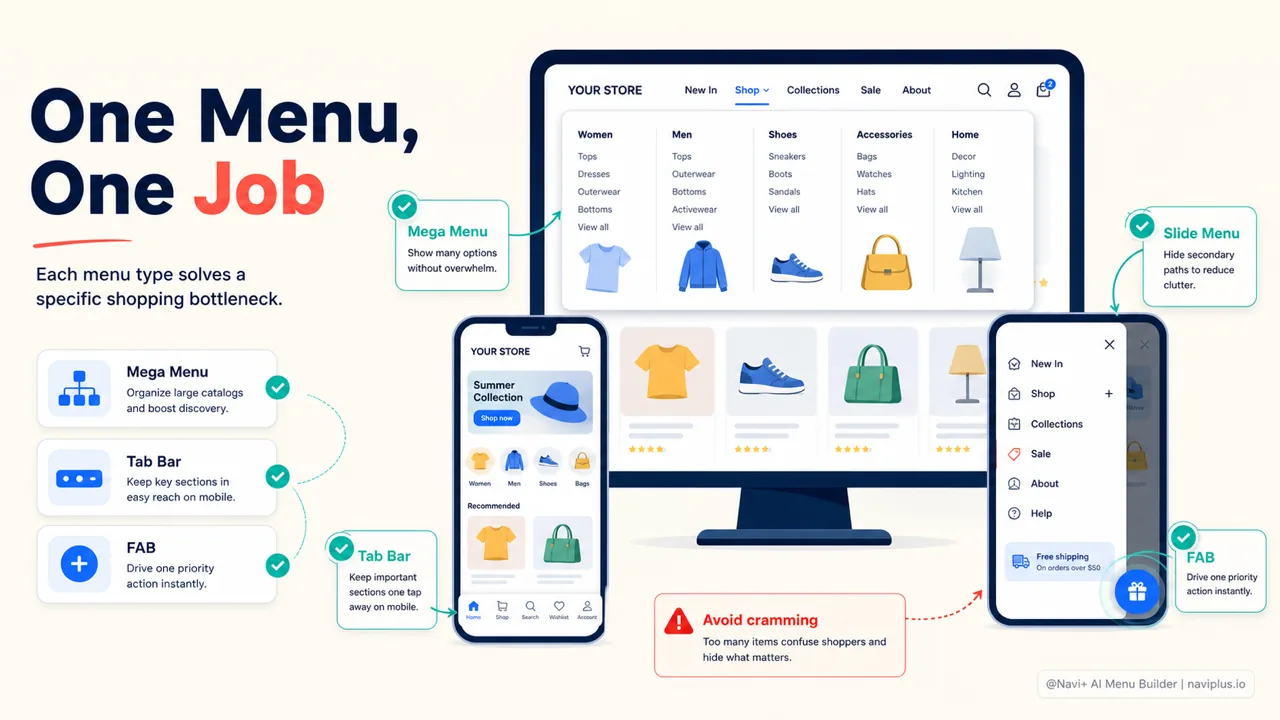
Each menu type solves one problem
Each menu type was born to solve a specific problem. Understand that problem and you’ll know when to use it.
Mega Menu is the wide drop-down on desktop that lays out many categories at once, often with images. It suits stores with many categories that need to show their depth. But for a store with few products, a mega menu only feels empty and needlessly complex.
Tab Bar is the navigation bar fixed to the bottom of the mobile screen, usually with three to five items like Home, Categories, Search, Cart, and Account. It sits right where the thumb reaches most easily, and it’s always visible so customers never have to go looking for it. This is one of the most reliable mobile layouts.
Slide Menu (hamburger) hides the entire menu behind a three-line icon that opens a sliding panel. The upside is that it’s tidy and can hold many items. The downside is that it hides everything. The Nielsen Norman Group has shown that hiding navigation noticeably reduces how often customers discover it — they use it less, and when they do, they use it later. A slide menu isn’t wrong, but don’t let your most important items hide inside it.
FAB (Floating Action Button) is the round button that floats, usually in a lower corner, for a single action — a phone call, a chat, opening a promotion. It’s strong when the store has exactly one thing it wants customers to do. Stack several floating buttons together, though, and they cover up the content.
| Menu type | Good when | Watch out when |
|---|---|---|
| Mega Menu | Many categories, mostly desktop | Store has few products |
| Tab Bar | High mobile traffic | Trying to cram in more than five items |
| Slide Menu | Many secondary items, want it tidy | Hiding an important item |
| FAB | One clear priority action | Placing several floating buttons at once |
Deep-diveRead the full guide → A look at each menu type: when to use it, when not to
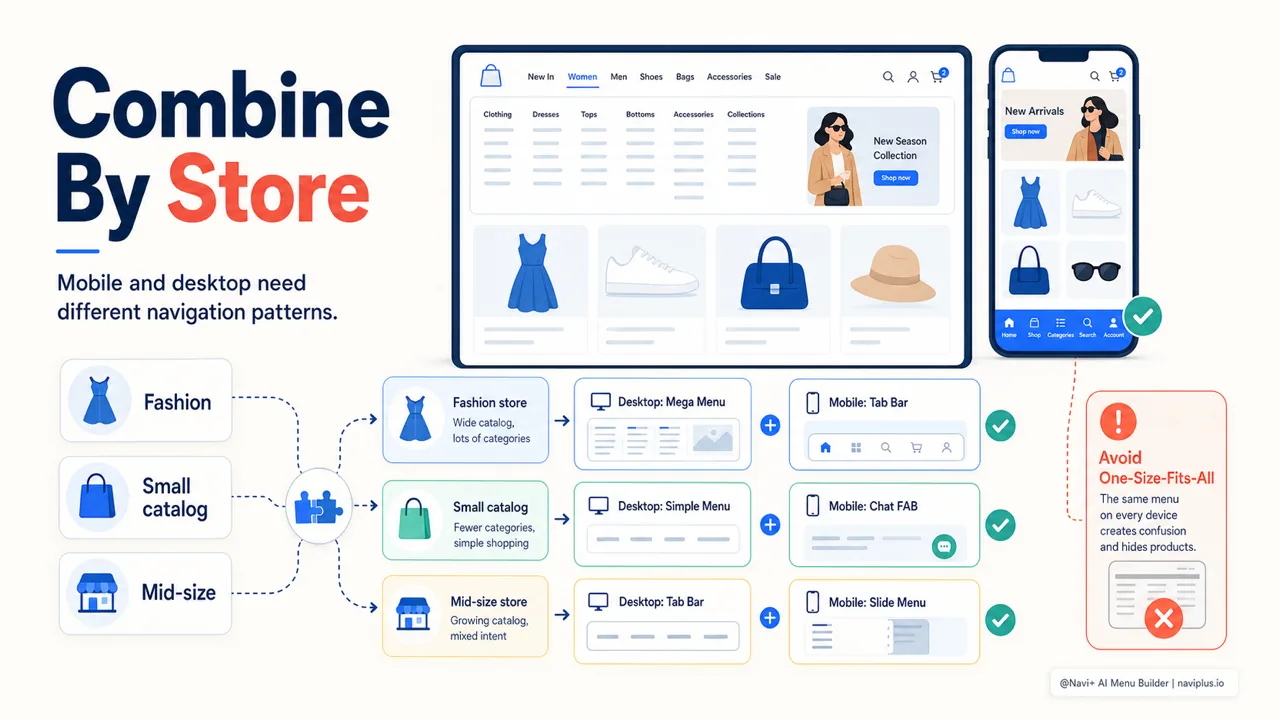
Combining menus for each kind of store
In practice, a store rarely uses just one menu type. The value lies in combining them — and combining them well depends on which group your store falls into.
A fashion store with many categories often uses a Mega Menu on desktop to lay out its product lines, and a Tab Bar on mobile so customers can always reach categories and the cart. Two different menus serving two different contexts, but the same category logic underneath.
A store with one or a few products is the opposite. A mega menu is overkill. A trim desktop menu bar plus a chat FAB on mobile is usually enough — because for this kind of store, the most important thing is answering questions to close the sale, not navigating through layers of categories.
A mid-size store, a few dozen to a few hundred products, usually lands in between: a moderate desktop menu, a mobile Tab Bar, and sometimes an added Slide Menu holding secondary items like policies, blog, and contact. The general rule: keep what customers need often visible, and hide what they only need occasionally.
What makes this combination feasible without touching code is that you configure each menu for each screen independently. With Navi+, you build a Tab Bar for mobile and a Mega Menu for desktop in the same place, drag-and-drop, no theme edits.
Deep-diveRead the full guide → Combining menu types for each kind of store
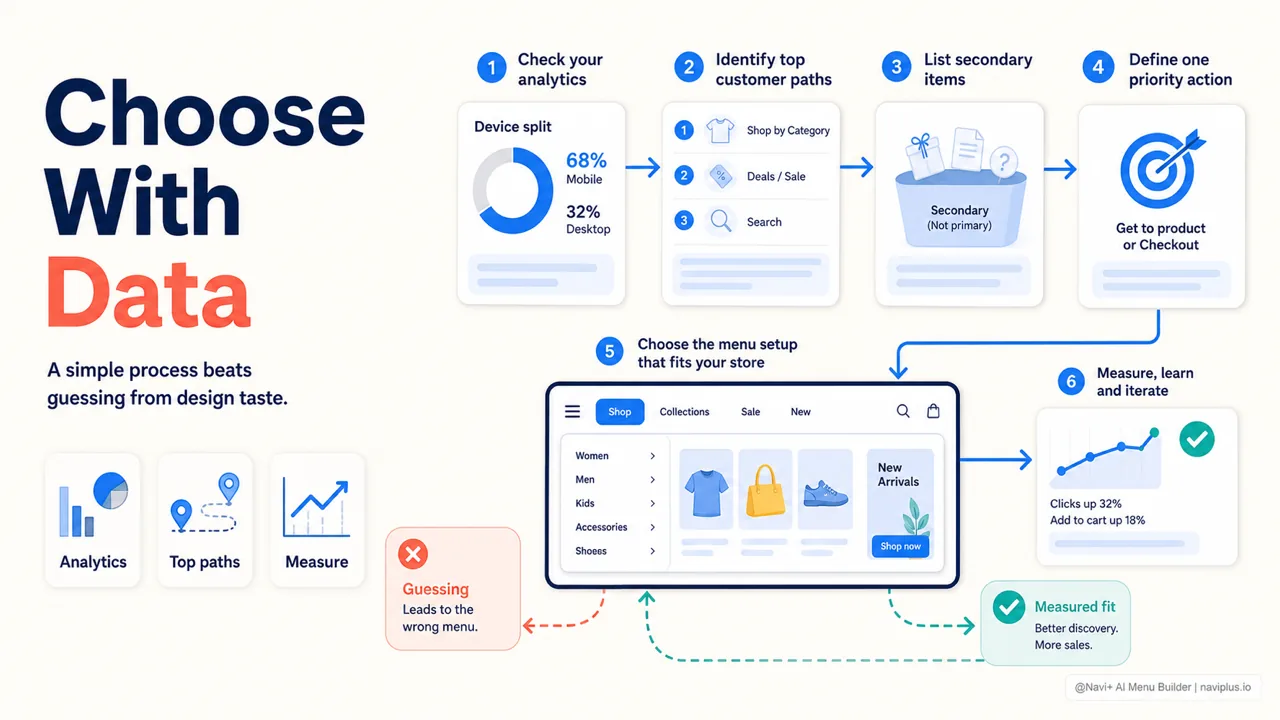
A process for deciding on the right menu
Instead of choosing on gut feel, there’s a simple sequence that takes you from data to a decision.
- Look at the numbers first. Open Analytics and note your mobile/desktop split and the pages customers visit most. This is your foundation, not guesswork.
- List what customers need to reach often. Usually just three to five things. Those are the candidates for a Tab Bar or main menu.
- Separate out the secondary items. Policies, blog, about — these can go in a Slide Menu or the footer, no need to take up expensive space.
- Pick one priority action. If there’s one clear thing you want customers to do, consider a FAB.
- Try it, then measure. Put the menu in, watch it for a week or two, and see whether customers tap what you expected.
The last step is important but often skipped: speed. Adding a menu that slows the page down does more harm than good. Google recommends the Core Web Vitals thresholds: LCP under 2.5 seconds, INP under 200 milliseconds, CLS under 0.1. A heavy menu that makes the page stutter, with the layout jumping as it loads, is enough to push you out of the good zone. When choosing a menu-building tool, pay attention to whether it’s optimized not to slow the page down — this is why Navi+ focuses on keeping menus light and earning the Built for Shopify badge.
Deep-diveRead the full guide → A practical process for deciding on the right menu
Where to start
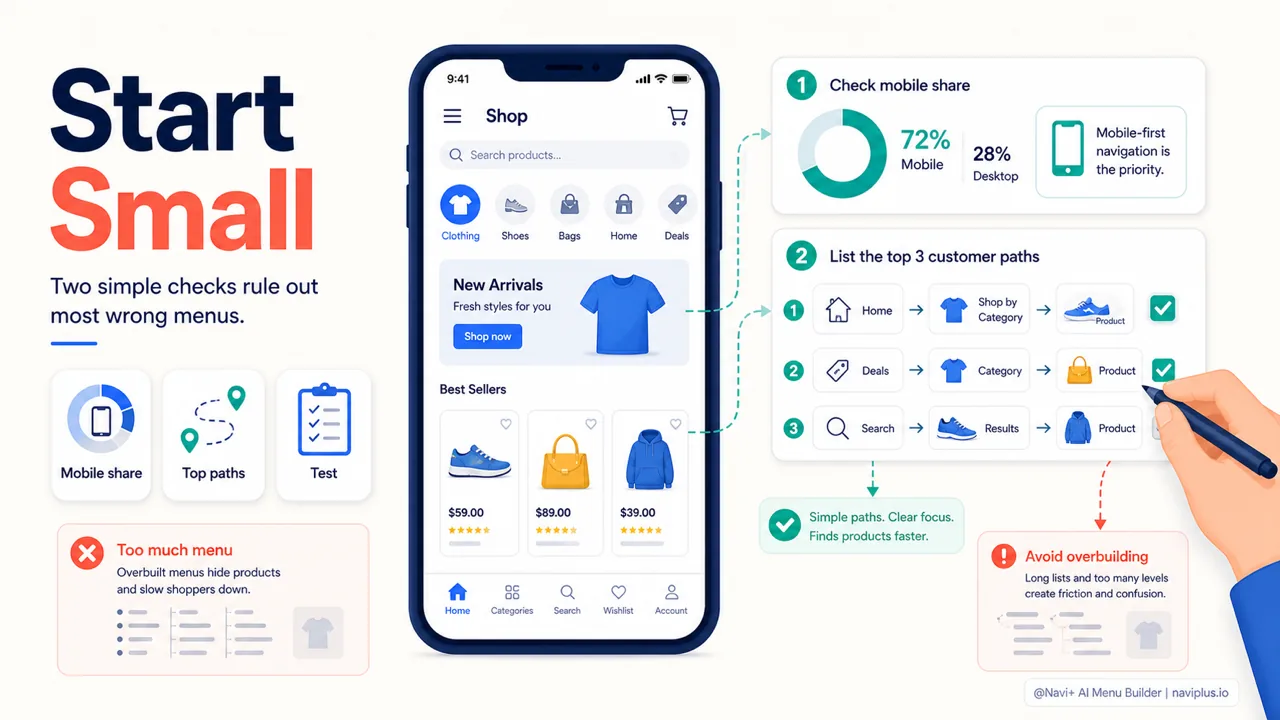
Start hereCheck mobile share first, then list the three paths customers need most often.
If you’re not sure how to begin, do the smallest thing first: open Analytics to check your mobile share, then write down the three things your customers most need to reach. Those two pieces of information alone rule out most of the wrong choices. The rest is trial and adjustment.
Don’t try to make it perfect from the start. A menu is something that should be refined gradually, based on how customers actually use the store — not on how you imagine they will.
In the end, a good menu is something customers never think about. They only notice it when it gets in their way. So the goal isn’t a menu that looks beautiful, but a menu customers use without thinking — they find what they’re looking for, then move on, never realizing the menu just helped them.
Explore the topics
This guide links out to focused articles — dive deeper on each.