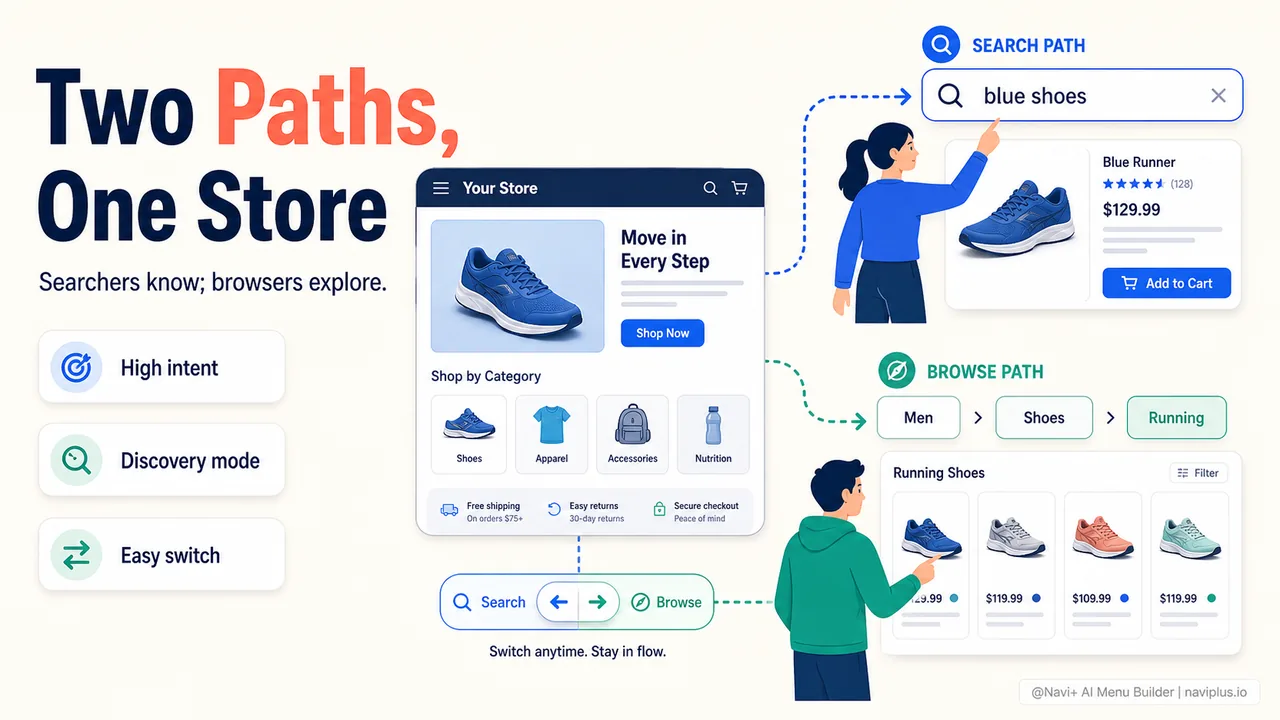
Visit any online store and you will see two types of shoppers doing two very different things. One type goes straight to the search bar, types “blue running shoes size 10,” and expects to land on exactly the right product. The other type opens the menu, taps into “Men’s Shoes,” scrolls through the collection, compares a few options, and slowly narrows down their choice.
These are not random behaviors. They reflect different shopping intents, and most stores do a better job of serving one group than the other. A store with a prominent search bar but a poor menu frustrates the browser. A store with an elaborate mega menu but a tiny, hidden search bar frustrates the searcher.
The best stores design for both. They make search fast and prominent for people who know what they want, and they make the menu clear and browsable for people who are still figuring it out.
- Searchers know what they want — they need speed and accuracy. Browsers are exploring — they need structure and discovery.
- On mobile, search should take over the full screen when tapped. The menu should be thumb-reachable.
- The two systems work best when they overlap: search within categories, search suggestions from the menu structure.
Two mindsets, one store
The difference between a searcher and a browser is not about demographics or device — it is about intent at the moment of visiting.
A shopper with high intent knows what they want. They have a specific product in mind, or at least a clear category and a set of requirements. They arrive at the store and want to get to that product as quickly as possible. For these shoppers, every second spent in the menu is wasted time. The search bar is the shortest path from “I want this” to “here it is.”
A shopper with low intent is exploring. They might have a vague idea — “I need new shoes” — but they haven’t decided on a specific product. They want to see what’s available, compare options, get inspired. For these shoppers, the menu is the product. It shows them the store’s structure, helps them understand what categories exist, and lets them drill down gradually. A search bar is less useful here because they don’t know the right keywords yet.
Most stores have both types of visitors, often in the same session. A shopper might start browsing the menu, see something interesting, then switch to search to find a specific variant. Or they might search first, not find what they want, and fall back to browsing. The navigation system needs to support both paths and the transitions between them.
Deep-diveRead the full guide → Category browse flow: how shoppers navigate without searching
Search: the shortcut for high-intent shoppers
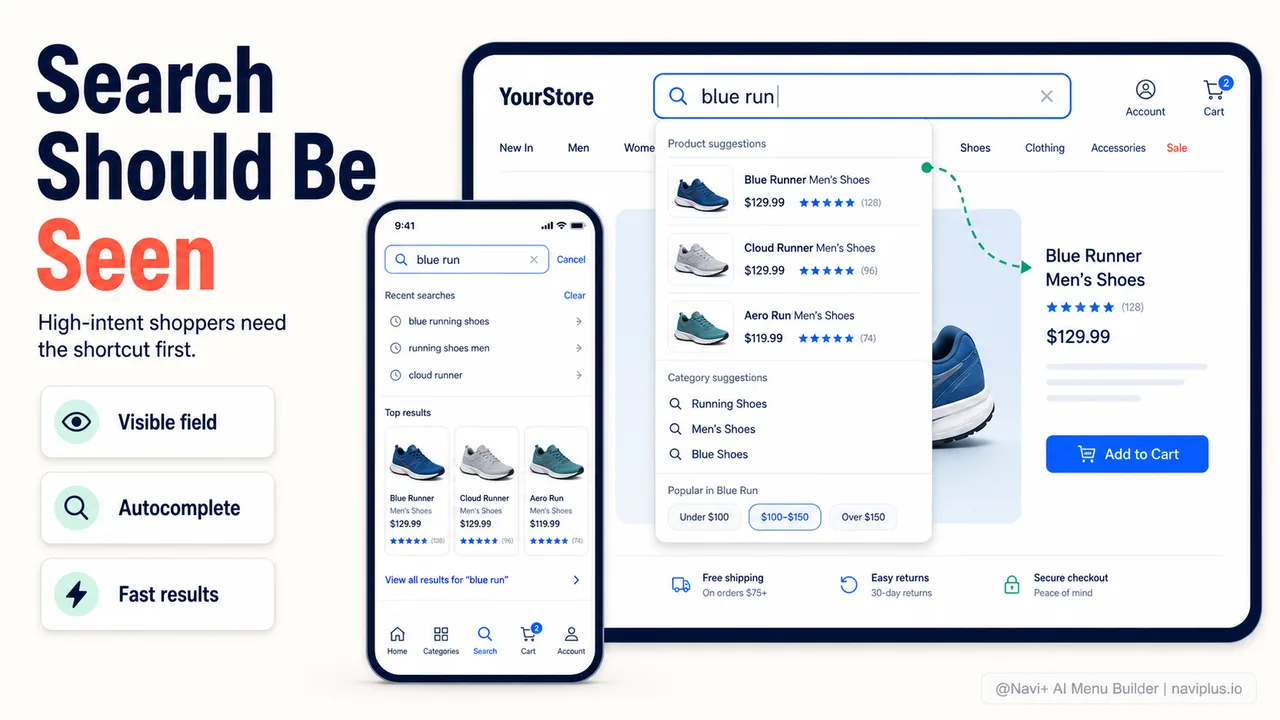
For a shopper who knows what they want, the search bar is the most efficient navigation tool on the site. One query, a list of results, and ideally the right product on the first page. No menus, no categories, no scrolling through collections.
But many stores undermine their search bar in ways that make this shortcut less useful:
- Hidden placement. The search bar is behind an icon that needs to be tapped before a text field appears. Each extra tap is friction. On mobile especially, the search icon in the header is tiny and easy to miss.
- Poor autocomplete. The shopper starts typing and gets no suggestions, or irrelevant ones. Good autocomplete should predict the query, suggest products, and even show category matches after just a few characters.
- Weak results. The shopper types “blue dress” and gets results for blue towels and red dresses. If the search engine can’t handle basic relevance, shoppers will abandon it and switch to browsing — or leave the store.
The stores that do search well treat it as a primary navigation channel, not an afterthought. Amazon’s search bar takes up the center of the header and returns relevant results within milliseconds. It works because Amazon understands that a significant portion of their shoppers arrive with specific intent.
For a Shopify store, the built-in search has improved but still struggles with relevance for larger catalogs. Third-party search apps and Shopify’s native predictive search can help, but the placement and presentation of the search bar matters just as much as the technology behind it.
Deep-diveRead the full guide → Search bar patterns: placement, full-screen mobile, and instant results
Browse: the guided path for explorers
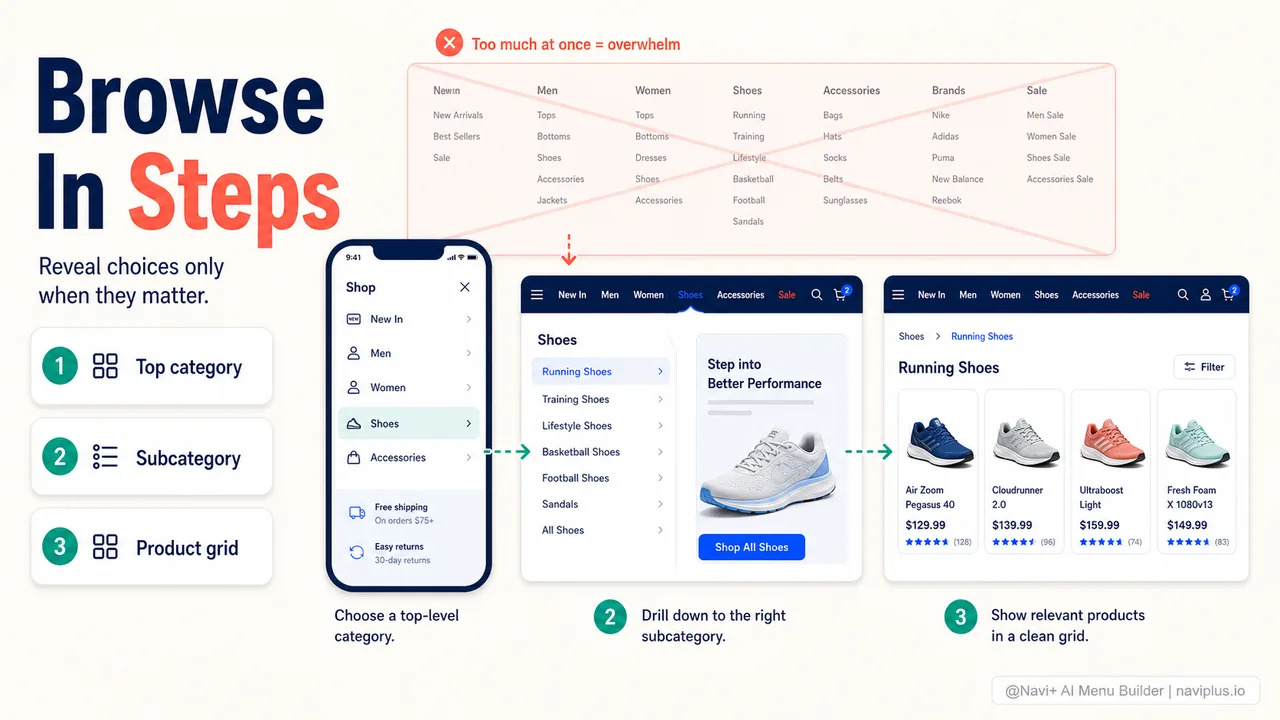
For a shopper who is still figuring out what they want, the menu is the primary navigation tool. A well-structured menu shows the store’s catalog in a logical hierarchy: categories at the top level, subcategories one level down, and individual products within each subcategory. The shopper drills down progressively, narrowing their options with each click.
This is called progressive disclosure — showing only the relevant options at each level, rather than overwhelming the shopper with everything at once. A mega menu on desktop does this by revealing subcategories on hover. A slide menu on mobile does this by letting the shopper tap into a category and see its children. Both patterns serve the same purpose: helping the shopper understand what’s available without dumping the entire catalog on their screen.
The challenge with browsing is depth. A store with hundreds of products across dozens of categories can create a menu that’s three or four levels deep. Each level is a click or tap, and each click costs attention and patience. Baymard Institute’s research consistently shows that navigation depth — the number of clicks needed to reach a product — directly affects how many shoppers complete the journey.
The balance is between breadth and depth. A flat menu with many top-level categories keeps depth low but can feel overwhelming. A narrow menu with few top-level categories keeps the view clean but forces the shopper deeper to find anything specific. Most stores land somewhere in the middle: five to eight top-level categories, two to three levels of subcategories, and clear labeling at every level.
On mobile, browsing navigation has an extra constraint: the thumb zone. A tabbar with a “Categories” button gives the shopper one-tap access to the menu from any page, without stretching to the top of the screen. With Navi+, this categories button can open a slide menu or a full-screen menu panel — the shopper sees the top-level categories, taps into one, and drills down from there.
Deep-diveRead the full guide → Mobile search UX: designing for thumbs and small screens
When search and navigation overlap
The most effective navigation systems don’t treat search and browsing as separate systems. They integrate them so that each enhances the other.
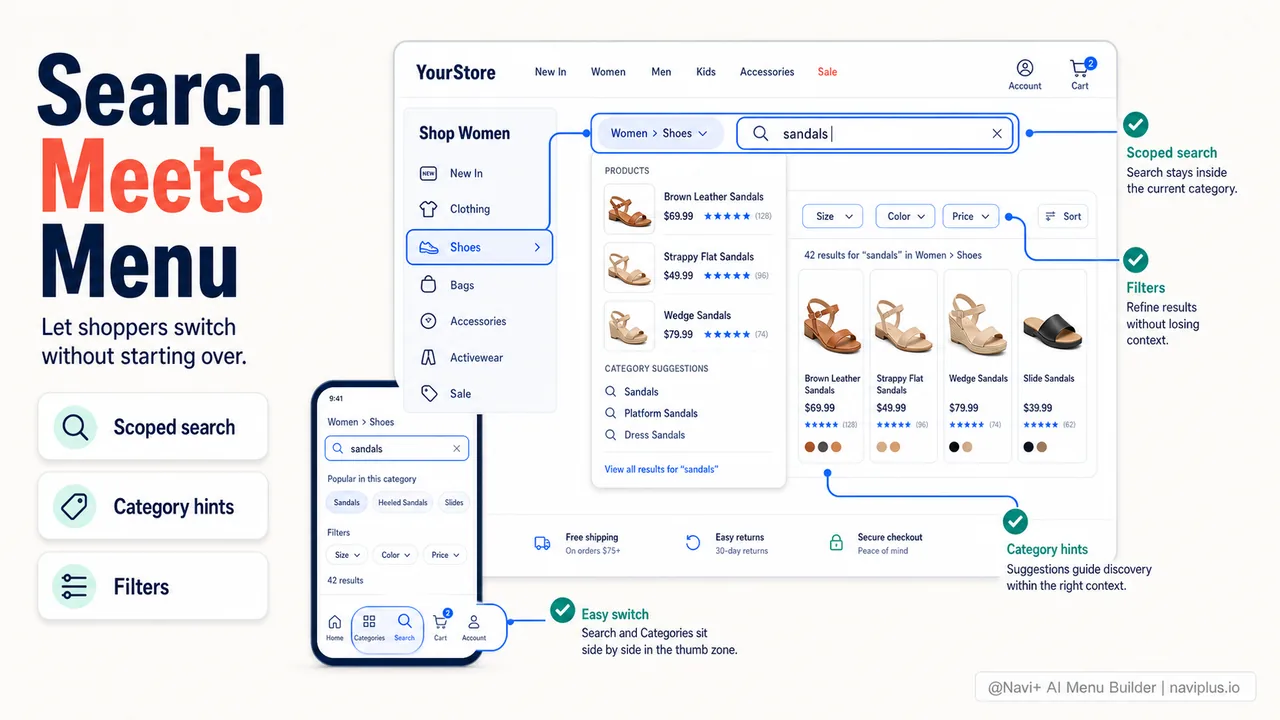
Search within categories. A shopper browses to Women → Shoes, then uses the search bar to find “sandals” within that category. The search is scoped to the current category, which makes the results more relevant and the experience feel natural — the shopper combined browsing and searching in one fluid motion.
Search suggestions from the menu structure. When the shopper starts typing in the search bar, the autocomplete suggests not just products but also categories. Typing “shoe” might show “Women’s Shoes (124 products)” and “Men’s Shoes (89 products)” alongside specific product matches. This helps the browser who doesn’t know the exact product name but knows the category they want.
Filters as navigation. Filters on a collection page — size, color, price range, brand — are a hybrid of search and browse. The shopper navigated to a category (browsing) and then narrowed the results using specific criteria (searching). Good filter implementation reduces the need for both deep menus and keyword search because the shopper can find what they want through guided refinement.
On mobile, a tabbar can include both a Categories button and a Search button, giving the shopper quick access to both navigation styles from any page. The two buttons sit side by side in the thumb zone, and the shopper can switch between browsing and searching without scrolling to the header.
Deep-diveRead the full guide → Search and navigation together: integrated discovery patterns
Where to start
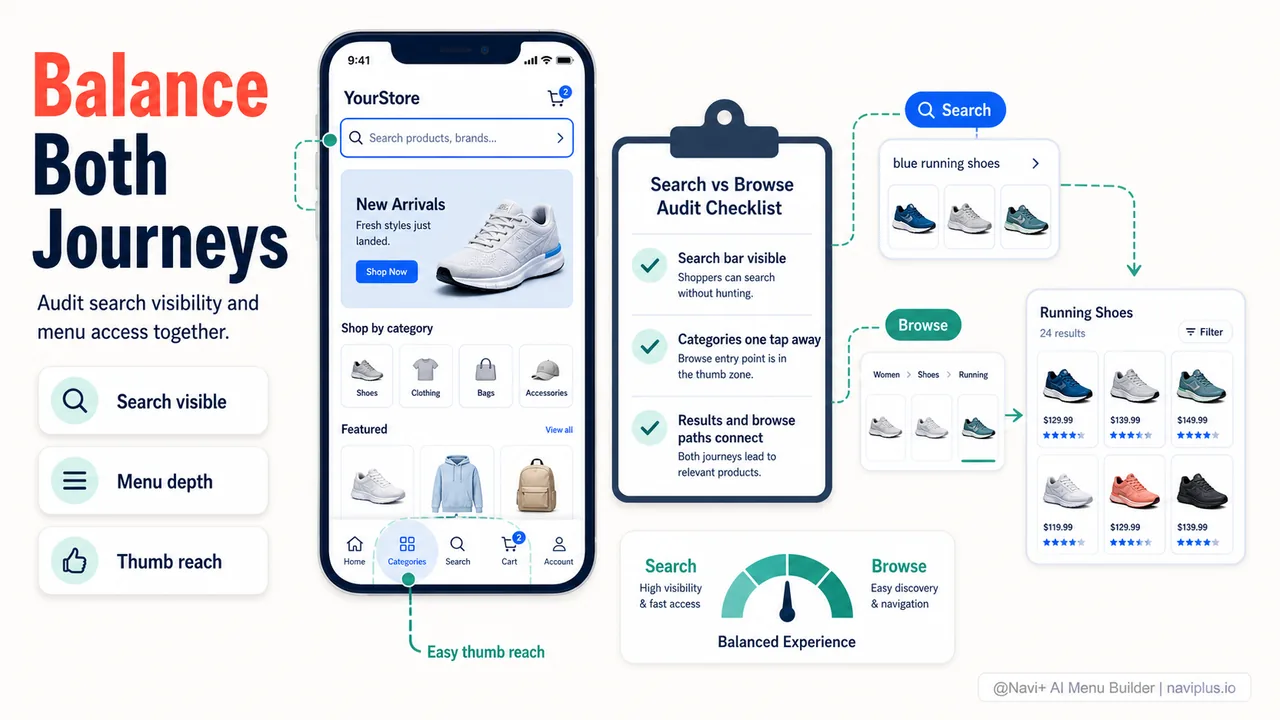
Quick auditOpen your store on a phone. Without scrolling, can you see both the search bar and a way to access categories? If one is missing or hidden behind two taps, that's the group of shoppers you're underserving.
Look at your own store’s analytics. If you have search tracking enabled (Shopify’s analytics include this), check two numbers: what percentage of visitors use the search bar, and what’s the conversion rate for shoppers who search versus shoppers who browse.
In most stores, shoppers who search convert at a higher rate — they arrived with intent and found what they wanted. But they are usually a smaller group. The majority of visitors browse. If your store only optimizes for one group (usually the browsers, via the menu), the searchers are underserved.
Start with the basics: make the search bar visible without tapping, add autocomplete that suggests products and categories, and on mobile consider adding a search button to the tabbar so it’s always within thumb reach. These changes don’t require a redesign — they just make the existing search bar work harder.
Then look at the other side: is the menu clear and logical? Can a shopper who has never visited before understand your category structure in three seconds? If not, the browsers are underserved too. Clear labels, a sensible hierarchy, and a mobile-friendly menu format fix most browsing problems.
The goal is not to choose between search and navigation. It is to make both good enough that every shopper — whether they arrive with a specific product in mind or just a vague interest — finds what they need without thinking about how the navigation works.
Explore os temas
Este guia traz links para artigos específicos — aprofunde-se em cada um.