Most of us judge our menu by feel. It looks tidy, it has enough items, no one complains — so it must be fine. But here is something few people notice: customers rarely complain about a menu that is hard to use. They don’t message you with feedback. They just quietly search for a while, don’t find what they need, and close the tab.
To know whether your menu is truly doing its job, a gut feeling isn’t enough. You need to look at what customers actually do: what they click, how deep they go, where they stop. That is what measuring menu performance means — instead of guessing, you let the data speak. The good news is that you don’t need to be an analytics expert. The five metrics below are enough to get started, and most of them come built into free tools like GA4 or Microsoft Clarity.
This article walks through each metric: what it is, why it matters, and how to read it so you can tell whether your menu is helping customers or getting in their way.
- Menu performance is measurable without complex analytics.
- The five metrics show where shoppers click, stop, or search.
- Fix one clear issue, then wait for fresh data.
Metric 1 — Click-through rate of each menu item
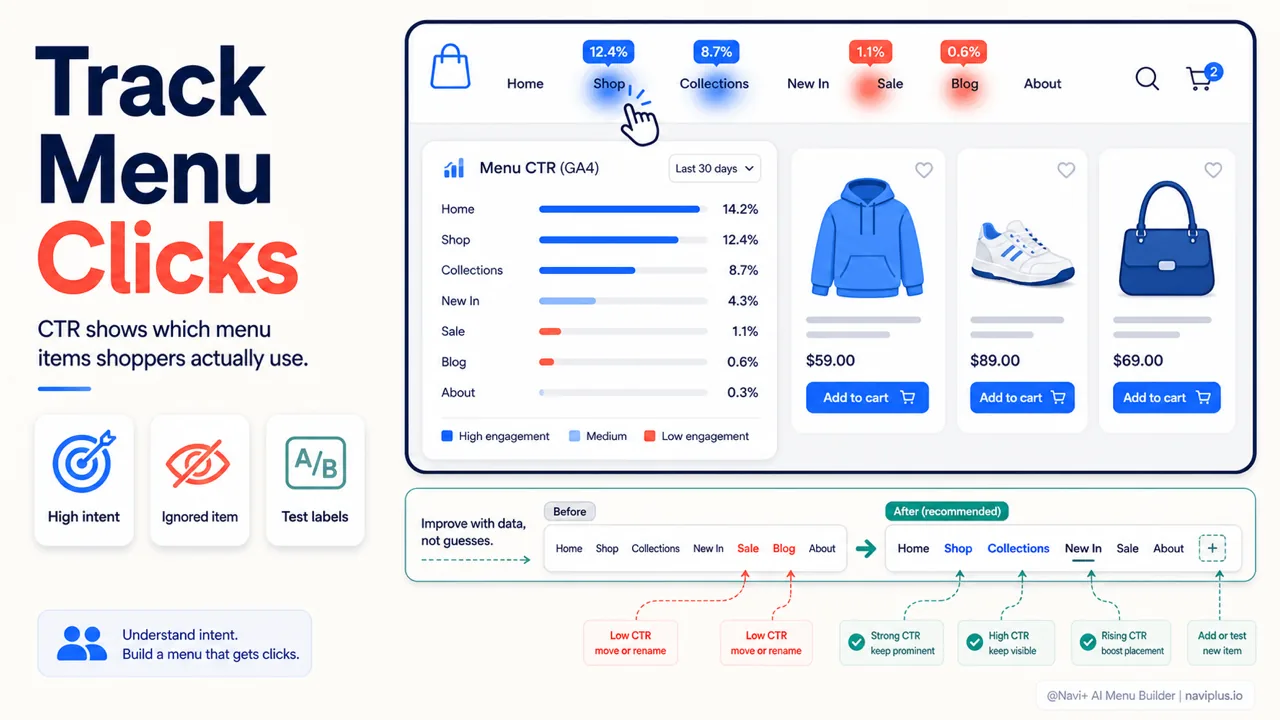
The click-through rate (CTR) of a menu item is the share of people who see that item and actually click it. It is the simplest metric, yet it reveals the most, because it tells you how much attention each item is pulling.
When you look at the CTR of your whole menu at once, you usually see an uneven picture. A few items get clicked a lot, and a few get barely any clicks at all. An item with almost no clicks isn’t necessarily useless — it might be in the wrong place, named in a confusing way, or overshadowed by other items.
A few questions worth asking when reading CTR:
- Is the item that matters most to revenue among the ones that get clicked often?
- Is there an item you think of as “minor” that gets clicked surprisingly often? Customers may need it more than you think.
- Is there an item that is nearly dead, yet still takes up a prime spot on the menu bar?
In GA4, you track this with click events attached to each menu link. If the technical side feels daunting, Microsoft Clarity offers heatmaps that show where people click using nothing but color.
CTR is also a good way to run experiments. Rename an item, change the order, or merge two items — then watch how the numbers shift after a week or two. We cover how to read and interpret CTR for specific situations in more detail in a separate article.
Deep-diveRead the full guide → Metric 1 — Click-through rate of each menu item
Metric 2 — Navigation depth
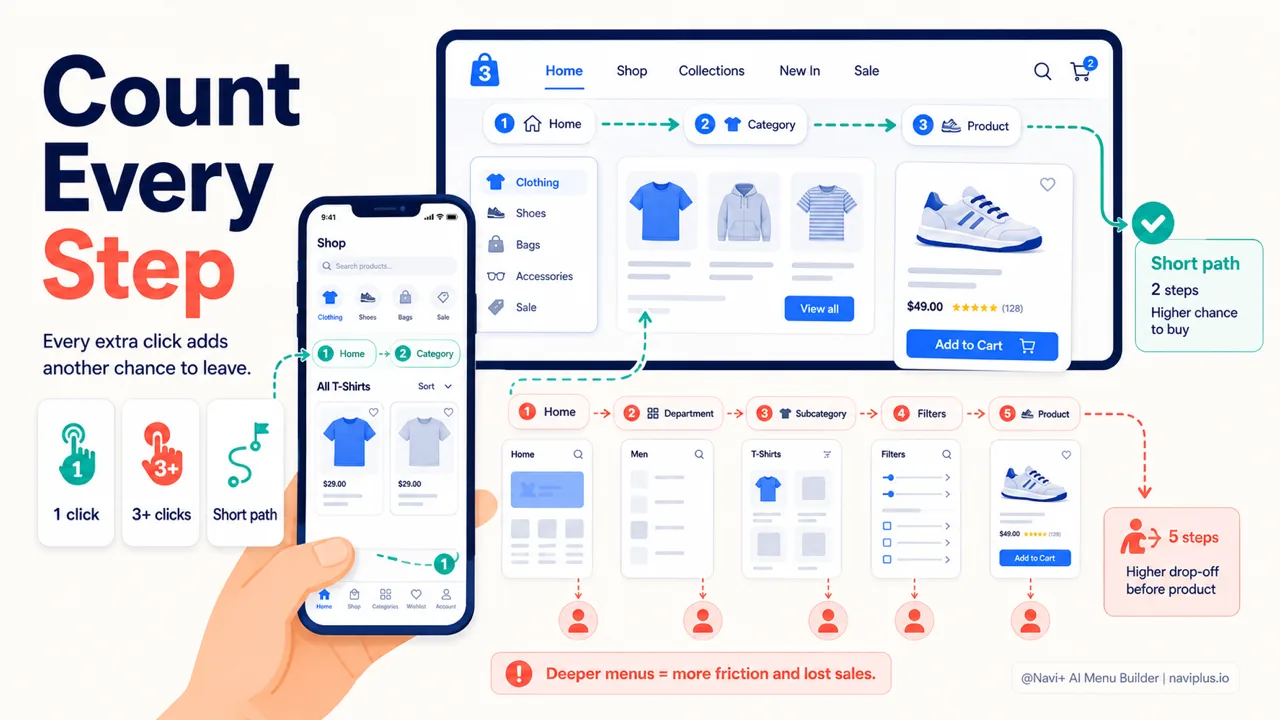
Navigation depth measures how many clicks it takes for a customer to reach what they need. A product that sits one click from the homepage is easy to find. One that sits four clicks away is one most customers abandon before they ever arrive.
This is where a menu quietly hurts your sales. You might have exactly the product a customer wants, at a good price, with great photos — but if it is buried too deep, the customer never sees it. Every extra layer of clicking is another chance for the customer to get distracted, change their mind, or close the page.
In GA4’s journey reports, you can see the common paths people take from the homepage. If customers have to take several roundabout steps to reach a main category page, that is a signal your menu is making them work too hard.
A practical tip: list the five pages that matter most to revenue, then click your way to each one from the homepage and count the steps. If it takes more than three, you may be hiding them too well. Menu types like the Mega Menu on desktop or the Tab Bar at the bottom of a mobile screen exist precisely to shorten this path — bringing important items right to the customer’s reach. We discuss how to measure depth and bring it down sensibly in a separate article.
Deep-diveRead the full guide → Metric 2 — Navigation depth
Metric 3 — Exit rate on category pages
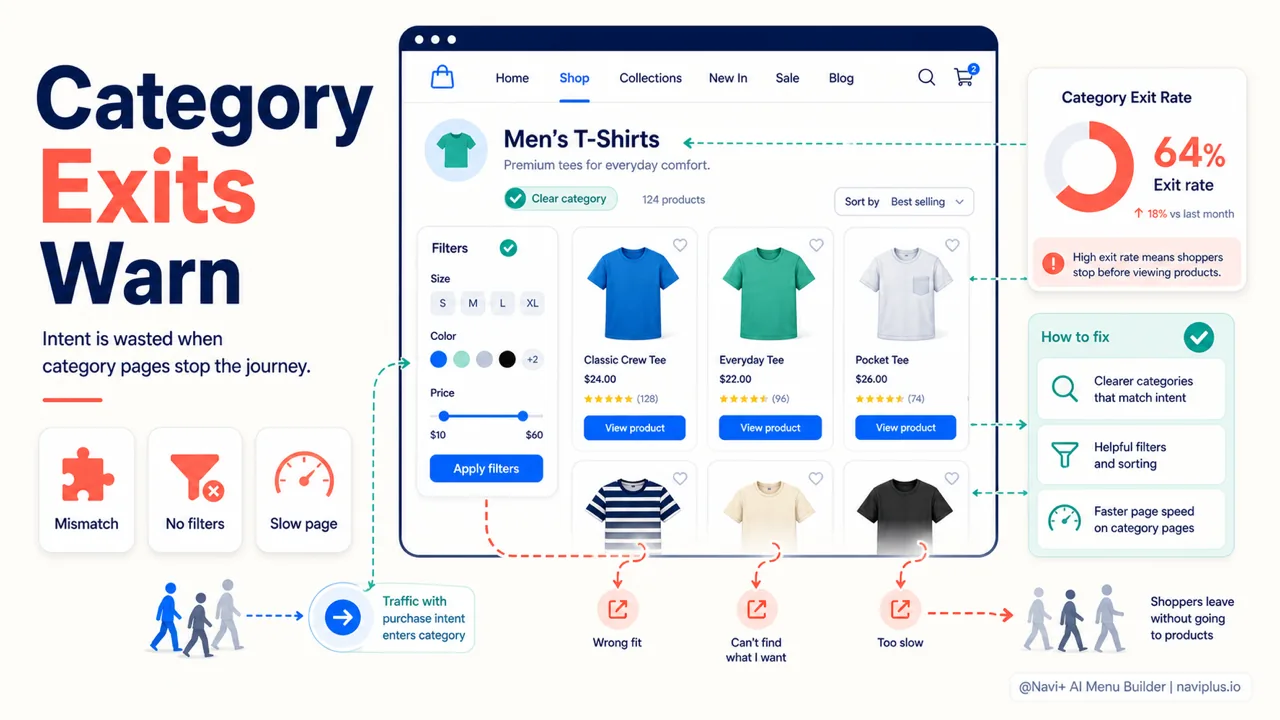
Exit rate tells you the share of sessions that end on a specific page, no matter how the customer got there. Unlike bounce rate (which only counts the first page of a session), exit rate applies to every page in a session — which makes it ideal for examining category pages.
Why do category pages matter? Because reaching one means the customer already has intent. They clicked “Men’s Shoes” or “Kitchenware” because they wanted to see that group. If most of them then leave right there without viewing a single product, something doesn’t match between what they expected and what they saw.
A few common reasons for a high exit rate on category pages:
- The menu item’s name promises one thing, but the page delivers another.
- The page displays too much, and customers don’t know where to look.
- There are no filters, so customers can’t narrow their choices.
- The page loads slowly. According to Google, the “good” threshold for the time it takes the main content to appear (LCP) is under 2.5 seconds; much slower than that, and customers leave before the page even finishes.
One note when reading this: a high exit rate isn’t always bad. Some pages are natural stopping points. But for a category page — where the customer should be moving on into products — a high number is usually worth a second look. We dig deeper into how to tell a “normal” exit rate from an “alarming” one in a separate article.
Deep-diveRead the full guide → Metric 3 — Exit rate on category pages
Metric 4 — Mobile vs. desktop navigation behavior
This is the metric many people skip, and they often pay for it. The reason is simple: most customers now arrive on a phone. Industry figures show that mobile devices make up the majority of traffic to ecommerce websites — the exact number varies quite a bit by source and region, but mobile passed desktop long ago.
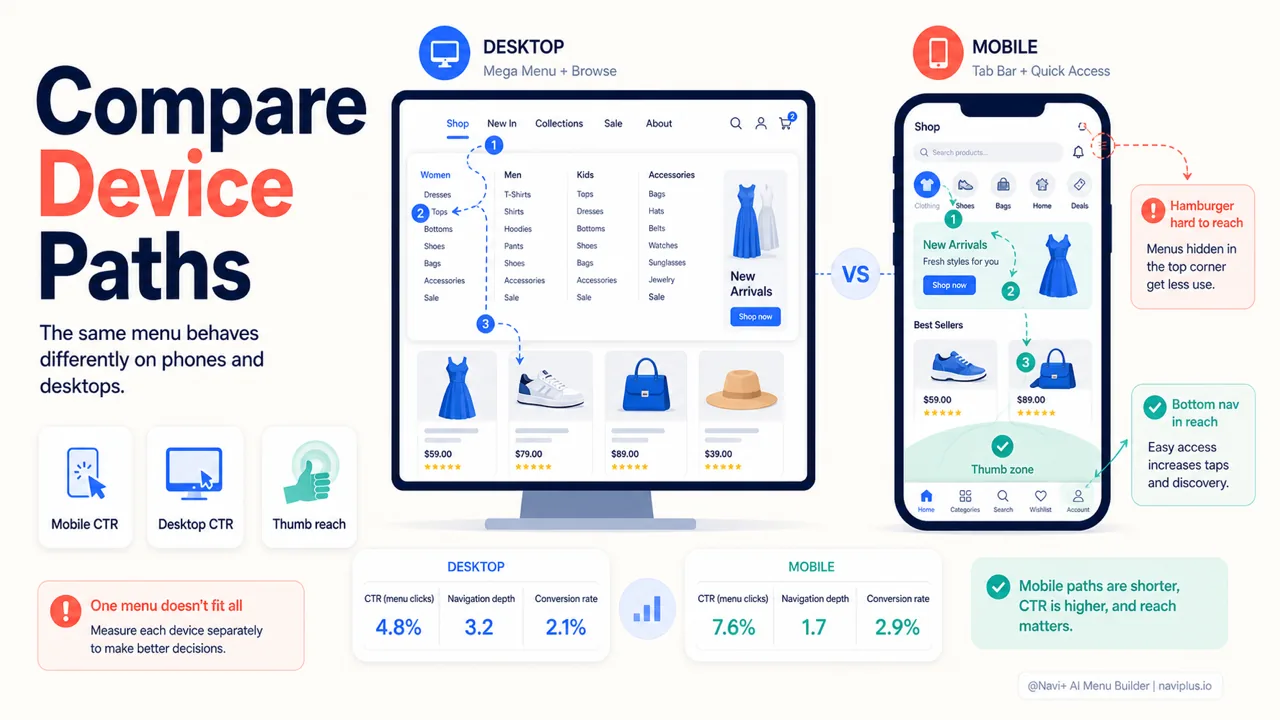
The problem is that a menu that looks fine on a laptop screen can be very hard to use on a phone. A multi-column Mega Menu can’t be crammed whole into a vertical screen. A hamburger menu hides everything behind one icon — customers have to tap to see it. Nielsen Norman Group has shown that content hidden behind a hamburger is discovered and used less than when it is left visible: hiding your main navigation cuts the chance customers find it by nearly half.
The easiest way to read this is to split your numbers by device. In GA4 you can compare the two groups side by side:
| What to compare | The question it raises |
|---|---|
| Mobile vs. desktop menu CTR | For the same item, is it clicked far less on mobile? |
| Navigation depth | Do mobile customers have to click more to reach their goal? |
| Conversion rate by device | Where does mobile fall well behind desktop? |
If mobile clearly lags, it is very likely the buttons are too small, sit outside the thumb’s reach, or important items are buried deep behind a slide-out menu. This is why many stores use a fixed Tab Bar at the bottom of the screen for mobile and a Mega Menu for desktop — two different layouts for two different ways of using the site. A tool like Navi+ lets you configure mobile and desktop separately without code, so you don’t have to force one design to fit both. We’ve written a separate article on how to compare and handle the gap between the two platforms.
Deep-diveRead the full guide → Metric 4 — Mobile vs. desktop navigation behavior
Metric 5 — Internal search usage rate
The last metric sounds unrelated to the menu, but it is actually the clearest mirror of how your menu is doing. The internal search usage rate is the percentage of customers who use the search box on your site instead of clicking through the menu.
A little searching is normal, even good — customers who use search often have higher purchase intent, because they are actively looking for something specific. But if this rate spikes, it is usually a sign the menu isn’t guiding customers to where they need to go. They give up on the menu because it doesn’t help, and turn to typing instead.
What’s even more telling is what happens after the search. Research from the Baymard Institute shows that internal search on a large share of ecommerce sites performs below an acceptable standard. That means when your menu pushes customers over to the search box, you are betting on a tool that also tends to disappoint them.
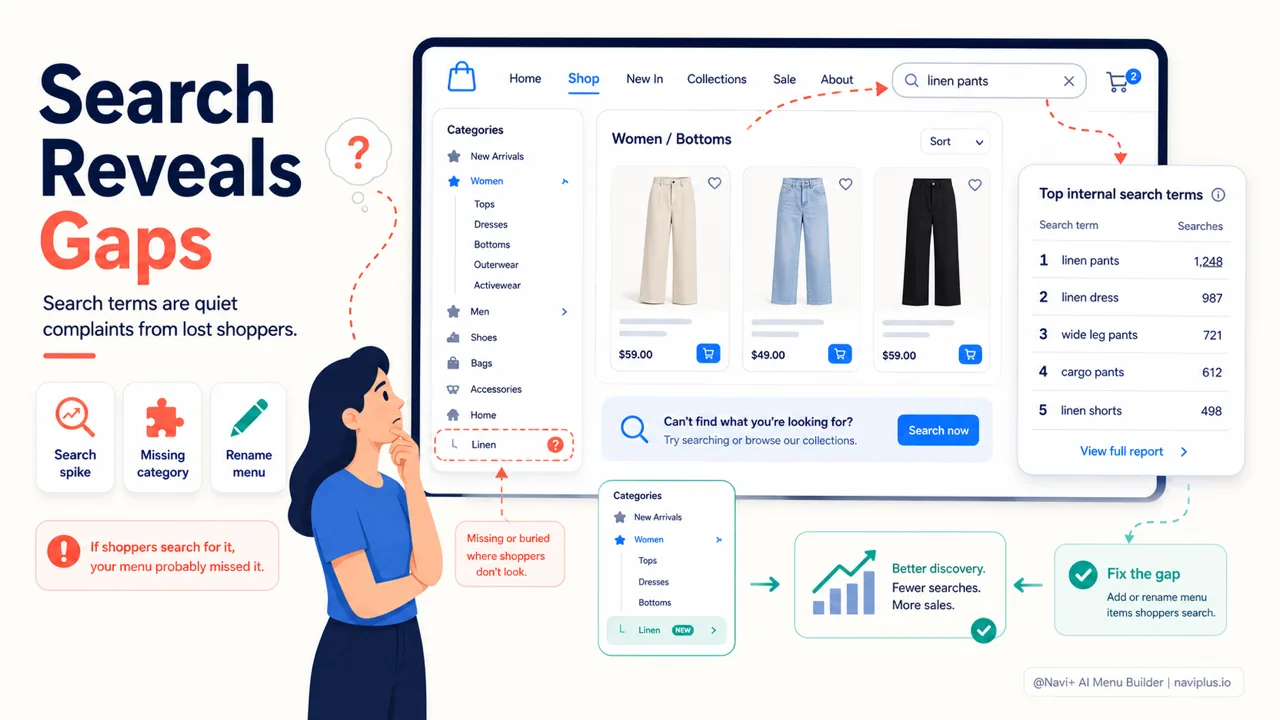
In GA4, if you turn on site search tracking, you can see what words customers search for. That list is gold. If many people type the name of a category you already have in your menu, that item is very likely in the wrong place or named in a way that’s hard to find.
Read internal search like a polite complaint from your customers: “I couldn’t find this in your menu.” We go into detail in a separate article on how to use search terms to patch up your menu.
Deep-diveRead the full guide → Metric 5 — Internal search usage rate
Where to start
Five metrics may sound like a lot, but you don’t need to do them all at once. If you’re just getting started, here is a suggested order:
- Turn on GA4 and enable site search tracking — it takes almost no effort and gives you metric 5 right away, plus part of metrics 2 and 3.
- Install Microsoft Clarity for heatmaps, which support metric 1 and give you a quick look at mobile behavior.
- After two weeks, sit down and review the numbers in one pass, and write down two or three things that look off.
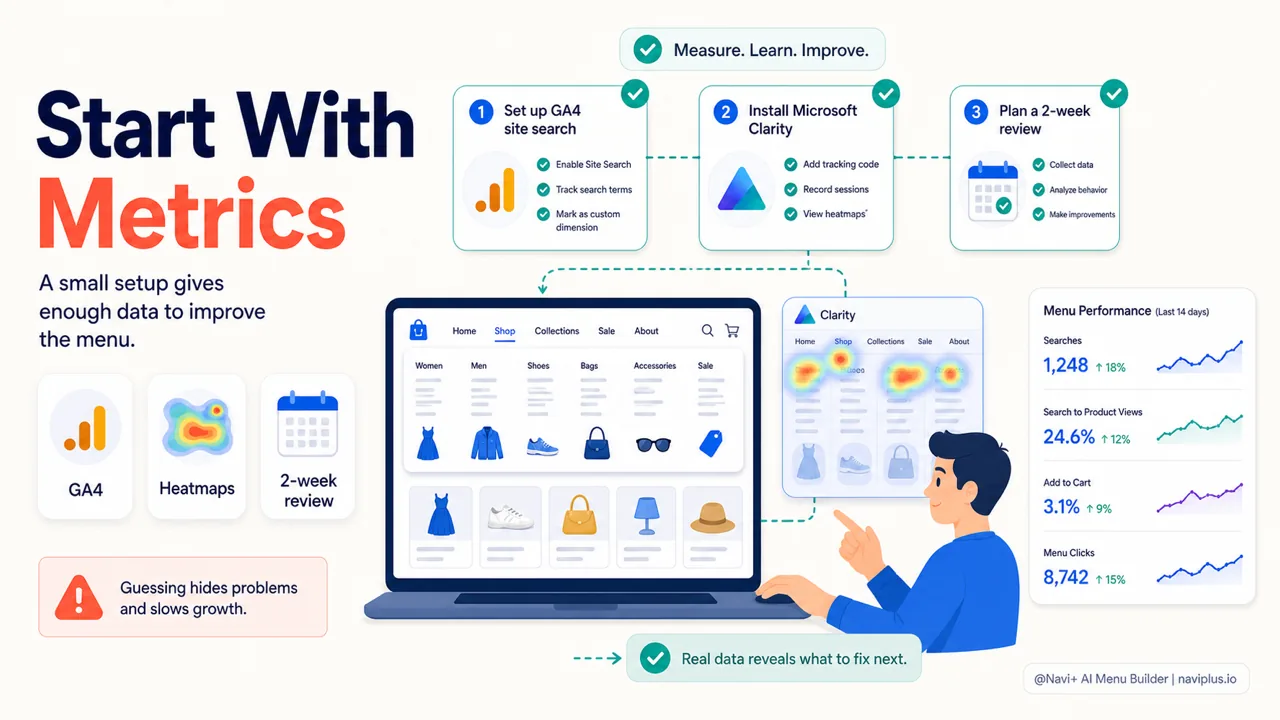
Start smallTurn on GA4 site search, add heatmaps, then review the numbers after two weeks.
Don’t try to optimize everything in one go. Pick the single clearest metric, fix one thing, then wait for fresh data. A menu is something you adjust gradually, not something you set once and forget.
One thing to keep in mind while making changes: each time you change the menu, don’t make the page slower. According to Google, the “good” Core Web Vitals thresholds are LCP under 2.5 seconds, INP under 200 milliseconds, and CLS under 0.1. A beautiful menu that makes the page stutter or shift its layout while loading does more harm than good.
Closing thoughts
Numbers aren’t there to grade or judge you. They simply help you see where customers get stuck — something the naked eye and gut feeling struggle to catch. A good menu doesn’t need to be perfect from day one; it needs to be improved gradually based on what customers actually do.
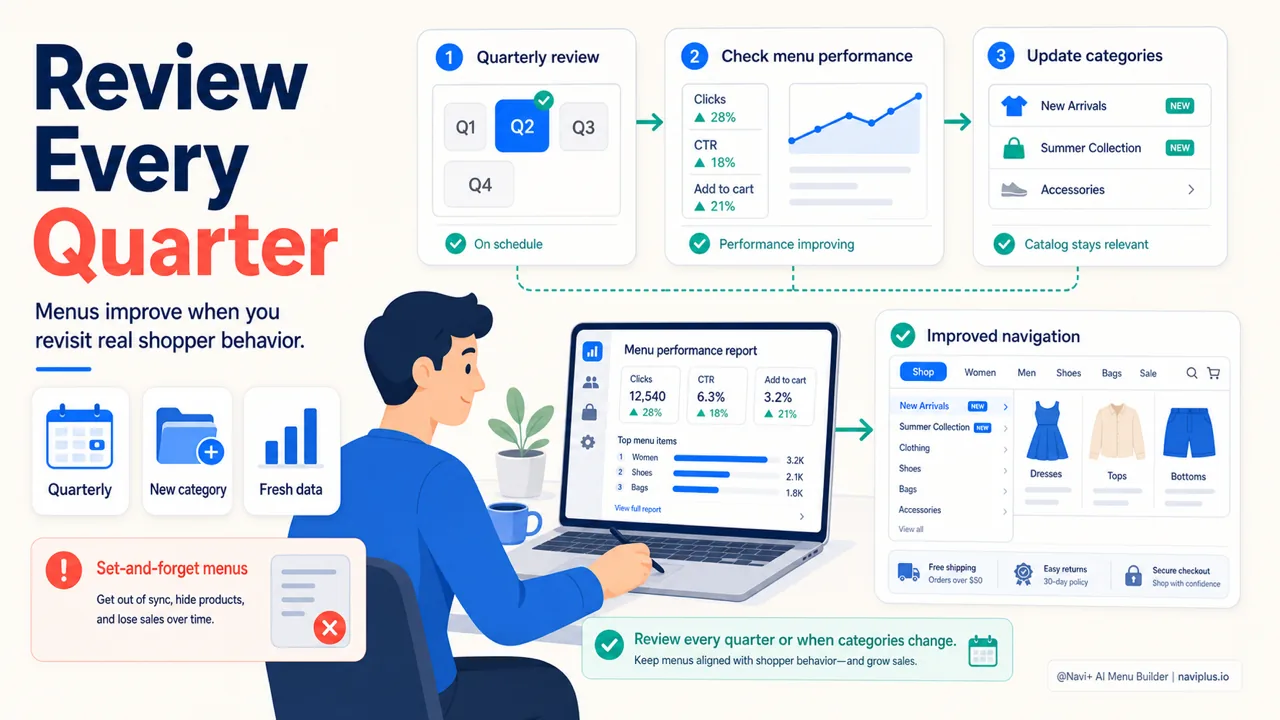
A gentle suggestion: review your menu every three months, or whenever you add a new category. The least stressful way to begin is to turn on GA4 or install Microsoft Clarity today, leave it for two weeks, then come back and look at your menu through the eyes of the data. You’ll be surprised by what customers have quietly been telling you that you never heard.
Explore the topics
This guide links out to focused articles — dive deeper on each.