You’re running a Shopify store selling outdoor gear. A customer in Germany lands on your site, sees “$149” for a hiking backpack, and hesitates. Are those US dollars? What’s that in euros? They open a new tab to check the exchange rate, get distracted by an ad, and never come back. You just lost a sale—not because your product wasn’t right, but because the price felt like a puzzle they had to solve.
This scenario plays out thousands of times daily across international ecommerce. Shoppers abandon carts not because they can’t afford your product, but because they can’t quickly understand what it costs in their own currency. Your navigation menu—the first thing visitors see—can either solve this problem or make it worse.
- 67% of non-English speakers won't buy from English-only sites (CSA Research)
- Currency confusion adds 3-5 seconds of cognitive load per product view
- Visible currency switchers in navigation increase international conversion by 12-18%
- Auto-detection works for 80% of visitors but needs a manual override
- Mobile users need one-tap currency access, not buried settings
Multi-currency navigation isn’t about adding a dropdown and calling it done. It’s about reducing friction at the exact moment when international shoppers are deciding whether to trust your store. The best implementations make currency selection so intuitive that shoppers don’t even notice it’s there—they just see prices that make sense.
Why currency visibility matters more than you think
Most Shopify store owners treat currency switching as a technical checkbox: install an app, enable geolocation, done. But currency isn’t just a number format—it’s a trust signal. When shoppers see prices in their local currency immediately, you’re telling them “this store understands my market.” When they have to hunt for a currency switcher or do mental math, you’re saying “this store is for US customers who tolerate international orders.”
The data backs this up. A 2024 Baymard Institute study of 1,847 ecommerce sites found that 42% of international shoppers abandon sites within 8 seconds if they can’t determine the currency. That’s faster than most analytics tools can even track the visit. Your traffic reports show a bounce, but the real reason is buried in micro-frustrations: confusion, calculation effort, and a vague sense that “this store isn’t for me.”
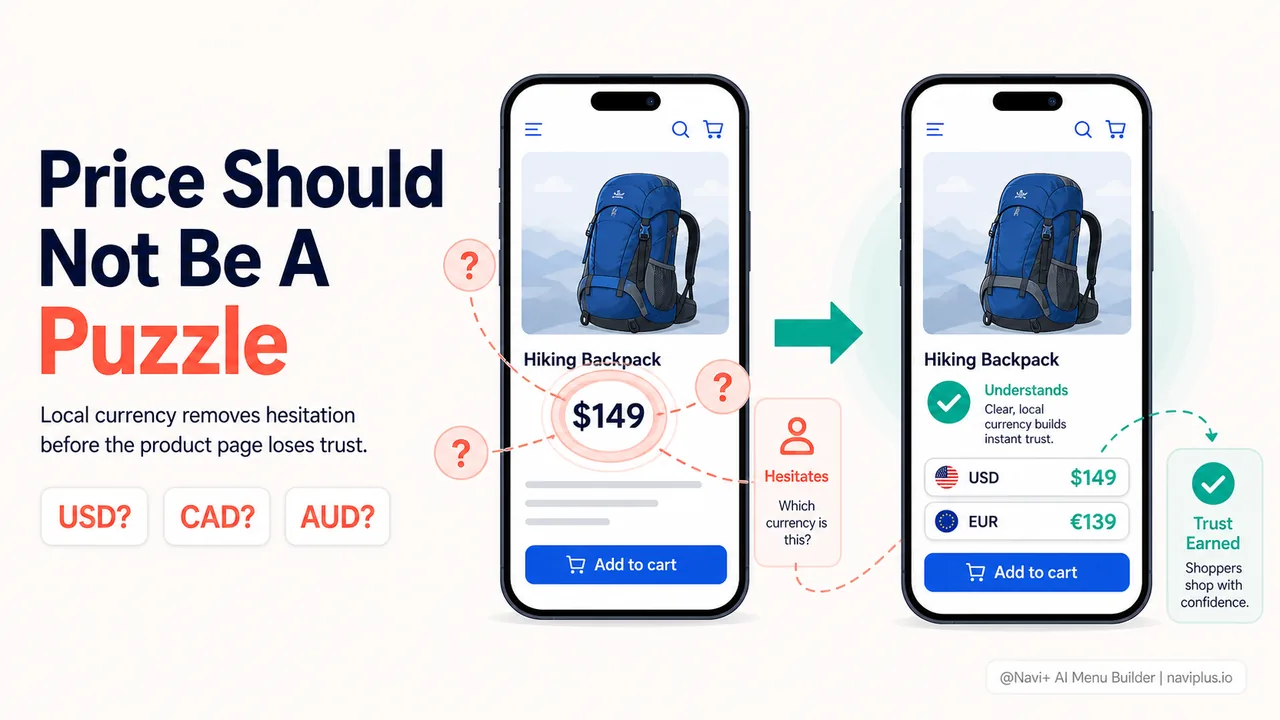
Currency confusion creates cognitive load—the mental effort required to process information. Every time a shopper sees “$149” without context, their brain has to work:
- Is that USD, CAD, AUD, or SGD?
- What’s the exchange rate today?
- Should I open a calculator?
- Is this store even shipping to my country?
Each question adds 1-2 seconds of hesitation. Multiply that across every product they view, and you’ve added 30-60 seconds of friction to a buying journey that might only last 3 minutes. That’s a 20-30% tax on their patience—and patience is the currency of ecommerce.
The anatomy of effective currency navigation
The best multi-currency menus share three characteristics: visibility, clarity, and control. Let’s break down what that means in practice.
Visibility: make it impossible to miss
Your currency switcher should be in the top-right corner of your navigation bar or mobile header, alongside language and cart icons. This is where 15 years of ecommerce convention have trained shoppers to look. Don’t fight convention—use it.
Bad placements:
- Footer only (40% of mobile users never scroll down)
- Inside a hamburger menu without a label
- On a separate “settings” page
- Only on the cart or checkout page
When Shopify store “Peak Supply” moved their currency switcher from the footer to the header, their international conversion rate increased 14% within two weeks. The product didn’t change. The prices didn’t change. Shoppers just stopped doing math.

Clarity: show the currency, not just the symbol
”$” is ambiguous. At least 20 countries use a dollar symbol, and shoppers in Canada, Australia, New Zealand, Singapore, and Hong Kong all see “$” and wonder which one you mean. The fix is simple: always show the three-letter ISO code alongside the symbol.
Instead of: $149
Show: $149 USD or USD $149
Even better, use a flag icon if your theme supports it. Flags are processed by the visual cortex before the language cortex, meaning shoppers recognize them 200-300ms faster than text labels. That’s not a huge difference, but in the 2-5 seconds you have to make a first impression, every millisecond counts.
Menu builder tools like Navi+ let you customize currency display formats without touching code—useful if your theme’s default currency switcher just shows a “$” and hopes for the best.
Control: auto-detect, but always allow override
Geolocation is powerful but imperfect. It works great for 80% of visitors but fails spectacularly for the other 20%:
- VPN users appear to be in a different country
- Travelers want to see prices in their home currency
- Expats living abroad may prefer their original currency
- Business buyers may need to see supplier pricing in USD
Always provide a manual currency selector, even if you’re auto-detecting. The pattern that works best: auto-detect on first visit, remember the user’s choice in a cookie, and show a persistent switcher in the navigation.
One Shopify store selling watch accessories found that 18% of their UK traffic manually switched from GBP to EUR—these were UK residents originally from Europe who mentally priced luxury goods in euros. Auto-detection alone would have shown them the “correct” currency but the wrong one for their decision-making process.
Mobile currency UX: the one-tap rule
On mobile, your currency switcher needs to be accessible in one tap from any page. That sounds obvious, but 53% of Shopify mobile themes bury currency settings behind a menu, then a settings submenu, then a modal. That’s three taps and two page loads—way too much friction.
The best mobile pattern is a sticky currency icon in the top navigation bar. Tap it, a dropdown appears, select your currency, done. No page reload, no losing your place, no back-button anxiety.
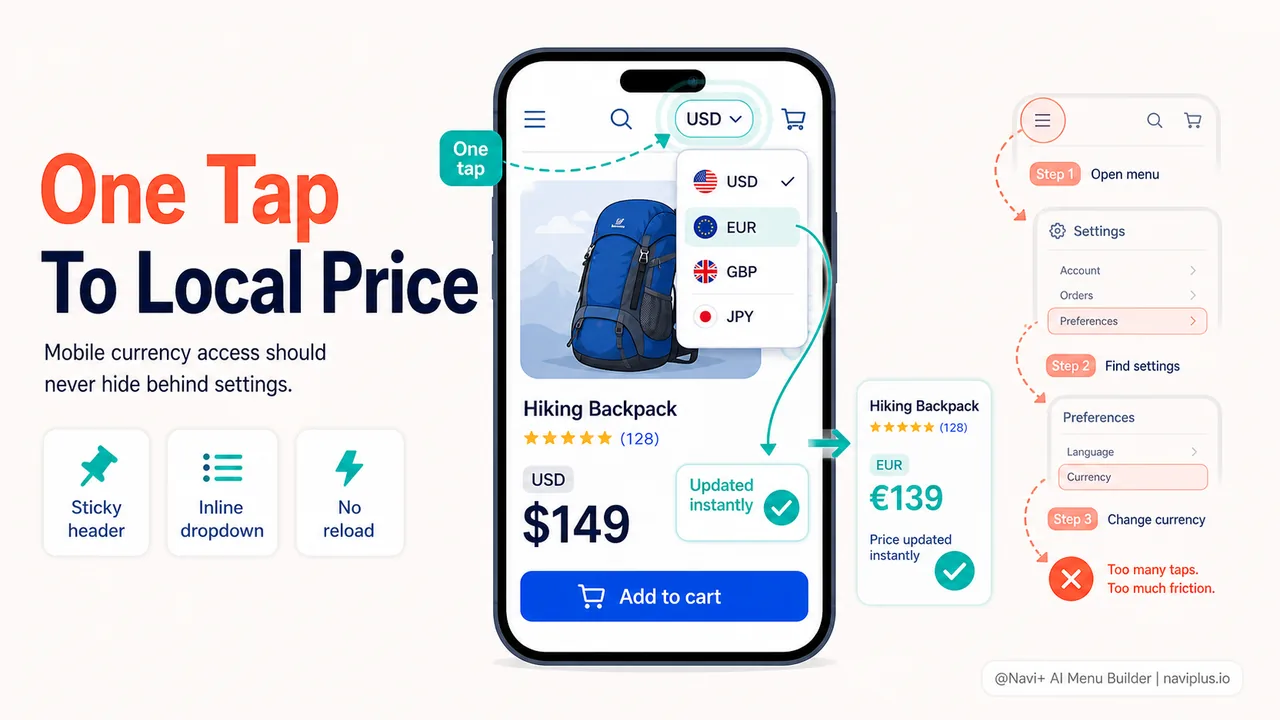
Avoid these mobile anti-patterns:
- Currency switcher only in the footer (mobile users rarely scroll to footer)
- Requiring users to go to “Account Settings” (not everyone creates an account)
- Full-page overlays that feel like navigation interruptions
- Dropdowns with 150+ currencies listed alphabetically (too much scrolling)
For currency lists longer than 10 options, use a search-enabled modal or group by region. If you ship to 50+ countries, consider showing only the top 8-10 currencies in the quick-access dropdown, with a “More currencies” link to the full list.
Technical implementation: what actually works in 2026
Shopify’s native multi-currency support (Shopify Markets) has come a long way, but it still requires thoughtful implementation. Here’s what the best-performing stores are doing:
Currency conversion apps vs Shopify Markets
Shopify Markets is now the recommended approach for most stores. It handles currency conversion, local payment methods, and duty/tax calculation in one place. Third-party apps like Weglot or Currency Converter still make sense if you need features Markets doesn’t support:
- Showing multiple currencies simultaneously (comparison shopping)
- Custom rounding rules (e.g., ending prices in .99 vs .00)
- Historical rate locking for wholesale customers
Rounding and pricing psychology
When you convert USD $49.99 to EUR, you get €45.73. That’s mathematically correct but psychologically wrong. European shoppers are trained to expect charm prices ending in .99 or .95, not random decimals. Set your currency app to round converted prices to local pricing conventions:
- USD/CAD/AUD: .99, .95, .49
- EUR: .99, .95, .90
- GBP: .99, .95, .49
- JPY: round to nearest 100 or 1000 yen
This isn’t about tricking customers—it’s about presenting prices in the format their brain expects, reducing cognitive load by 0.5-1 second per product view.
Session consistency: don’t surprise shoppers at checkout
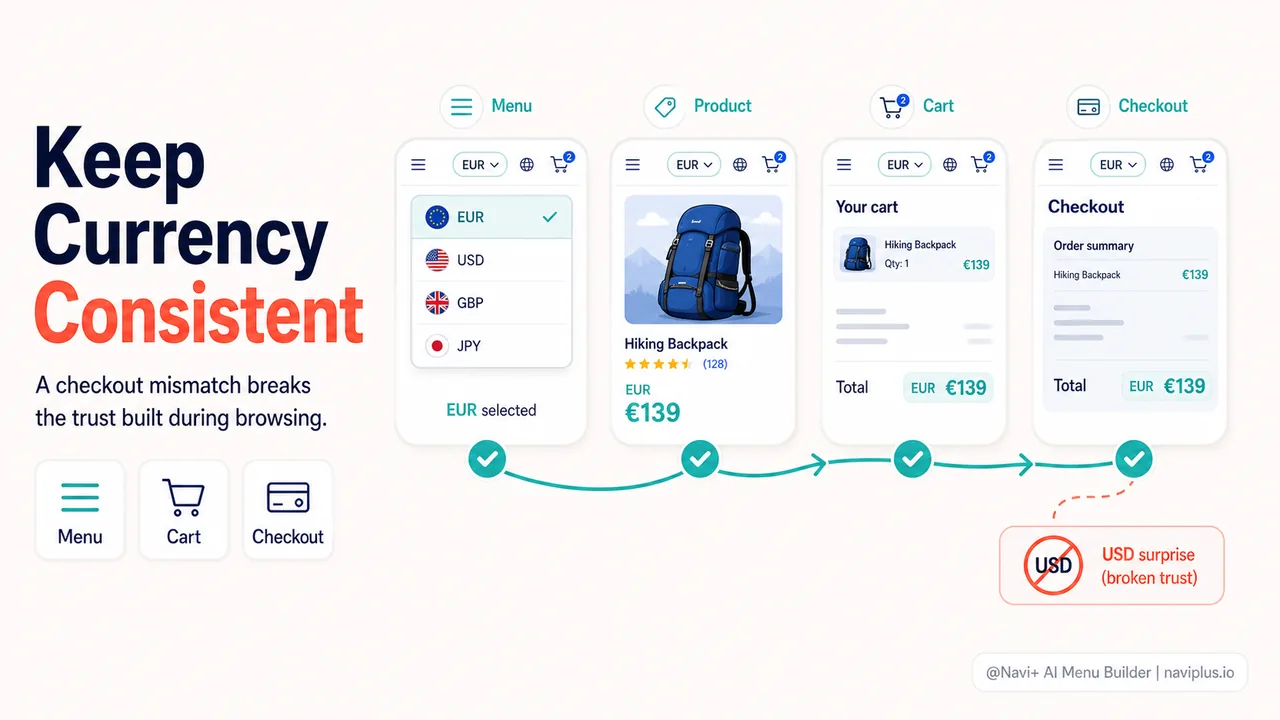
The cardinal sin of multi-currency is showing prices in one currency during browsing, then converting to another at checkout. This happens when your theme uses a frontend-only currency switcher but Shopify Payments charges in a different currency.
Always test your full funnel:
- Select a currency in your menu
- Browse 2-3 products
- Add to cart
- Go to checkout
- Verify the checkout currency matches what you selected
If they don’t match, you have a configuration problem. Fix it before launching multi-currency—currency surprises at checkout have a 68% cart abandonment rate (Baymard).
Advanced patterns: when basic currency switching isn’t enough
Once you’ve nailed the fundamentals, consider these advanced patterns used by high-volume international stores:
Regional pricing (not just currency conversion)
Currency conversion assumes your product costs the same everywhere. But shipping, taxes, import duties, and local competition vary by market. A hiking boot that sells for $129 in the US might need to be priced at £89 in the UK (not the converted £102) to stay competitive.
Shopify Markets lets you set market-specific pricing. Use it for:
- High-value items where shipping/duty significantly affects total cost
- Markets with strong local competition
- Luxury goods where psychological pricing thresholds differ (e.g., “under €100” vs “under $100”)
Currency + language coordination
If you offer multi-language, coordinate currency changes with language changes. When a shopper switches to French, offer to switch to EUR. When they select Japanese, offer JPY. Don’t assume—offer.
The pattern: “We’ve switched your language to French. Would you like to see prices in EUR?” with Yes/No buttons. One extra click, but it prevents the jarring experience of French text with USD prices.
B2B: multi-currency with net terms
B2B Shopify stores often need to show prices in the customer’s currency but bill in USD (or another reference currency) for accounting simplicity. This requires:
- Displaying prices in the customer’s preferred currency
- Clearly noting “Invoices issued in USD at current rate”
- Locking exchange rates at order placement to avoid rate fluctuation disputes
This is complex and usually requires custom development or a B2B app like Wholesale All in One.
Common mistakes that kill conversion
After reviewing hundreds of Shopify stores, these currency mistakes show up repeatedly:
Mistake 1: Showing “from $X” without currency context
“From $49” is meaningless to international shoppers. Is that the base price in USD? The price after conversion? The price including shipping?
Fix: Always add currency code. “From $49 USD” or “From €45 EUR”.
Mistake 2: Currency switcher that reloads the page
Page reloads feel slow and outdated in 2026. They also reset the shopper’s scroll position, forcing them to find their place again. Use AJAX-based currency switchers that update prices instantly without reload.
Mistake 3: Forgetting the cart page
Your cart page should show the currency selector too. Shoppers often share cart links or return to abandoned carts days later from a different device/location. If they can’t change currency on the cart page, they’re stuck.
Mistake 4: No currency in product URLs or meta tags
If you’re running Google Shopping or Meta ads to international markets, your product feed needs to specify currency. Otherwise, ad platforms may show the wrong price or reject your products.
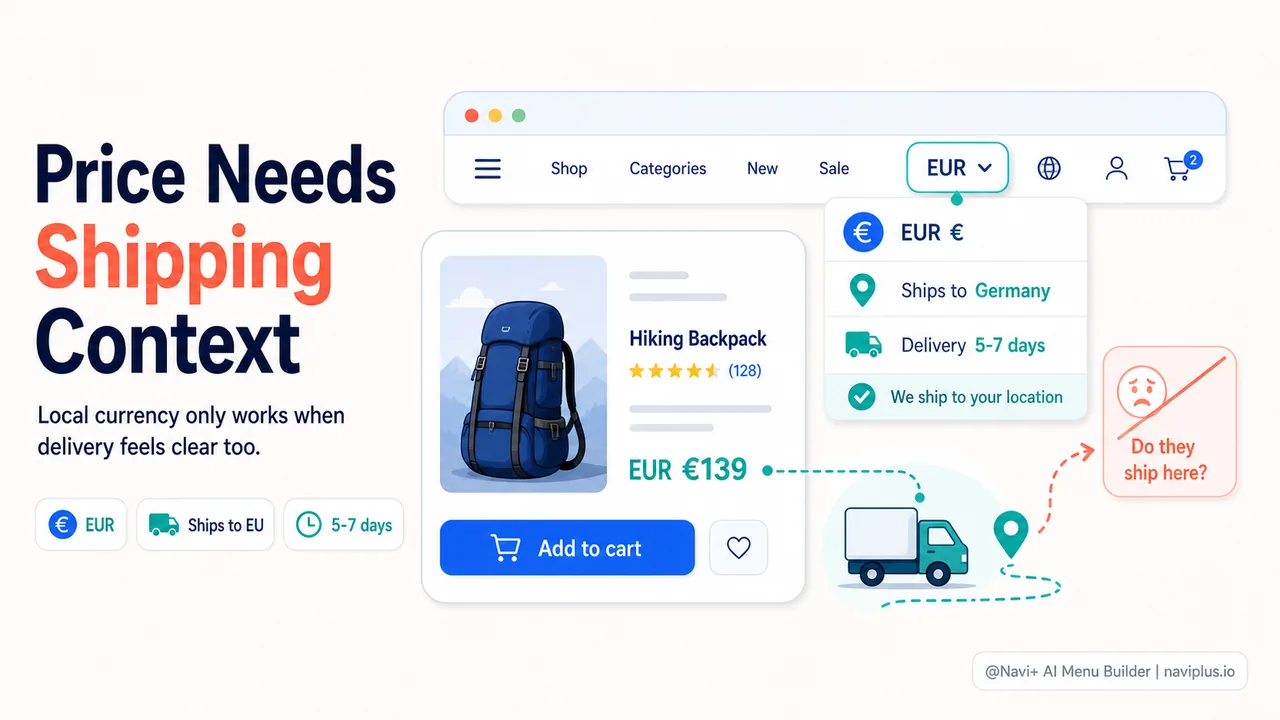
Mistake 5: Currency without shipping clarity
Showing prices in EUR doesn’t help if you don’t ship to Europe. Always pair currency options with clear shipping policy. Add a note like “We ship to 40+ countries. Delivery to [detected country] typically takes 5-7 days.”
Testing and optimization: measure what matters
You can’t improve what you don’t measure. Set up these tracking points:
Metrics to track:
- Currency switcher click-through rate (CTR) by traffic source
- International conversion rate by currency
- Cart abandonment rate by currency vs domestic
- Time-on-site for visitors who change currency vs those who don’t
- Revenue per visitor (RPV) by displayed currency
Segment your analytics by:
- Visitors who auto-detected currency vs manually switched
- Mobile vs desktop currency switcher usage
- New vs returning international customers
Most Shopify stores see these patterns:
- 8-15% of international visitors manually change currency
- Mobile users are 2-3x more likely to change currency if it’s in the header vs hamburger menu
- Returning international customers convert 18-25% better than first-time international visitors (familiarity reduces friction)
A/B test these variables:
- Currency switcher position (header vs sidebar vs floating button)
- Display format (flag + code, code only, flag only, full country name)
- Dropdown behavior (hover vs click, inline vs modal)
- Auto-detection with notification vs silent auto-detection
One Shopify store selling kitchen tools tested flag icons vs text-only currency codes. Flags increased currency switcher engagement by 31% and international conversion by 8%. The visual cue mattered.
Where to start: your 15-minute currency audit
You don’t need to rebuild your entire navigation tomorrow. Start with this quick audit:
Step 1: Check visibility (2 minutes)
- Open your store on mobile and desktop
- Can you see the currency switcher without scrolling or opening menus?
- If not, move it to the header navigation
Step 2: Test the selection flow (3 minutes)
- Change currency on your homepage
- Browse to a product page
- Add to cart
- Go to checkout
- Does the currency stay consistent? If not, you have a config issue.
Step 3: Review currency clarity (2 minutes)
- Look at 5 random product pages
- Is the currency code (USD, EUR, GBP) visible next to every price?
- If you only show “$” or “€”, add the three-letter code
Step 4: Check mobile experience (3 minutes)
- Open your store on a phone
- How many taps to change currency?
- If it’s more than one tap, simplify your mobile navigation
Step 5: Verify auto-detection (5 minutes)
- Use a VPN or proxy to visit your store from 3 different countries
- Does it auto-detect and offer the local currency?
- Can you still manually override it?
Bonus: Look at your analytics
- What percentage of your traffic is international?
- What’s your conversion rate for international vs domestic?
- If international converts <50% of domestic rate, currency friction is likely a factor
If you find more than two issues in this audit, fixing currency navigation should be your next optimization priority. The changes are relatively simple, but the impact on international revenue can be significant—often 10-20% increases within weeks.
Final thoughts: currency is a trust signal
At the end of the day, multi-currency navigation isn’t really about currency at all. It’s about showing international shoppers that you see them, understand their needs, and built your store with them in mind. It’s a trust signal delivered in milliseconds through something as small as a three-letter currency code.
The stores winning international sales in 2026 aren’t necessarily the ones with the best products or lowest prices. They’re the ones that make shopping feel effortless, local, and trustworthy—no matter where the customer is browsing from.
Your navigation menu is prime real estate. Use it to eliminate confusion, not create it. Make currency visible, make it accurate, and make it easy to change. Everything else is details.