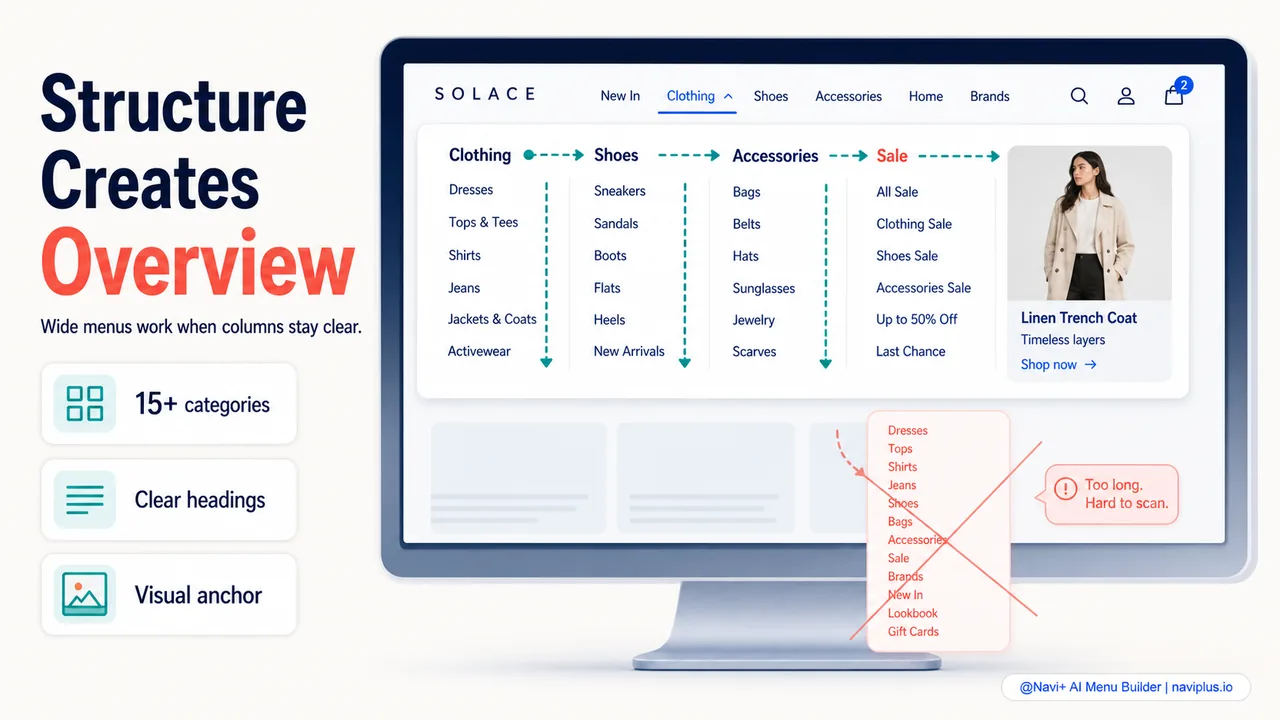
A mega menu is a wide dropdown panel that reveals multiple categories, subcategories, and sometimes images or featured products — all at once. When the shopper hovers over or clicks a top-level category on desktop, the full breadth of that category unfolds in a panel spanning most or all of the page width.
Done well, a mega menu gives the shopper a complete overview of the store’s structure in one view. They can see all subcategories under “Women’s Clothing” without clicking through multiple levels. They can spot featured products, sale sections, and new arrivals without navigating away from the current page. The overview effect makes the store feel organized and transparent.
Done poorly, a mega menu is an overwhelming wall of text and images that the shopper can’t parse. Too many items, too many columns, too many images competing for attention. The shopper opens the dropdown, sees a dense grid of 60 links, and either picks one at random or closes the menu and uses search instead.
The difference between helpful and overwhelming comes down to structure, restraint, and clarity.
- Mega menus work best for stores with many categories — they show the full structure at a glance.
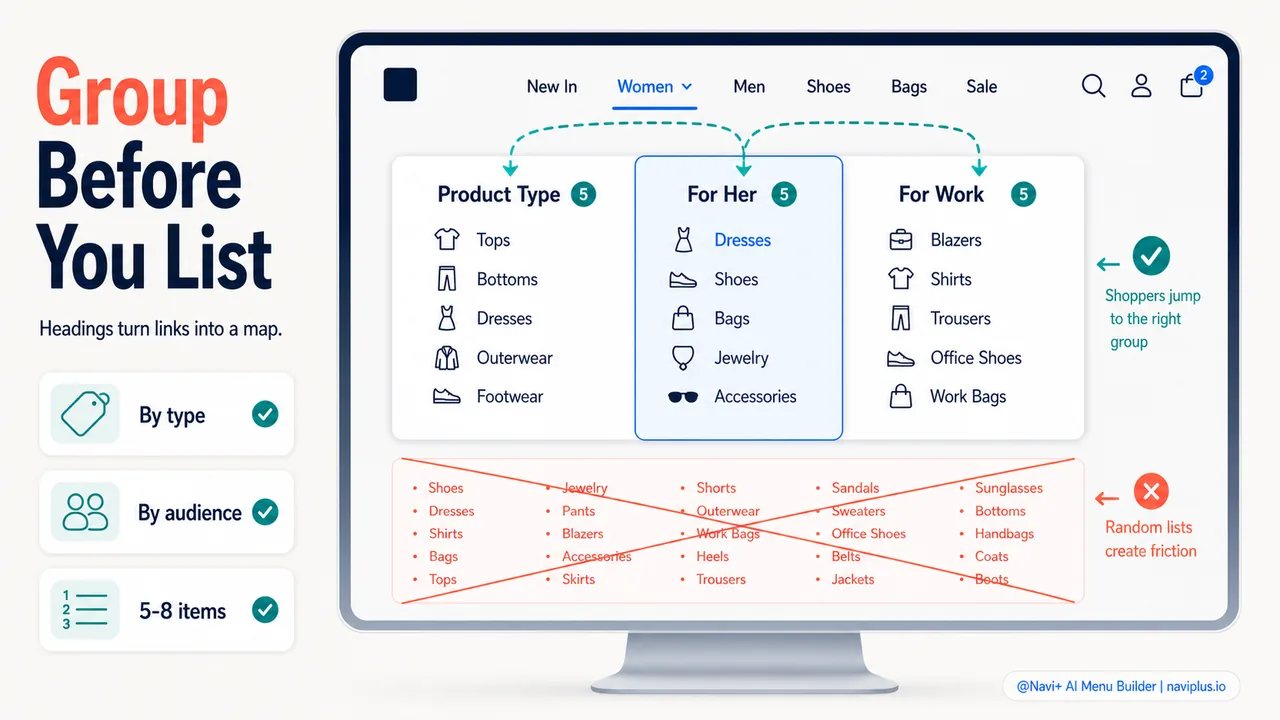
- Group subcategories logically (by type, by audience, by purpose) and limit each group to 5–8 items.
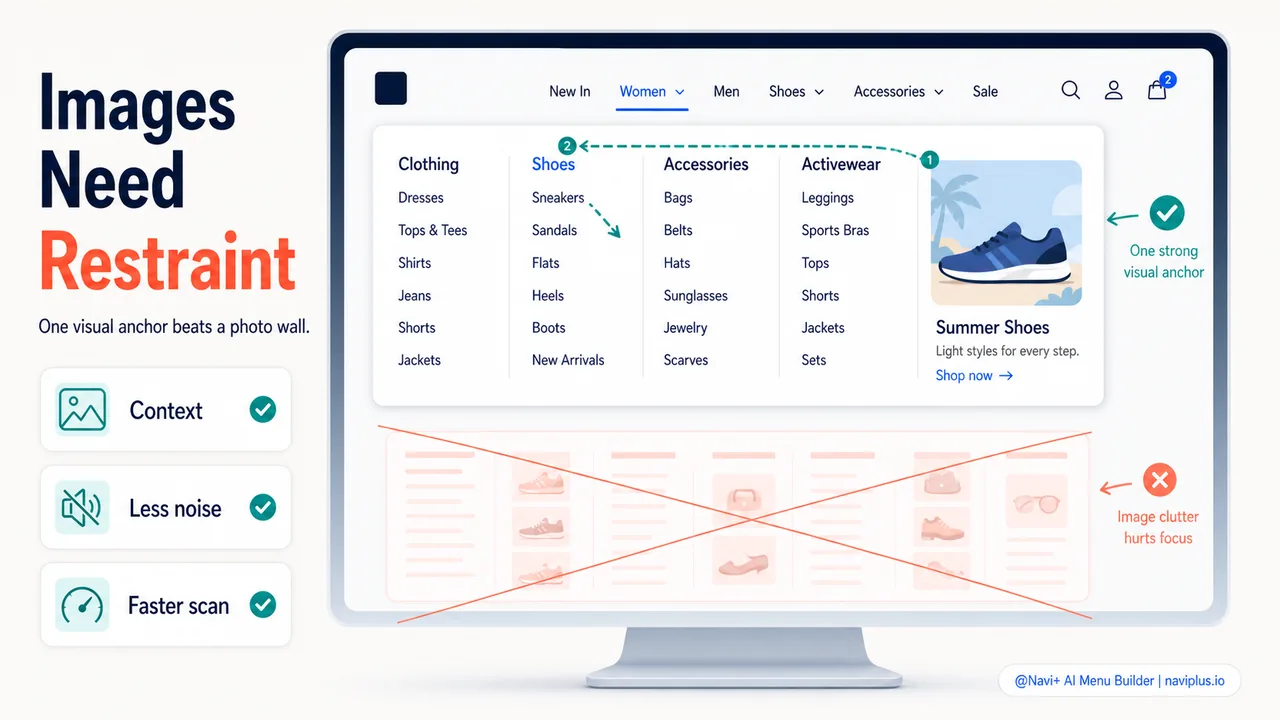
- Images in mega menus help when they add context — but too many images create visual clutter.
When to use a mega menu
A mega menu makes sense when the store has enough categories to justify the wide panel. If the store has three top-level categories with two subcategories each, a mega menu is overkill — a simple dropdown list works fine. The wide panel would be mostly empty space, making the store feel sparse rather than organized.
The threshold is roughly 15–20 subcategories across all top-level categories. At that point, simple dropdowns get long and hard to scan, and the mega menu’s multi-column layout provides a better overview.
For stores with very large catalogs (hundreds of subcategories), a mega menu is almost essential on desktop. It’s the only pattern that can show 30–50 subcategories in a single view without requiring scrolling or multiple clicks.
On mobile, mega menus don’t translate directly — there’s no hover and no wide viewport. The mega menu’s content needs to be reorganized into a mobile-friendly pattern (slide menu, accordion, or tabbed layout). Navi+ handles this by letting the store owner configure desktop mega menu and mobile slide menu separately, each optimized for its device.
Deep-diveRead the full guide → Mega menu layout patterns: columns, grids, and tabs
Images: context versus clutter
Images in mega menus — category photos, featured product thumbnails, promotional banners — add visual interest and help shoppers identify categories faster than text alone. A photo of sandals next to the “Summer Shoes” link is instantly recognizable, while the text alone requires reading.
But images also add visual weight. A mega menu with an image for every subcategory becomes a dense grid of photos competing for attention. The shopper’s eye bounces between images without settling on anything. The overview effect — the mega menu’s main advantage — is lost.
The balance: use images selectively. One or two featured images per mega menu panel (a hero image for the category, a featured product) add context without overwhelming. If every subcategory needs an image, consider using small icons instead of full photos.
Deep-diveRead the full guide → Images in mega menus: when they help and when they clutter
Grouping subcategories
The way subcategories are grouped within the mega menu panel determines how quickly the shopper can find what they want. Random ordering forces the shopper to read every item. Logical grouping lets them jump to the right section instantly.
Common grouping strategies:
- By product type: Tops, Bottoms, Dresses, Outerwear, Accessories (most common for fashion)
- By audience: For Her, For Him, For Kids (works for gift-oriented stores)
- By use case: Work, Casual, Formal, Athletic (intent-based grouping)
- By brand: Brand A, Brand B, Brand C (common in multi-brand retailers)
Each group should have a clear heading and contain 5–8 items maximum. More than 8 items in a group makes the column too long to scan quickly. If a group has more than 8 items, consider splitting it into two groups or moving the least important items to a “View all” link.
Deep-diveRead the full guide → Category grouping in mega menus: logical structure
Mobile: a different pattern entirely
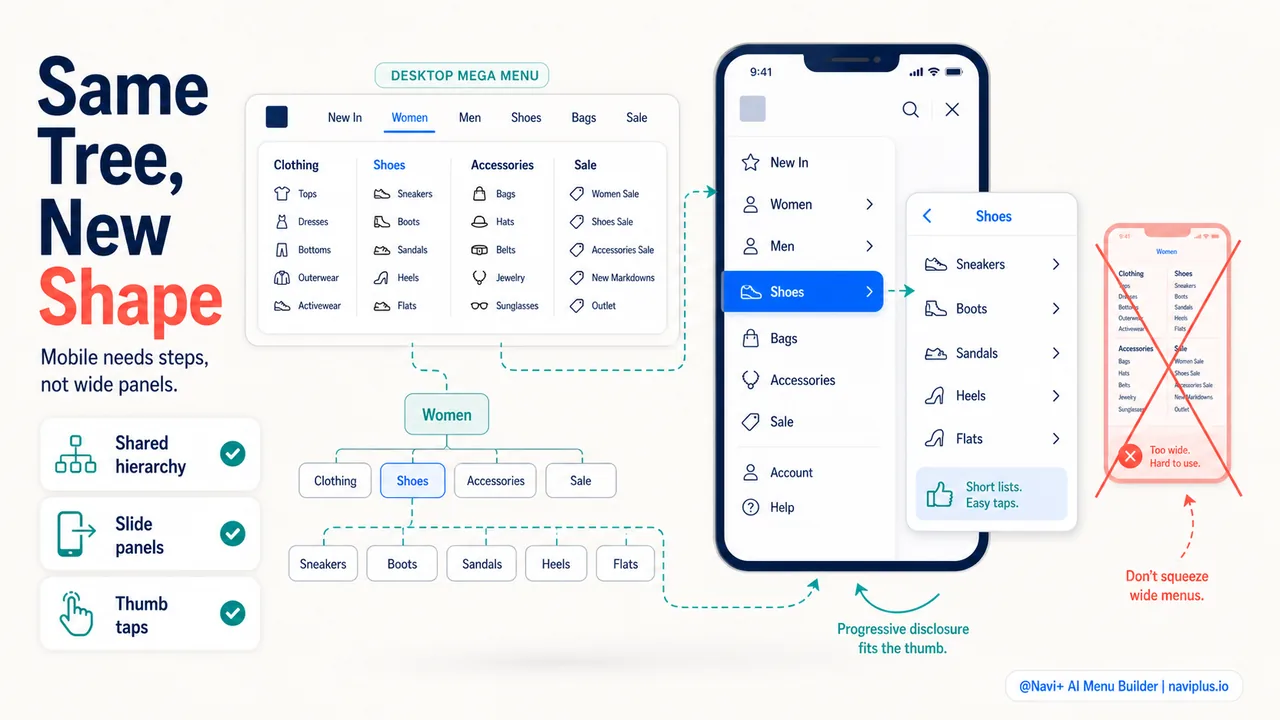
A desktop mega menu that works beautifully at 1200 pixels wide is unusable at 375 pixels. The multi-column layout, hover interaction, and wide imagery don’t translate to a phone screen. Mobile mega menus need a fundamentally different approach.
The most effective mobile translation is a slide menu with progressive disclosure. The top-level categories appear as a list. Tapping one slides to reveal its subcategories (matching the mega menu’s columns). The shopper navigates one level at a time, using their thumb to tap and swipe.
With Navi+, the desktop mega menu and mobile slide menu can share the same category structure (so the store owner only maintains one hierarchy) but use different visual presentations optimized for each device.
Deep-diveRead the full guide → Mobile mega menu: translating wide dropdowns to small screens
Where to start
Quick checkOpen your mega menu and count the total items visible. If the number is over 40, check whether items can be grouped more tightly or whether some belong in a "View all" link instead.
If you have a mega menu, audit it. Count the items in each panel. Check whether the grouping is logical. Verify that the images (if any) add context rather than clutter. Open the store on a phone and check whether the mega menu content is accessible through the mobile menu.
If you don’t have a mega menu and your store has more than 15 subcategories, consider adding one. Navi+ makes it straightforward to set up a mega menu for desktop and a slide menu for mobile, both drawing from the same category structure.
Khám phá các chủ đề
Bài này dẫn tới các bài chuyên sâu hơn — đào sâu từng phần.