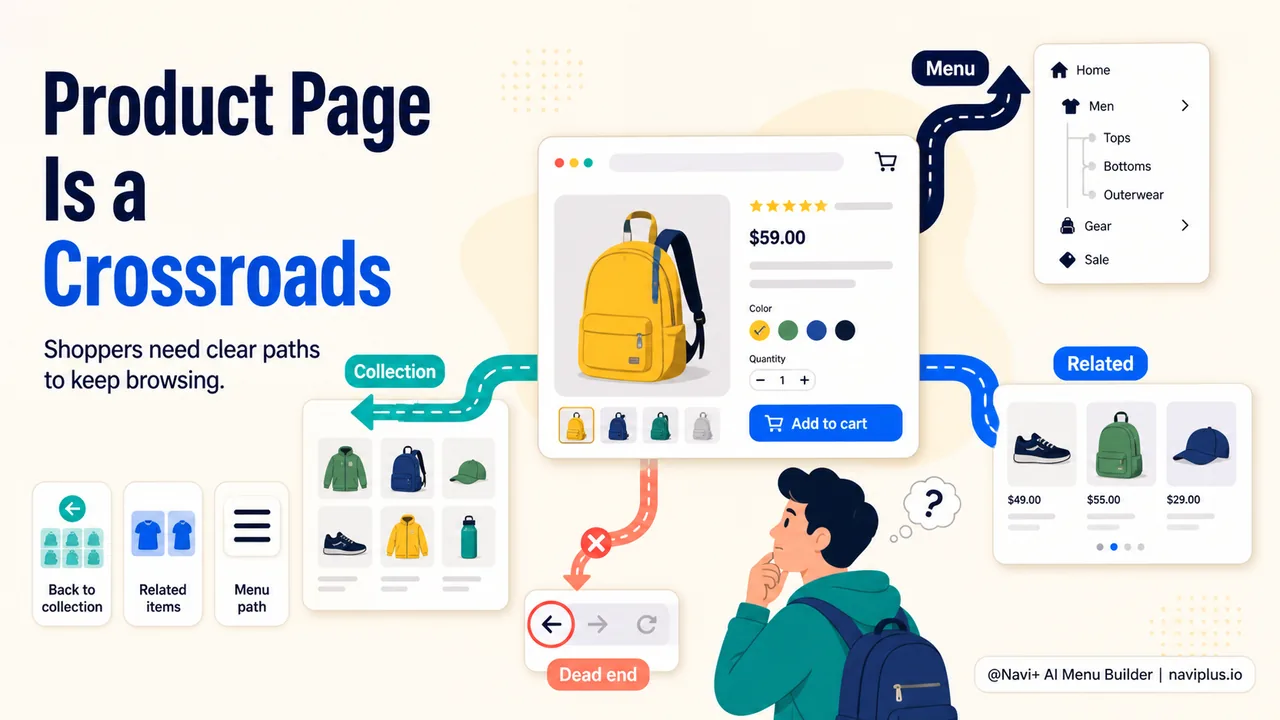
A shopper clicks on a product from a collection page. They look at the photos, read the price, maybe check one review. Then they want to see something else — a different color, a cheaper option, a related accessory. This is where most stores lose them.
The product page is not a dead end, but many stores treat it like one. The shopper lands on the product, and their only clear way out is the browser back button or the site logo in the top corner. That back button takes them to whatever they were doing before — which might be a Google search result, not the collection they were just browsing. The logo drops them back to the homepage, which means they start the whole journey over. Either way, the store makes the shopper work harder than necessary to keep shopping.
Product page navigation is about making it easy for shoppers to move forward — to the next product, back to the collection, or toward a related item — without losing their place. Get this wrong and people leave not because they dislike your products, but because finding the next one felt like too much effort.
- Most shoppers leave product pages not because of the product — but because moving to the next one is too hard.
- Breadcrumbs, related products, and back-to-collection links each solve a different navigation gap.
- On mobile, where breadcrumbs barely fit, a persistent bottom bar changes everything.
The product page is a crossroads, not a destination
It is tempting to think of a product page as the goal — the place where a shopper decides to buy. In reality it is more like a crossroads. Baymard Institute’s large-scale usability research consistently shows that shoppers rarely buy the first product they land on. They compare. They browse alternatives. They go back and forth between products and collections before committing to anything. The product page needs to support that movement, not block it.
Think about a physical store. A customer picks up a shirt, looks at it, puts it back on the rack, and picks up another one. The rack is right there — no effort required. Online, the “rack” is the collection page or a list of related products. If the shopper has to hunt for it, or if the only way back is the browser’s back button, you have created friction that a physical store would never have.
The challenge is that on a Shopify store, a product page can be reached from many directions: from a collection, from a search result, from a homepage banner, from an external ad, from a blog post. The page needs to help the shopper continue browsing regardless of how they arrived.
Deep-diveRead the full guide → Breadcrumb patterns that actually help shoppers navigate
Breadcrumbs: showing shoppers where they are
Breadcrumbs are the small text trail near the top of the page — something like Home → Women → Dresses → Summer Dress. They do two things at once: they tell the shopper where they are in the store’s structure, and they give them a one-click way back to any level above.
What makes breadcrumbs particularly valuable on product pages is that they answer a question the shopper might not even consciously ask: “What category was I in?” When someone has been browsing for a few minutes, clicking into products, going back, clicking another one, they can lose track. Breadcrumbs anchor them.
Nielsen Norman Group’s breadcrumb guidelines recommend placing breadcrumbs at the top of the page, below the primary navigation but above the page title. They should be a secondary navigation aid — visible but not competing with the main menu for attention. The text should show the page hierarchy, not the user’s clickpath (history breadcrumbs tend to confuse more than they help).
On desktop this works well. On mobile it gets harder. The text trail is often too long for a small screen, especially for stores with deep category structures. Baymard Institute identified six key aspects of mobile breadcrumbs that work: they should truncate gracefully, show the immediate parent at minimum, and remain tappable at the small screen sizes where fingers replace cursors. Many mobile implementations either hide breadcrumbs entirely (losing the benefit) or show the full trail in tiny text that nobody can read (losing the usability).
A Shopify store running Navi+ can sidestep the mobile breadcrumb problem in a practical way. Instead of cramming a text trail into the top of a phone screen, a tabbar with a back button gives the shopper a persistent, thumb-reachable way to return to the collection or the previous page. It is not a breadcrumb in the traditional sense, but it solves the same problem — giving the shopper a clear way backward — and it does so in the part of the screen where the thumb naturally rests.
Related products: moving sideways
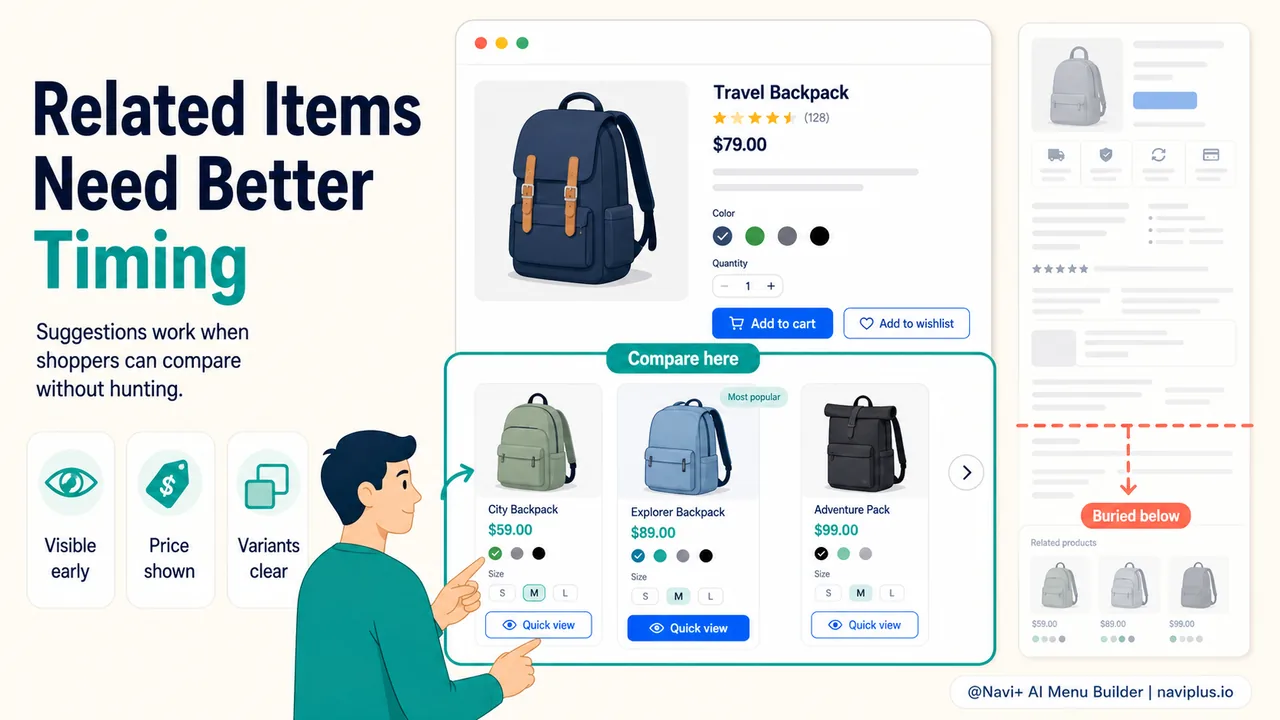
If breadcrumbs help shoppers move up (back to the collection), related products help them move sideways — to a similar item, a different color, an accessory that goes with what they are looking at.
Baymard Institute’s research on cross-sell recommendations found that 68% of sites are missing at least one recommended attribute when displaying these suggestions. That means a shopper sees a row of “You might also like” products but can’t compare prices, or can’t see if something is on sale, or can’t tell what size it comes in — right there in the suggestion. If the shopper has to click into each suggestion just to check the price, that is friction, and many will simply not bother.
The placement matters too. Related products shown at the very bottom of a product page, after reviews, after the shipping policy, after a block of legal text, are related products that most shoppers will never scroll to. The most effective position is either below the main product information (before reviews and secondary content) or in a dedicated section that’s easy to reach without a long scroll.
There’s a balance to strike. Baymard’s checkout flow research notes that aggressively showing cross-sells can distract shoppers from completing a purchase. On the product page, the goal is discovery — helping someone who hasn’t decided yet. In the cart or at checkout, the goal shifts to closing. Pushing too many alternatives at the wrong moment makes the shopper second-guess instead of commit.
Deep-diveRead the full guide → Related products and cross-sell: navigating between products
Mobile: where product page navigation matters most
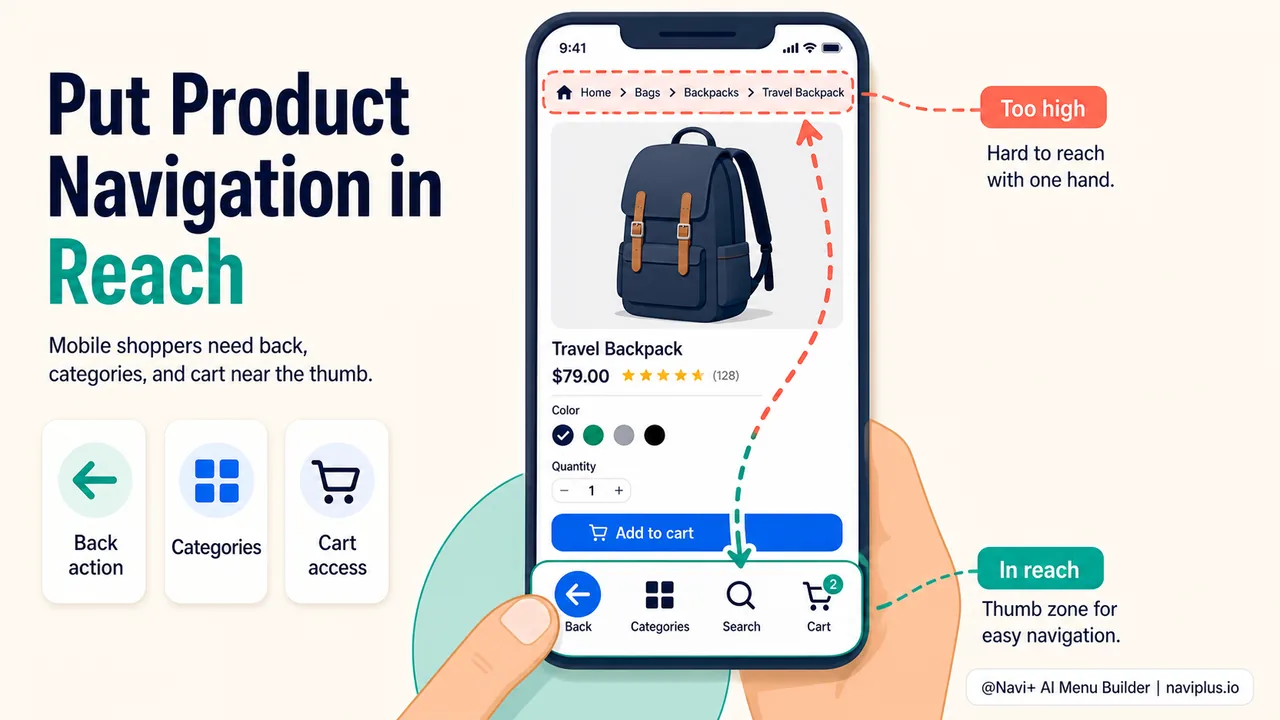
On a phone, the navigation problems on a product page are amplified. The screen is small, the thumb reaches only the lower half comfortably, and the browser’s back button is the default escape route — which often takes the shopper out of the store entirely if they arrived from an ad or a search engine.
Steven Hoober’s research on mobile usage showed that most people operate their phone one-handed, with the thumb doing the work. The upper portion of the screen is the hardest to reach. Yet that’s exactly where most stores put their breadcrumbs, their menu icon, and their logo link — the three main ways to navigate away from a product page. Everything that matters for navigation is in the zone where the thumb can’t easily go.
A fixed bar at the bottom of the screen changes this fundamentally. It puts navigation where the thumb already is. A tabbar with a few key items — Home, Categories, Cart, and a Back button — gives the shopper every direction they need without stretching. On Shopify, this is a pattern Navi+ was built for: configuring a mobile tabbar that’s always visible, always reachable, and doesn’t depend on the theme’s header navigation.
There’s another mobile consideration: scroll position. When a shopper taps the back button to return to a collection page, many Shopify themes don’t restore the scroll position. The shopper lands back at the top of the collection, losing their place entirely. This is a known frustration in the Shopify community. A tabbar-based back action can work around this by keeping the shopper’s browsing state intact, or at minimum, by providing a smoother return than the browser’s default behavior.
Deep-diveRead the full guide → Mobile product page navigation: back buttons, swipe, and sticky bars
Tying product pages to your menu structure
The product page doesn’t exist in isolation. It’s part of a larger navigation system — the menu, the collections, the homepage — and these need to work together.
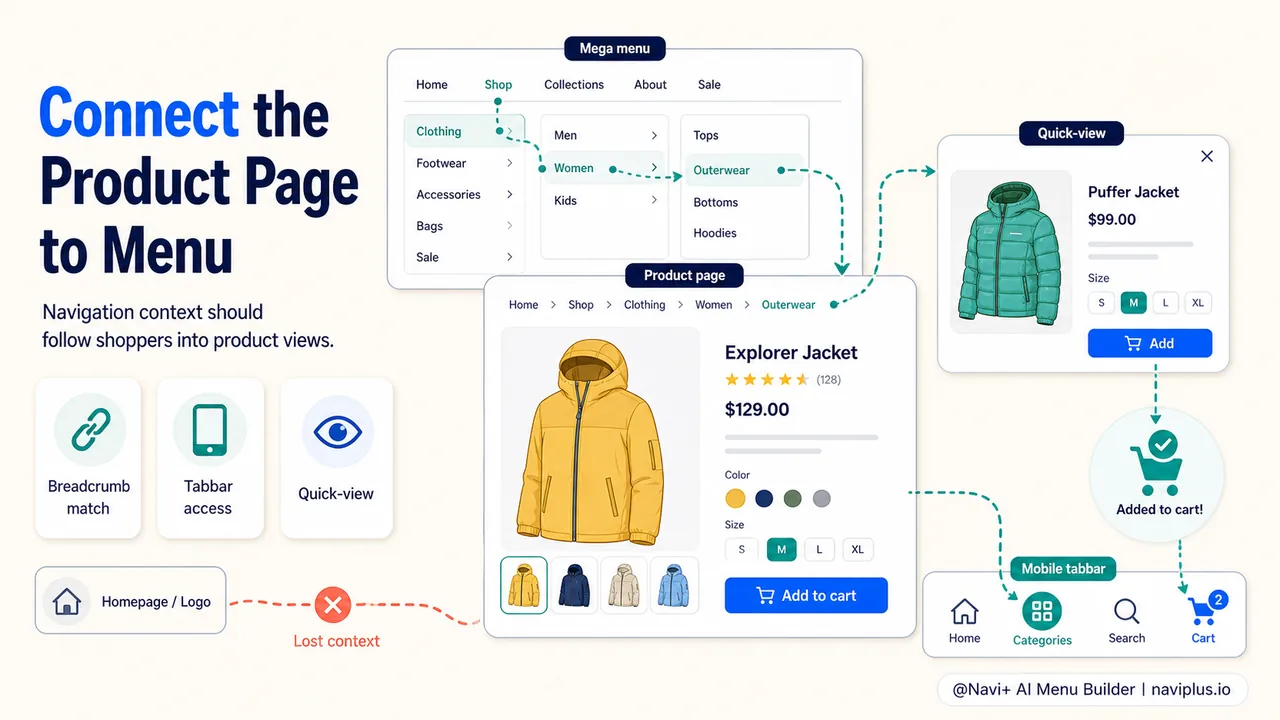
A common disconnect: the mega menu on desktop lists categories and subcategories neatly, but once a shopper clicks into a product, the mega menu’s context vanishes. The shopper is now on a product page with a generic header. They can open the mega menu again, but they’ve lost the visual hint of which category they were browsing. Breadcrumbs help here, but only if they match the menu’s category structure. If the mega menu says “Women → Dresses” but the breadcrumb says “Collections → Summer Sale,” the shopper gets mixed signals about where they are.
On mobile, a tabbar can bridge this gap. A Categories button in the tabbar opens the menu without leaving the product page — the shopper can browse other categories and come back. A Cart button shows the cart count, reminding the shopper that items are waiting. These aren’t product page features per se, but they turn the product page from an isolated view into a connected part of the store.
Quick-view is another integration point. Instead of navigating away from the current page to see a related product, the shopper taps a quick-view button that opens a summary overlay — photo, price, size options, add-to-cart. If they like it, they add it and stay where they are. If not, they close the overlay and continue browsing. Quick-view reduces the navigation cost of exploring related products to almost zero.
Deep-diveRead the full guide → Connecting product pages to your menu structure
Where to start
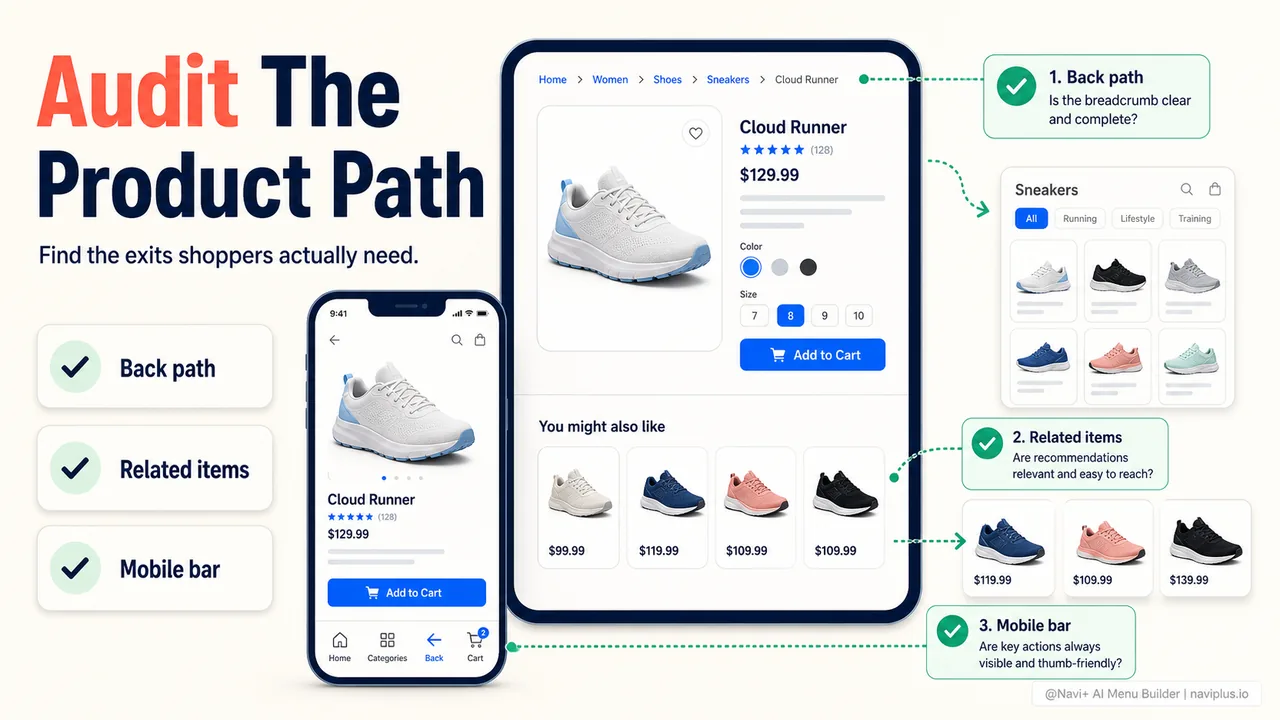
Quick auditOpen a product page on your phone, then try to reach another product in the same collection using only what's on screen — no browser back button. Count the taps. If it takes more than two, there's room to improve.
Open your store on a phone. Go to a collection, tap a product, and then try to get to another product in that same collection. Don’t use the browser’s back button — pretend it doesn’t exist. How many taps does it take? How far do you have to scroll? Can you even find a way back?
If the answer is more than two taps, or if you had to scroll to the very bottom to find related products, that’s the gap your shoppers feel every day. They just don’t tell you about it — they leave instead.
Start with the path back. Add breadcrumbs on desktop if you don’t have them. On mobile, consider a bottom bar with a back action. Then look at your related products: are they visible without scrolling far, and do they show enough information to compare? Finally, check whether your menu and your product page speak the same category language.
Small changes here won’t show up as a dramatic spike in a dashboard. But they reduce the quiet friction that makes shoppers drift away, one at a time, without ever complaining.
Explore the topics
This guide links out to focused articles — dive deeper on each.