Navigation basics for your first online store: the 5 essentials
You've spent weeks choosing products, designing your logo, writing descriptions, and setting up your Shopify store. You hit publish, share the link with friends, and wait for orders to roll in. A few days later, you check your analytics and notice something strange: visitors are landing on your homepage, scrolling a bit, then leaving. Your bounce rate is 68%. Only 2% made it to a product page.
The culprit? Navigation. Or rather, the lack of it.
Most first-time store owners underestimate how critical navigation is to their bottom line. According to Baymard Institute's research on checkout usability, 37% of users who abandon their cart cite "difficult site navigation" as a key frustration. But navigation isn't just about avoiding mistakes—it's about actively guiding customers toward products they want to buy.
This guide walks you through the five essential navigation elements every new online store needs, why they matter, and how to implement them without a developer.
- Clear category structure reduces decision fatigue and increases product discovery by 40%
- Mobile-first navigation is non-negotiable—62% of online shopping happens on mobile devices
- Search functionality can account for 15-30% of revenue in mature stores
- Visual cues like icons and images increase menu engagement by up to 35%
- Strategic placement of high-margin categories can boost revenue per visitor by 20%
Why navigation matters more than you think
Before diving into the five essentials, let's establish why navigation deserves your attention in the first place.
Nielsen Norman Group conducted eye-tracking studies showing that users spend an average of 6.48 seconds scanning navigation menus before deciding where to click. That's your window to communicate your entire catalog structure, build trust, and direct attention toward your most profitable products.
Think of navigation as your store's directory. A physical retail store wouldn't throw all products in one giant pile—you'd organize by department, create clear signage, and place impulse-buy items near checkout. Your online navigation does the same job, but with one crucial advantage: you can update it instantly based on what's working.
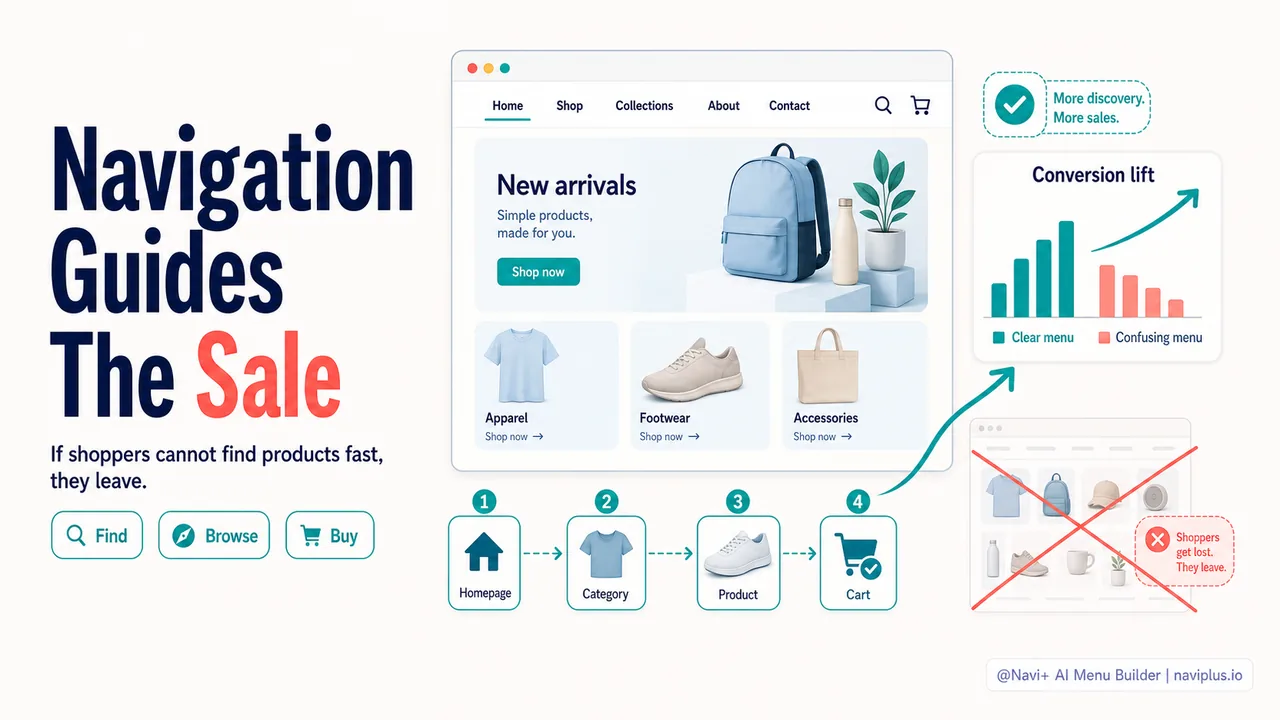
Here's the reality: if customers can't find what they're looking for within 10-15 seconds, they leave. And unlike a physical store where they might ask for help, online visitors just bounce to a competitor.
Essential 1: A logical category structure
Your category structure is the foundation of navigation. Get this wrong, and everything else fails.
The 7±2 rule
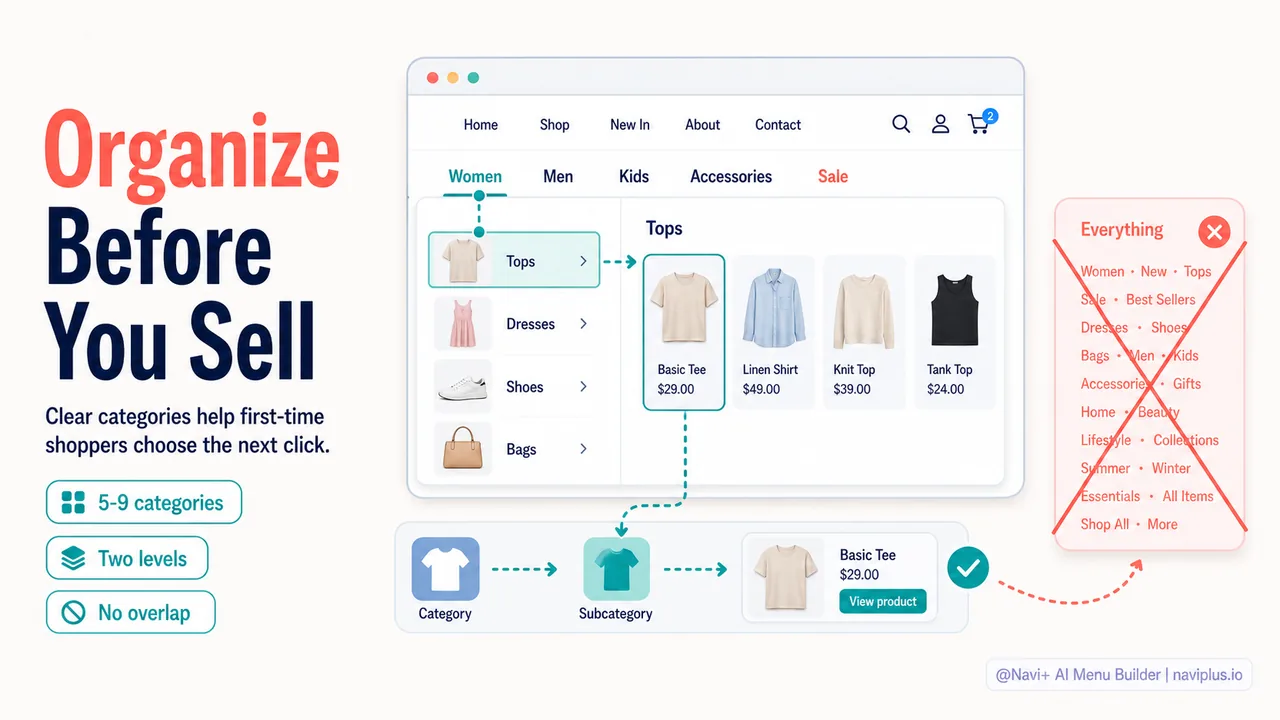
Cognitive psychology research by George Miller found that humans can hold about 7 items (plus or minus 2) in working memory at once. This applies directly to menu design: aim for 5-9 top-level categories.
Too few categories and customers have to dig through too many clicks. Too many and they experience decision paralysis.
Bad example:
- Products (100+ items dumped in one category)
- Sale
- About
Good example (apparel store):
- Women
- Men
- Kids
- Accessories
- New Arrivals
- Sale
Think like your customer, not like a retailer
One common mistake: organizing products by internal categories that make sense to you but confuse customers.
For example, a furniture store owner might organize products by supplier or by internal SKU systems. But customers think in terms of rooms ("Living Room," "Bedroom") or needs ("Storage Solutions," "Seating").
Run this simple test: ask three people unfamiliar with your products to look at your menu and tell you where they'd expect to find specific items. If they hesitate or guess wrong, your categories need work.
Use subcategories wisely
Once you have your top-level categories, subcategories help narrow down choices without overwhelming the main menu.
Best practices for subcategories:
- Keep them shallow: Two levels deep is usually enough (Category → Subcategory → Product). Three levels max.
- Make them mutually exclusive: A "Summer Dresses" subcategory shouldn't overlap with "Casual Dresses"—customers won't know which to choose.
- Show them in mega menus: For stores with 50+ products, a mega menu (multi-column dropdown) displays subcategories at a glance instead of hiding them in nested dropdowns.
Essential 2: Mobile-first design
Here's a stat that should change how you think about navigation: according to Shopify's 2025 commerce data, 62% of online purchases now happen on mobile devices. If your navigation doesn't work on a 375px screen, you're losing more than half your potential customers.
The hamburger menu debate
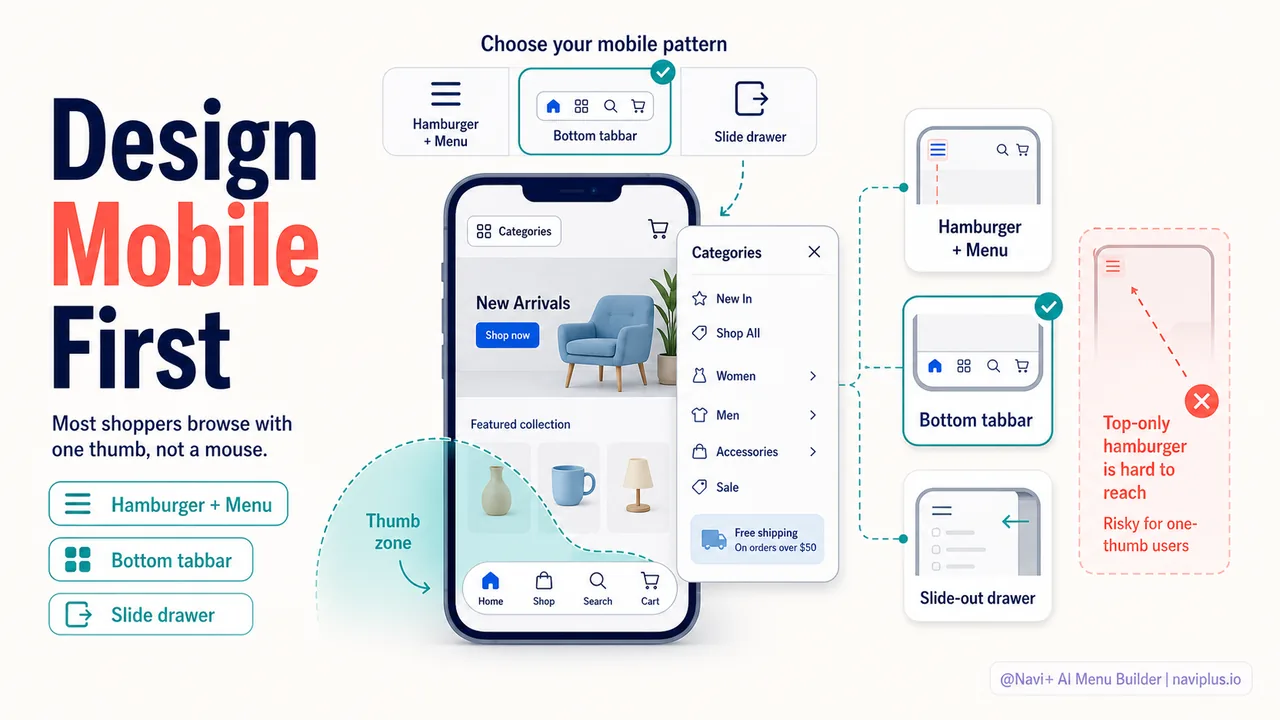
The hamburger icon (three horizontal lines) is standard on mobile, but research shows it has a discoverability problem: many users don't recognize it or forget to tap it.
Solutions:
- Make it obvious: Use the word "Menu" next to the icon
- Consider a tab bar: For stores with 4-6 key categories, a bottom tab bar (like Instagram's interface) keeps navigation visible without taking up header space
- Use a sticky header: Keep your menu icon accessible as users scroll
Mobile menu best practices
When a customer taps your mobile menu, they should see:
- Large tap targets: Minimum 44x44 pixels (Apple's Human Interface Guidelines). Fat fingers need room.
- Clear hierarchy: Primary categories should visually dominate. Use size, weight, or color to differentiate them from subcategories.
- One-tap access to key pages: Don't hide "Sale" or "New Arrivals" three levels deep. Surface them at the top level.
- Search at the top: More on search later, but mobile users rely heavily on search when they know what they want.
Test on real devices
Desktop Chrome's mobile emulator is useful, but it doesn't capture the reality of fat thumbs, glare, or holding a phone in one hand while on the subway. Test your mobile navigation on actual devices—ideally a mix of iPhone and Android phones with different screen sizes.
Essential 3: Search (even if you think you're too small)
Many new store owners assume search functionality is only for large catalogs. Wrong.
Baymard Institute's research found that 30% of e-commerce visitors use site search, and those searchers convert at 2-3x the rate of non-searchers. Why? Because they already know what they want—your job is to help them find it fast.
When to add search
If you have more than 20 products, add search. Even with a small catalog, customers might remember a product name but not which category it's in.
Make search visible
Your search bar should be:
- In the header: Top-right is standard (users expect it there)
- Always visible on desktop: Don't hide it behind an icon
- Accessible on mobile: A search icon in the header that opens a full-width input is fine
Search quality matters
Shopify's default search is decent but not great. It struggles with:
- Typos ("tshirt" vs "t-shirt")
- Synonyms ("sneakers" vs "trainers")
- Partial matches ("blue dress" should return "Navy Blue Summer Dress")
For stores with 100+ products, consider upgrading to a search app like Searchanise or Boost Product Filter. They add features like autocomplete, filters, and "did you mean" suggestions.
Search analytics are gold
Your search queries reveal what customers actually want. Check your search terms monthly:
- High-volume searches: If "vegan leather jacket" gets 50 searches/month but you only have two products, you've found a gap in your catalog
- Zero-result searches: Queries that return no products indicate missing items or poor product tagging
- Misspellings: Common typos tell you what synonyms or variants to add to product descriptions
Essential 4: Visual navigation elements
Text-only menus work, but they're boring and easy to ignore. Adding visual elements increases engagement and helps customers scan faster.
Icons
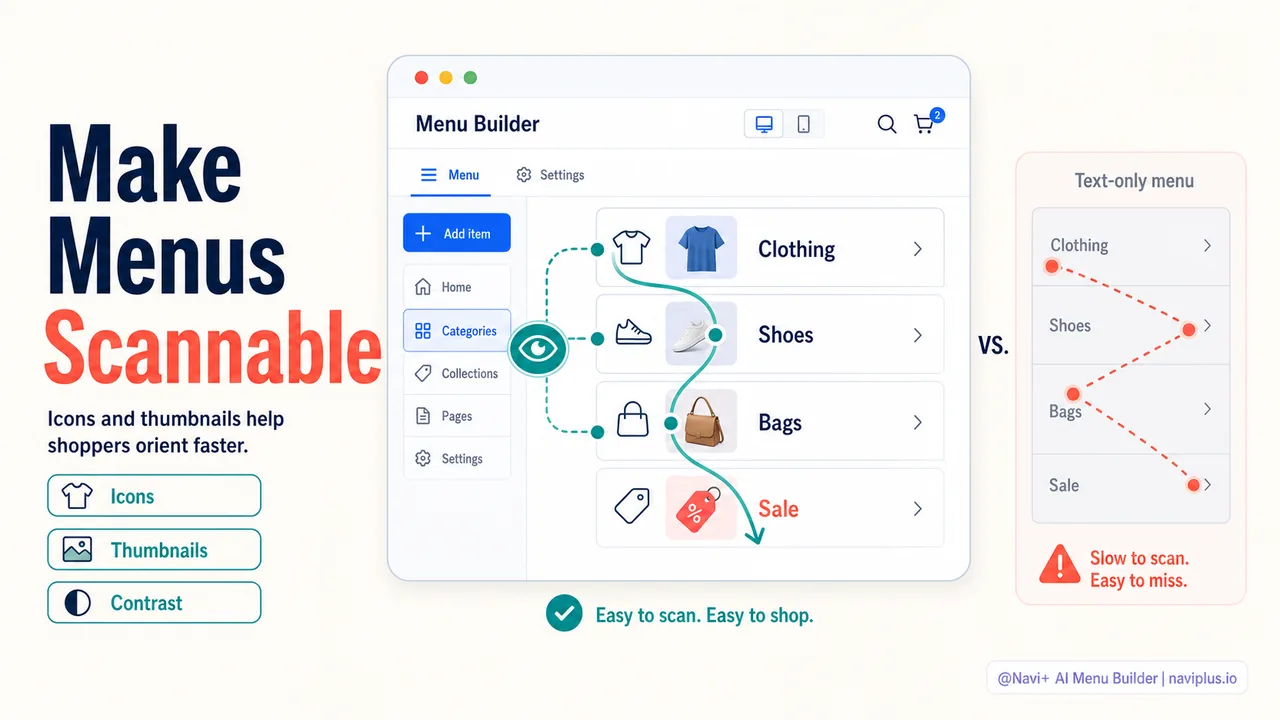
Icons serve as visual anchors. A shirt icon next to "Clothing" or a tag icon next to "Sale" processes faster than text alone.
Best practices:
- Use universally recognized icons: A shopping bag for cart, magnifying glass for search, heart for wishlist. Don't get creative with these.
- Keep them simple: Icons should be readable at 24x24 pixels
- Maintain consistency: Use the same icon style throughout (all outlined, all filled, all duotone—don't mix)
Category images
For mega menus or mobile slide-out menus, adding small thumbnail images next to category names can boost clicks by 20-35% (data from Navi+ Menu Builder customer A/B tests).
Why it works: images communicate faster than words. A customer scanning for "Outdoor Furniture" will spot a photo of a patio set instantly, even if they haven't read the label yet.
Color and contrast
Don't underestimate the power of color in guiding attention:
- Highlight key categories: Use a subtle background color or border to make "Sale" or "New Arrivals" stand out
- Use color sparingly: If everything is highlighted, nothing is
- Check accessibility: Use a contrast checker (WebAIM has a free tool) to ensure text is readable for users with vision impairments
Essential 5: Strategic placement and prioritization
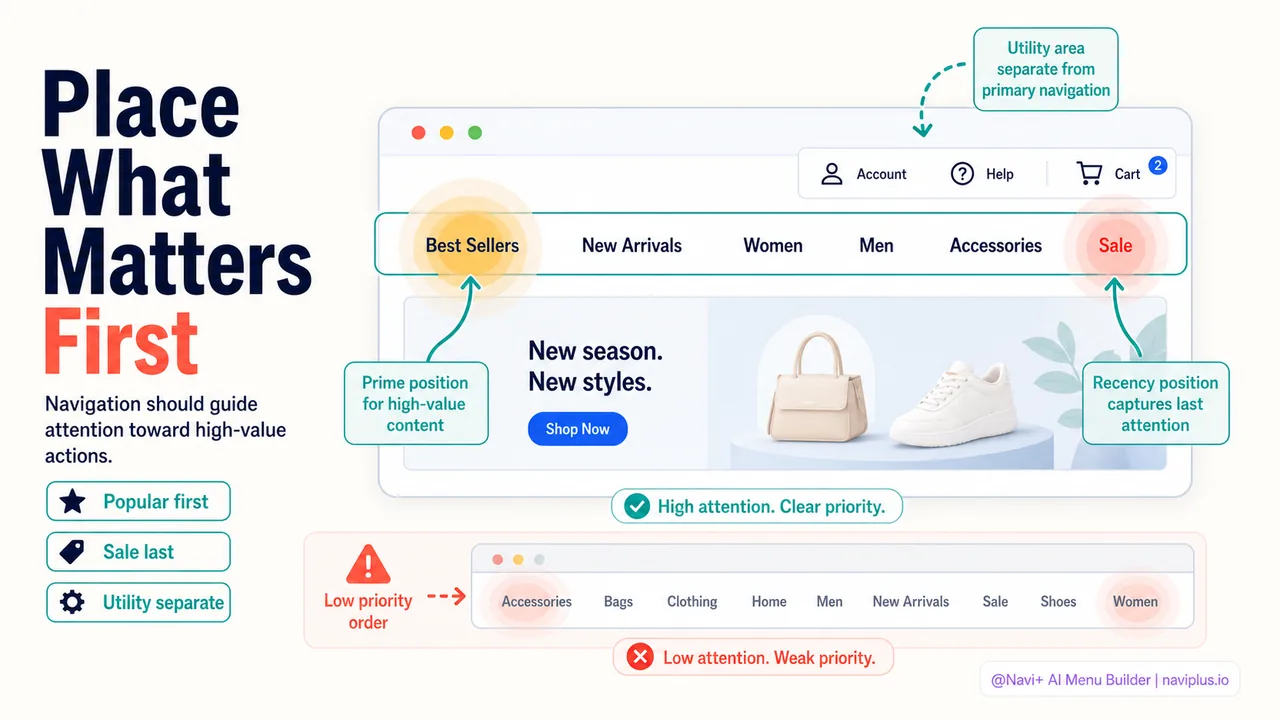
Not all menu items are equal. Your navigation should guide customers toward high-value actions, not just list categories alphabetically.
The serial position effect
Cognitive psychology research shows people remember the first and last items in a list better than middle items. Apply this to menus:
- First position: Your most popular or highest-margin category
- Last position: "Sale" or "New Arrivals" (action-oriented categories that benefit from end-of-list visibility)
- Middle positions: Standard categories
Promote what matters
Ask yourself: which category drives the most profit? If it's "Custom Gifts" but you've buried it under "Shop → Gifts → Custom," you're leaving money on the table.
Real example: A candle store moved "Gift Sets" from the fourth position to the first position in their menu. Result: a 23% increase in gift set sales over the next month, with no other changes to the site.
Seasonal adjustments
Your navigation shouldn't be static. Update it based on seasons, promotions, and customer behavior:
- Holiday seasons: Move "Gift Guide" to the top in November/December
- Clearance events: Promote "Sale" when you need to move inventory
- New product launches: Add a temporary "New Arrivals" or "Just Landed" section
Utility navigation
Don't forget the utility links—pages customers need but don't browse for:
- Account/Login
- Cart
- Wishlist
- Help/FAQ
- Contact
These should live in a secondary navigation area (usually top-right or footer) so they don't clutter your primary menu.
Putting it all together: Navigation examples by store type
Let's see how these principles apply to different types of stores.
Small catalog (10-30 products)
Example: Handmade jewelry store
Primary navigation:
- Necklaces
- Earrings
- Bracelets
- Custom Orders
- About
Notes: With a small catalog, you don't need subcategories. Focus on making each category discoverable. Add a prominent search bar because customers might search by material ("silver earrings") or occasion ("wedding jewelry").
Medium catalog (30-100 products)
Example: Activewear brand
Primary navigation:
- Women → Tops, Bottoms, Sports Bras, Outerwear
- Men → Tops, Bottoms, Outerwear
- Accessories → Bags, Water Bottles, Headbands
- New Arrivals
- Sale
Notes: Use a mega menu on desktop to display subcategories without extra clicks. On mobile, use an accordion-style menu where tapping "Women" expands subcategories inline.
Large catalog (100+ products)
Example: Home goods store
Primary navigation:
- Shop by Room → Living Room, Bedroom, Kitchen, Bathroom, Outdoor
- Shop by Product → Furniture, Lighting, Decor, Textiles, Storage
- Collections → Modern Farmhouse, Minimalist, Coastal, Industrial
- New Arrivals
- Sale
Notes: Multiple navigation paths serve different customer mindsets. Someone furnishing a new apartment might browse by room, while someone redecorating might browse by style. Robust search with filters (price, color, material) becomes critical here.
Common mistakes to avoid
Even with the best intentions, new store owners make predictable navigation mistakes. Here are the ones I see most often:
Mistake 1: Too many menu levels
Menu → Clothing → Tops → T-Shirts → Graphic Tees → Vintage-Inspired Graphic Tees is too deep. By the third click, customers have forgotten where they started. Flatten your hierarchy.
Mistake 2: Using jargon or internal terms
If your warehouse calls a product line "Series X," but customers call it "Waterproof Jackets," use the customer term in your menu.
Mistake 3: Ignoring mobile performance
A beautiful mega menu on desktop might load slowly on mobile or require too much scrolling. Test page speed and usability on actual devices.
Mistake 4: Hiding the menu on scroll
Some themes hide the navigation header when users scroll down "to save space." This forces users to scroll back up every time they want to navigate, which is annoying. Use a sticky header instead—it stays accessible without obstructing content.
Mistake 5: No clear call-to-action
Your navigation should include at least one action-oriented item like "Shop Now," "Sale," or "New Arrivals." A menu that only lists passive categories ("About," "Blog," "FAQ") doesn't drive purchases.
Tools and resources
You don't need to be a developer to implement great navigation. Here are tools that help:
Shopify themes
Most modern Shopify themes (Dawn, Sense, Craft) include mega menu support out of the box. Enable it in your theme settings, then organize your menus under Online Store → Navigation.
Navigation apps
For more advanced needs—tab bars, icon menus, image-rich mega menus—consider a navigation app like Navi+ Menu Builder. These tools let you customize navigation without touching code, and they often include mobile-specific designs that adapt automatically.
Analytics
Use Google Analytics (or Shopify's built-in analytics) to track:
- Navigation clicks: Which menu items get the most engagement?
- Bounce rate by landing page: Are people leaving because they can't find what they need?
- Exit pages: Where do customers give up?
Set up event tracking for menu clicks to see which categories drive the most traffic to product pages.
User testing
Free tools like Hotjar or Microsoft Clarity show heatmaps and session recordings so you can watch real users interact with your navigation. Look for patterns: do they hover over menu items but not click? Do they immediately jump to search instead of browsing categories?
Where to start: Your 15-minute navigation audit
You don't need to overhaul your entire navigation today. Start with this quick audit to identify the biggest opportunities:
- Count your top-level categories. More than 9? Consolidate. Fewer than 4? You might be oversimplifying.
- Open your store on your phone. Can you navigate to any product in under 10 seconds? If not, your mobile menu needs work.
- Check your three most popular products. How many clicks does it take to reach them from the homepage? Reduce that by at least one click if possible.
- Review your analytics. What's your bounce rate? If it's above 60%, navigation confusion might be a factor.
- Ask someone unfamiliar with your store to find a specific product. Watch where they click. If they struggle, note which categories or labels confused them.
Pick one finding from this audit and fix it this week. Then move to the next. Small, incremental improvements compound over time.
Final thoughts
Navigation isn't glamorous. It won't make your Instagram feed pop or impress your designer friends. But it's one of the highest-leverage improvements you can make to your store.
Good navigation is invisible—customers don't notice it because it just works. They find what they need, buy it, and leave happy. Bad navigation, on the other hand, is loud: customers get frustrated, leave, and you wonder why your conversion rate is stuck at 1.2%.
The five essentials covered here—logical structure, mobile-first design, search, visual elements, and strategic placement—form the foundation of navigation that converts. Master these basics, then iterate based on data and customer feedback.
Your navigation will never be "done." As your catalog grows, as seasons change, as you learn more about your customers, you'll adjust. That's a good thing. It means you're paying attention to what works and optimizing toward better results.
Start simple, test often, and let customer behavior guide your decisions. That's how you build navigation that sells.