There is a difference between mobile-friendly and mobile-first that most store owners miss. Mobile-friendly means the desktop site shrinks to fit a phone screen. The same menu, the same layout, the same navigation — just smaller. Mobile-first means the navigation was designed for a phone from the start, and the desktop version was built on top of that foundation.
The distinction matters because most ecommerce traffic now comes from phones. When 60%, 70%, or 80% of your visitors are on mobile, the phone is not a secondary device — it is the primary experience. Designing for desktop and then adapting for mobile means the majority of your visitors are using an afterthought.
A mobile-first navigation strategy starts with how people actually hold their phones, how their thumbs move, and what they can comfortably reach on a small screen. It then builds navigation patterns that work within those physical constraints, rather than trying to shrink desktop patterns into a space where they don’t fit.
- Mobile-friendly shrinks the desktop menu for phones. Mobile-first designs the phone menu from scratch.
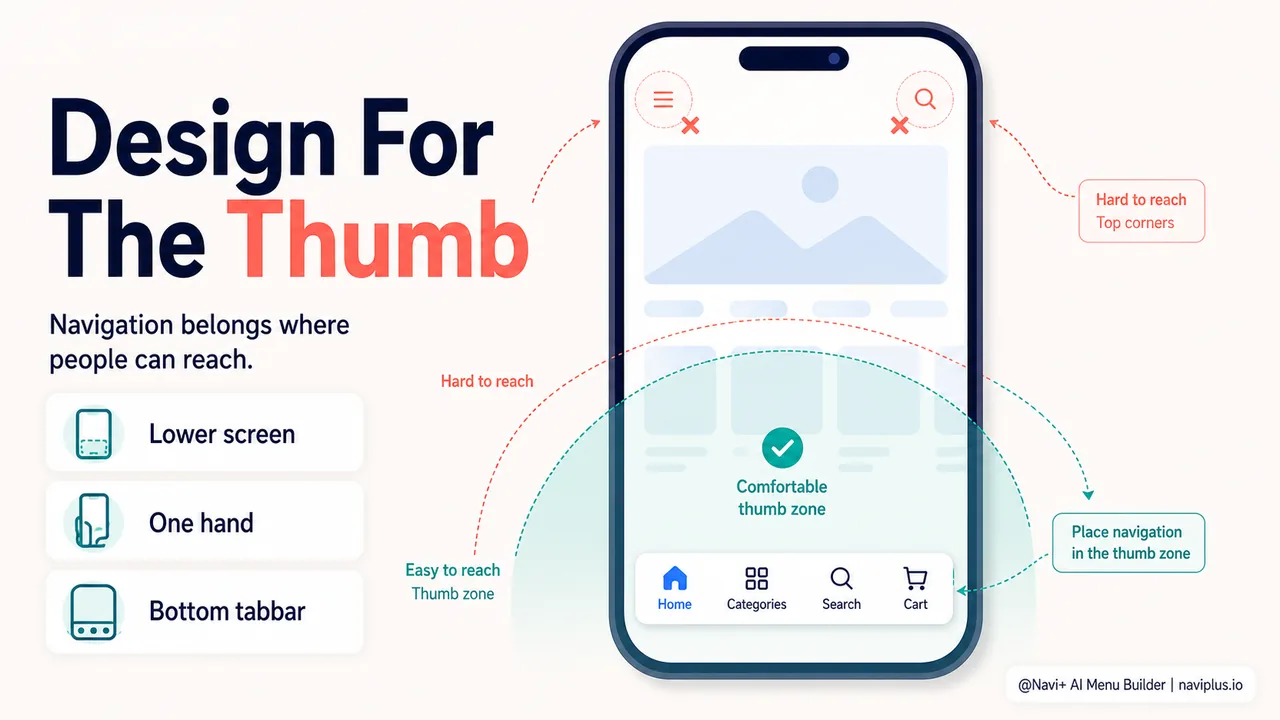
- The thumb reaches the bottom half of the screen — that's where navigation should live on mobile.
- A tabbar at the bottom of the screen is mobile-first. A hamburger menu at the top is mobile-friendly at best.
The thumb zone: where navigation actually belongs
Steven Hoober’s research, based on observing more than 1,300 people using their phones, found that 49% of people hold their phone with one hand. The thumb does all the work. The area the thumb can comfortably reach without stretching is the lower half to two-thirds of the screen. The upper corners — where most sites put the menu icon, the logo, and the search bar — are the hardest to reach.
This is not a preference or an opinion. It is a physical constraint. The thumb bends at the base, and its arc naturally covers the lower portion of the screen. Reaching the top requires the user to shift their grip, stretch uncomfortably, or use a second hand. Each of these actions is a small friction that accumulates across a browsing session.
For navigation, the implication is clear: the most important interactive elements — the menu button, the cart, the search — should be at the bottom of the screen, not the top. This is why native apps use bottom navigation bars (Instagram, Amazon, Spotify). And this is why a tabbar on a Shopify store, placed at the bottom of the screen via Navi+, immediately makes the store feel more natural on a phone.
Deep-diveRead the full guide → Thumb zone design: building for one-handed use
Mobile-first patterns that work
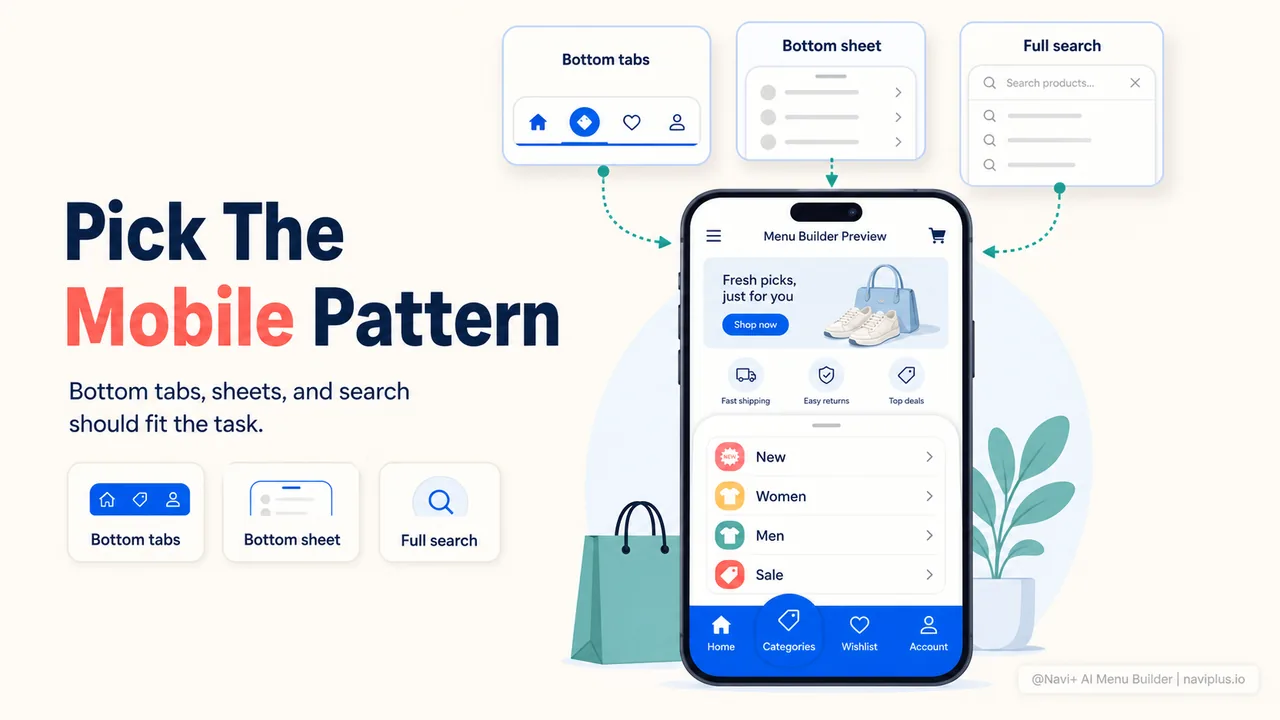
Once you accept that navigation belongs at the bottom, the next question is which patterns work best on a phone.
Bottom tabbar. The most reliable mobile-first pattern. Three to five buttons fixed at the bottom of the screen: Home, Categories, Search, Cart, Account. Always visible, always reachable, always consistent. The shopper knows exactly where to find navigation without thinking. This is the pattern Navi+ was built for.
Bottom sheet menu. A menu that slides up from the bottom of the screen, covering the lower portion of the viewport. The shopper can drag it up for more items or swipe it down to dismiss. This works well for deep menus that need more space than a tabbar provides.
Slide menu (from the side). The traditional hamburger menu, where a panel slides in from the left or right. This pattern is widely used but has a mobile-first problem: the trigger (the hamburger icon) is usually at the top of the screen, in the hard-to-reach zone. Moving the trigger to the bottom tabbar solves this — the shopper taps “Categories” in the tabbar, and the slide menu opens.
Full-screen overlay menu. The menu opens as a full-screen overlay, covering the entire viewport. This gives maximum space for categories, search, and featured items. It works well for stores with complex menus that need room to breathe on a small screen.
Deep-diveRead the full guide → Mobile navigation patterns: tabbar, slide, and bottom sheet
What your mobile analytics tell you
A mobile-first strategy should be informed by data, not assumptions. Most store owners know their overall mobile traffic percentage, but few dig deeper into how phone shoppers actually behave.
Key metrics to check:
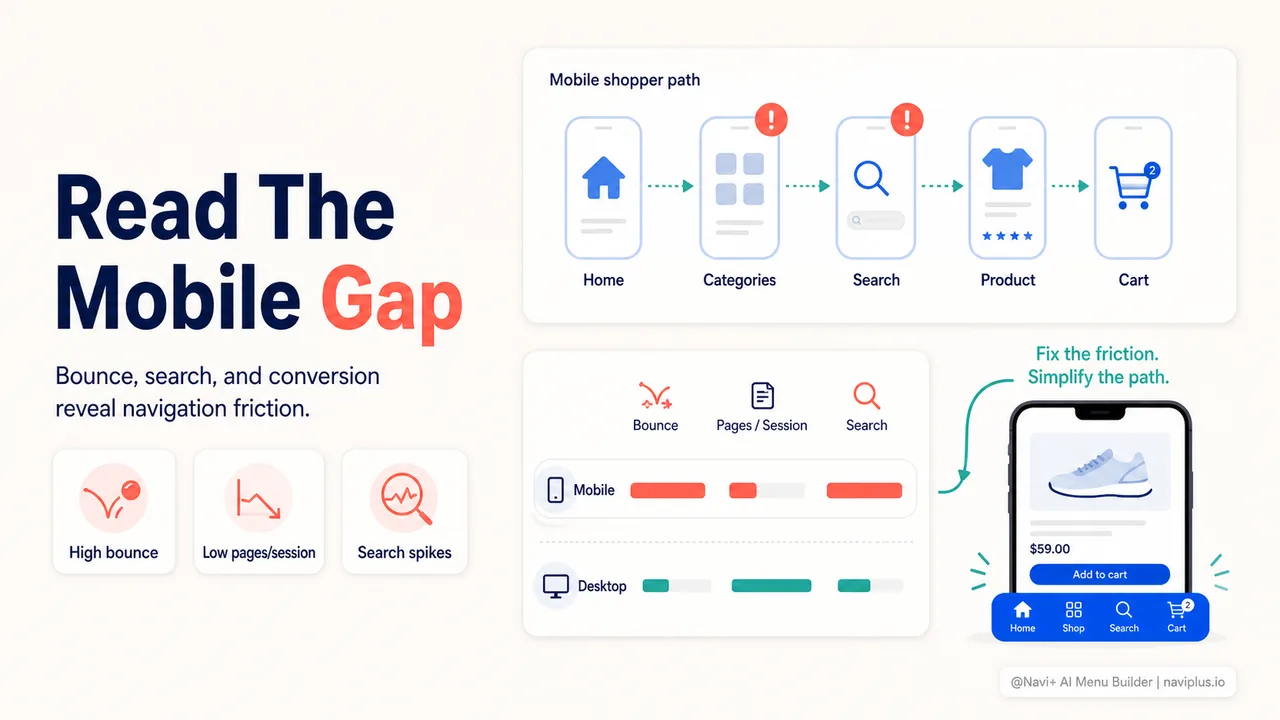
- Bounce rate by device. If mobile bounce rate is significantly higher than desktop, navigation is a likely contributor. The shopper arrived, couldn’t find what they wanted quickly enough, and left.
- Pages per session by device. If mobile visitors view fewer pages, they may be struggling to navigate between sections. A desktop visitor who views 5 pages but a mobile visitor who views 2 pages suggests the mobile navigation is harder to use.
- Conversion rate by device. The gap between mobile and desktop conversion rates is common, but a large gap (desktop 3%, mobile 0.5%) signals mobile-specific friction.
- Cart abandonment by device. Higher mobile abandonment often traces back to checkout navigation problems — hard-to-reach buttons, small form fields, or a confusing path from cart to payment.
These metrics don’t tell you exactly what’s wrong, but they tell you where to look. A store with a 15% mobile bounce rate and a 3% mobile conversion rate is in good shape. A store with a 60% mobile bounce rate and a 0.5% conversion rate needs to investigate its mobile experience — starting with navigation.
Deep-diveRead the full guide → Mobile analytics: what your data says about phone shoppers
Mobile-first vs responsive: when shrinking isn’t enough
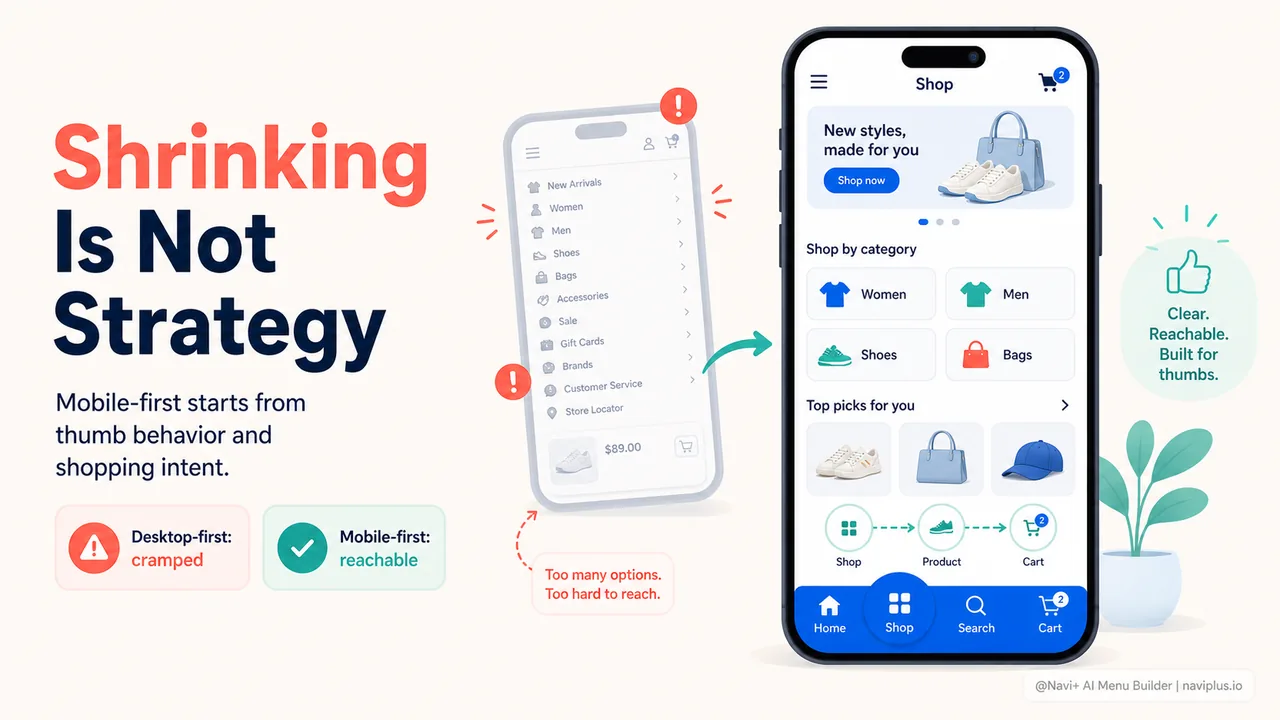
Responsive design means the same page adapts to different screen sizes. The desktop menu collapses into a hamburger icon. The multi-column layout becomes a single column. The search bar shrinks. Everything fits, but nothing was designed specifically for the phone.
Mobile-first design means the phone version is the starting point. The navigation, the layout, the interactions are all designed for a small screen and a thumb first. The desktop version adds more space, more columns, more hover effects — but the core navigation already works on a phone.
The practical difference shows up in details. A responsive menu collapses the desktop mega menu into a hamburger icon at the top of the screen. A mobile-first menu provides a tabbar at the bottom of the screen with a Categories button that opens a properly designed mobile menu. Both “work” on a phone, but the mobile-first version works with the phone instead of against it.
Navi+ lets store owners build mobile-first navigation without rebuilding the theme. A tabbar configured for mobile, a mega menu configured for desktop — each optimized for its device, not one adapting from the other.
Deep-diveRead the full guide → Mobile-first vs responsive: when the same menu isn't enough
Where to start
Quick checkOpen your store on your phone. Hold it with one hand. Can your thumb reach the main navigation without stretching? If not, the navigation is mobile-friendly at best — not mobile-first.
Open your phone, go to your store, and hold the phone with one hand. Try to navigate without using your other hand. Can your thumb reach the menu? Can it reach the cart? Can it reach the search bar? If any of these require stretching, the store’s navigation is in the hard-to-reach zone.
Then check your analytics. If mobile traffic is over 50% (which it probably is), mobile is your primary audience. The navigation should be designed for them first, not adapted from desktop.
The simplest mobile-first improvement is adding a bottom tabbar with the key actions — Home, Categories, Search, Cart. This one change moves navigation from the top of the screen (hard to reach) to the bottom (natural thumb zone) and immediately makes the store feel more like a native app. It doesn’t require redesigning the theme — tools like Navi+ add the tabbar on top of whatever theme you’re using.
Mobile-first is not about choosing between phone and computer. It’s about designing for the device most people use, and then enhancing for the rest. When the majority of your visitors are on phones, that’s where navigation should start.
Explore the topics
This guide links out to focused articles — dive deeper on each.