Selling internationally adds a layer of complexity to navigation that domestic stores never face. A customer in France expects to see the menu in French, prices in euros, and products that ship to their country. A customer in Japan expects Japanese, yen, and Japan-specific sizing. The same store, two completely different navigation experiences.
Most Shopify stores selling internationally rely on Shopify Markets to handle the basics — currency conversion, language translation, regional pricing. But the navigation layer on top of that — where the language switcher lives, how the currency is displayed, whether the menu changes between markets — is often an afterthought.
Getting international navigation right means the customer never has to think about which country they’re shopping from. The language is correct, the currency is familiar, and the products are available. Getting it wrong means the customer sees a language they can’t read, prices in a currency they don’t recognize, or products that can’t ship to their address.
- Language and currency switchers should be easy to find but not dominate the navigation.
- Auto-detecting the visitor's language and currency reduces friction — but always let them override.
- Some markets need different menus entirely — different featured products, different category emphasis.
Language switchers: where and how
The language switcher lets visitors change the site’s language. It’s essential for stores selling in multiple languages, but its placement and design vary widely — and many implementations create problems.
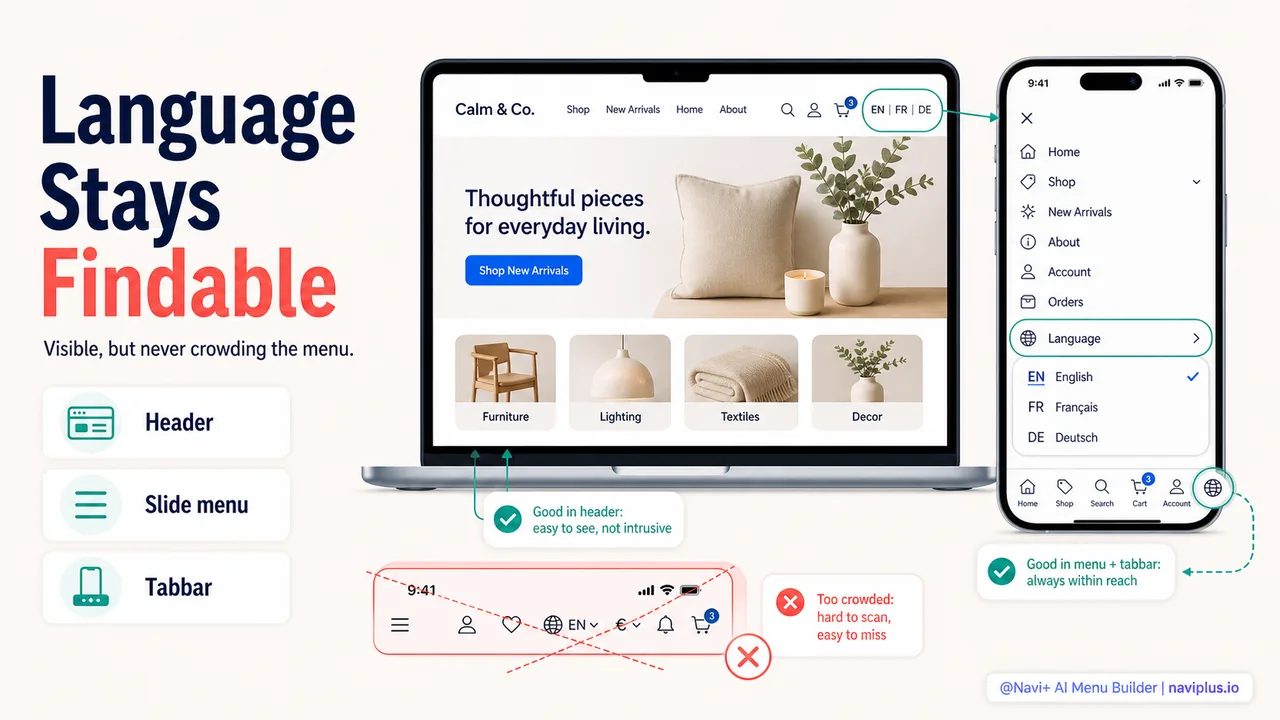
The most common placement is in the header, near the account/cart icons. A flag icon or language code (EN, FR, DE) that opens a dropdown of available languages. This works on desktop where the header has room. On mobile, it can be squeezed or hidden entirely.
A better mobile placement is in the slide menu or as part of the footer. On mobile, the header is already crowded with the logo, menu icon, and cart. Adding a language switcher creates clutter. Placing it in the slide menu (at the top or bottom) keeps it accessible without competing for header space.
With Navi+, a language switcher can be added as a menu item in the tabbar or slide menu. The shopper taps it, sees the available languages, and switches with one tap. The menu rebuilds in the new language automatically.
Deep-diveRead the full guide → Language switcher patterns in navigation
Currency display and switching
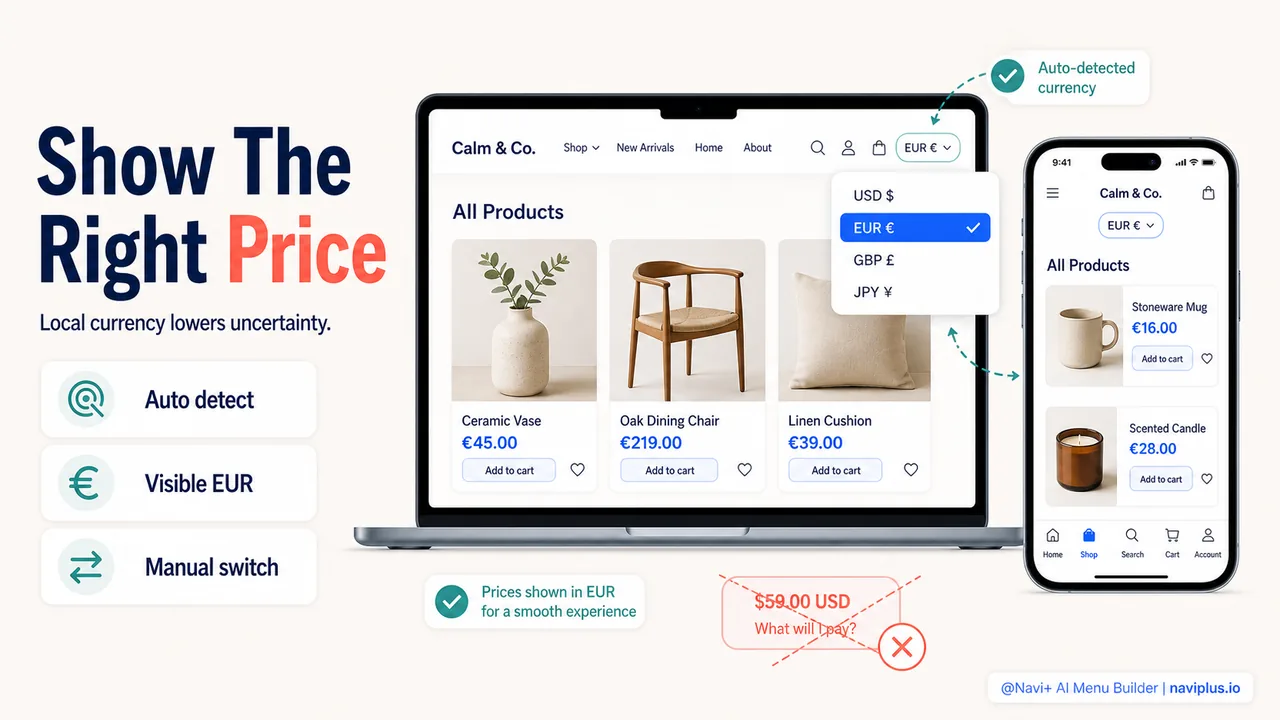
Shoppers expect to see prices in their local currency. Showing prices in USD to a European customer creates uncertainty — they have to mentally convert every price, and uncertainty reduces willingness to buy.
Shopify Markets handles currency conversion automatically based on the visitor’s detected location. The navigation role is displaying the current currency clearly and providing a way to switch if the auto-detection is wrong.
A currency indicator — a small “EUR €” or “USD $” in the header or footer — confirms which currency the shopper is seeing. If they need to switch, tapping the indicator opens a list of available currencies. This is a secondary control — most shoppers will never use it because auto-detection handles the majority of cases — but it needs to exist for the cases where detection fails.
Deep-diveRead the full guide → Currency in navigation: showing the right prices
Regional catalogs: when markets need different menus
Some international stores sell the same products everywhere. Others have regional differences — products available only in certain countries, different pricing tiers, or regional exclusives. When the catalog differs between markets, the navigation needs to differ too.
A store selling clothing in the US and Europe might have different featured collections for each market — “4th of July Sale” for the US, “Summer Soldes” for France. The category structure might be the same, but the promotional navigation changes.
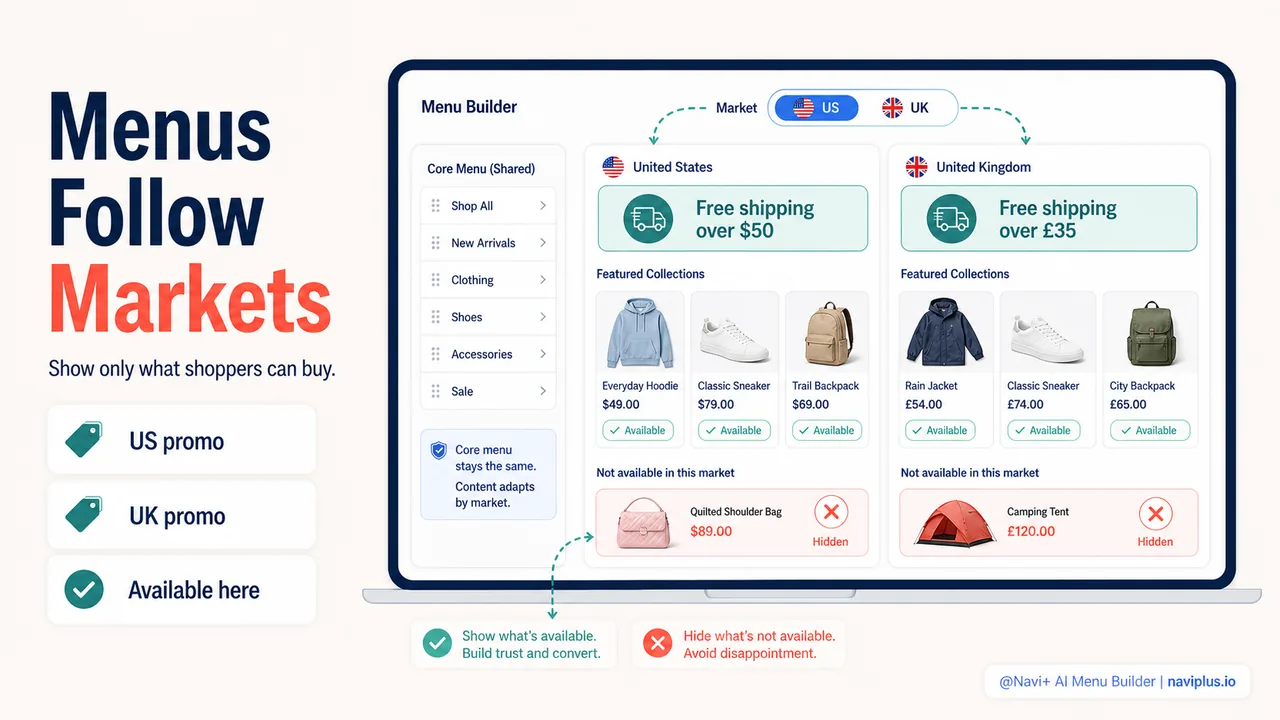
More significant differences arise when product availability varies. If certain products don’t ship to certain countries, showing them in the menu creates frustration — the shopper navigates to a product, adds it to cart, and discovers at checkout that it can’t ship to their address. Filtering the menu by market — only showing products and categories available in the visitor’s market — prevents this.
Shopify Markets supports market-specific catalogs, and Navi+ can be configured with market-specific menu items. A US visitor sees “Free shipping on orders over $50” in the menu. A UK visitor sees “Free shipping on orders over £35.” Same menu structure, market-specific content.
Deep-diveRead the full guide → Regional catalogs and market-specific navigation
Multi-market UX: one store, many experiences
The goal of international navigation is transparency — the customer should feel like the store was built for their market. They shouldn’t have to manually select their country, switch the language, and change the currency. Ideally, the store detects their location and presents the right experience automatically.
When auto-detection works, the experience is seamless. The French customer arrives, sees French text, euro prices, and France-specific shipping options. They browse and buy without thinking about the fact that the store serves other countries too.
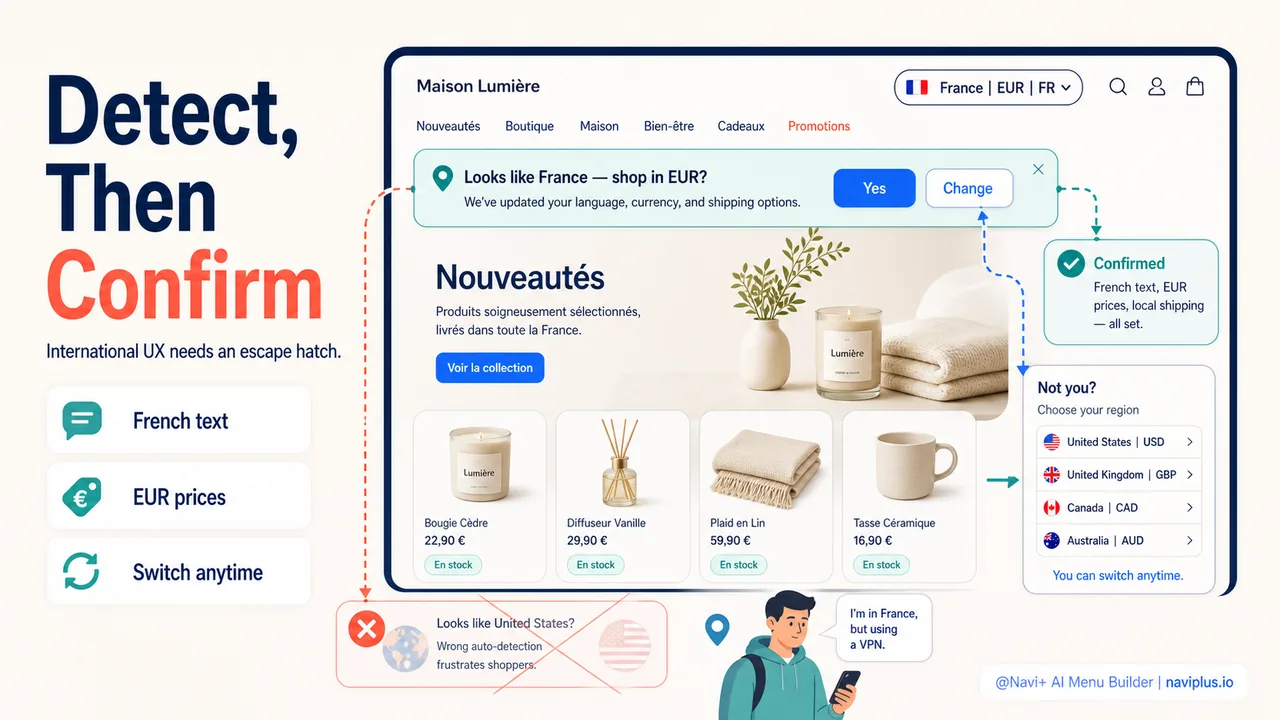
When auto-detection fails — the customer is traveling, using a VPN, or their IP location is wrong — the experience needs a graceful fallback. A banner saying “It looks like you’re in France. Would you like to see prices in EUR?” with a “Yes” and “No” option lets the customer confirm or correct without forcing them into the wrong experience.
Deep-diveRead the full guide → Multi-market UX: one store serving many countries
Where to start
Quick checkVisit your store with a VPN set to a different country. Is the language correct? Is the currency familiar? Can you find the language switcher in under 5 seconds?
If you’re selling internationally, do the VPN test. Connect from a country you sell to and visit your store. Is the language auto-detected? Are prices in the local currency? Can you find the language and currency switchers without searching?
Then check your menu: does it show products available in that market? Are the featured collections relevant? Is shipping information visible before the shopper reaches checkout?
The basics — auto-detected language and currency, visible switchers, market-appropriate content — cover most international navigation needs. Start there, and refine based on which markets generate the most traffic and revenue.
トピックを見る
このガイドは各テーマの記事にリンクしています——それぞれをさらに深く学べます。