A first-time visitor and a returning customer arrive at the same store, see the same homepage, and use the same menu. But they need completely different things from the navigation.
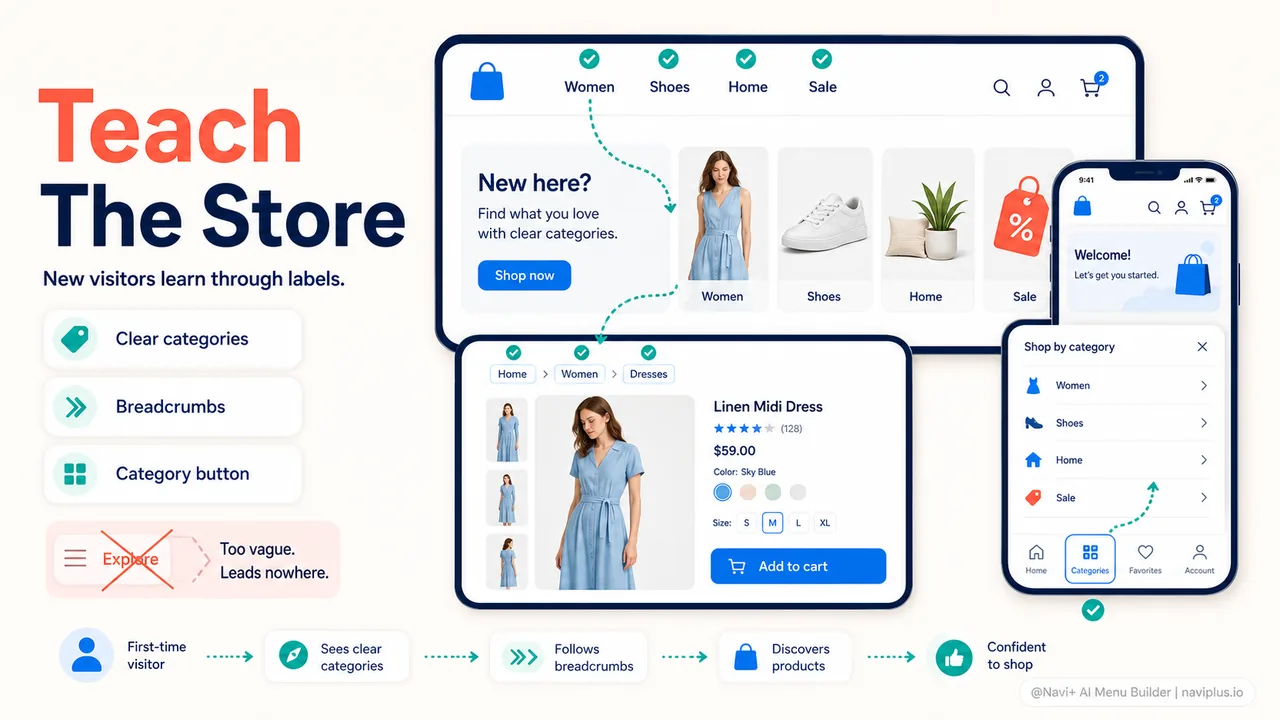
The first-time visitor is discovering the store. They don’t know what you sell, how your categories are organized, or where to find the product that brought them here. They need a menu that teaches — that makes the store’s structure obvious and guides them toward the right section quickly.
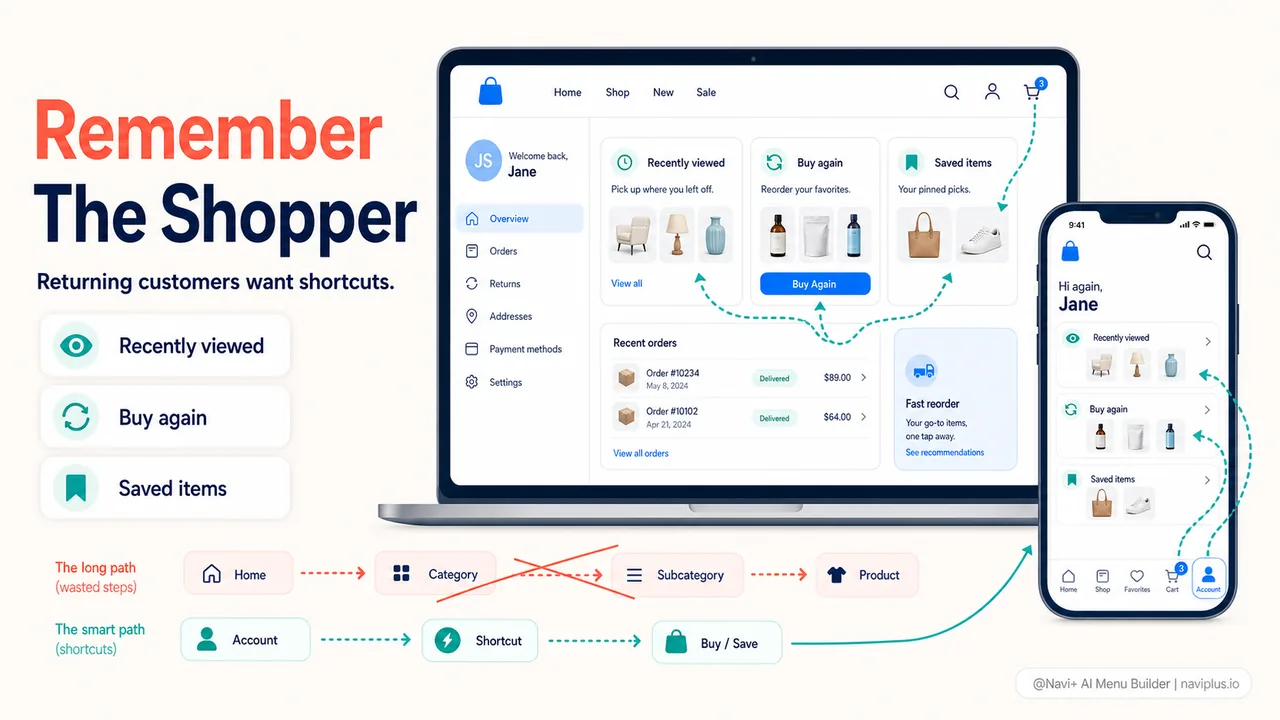
The returning customer already knows the store. They’ve bought before, or at least browsed enough to understand the layout. They don’t need to be taught — they need shortcuts. Quick access to recently viewed products, their favorite category, or the reorder button for something they bought last month.
Most stores design navigation for one group and hope the other will figure it out. The result is a menu that’s either too basic for returning customers (they know where things are, they just want to get there faster) or too complex for new visitors (they haven’t learned the store’s language yet).
- First-time visitors need navigation that explains the store. Returning customers need navigation that remembers them.
- Clear category labels and a logical hierarchy serve new visitors. Recently viewed items and shortcuts serve returning ones.
- A persistent tabbar gives both groups what they need — categories for discovery, cart for returning buyers.
First-time visitors: the store is a stranger
When someone visits your store for the first time, they arrive with a question: “Does this store have what I’m looking for?” The navigation is the first tool they use to answer it.
A first-time visitor scans the menu to understand the store’s scope. If they see clear category labels — “Women’s Clothing,” “Men’s Shoes,” “Home & Kitchen” — they immediately understand what the store sells. If they see ambiguous labels — “Collections,” “Shop,” “Explore” — they have to guess, and guessing is friction.
The menu structure matters even more than the labels. A first-time visitor doesn’t know whether “Accessories” contains jewelry, phone cases, or both. They don’t know that “New Arrivals” is actually the best place to find the product they saw in an ad. They need a hierarchy that matches common expectations — the way a physical store organizes its departments.
Breadcrumbs are particularly valuable for first-time visitors because they show the store’s structure passively. When a new visitor lands on a product page (often from a search engine or ad), the breadcrumb — Home → Women → Dresses → Summer Dress — teaches them the category hierarchy without requiring them to open the menu. They can immediately see that this store has a Women’s section with a Dresses subcategory, and they can click up to browse.
On mobile, a tabbar with a Categories button gives first-time visitors a clear entry point into the store’s navigation. Instead of hunting for the hamburger icon (which many new visitors don’t recognize as a menu), they see a labeled button that says exactly what it does. One tap opens the full category structure.
Deep-diveRead the full guide → New visitor discovery: navigation that teaches your store
Returning customers: the store is familiar
A returning customer has already learned the store. They know the categories, they know where their preferred products live, and they have a specific purpose for coming back. The navigation they need is not educational — it’s efficient.
The most valuable navigation feature for a returning customer is memory. If the store remembers what they browsed last time, what they bought, and what categories they frequent, it can surface shortcuts that save them time.
Recently viewed products are the simplest form of this. A section on the homepage or in the menu showing the last five or ten products the customer looked at lets them pick up where they left off. For customers who browse across multiple sessions — adding items to a mental wishlist before committing — recently viewed is essential.
Quick reorder is valuable for stores selling consumables or repeat-purchase products. A customer who buys the same coffee every month doesn’t want to navigate through Home → Coffee → Medium Roast → Colombian Blend every time. A “Buy again” shortcut in the account menu or on the homepage saves them the entire journey.
Saved collections or wishlists let returning customers build their own navigation. Instead of using the store’s category structure, they navigate to “My saved items” — a personal collection they curated themselves. This is particularly powerful for fashion, home decor, and gifting, where customers bookmark products for future consideration.
On mobile, a persistent tabbar serves returning customers through the Cart button (they often come back to complete a purchase) and the Account button (access to order history, wishlists, and saved addresses). These aren’t traditional navigation elements, but for returning customers, they’re the most important links in the store.
Deep-diveRead the full guide → Returning user shortcuts: navigation that remembers
Personalized navigation: helpful or creepy?
Some stores go beyond recently viewed items and try to personalize the navigation itself — changing menu items, reordering categories, or showing different homepage sections based on who the visitor is.
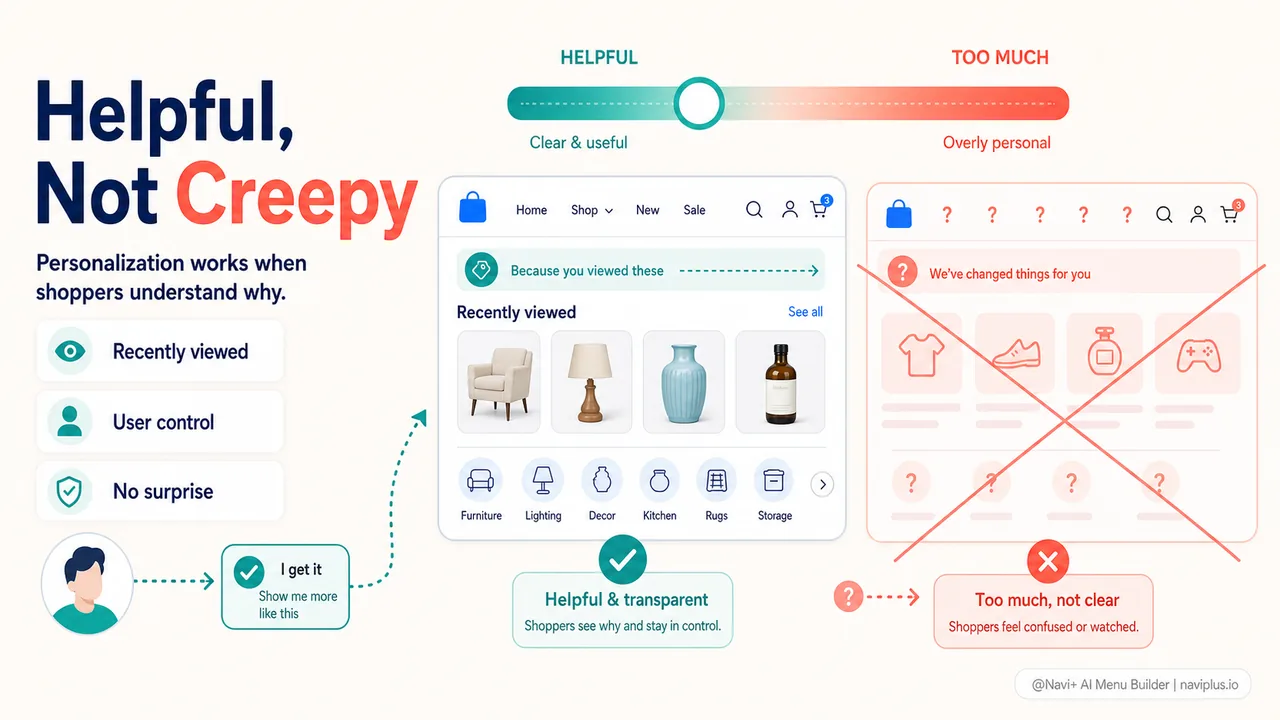
Research shows that personalization done well can drive significant revenue lifts — some sources cite 10–15% increases for stores that personalize effectively. But personalization done poorly feels intrusive. A store that suddenly shows “Recommended for you” in the main menu, using data the customer didn’t knowingly share, crosses a line.
The distinction is between personalization the customer controls and personalization that happens to them. A “Recently viewed” section is personalization the customer understands — they looked at these products, so the store shows them again. A menu that silently rearranges its categories based on browsing history is personalization that feels like surveillance.
For most Shopify stores, the most effective personalization is subtle: recently viewed products, cart persistence across sessions, and search suggestions based on past queries. These features help returning customers without requiring the store to build complex recommendation engines or risk the creepy factor.
Deep-diveRead the full guide → Navigation personalization: what works and what doesn't
Serving both with the same navigation
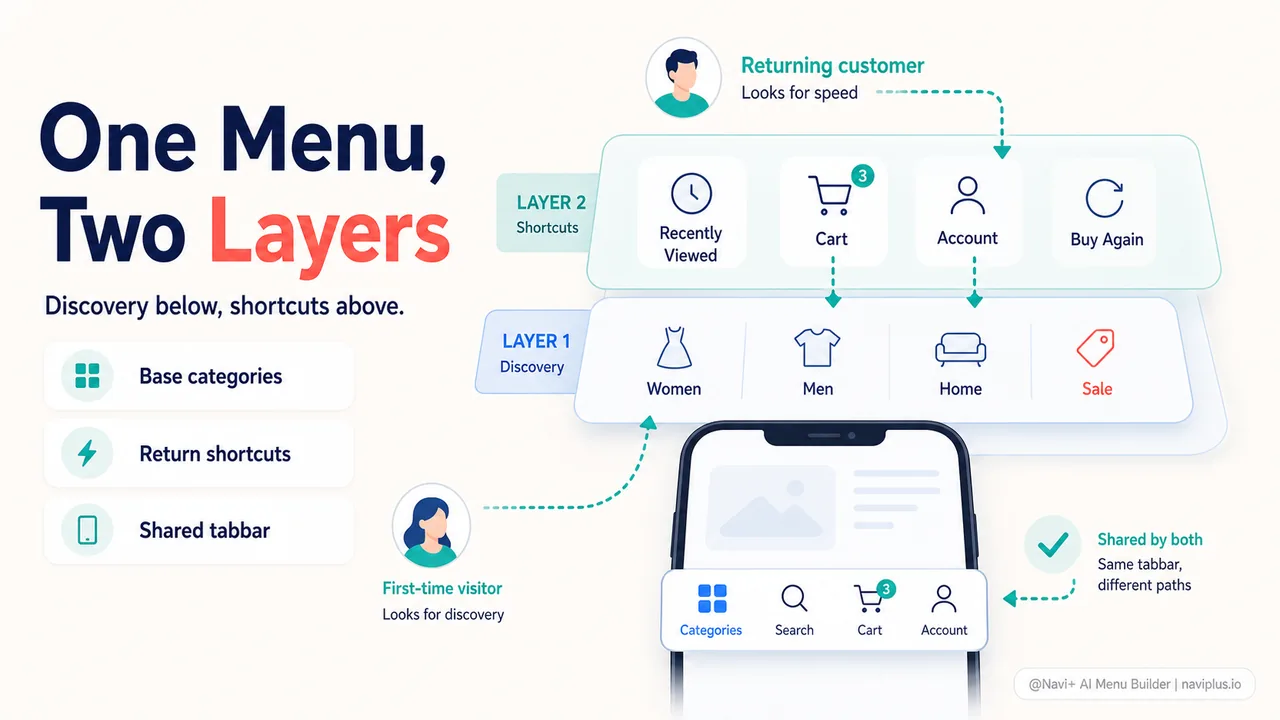
The good news is that serving both visitor types doesn’t require two separate menus. It requires one well-designed navigation system with layers.
The base layer is the category menu — clear labels, logical hierarchy, accessible from every page. This serves first-time visitors by teaching the store’s structure, and it serves returning customers as a fallback when they want to browse a new category.
The shortcut layer sits on top: recently viewed products, cart persistence, quick-access to the account. This serves returning customers without cluttering the experience for new visitors (who have nothing in their recently viewed list yet).
A tabbar ties both layers together. Categories for discovery, Cart for purchase intent, Account for returning customers, Search for both. The same five buttons serve a first-time visitor and a loyal repeat buyer — the difference is which buttons they use most.
Deep-diveRead the full guide → Adaptive navigation patterns for different visitor stages
Where to start
Quick checkOpen your store in an incognito window (simulating a first-time visitor) and in your regular browser (where you're logged in). Does the experience feel different? It should.
Check your analytics to understand your visitor mix. What percentage of sessions are from new visitors versus returning? For most Shopify stores, new visitors are the majority — often 60–80% of traffic. But returning visitors typically convert at a much higher rate.
If most of your traffic is new: prioritize clear category labels, a logical menu hierarchy, and breadcrumbs. Make the store easy to learn.
If your returning visitor rate is growing: add recently viewed products, make the cart persistent, and ensure the account section is easy to reach. Make the store easy to come back to.
In both cases, a clean tabbar with Categories, Search, Cart, and Account covers the core needs. The same buttons, used differently by different visitors, creating different experiences from the same simple navigation bar.
トピックを見る
このガイドは各テーマの記事にリンクしています——それぞれをさらに深く学べます。