A store with 30 products and a store with 3,000 products face the same problem — helping shoppers find what they want — but the solutions are completely different. A mega menu makes sense for a store with hundreds of categories. The same mega menu on a store with three product types feels absurd and overcomplicated. A simple three-item navigation bar works perfectly at 30 products and becomes useless at 3,000.
Most stores grow gradually, adding products over months and years. The menu that worked when the store launched with 50 products starts creaking at 200 and breaks entirely at 500. The transition is slow enough that store owners don’t notice until customers start complaining — or more commonly, until they see bounce rates climbing without understanding why.
Understanding how navigation needs change at different catalog sizes helps you plan ahead and restructure before the menu becomes a problem instead of a solution.
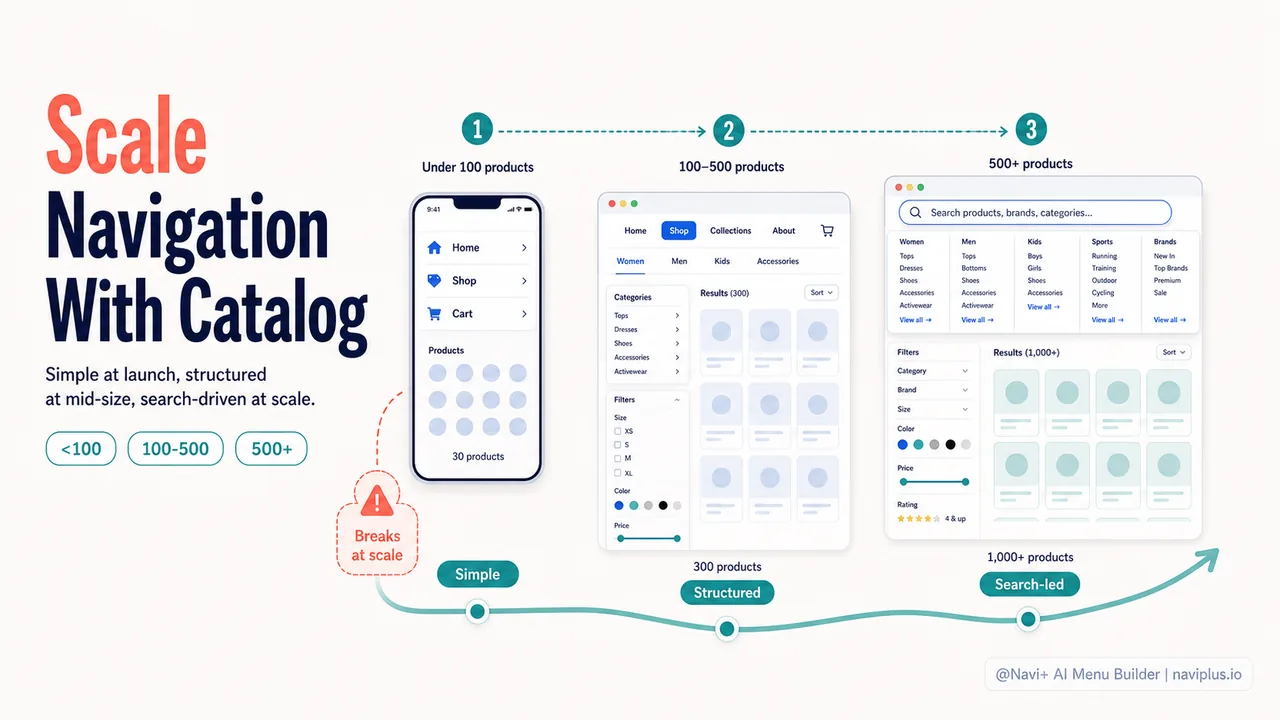
- Small catalogs (under 100 products) need simple navigation — a clean menu and good product pages.
- Mid-size catalogs (100–500) need subcategories and filters — the flat list stops working.
- Large catalogs (500+) need search, mega menus, and deep filtering — the menu becomes a gateway, not the primary tool.
Under 100 products: keep it simple
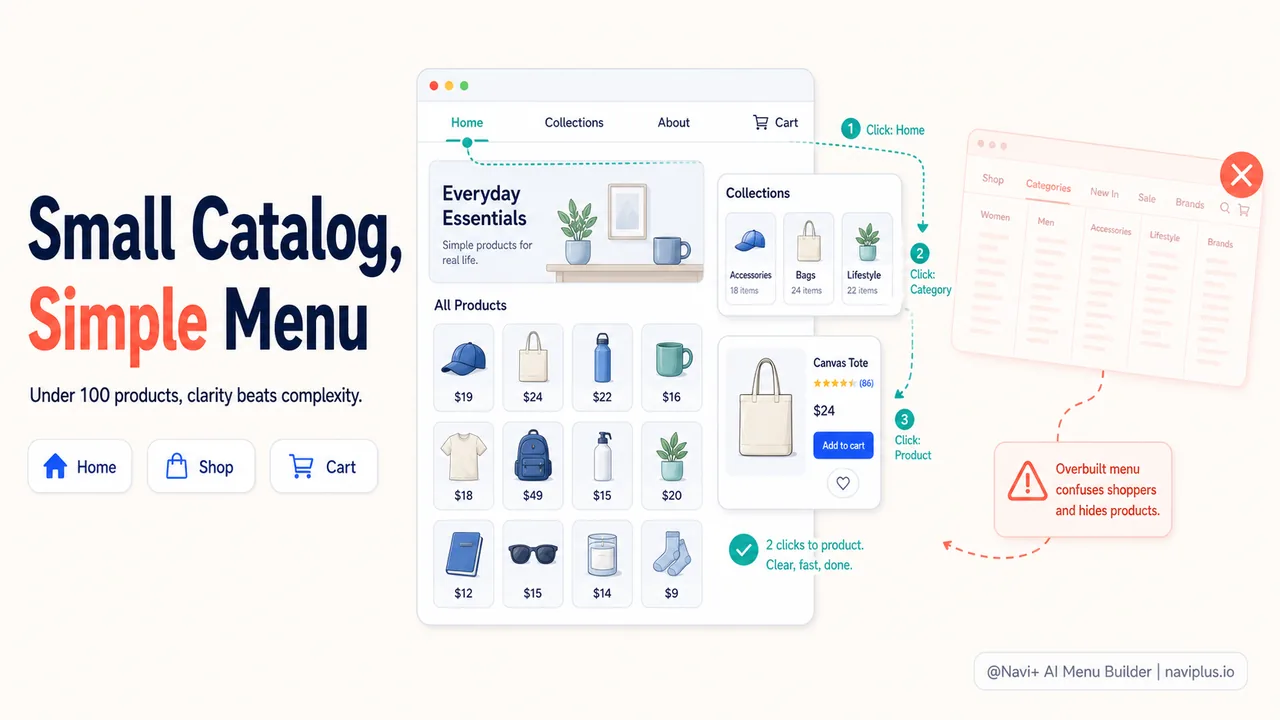
A store with fewer than 100 products doesn’t need complex navigation. Three to five top-level categories, no subcategories, and a clean layout gets shoppers to products in two clicks. Home → Category → Product.
At this stage, the product pages do more selling than the navigation. The shopper doesn’t need elaborate filtering because there aren’t enough products to filter. A collection page showing 20–30 products is scannable without filters — the shopper scrolls through and finds what they want visually.
The danger for small stores is overbuilding navigation. Installing a mega menu with empty subcategories, adding filtering to collections with 15 products, or creating deep category hierarchies for a catalog that doesn’t need them. This complexity doesn’t help the shopper — it makes the store feel bigger than it is, which is confusing, not impressive.
A simple tabbar on mobile (Home, Shop, Cart) and a clean horizontal menu on desktop (Home, Collections, About, Contact) is often all a small store needs. The focus should be on product photography, descriptions, and making the add-to-cart path frictionless — not on navigation architecture.
Deep-diveRead the full guide → Small catalog navigation: simplicity as a feature
100–500 products: time for structure
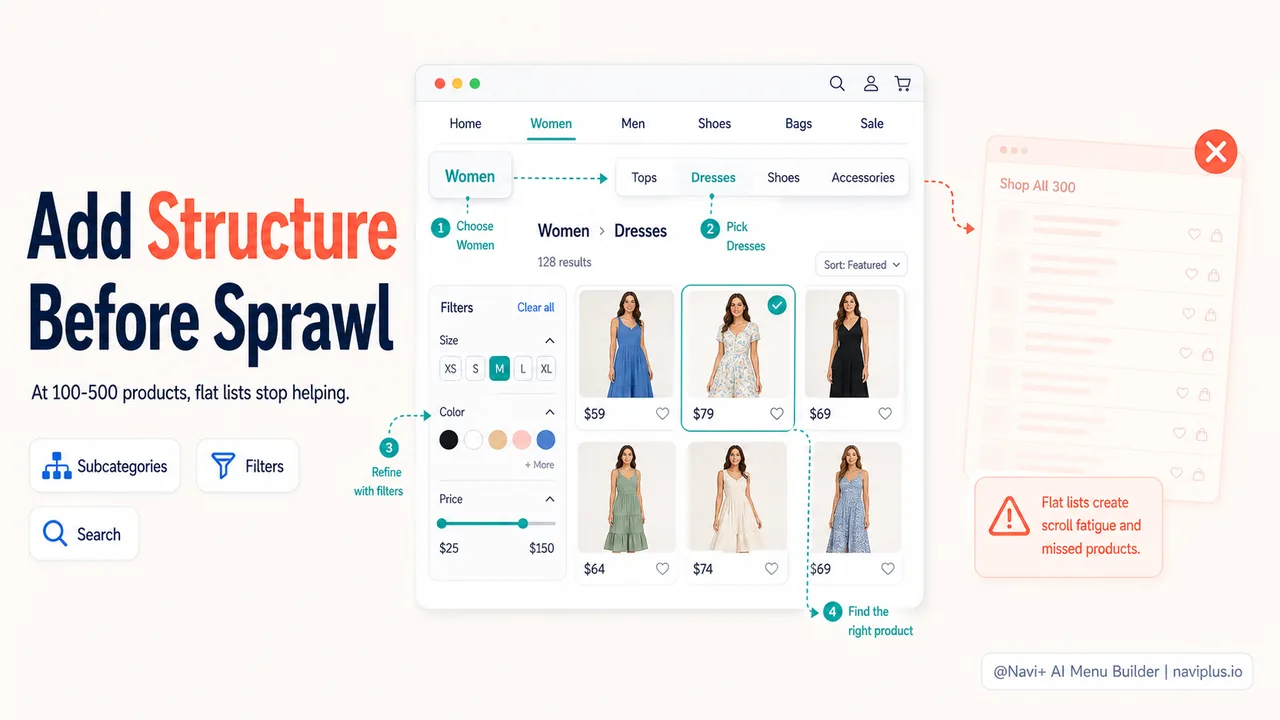
When the catalog crosses 100 products, flat navigation starts breaking. A single “Shop All” collection with 150 products requires too much scrolling. Shoppers can’t find specific items without scanning through long lists. This is when subcategories and filters become necessary.
The menu needs a second level: top-level categories (Women, Men, Home) with subcategories (Women → Tops, Bottoms, Dresses, Accessories). The shopper narrows their scope in two steps instead of one, reducing the number of products they need to scan.
Filters become important too. A collection with 60 dresses benefits from size, color, and price filters. Without filters, the shopper scrolls through all 60. With filters, they narrow to 15 dresses in their size and color — a manageable set.
On mobile, a slide menu with expandable categories works well at this stage. The shopper taps “Women,” sees the subcategories, taps “Dresses,” and lands on a filtered collection. A tabbar with a Categories button gives one-tap access to this menu from any page.
This is also the stage where search starts mattering. At 50 products, shoppers rarely search — browsing is faster. At 200+ products, some shoppers know exactly what they want and prefer searching to navigating through menus. Adding a visible search bar (or a search button in the tabbar) serves these intent-driven visitors.
Deep-diveRead the full guide → Mid-size category strategy: organizing 100–500 products
500+ products: search and filtering take over
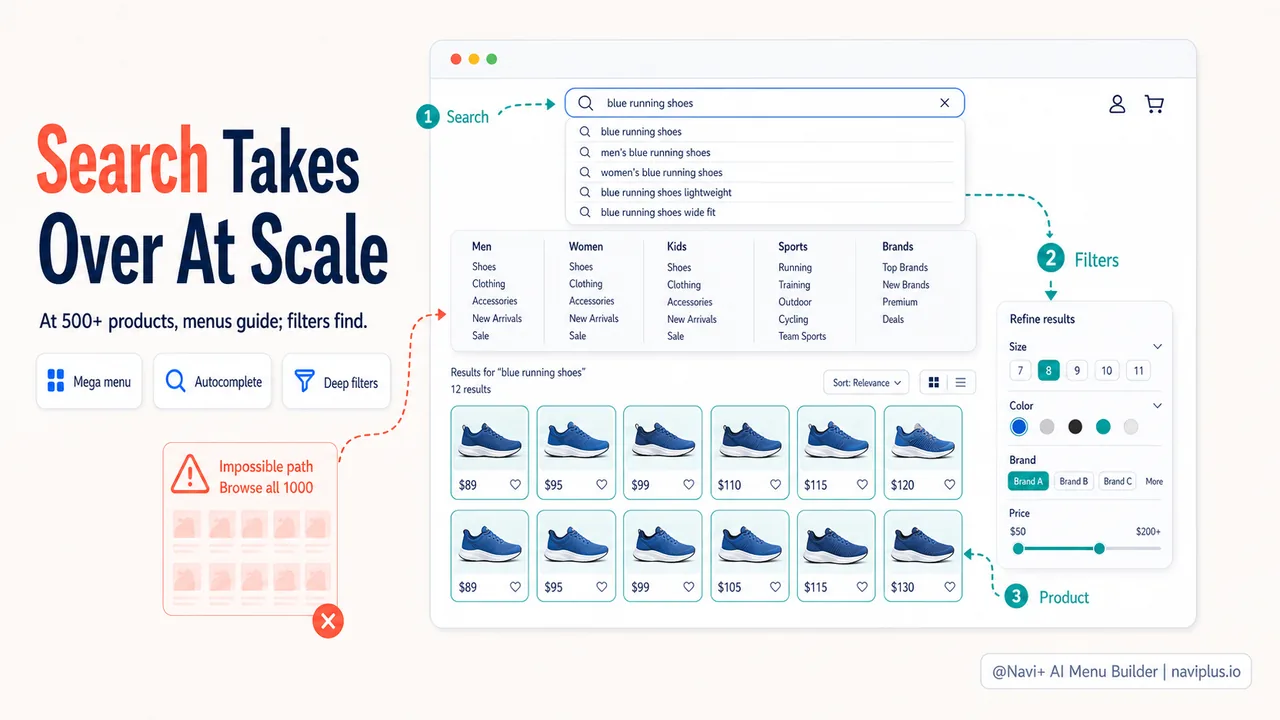
At 500 or more products, the category menu can no longer be the primary navigation tool. The menu becomes a gateway — a starting point for narrowing scope — while search and filtering do the heavy lifting.
A store with 1,000 products might have 20+ subcategories across 5–8 top-level categories. The menu shows this structure, but no shopper is going to browse through all subcategories. They either know what category they want (and navigate directly to it) or they search for a specific product.
This is where mega menus become valuable on desktop. A mega menu shows all subcategories at once, with images and featured products, letting the shopper scan the full structure without clicking into each category one by one. On mobile, a well-structured slide menu with search at the top serves the same purpose.
Filtering becomes essential. A collection with 200 products and no filters is unusable. The same collection with size, color, price, brand, and material filters lets the shopper narrow to 10–15 relevant products in seconds. At this scale, the filter sidebar is doing the navigation that the menu can’t.
Search quality matters more too. At 500+ products, the shopper who searches for “blue running shoes size 10” expects relevant results. A search engine that returns irrelevant matches or doesn’t handle variants pushes the shopper toward frustration. This is the stage where investing in a better search experience (predictive search, category suggestions, autocomplete) pays significant dividends.
Deep-diveRead the full guide → Large catalog navigation: search, filters, and mega menus
Planning for growth
The best time to restructure navigation is before the old structure breaks. If you’re at 80 products and growing, plan the subcategory structure now. If you’re at 300 and adding products weekly, invest in search and filtering before you hit 500.
Signs that your navigation has outgrown your catalog:
- Collection pages show more than 50 products without filters
- Shoppers search more than they browse (indicating the menu isn’t helping)
- Bounce rate on collection pages is higher than on product pages
- Mobile shoppers view fewer pages per session than desktop (navigation friction)
Deep-diveRead the full guide → Scaling patterns: how navigation evolves with the store
Where to start
Quick checkCount your products, then check your largest collection page. If any collection shows more than 50 products without filters, your navigation hasn't kept pace with your catalog.
Count your products. Check your largest collection page. If the collection shows more than 50 products with no way to filter, the navigation needs work. Add filters (size, color, price at minimum). If you don’t have subcategories and you’re over 100 products, create them. If you’re over 300 products and search isn’t prominent, make it prominent.
The navigation doesn’t have to change all at once. Add subcategories first. Then add filters. Then improve search. Each step makes the catalog more navigable, and each step can be done independently.
Explorez les sujets
Ce guide renvoie vers des articles ciblés — approfondissez chaque thème.