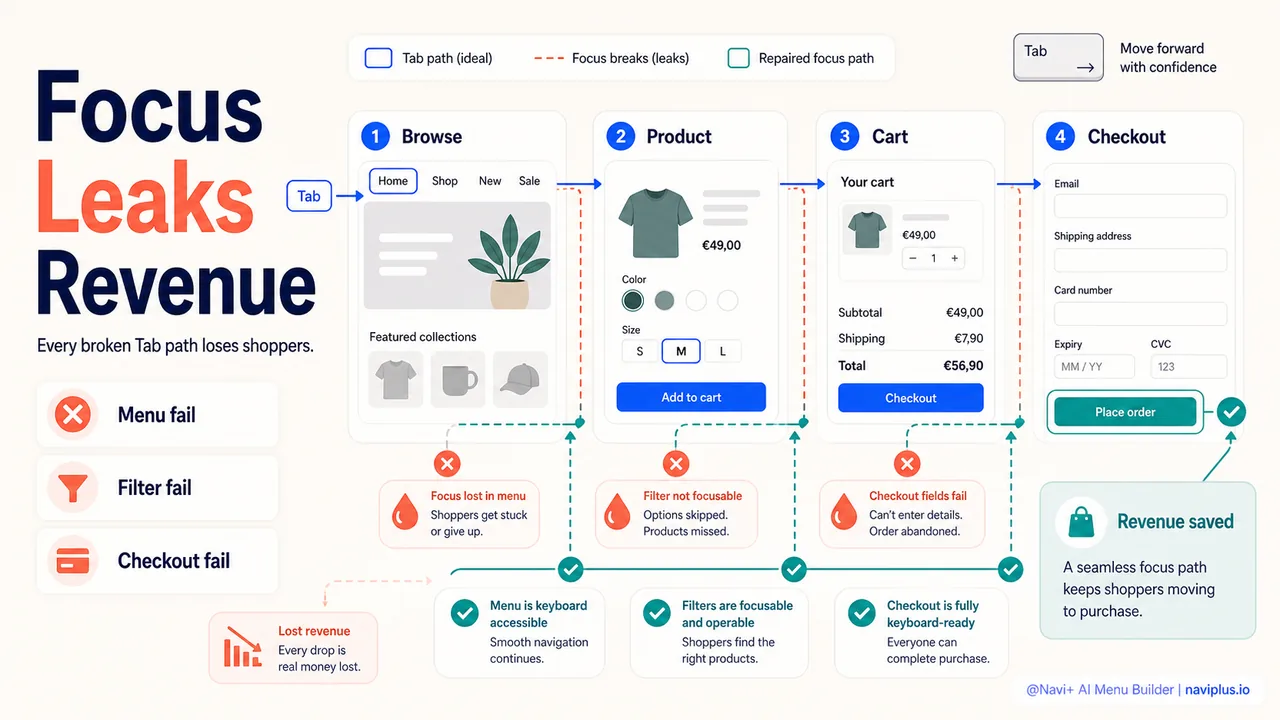
A customer lands on your Shopify store, adds three products to their cart, and reaches checkout. Then they hit Tab to move to the next field—and nothing happens. The focus indicator vanishes. They press Tab again. Still nothing. They don’t know where they are on the page. After two more confused attempts, they close the tab.
You just lost a sale. Not because your product was wrong or your price was too high. Because your site failed a simple keyboard test.
Most store owners think keyboard navigation is an edge case—something that only affects screen reader users or accessibility audits. The reality is far different. Keyboard navigation impacts your conversion rate, your SEO rankings, your legal exposure, and your relationship with some of your most valuable customers. And right now, most Shopify stores are failing at it.
- Accessible sites (including keyboard navigation) convert 15-30% better than inaccessible competitors
- Power users complete tasks 3.7× faster with keyboard-first navigation
- 4,605 ADA website lawsuits were filed in 2024, with 68% targeting e-commerce sites
- Keyboard navigation is a foundational Core Web Vitals signal that affects Google rankings
- 27% of U.S. adults have some type of disability; many more have temporary conditions requiring keyboard-only access
The Real Business Case: It’s Not Just Accessibility
When you hear “keyboard navigation,” your first thought might be compliance. WCAG standards. ADA lawsuits. European Accessibility Act deadlines.
Those are real. In 2024, 4,605 ADA website lawsuits were filed, with 68% targeting e-commerce sites. Average settlements run $25,000 to $75,000. The European Accessibility Act became fully enforceable on June 28, 2025, and the U.S. ADA compliance deadline for businesses serving populations over 50,000 is April 2026.
But legal compliance is the floor, not the ceiling. The business case for keyboard navigation goes far beyond avoiding lawsuits.
Conversion Rate Impact
Research shows that accessible e-commerce sites convert 15-30% better than inaccessible competitors. That’s not because 15-30% of your traffic uses screen readers. It’s because inclusive design removes friction for everyone.
Think about the typical e-commerce conversion funnel. The average global e-commerce conversion rate in 2025-2026 sits around 2.5% to 3.2%, with desktop averaging 2.1% across industries. Top performers hit 4.7% or higher. The gap between average and top often comes down to UX details—including navigation accessibility.
When someone can’t navigate your menu, can’t tab through your product filters, or loses focus in your checkout form, they bounce. You don’t get a second chance.
The Power User Premium
Here’s a stat most store owners miss: power users complete tasks 3.7× faster with keyboard-first navigation. Each unnecessary click costs 1.2 seconds, and each mouse-to-keyboard hand shift adds 0.8 seconds of attention residue while increasing error rates by 23%.
Who are these power users? They’re your repeat customers. Your high-value B2B buyers. Your wholesale clients placing large orders. They’re people who shop efficiently because they shop often.
When your navigation supports keyboard shortcuts—when they can Tab to the search bar, arrow through autocomplete, and Enter to go—they move fast. When it doesn’t, they go somewhere that does.
SEO Rankings in 2025-2026
Google’s algorithm doesn’t have an “accessibility score” checkbox. But accessibility directly impacts the signals Google does measure.
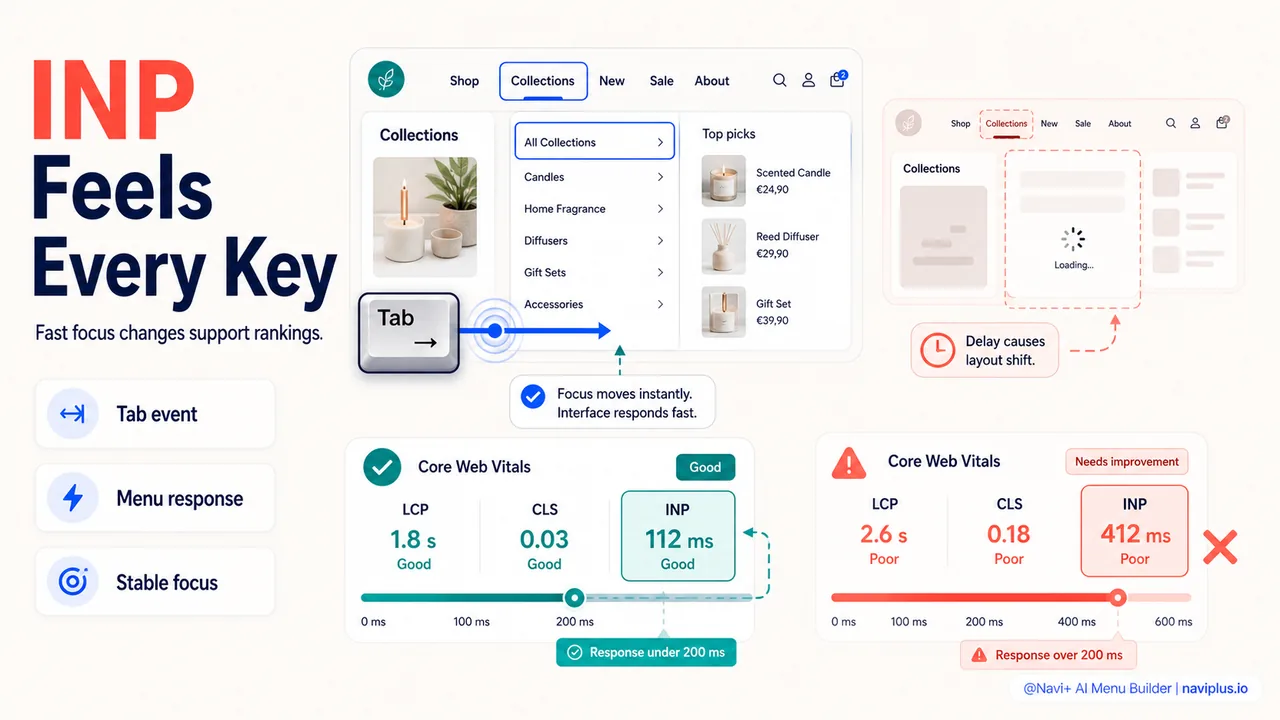
Core Web Vitals remain confirmed ranking factors for 2025-2026, and they’re now a baseline. If your site fails them, your rankings are capped before content quality even enters the equation. The three metrics are:
- LCP (Largest Contentful Paint): how fast main content loads
- INP (Interaction to Next Paint): how quickly the page responds to user interaction
- CLS (Cumulative Layout Shift): how stable the layout is during load
Keyboard navigation hits INP directly. If your dropdown menus trigger layout shifts when opened via Tab, or if focus management causes reflows, your INP scores suffer. Google sees that as a poor user experience—because it is.
Only 48% of websites pass all three Core Web Vitals on mobile, and 94.8% fail basic accessibility standards. That’s not a compliance problem. It’s a competitive advantage waiting for someone to claim it.
Who Actually Uses Keyboard Navigation?
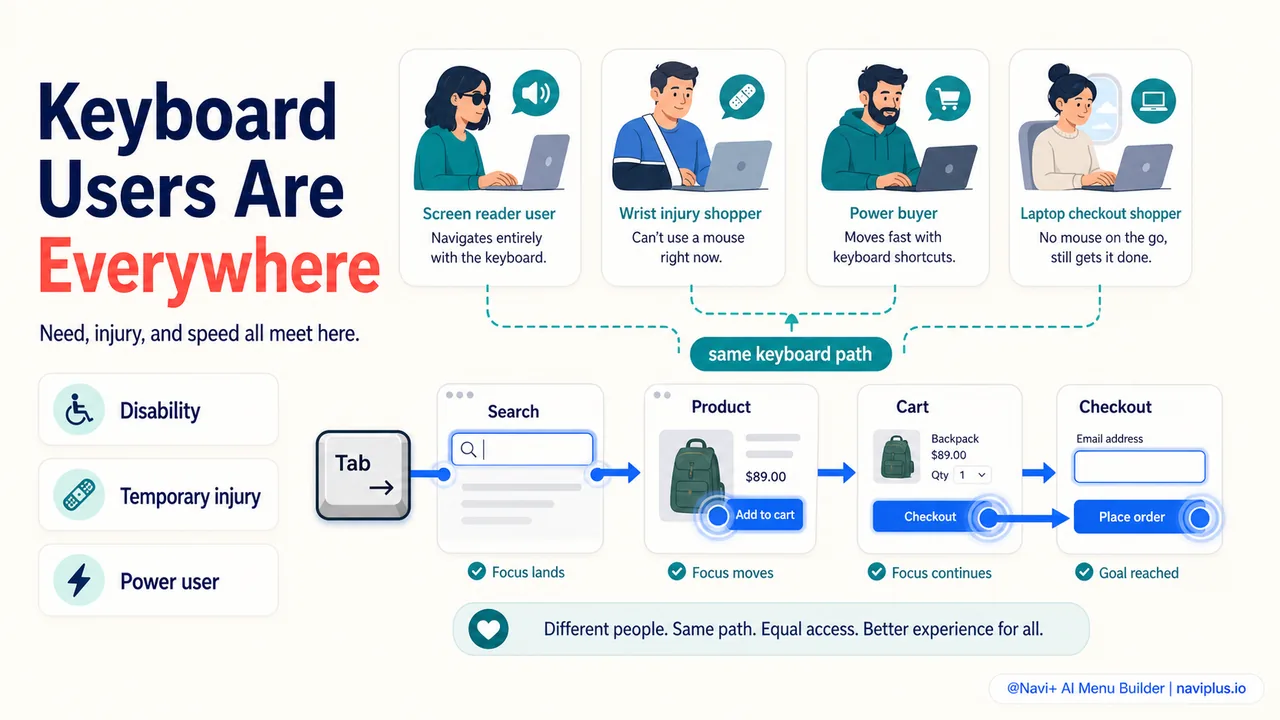
The common misconception is that keyboard navigation serves a narrow slice of users—people using screen readers, maybe a few developers. The reality is much broader.
Permanent Disabilities
27% of U.S. adults—about 70 million people—have some type of disability, and many rely entirely on keyboard navigation. This includes:
- People who are blind or have low vision using screen readers
- People with motor disabilities who cannot use a mouse
- People with tremors or limited fine motor control
- People with arthritis or repetitive strain injuries
That’s a $13 trillion global disability market. When your navigation fails these users, you’re not just violating accessibility laws—you’re turning away paying customers.
Temporary Disabilities
Beyond permanent conditions, temporary ailments like broken arms, eye infections, wrist strain, or post-surgery recovery prevent mouse use. These conditions are common. Repetitive stress injuries (RSI) strike an estimated 185,000 U.S. office and factory workers annually, accounting for more than half the country’s occupational illnesses.
Think about your own life. Have you ever used a laptop with a broken trackpad? Navigated a site one-handed while holding a phone? That’s when you become a keyboard user—not by choice, but by circumstance.
Power Users and Efficiency Seekers
Then there are the people who prefer keyboard navigation because it’s faster. Developers, designers, data entry professionals, writers, traders, and frequent online shoppers. These users have trained themselves to minimize mouse movement because it saves time.
Active e-commerce users perform an average of 17.3 redundant keystrokes per transaction—mostly retyping identical information like brand names and shipping options. They’re looking for sites that reduce friction. When your navigation lets them Tab, arrow, and Enter through their workflow, they notice.
What Good Keyboard Navigation Actually Means
Most store owners think they have keyboard navigation because you can press Tab and something happens. But functional keyboard navigation has specific requirements, and most sites fall short.
The Four Keyboard Fundamentals
According to WCAG 2.1 and the Web Accessibility Initiative, keyboard accessibility requires:
-
All functionality available via keyboard: Every action a mouse user can take must be possible with keyboard alone. That includes opening menus, filtering products, adding to cart, expanding accordions, closing modals, and completing checkout.
-
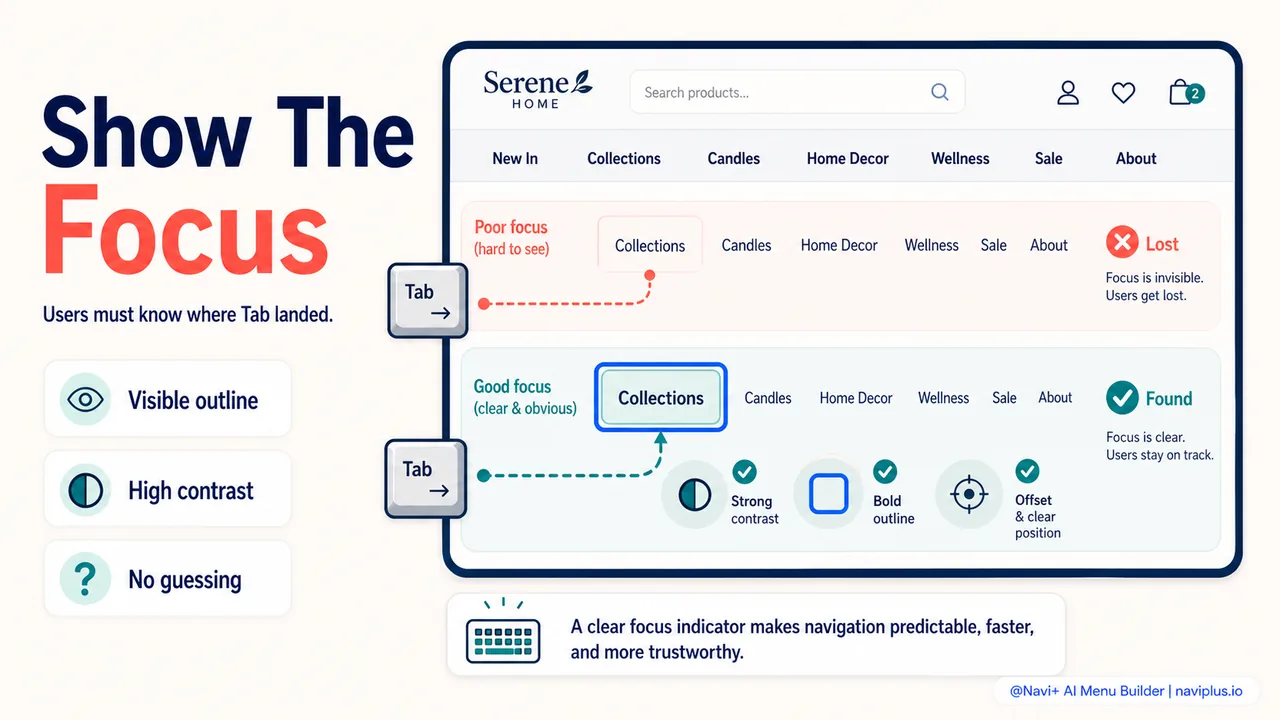
Visible focus indicators: Users must always know where focus is on the page. The default browser outline is a start, but focus indicators need sufficient contrast and visibility to be usable.
-
Logical tab order: Focus should move through the page in a predictable sequence that matches visual layout. Your DOM structure determines tab order—not your CSS.
-
No keyboard traps: Users must be able to move focus away from any element using only the keyboard. Modal dialogs and dropdown menus are common offenders.
The Essential Keys
For e-commerce navigation, these are the keys that matter most:
| Key | Function |
|---|---|
| Tab | Move focus forward to the next interactive element |
| Shift + Tab | Move focus backward to the previous element |
| Enter | Activate links and buttons |
| Space | Activate buttons, toggle checkboxes, scroll page down |
| Arrow keys | Navigate within menus, select dropdowns, or move through carousels |
| Escape | Close modals, dropdowns, and overlays |
These six patterns cover 95% of e-commerce keyboard navigation. Nielsen Norman Group’s research on keyboard accessibility emphasizes testing with these keys first.
Common Failures on Shopify Stores
Here’s where most Shopify stores break keyboard navigation:
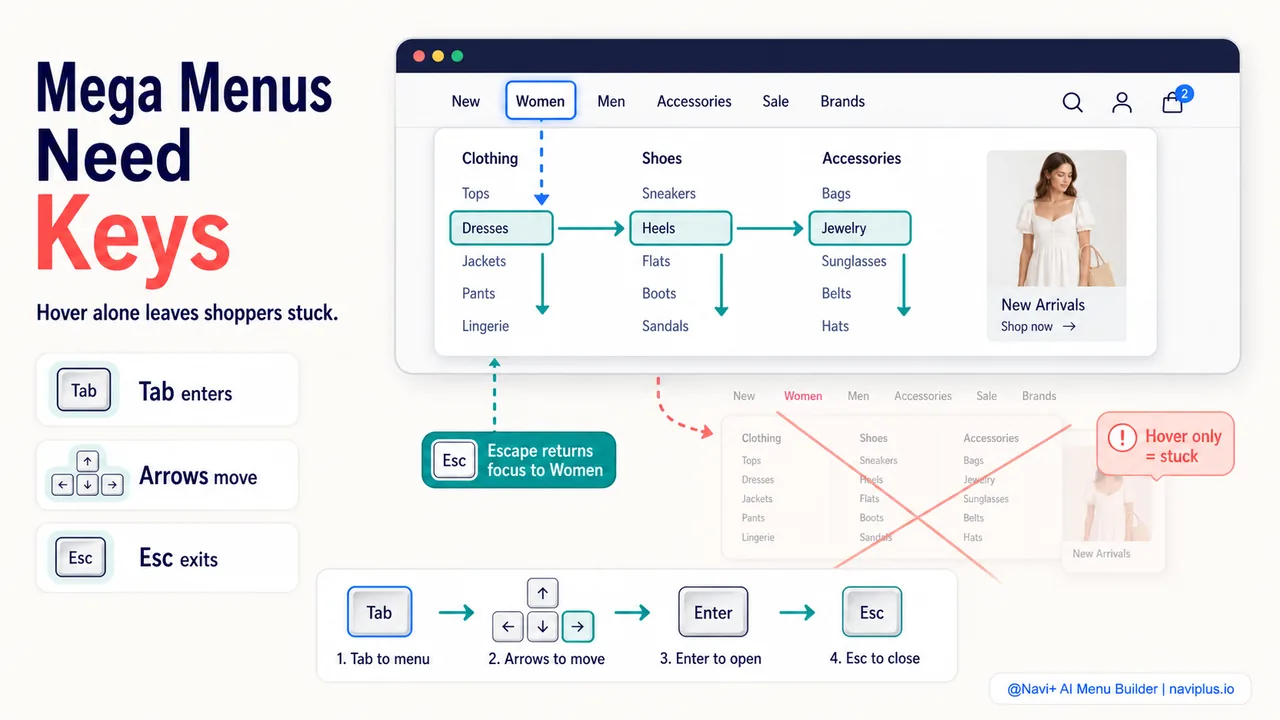
Mega menus that open on hover only: Desktop mega menus often trigger on mouse hover but have no keyboard equivalent. A user pressing Tab should be able to open submenus with Enter or Space.
Hidden dropdowns with no focus state: Mobile hamburger menus and cart drawers that use display: none or visibility: hidden remove elements from the tab order. When opened, focus needs to move into the drawer.
Carousels and image galleries: Product image carousels that require clicking dots or arrows, with no keyboard alternative. Arrow keys should navigate slides.
Modal dialogs without focus management: Pop-ups for email capture, size guides, or quick view that don’t trap focus or return focus when closed.
Search autocomplete: Dropdown suggestions that appear but can’t be selected with arrow keys and Enter.
These aren’t edge cases. They’re core shopping interactions. When they fail, the user experience breaks.
The Speed Advantage: Why Fast Users Love Keyboards
E-commerce is a speed game. Research shows that users spend 22.3 seconds per page just reorienting after switching between platforms due to inconsistent UI patterns. Every second of friction increases bounce rates.
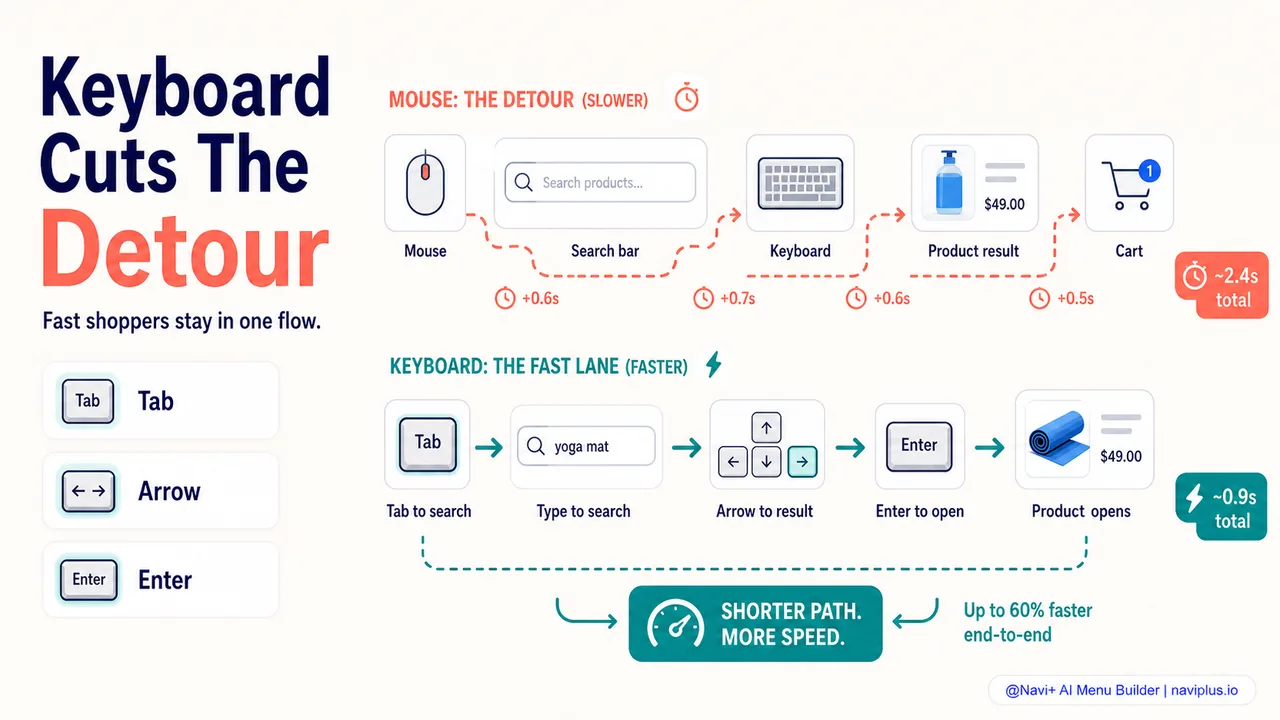
Keyboard navigation removes friction for fast shoppers. Consider a typical product search workflow:
Mouse-dependent workflow:
- Move hand to mouse (0.8s)
- Move cursor to search bar (1.2s)
- Click in search bar (0.3s)
- Move hand back to keyboard (0.8s)
- Type query
- Move hand to mouse (0.8s)
- Move cursor to first result (1.4s)
- Click result (0.3s)
Total: ~5.6 seconds of navigation overhead, not counting typing time.
Keyboard-optimized workflow:
- Tab to search bar (0.2s)
- Type query
- Arrow down to first result (0.2s)
- Press Enter (0.1s)
Total: ~0.5 seconds of navigation overhead. That’s an 11× reduction.
Scale that across product filtering, adding to cart, entering shipping information, and applying discount codes. Fast users feel the difference. They reward sites that respect their efficiency with repeat purchases.
Navigation Patterns That Work
Building keyboard-friendly navigation isn’t complicated, but it does require intention. Here are the patterns that work best for e-commerce.
Mobile Hamburger Menus
Mobile hamburger menus need three things:
- The hamburger button must be keyboard-focusable (it usually is)
- When opened, focus should move to the first menu item or a close button
- Escape key should close the menu and return focus to the hamburger button
Many Shopify themes fail step 2. The menu drawer slides open, but keyboard focus stays on the body. The user presses Tab and jumps to footer links instead of menu items.
Solution: When the menu opens, use JavaScript to set focus on the first interactive element inside the drawer:
// When menu opens
const firstMenuItem = menuDrawer.querySelector('a, button');
firstMenuItem.focus();
Mega Menus (Desktop)
Desktop mega menus are trickier because they typically trigger on hover. Keyboard users need a way to open them.
Best practice: Top-level nav items should be links that open the submenu on Enter or Space. If the top-level item is a category page (e.g., “Women’s Clothing”), make it a real link. Pressing Enter goes to that page. But when focus lands on it, the mega menu should appear.
Arrow keys should navigate within the submenu. Escape should close it.
This pattern works for tools like Navi+ Menu Builder, which generates menus with full keyboard support built in—no custom coding required.
Search Autocomplete
Search autocomplete should work like this:
- Tab or click into the search field
- Start typing
- Arrow down to move focus into the suggestion list
- Arrow up/down to navigate suggestions
- Enter to select the focused suggestion
- Escape to close suggestions and return to the search field
Most autocomplete plugins get this wrong. They show suggestions but don’t make them keyboard-navigable. Users end up typing the full query and pressing Enter, defeating the purpose of autocomplete.
Product Filters
Checkbox and radio button filters are naturally keyboard-accessible—Tab moves between them, Space toggles checkboxes. But two details matter:
- The focus indicator must be visible on the checkbox/label
- When filters change the product grid, the grid should receive focus so screen readers announce the update
Dropdown filters (e.g., “Sort by: Price”) should open with Enter or Space, navigate with arrow keys, and close with Escape.
Testing Your Store’s Keyboard Navigation
The best test is the simplest: unplug your mouse and try to shop on your own store.
Nielsen Norman Group calls this the “No-Mouse Challenge”, and it reveals problems faster than any automated audit. Here’s the checklist:
Homepage:
- Tab to the main navigation menu
- Open a submenu or mega menu (if present) using Enter or Space
- Navigate within the submenu using Tab or arrow keys
- Close the submenu using Escape
- Tab to the search bar
- Type a query and select an autocomplete suggestion using arrow keys and Enter
- Tab to a featured product and open its page using Enter
Collection/Category Page:
- Tab through product filters and toggle at least one using Space
- Verify the product grid updates
- Tab to the first product card
- Open the product page using Enter
Product Page:
- Tab through product images
- Navigate the image carousel using arrow keys (if present)
- Select a variant (size, color) using Tab and Space/arrow keys
- Tab to “Add to Cart” and activate with Enter
- Open the cart drawer or page using keyboard
Checkout:
- Tab through all form fields in logical order
- Fill out shipping information
- Tab to payment options and select one using Space
- Complete checkout using only keyboard
If you get stuck at any step—if focus disappears, if you can’t activate something, if tab order jumps around—you’ve found a keyboard navigation failure.
Run this test on both desktop and mobile (using a browser’s device emulation). Mobile keyboard navigation is often worse because themes assume touch input.
Quick Fixes That Make a Big Difference
Most keyboard navigation problems have straightforward fixes. You don’t need to rebuild your theme.
Add Visible Focus Styles
The simplest improvement is making focus indicators visible. Add this CSS to your theme:
a:focus,
button:focus,
input:focus,
select:focus,
textarea:focus {
  outline: 3px solid #0066CC;
  outline-offset: 2px;
}
This creates a high-contrast blue outline with spacing. Adjust the color to match your brand, but keep the contrast ratio above 3:1 against the background.
Fix Tab Order Issues
If your tab order jumps around unpredictably, check for tabindex attributes in your HTML. The W3C Keyboard Interface guidelines recommend:
- Use
tabindex="0"to add an element to the natural tab order - Use
tabindex="-1"to remove an element from tab order but keep it focusable via JavaScript - Avoid positive
tabindexvalues (tabindex="1",tabindex="2", etc.)—they create confusing tab orders
Most tab order problems come from CSS layout that doesn’t match DOM order. If your visual layout is Sidebar → Main Content, but your HTML is Main Content → Sidebar, keyboard users will tab through main content first even though it appears on the right.
Ensure Escape Closes Modals
Every modal, drawer, and dropdown should close when the user presses Escape. Add this JavaScript:
document.addEventListener('keydown', function(e) {
  if (e.key === 'Escape') {
    // Close your modal/drawer here
    closeModal();
  }
});
When the modal closes, return focus to the element that opened it. This keeps the user oriented.
Make Carousels Keyboard-Navigable
Product image carousels should respond to arrow keys. Most carousel libraries (Swiper, Flickity, Slick) support this out of the box—just enable the keyboard option.
If you’re building a custom carousel, add:
carousel.addEventListener('keydown', function(e) {
  if (e.key === 'ArrowLeft') {
    showPreviousSlide();
  } else if (e.key === 'ArrowRight') {
    showNextSlide();
  }
});
Make sure the carousel container is focusable (tabindex="0") so keyboard users can focus it before pressing arrow keys.
The Bottom Line: Keyboard Navigation is a Competitive Edge
Most Shopify stores fail at keyboard navigation. According to WebAIM’s 2025 analysis, 94.8% of websites fail basic accessibility standards, and keyboard navigation is one of the most common failures.
That means getting it right sets you apart.
You’re not just complying with accessibility laws (though you are). You’re not just avoiding lawsuits (though you are). You’re creating a better shopping experience for:
- 70 million Americans with disabilities
- Millions more with temporary injuries
- Power users who shop faster via keyboard
- Mobile users navigating with external keyboards
- Anyone who values efficiency over clicking
The business impact is measurable: 15-30% better conversion rates, improved SEO rankings through better Core Web Vitals, lower legal risk, and stronger relationships with high-value repeat customers.
And the technical lift is smaller than most store owners think. Visible focus indicators, logical tab order, Escape-to-close modals, and arrow-navigable carousels cover 90% of use cases.
Where to Start: A 15-Minute Keyboard Audit
Here’s your action plan:
This week:
-
Unplug your mouse and attempt to complete a purchase on your store using only keyboard. Note everywhere you get stuck.
-
Add visible focus styles to your theme CSS (the snippet above). This takes 2 minutes and immediately improves usability.
-
Test your mega menu (if you have one). Can keyboard users open it and navigate through it? If not, this is your top priority fix.
This month:
-
Run an automated audit using tools like WAVE, axe DevTools, or Lighthouse Accessibility. These catch common failures like missing focus indicators and keyboard traps.
-
Fix your top 3 keyboard navigation issues identified in your manual test. Focus on high-traffic interactions: navigation, search, add-to-cart.
-
Document your keyboard navigation patterns for future theme updates. When you add a new feature (carousel, modal, filter), test keyboard access before launching.
Ongoing:
-
Include keyboard testing in your QA process. Before launching any theme change, run the No-Mouse Challenge. Make it a habit.
-
Consider a navigation tool like Navi+ Menu Builder that builds keyboard accessibility in from the start. Sometimes the fastest path is using a tool that gets it right by default, rather than retrofitting an inaccessible theme.
Keyboard navigation isn’t optional anymore. It’s a baseline expectation for users, a ranking signal for Google, and a legal requirement in most markets. The stores that get it right will win the customers who value speed, efficiency, and inclusivity.
Start with 15 minutes. Unplug your mouse. See what your customers see.
Sources:
- E-Commerce Accessibility 2025: Complete WCAG Compliance Guide
- Accessibility Ecommerce Conversion: WCAG Guide
- 45 ecommerce conversion rate statistics you need to know in 2026
- On the efficiency of keyboard navigation in Web sites
- Accessibility as a Ranking Factor: The Hidden SEO Benefit [2026]
- Ultimate Google Page Experience Guide: Pass Every Signal 2026
- What Percentage of Users Have Disabilities?
- Understanding Focus Indicators for Web Accessibility
- Keyboard Accessibility
- No-Mouse Challenge: Test Keyboard Accessibility On Your Website
- Developing a Keyboard Interface
- SEO Benefits of Accessible Websites in 2026