A Shopify store owner once told me her navigation bar was “invisible.” Not literally—it was right there at the top, clean white background, gray text, perfectly functional. But her analytics told a different story: 68% of visitors landed on her homepage and left without clicking a single menu item. Her navigation wasn’t broken. It was just… forgettable.
She changed one thing: the color of her primary menu items from neutral gray to a warm coral that matched her brand’s energy. Within two weeks, her navigation click-through rate jumped 34%. Same menu structure. Same items. Different color.
This isn’t magic. It’s color psychology in action—and in navigation design, where you have milliseconds to guide user behavior, color might be the most underrated tool in your conversion toolkit.
- Navigation color choices directly impact click-through rates, with warm colors (red, orange) typically driving 20-30% more action than cool neutrals
- Context matters more than color theory—a "Call Now" button performs differently in coral vs. navy depending on your industry and audience expectations
- Contrast ratio is non-negotiable: WCAG requires 4.5:1 for text, but navigation often performs better at 7:1 or higher
- Color consistency across your navigation creates mental shortcuts that reduce cognitive load by up to 40%
- The "right" color depends on your specific audience, brand, and the action you want users to take—test everything
Why navigation color matters more than you think
Your navigation menu is the first interactive element most visitors encounter. Before they read your headline, before they scroll to see your products, they’re processing your menu—and color is the fastest signal your brain interprets.
Research from the Baymard Institute shows that users form an opinion about a website in 50 milliseconds. In that split second, color accounts for 60-90% of that assessment. Your navigation color isn’t just aesthetic—it’s functional communication.
Here’s what color does in navigation:
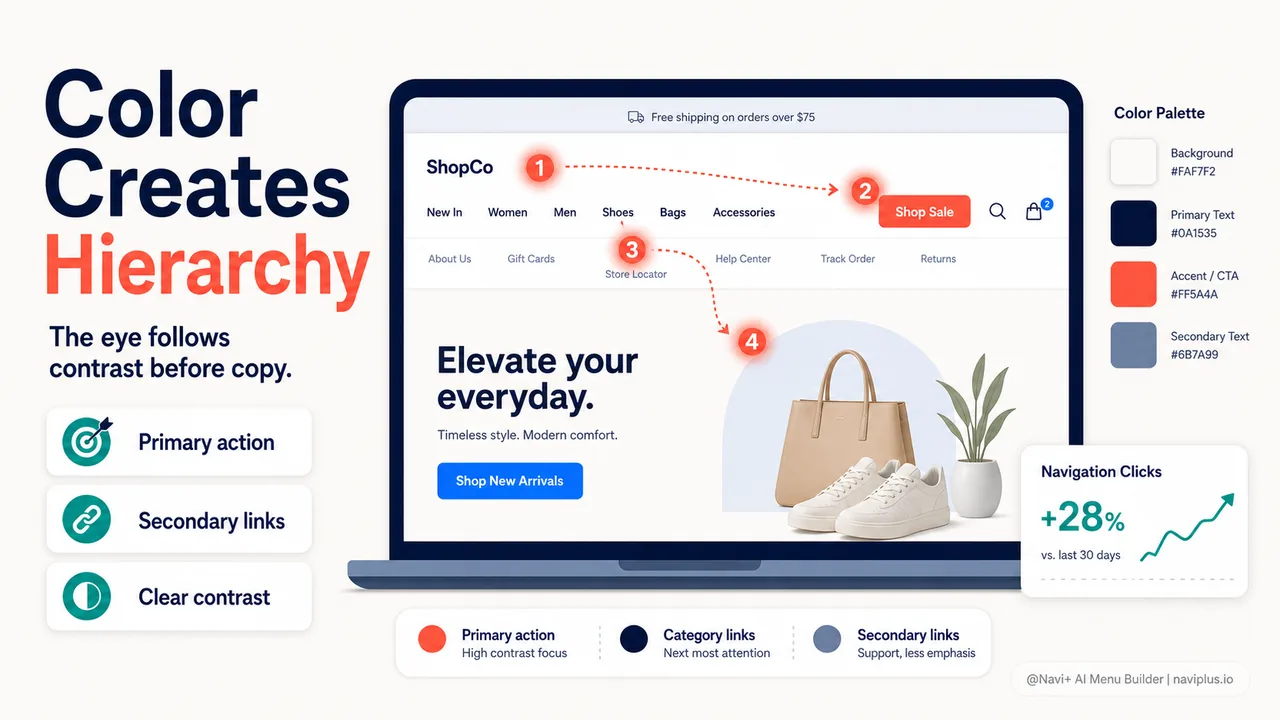
- Establishes visual hierarchy: Tells users what’s important and what’s clickable
- Creates contrast: Makes navigation stand out from content (or blend in, if that’s your goal)
- Triggers emotional responses: Influences whether users feel excited, calm, urgent, or trusting
- Signals interactivity: Helps users distinguish links from static text
- Reinforces brand identity: Builds recognition and consistency across touchpoints
The core colors and what they actually do
Color theory is fascinating, but let’s cut through the noise. In navigation design, you need to know what works—and why.
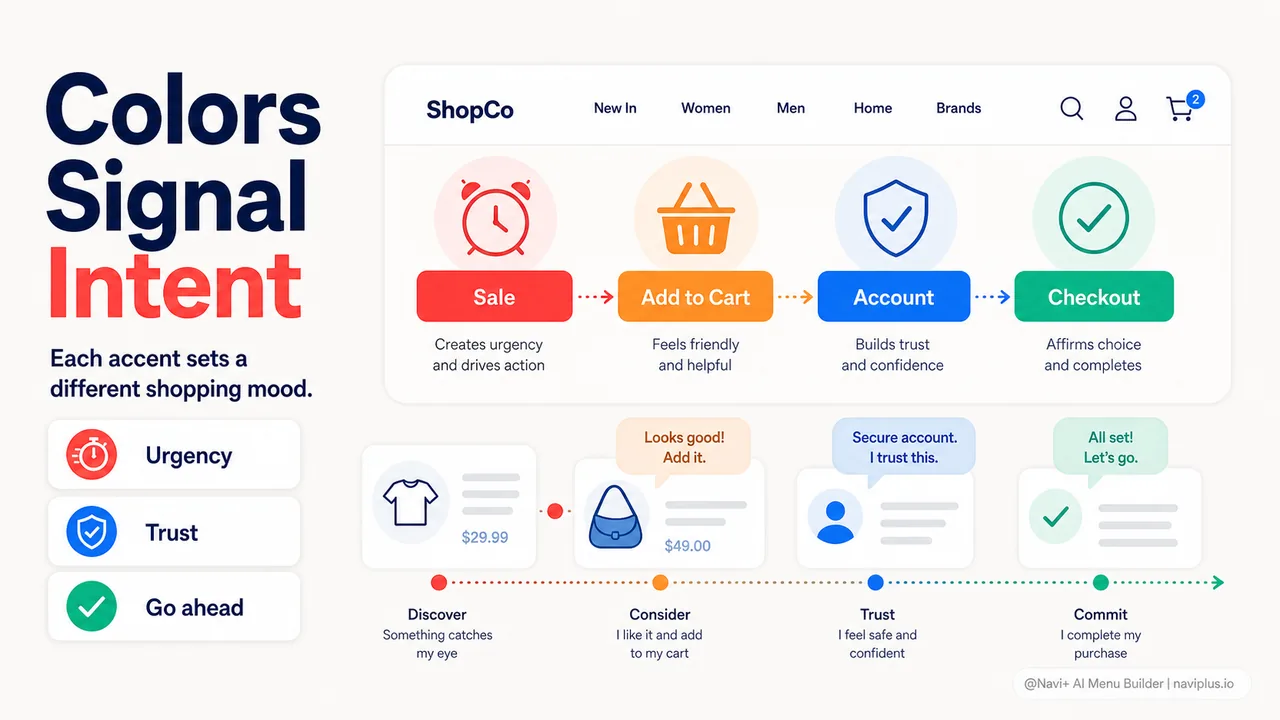
Red: urgency and attention
Red is the emergency brake of colors. It demands immediate attention, which makes it powerful for calls-to-action—but dangerous if overused.
Best for: Sale announcements, limited-time offers, urgent actions (“Shop Now,” “Last Chance”)
Avoid for: Primary navigation labels, account/profile links, anything you want users to feel calm about
Data point: A study by HubSpot found that red CTA buttons outperformed green by 21% in click-through rates—but only in contexts where urgency made sense. For informational content, red underperformed neutral colors.
Real example: Target’s mobile navigation uses red sparingly—only for their “Deals” section. The rest stays neutral, so the red genuinely pops when you need it to.
Orange: friendly action
Orange combines red’s energy with yellow’s optimism. It feels approachable rather than aggressive—perfect for e-commerce where you want action without pressure.
Best for: Primary CTAs, “Add to Cart” buttons, promotional sections in navigation
Avoid for: Luxury brands (feels too casual), financial services (lacks gravitas)
Data point: According to research cited by the Nielsen Norman Group, orange buttons in navigation increased conversions by 32.5% for a home goods retailer, compared to their previous blue buttons.
Real example: Amazon’s “Add to Cart” button is orange (technically “Amazon Orange,” #FF9900). It’s warm, inviting, and unmistakably clickable—neutral enough not to clash with product images, bold enough to guide every purchase decision.
Blue: trust and stability
Blue is the most universally liked color globally, and it signals reliability, professionalism, and calm. It’s also the most overused color in navigation—which means it can blend into the background if you’re not careful.
Best for: Financial services, healthcare, B2B SaaS, account/login sections, informational links
Avoid for: Food and beverage (suppresses appetite), highly competitive spaces where you need to stand out
Data point: Blue increases brand trust perception by 15% according to color psychology research, but in A/B tests, blue CTAs often underperform warmer colors for impulse purchases.
Real example: PayPal, Salesforce, and most banking apps use blue for navigation because it reduces anxiety around sensitive actions like “Transfer Money” or “View Balance.”
Green: growth and affirmation
Green signals “go,” health, wealth, and environmental consciousness. It’s psychologically associated with positive outcomes and permission.
Best for: Confirmation actions (“Checkout,” “Submit Order”), eco-friendly brands, wellness products, financial growth messaging
Avoid for: Luxury fashion (can feel cheap), tech products (dated association with old Windows interfaces)
Data point: Spotify’s green CTAs contributed to a 12% increase in premium subscription conversions after they redesigned their navigation to emphasize the brand color more consistently.
Real example: Whole Foods uses various shades of green throughout their navigation, reinforcing their natural/organic positioning at every click.
Black and white: sophistication and clarity
High contrast never goes out of style. Black-and-white navigation (or very dark gray on white) feels premium, minimalist, and timeless.
Best for: Luxury brands, photography/visual portfolios, content-heavy sites where navigation shouldn’t compete
Avoid for: Discount retailers (feels too expensive), overly saturated markets where you need personality
Data point: The Baymard Institute’s mobile commerce study found that high-contrast navigation (7:1 ratio or higher) reduced menu abandonment by 22% compared to low-contrast designs.
Real example: Apple’s navigation is essentially black text on white—letting the products be the color. Chanel, Rolex, and most luxury brands follow the same pattern.
Context crushes theory: when the “rules” don’t apply
Here’s the truth about color psychology: context always wins.
Red might signal urgency, but if your entire brand is red (Coca-Cola, Target, Netflix), using red in navigation just feels consistent—not urgent. Blue might build trust, but if every competitor in your space uses blue, you’re invisible.
Consider these context factors before choosing navigation colors:
Industry norms and user expectations
Users develop mental models based on their experiences. In some industries, breaking color conventions confuses users rather than delighting them.
Healthcare: Blue and green dominate because they signal cleanliness and calm. A bright orange navigation in a medical app feels wrong.
Finance: Blue, black, and dark green communicate stability. Hot pink might work for a millennial-focused fintech disruptor, but it would tank trust for a retirement planning service.
E-commerce fashion: Black and white for luxury; bold, saturated colors for fast fashion. Navigation color is brand positioning.
Cultural color meanings
Color symbolism varies dramatically by culture:
- White means purity in Western contexts, mourning in many Asian cultures
- Red signals luck and prosperity in China, danger in the West
- Purple is associated with royalty in Europe, mourning in Brazil
If your Shopify store serves a global audience, test your navigation colors with users from your key markets. Tools like Navi+ Menu Builder allow you to A/B test different color schemes by geographic location, so you can optimize for cultural preferences without maintaining separate sites.
Device and screen considerations
Navigation color performs differently on mobile vs. desktop, and on different screen types:
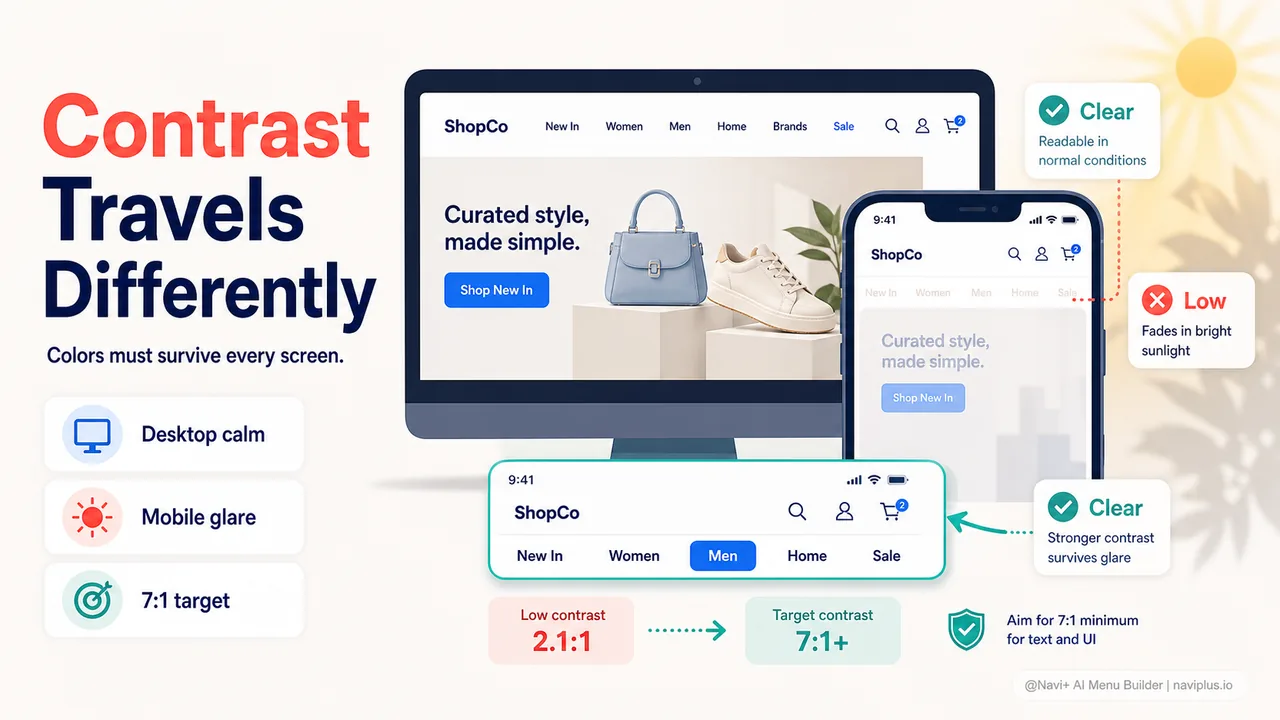
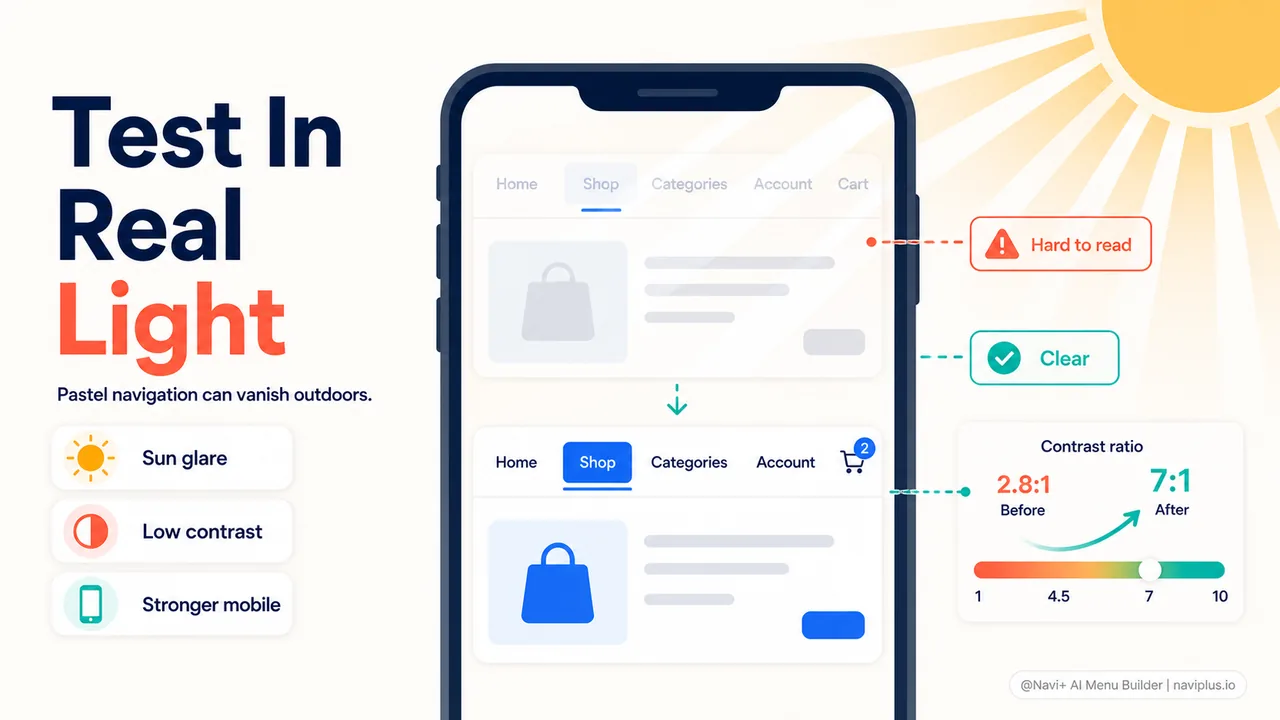
Mobile: Higher contrast is essential because users are often in bright sunlight. Pale pastels that look sophisticated on a desktop monitor become invisible on a phone screen outdoors.
OLED screens: Pure black (#000000) saves battery and looks stunning on OLED displays, but can create smearing on some screens during scrolling.
Dark mode: If your site offers dark mode, your navigation colors need to work in both contexts. Orange on white might be perfect; orange on black might be unreadable.
The science of contrast: why visibility beats beauty
No color psychology in the world matters if users can’t read your menu.
The Web Content Accessibility Guidelines (WCAG) set minimum contrast ratios:
- 4.5:1 for normal text (required for AA compliance)
- 7:1 for normal text (AAA compliance, recommended for all navigation)
- 3:1 for large text (18pt or 14pt bold)
But here’s what the guidelines don’t tell you: “minimum” is not “optimal.” In usability testing, navigation elements with 7:1 or higher contrast ratios consistently outperform those at the 4.5:1 threshold—often by 25-30% in click-through rates.
Why higher contrast wins in navigation
-
Scanning speed: Users scan navigation menus in under 2 seconds. Higher contrast = faster recognition.
-
Aging populations: People over 40 need higher contrast due to natural vision changes. That’s a huge chunk of the buying population.
-
Varied environments: Users browse on phones in sunlight, on laptops in dim coffee shops, on tablets in bed. High contrast works everywhere.
-
Cognitive load: Strong contrast reduces the mental effort required to parse your menu, leaving more cognitive resources for decision-making.
Common contrast mistakes in navigation
Mistake 1: Gray text on white backgrounds
#999999 on #FFFFFF is a 2.8:1 ratio—fails WCAG AA. Yet it’s everywhere because it “looks modern.” It also looks invisible to many users.
Fix: Use #595959 or darker for body text, #404040 or darker for navigation.
Mistake 2: Colored text on colored backgrounds
Teal text on a navy background might look sophisticated in Figma, but it’s a 2.1:1 ratio. Unreadable.
Fix: Test every color combination with a contrast checker (WebAIM has a free tool). Aim for 7:1 minimum.
Mistake 3: Hover states that reduce contrast
Your default navigation has great contrast, but on hover, the text turns light gray. Now users can’t tell where they’re pointing.
Fix: Hover states should maintain or increase contrast—add an underline, background color change, or bold weight rather than reducing color intensity.
Strategic color placement: what goes where
You have multiple color decisions in navigation design:
- Background color (the menu bar itself)
- Primary text/link color (regular menu items)
- Active/hover states (what happens when users interact)
- Call-to-action accent (your “Shop Sale” or “Sign Up” button)
- Dropdown/submenu colors (if you have mega menus)
Here’s a framework for deciding which colors go where:
Background color strategy
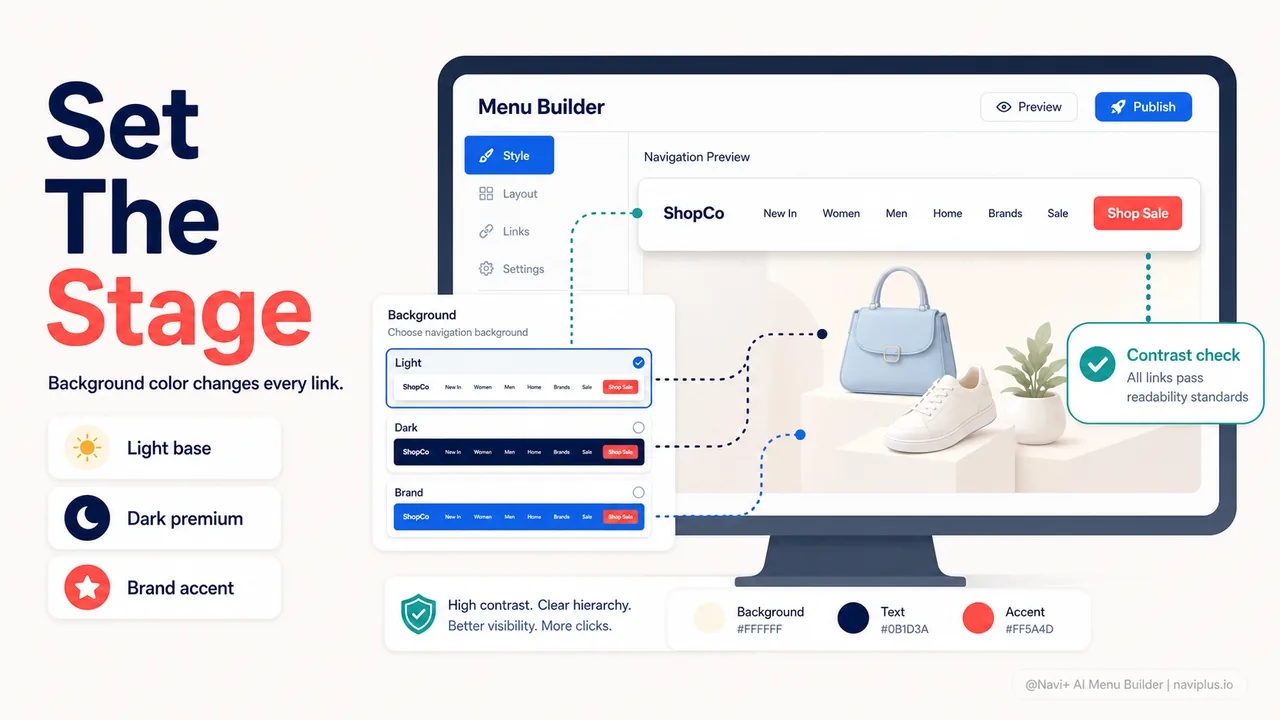
Your navigation background sets the stage for everything else.
Light backgrounds (white, cream, light gray): Maximize contrast for text, feel open and clean, work well for content-heavy sites. Risk: can feel generic if not paired with distinctive brand colors elsewhere.
Dark backgrounds (black, navy, charcoal): Feel premium and sophisticated, reduce glare for long reading sessions, make colorful CTAs pop. Risk: harder to achieve high contrast without bright, potentially harsh text colors.
Branded color backgrounds: Bold move that reinforces identity on every page. Works if your brand color is distinctive and you can maintain readability. Risk: can overwhelm the page if too saturated.
Primary link color strategy
Your main menu items should be:
- High contrast with background (7:1 minimum)
- Clearly distinct from body text (different color or weight)
- Consistent across all menu items (don’t use multiple colors for different categories unless it’s intentional hierarchy)
Safe approach: Use black or very dark gray (#1a1a1a) on light backgrounds. Never fails.
Brand-forward approach: Use your primary brand color if it provides sufficient contrast. This works beautifully when your brand color is strong (Coca-Cola red, Tiffany blue) and terrible when it’s pastel.
Neutral approach: Medium-dark gray (#404040) feels softer than black but still readable. Good for lifestyle brands that want approachability over authority.
Hover and active state colors
When users hover over or click a navigation item, the color change should:
- Be immediately noticeable (at least 3:1 contrast ratio with the default state)
- Maintain readability (still meet 7:1 with background)
- Feel intentional, not accidental (clear enough that users know it’s interactive)
Technique 1: Darken or lighten by 20-30%
If your link is #0066cc, hover becomes #004999. Simple, effective, never jarring.
Technique 2: Add a brand accent color
Links are black; hover adds an underline or background in your brand color. Separates interaction from identity.
Technique 3: Reverse the contrast
Dark text on light background becomes light text on dark background. Bold, unmistakable, but can feel heavy-handed for subtle brands.
Call-to-action accent color
Your CTA button in navigation (e.g., “Shop Now,” “Start Free Trial”) should be the most visually distinct element.
Rule of thumb: Pick a color that appears nowhere else in your navigation. If your menu is black and white, your CTA can be orange, green, red—anything that pops.
Research-backed choices:
- Orange: 32% higher conversion than blue (NNG study, e-commerce context)
- Red: 21% higher conversion than green (HubSpot, urgency context)
- Green: 12% higher conversion than blue (Spotify, affirmative action context)
But remember: these are averages. Your audience, brand, and offer will shift results. Always test.
The psychological triggers you can activate with color
Beyond “red means urgency,” color can trigger specific behaviors in navigation:
The contrast-attraction effect
When one element in your navigation uses a distinctly different color from everything else, it captures disproportionate attention. This is why a single orange button in a black-and-white menu gets clicked far more than its size or position would predict.
Application: Reserve one high-contrast accent color exclusively for your most important conversion action. Don’t dilute it by using it elsewhere.
The consistency-trust loop
When your navigation colors remain consistent across pages, devices, and sessions, users develop trust and familiarity. Their brain automates navigation, reducing cognitive load and increasing confidence.
Application: If your desktop menu uses navy links, your mobile menu should too. If your hover state is underlined in orange, every menu should follow that pattern.
The category-color association
When you consistently use specific colors for specific navigation categories, users learn the system and navigate faster.
Application: If “Sale” items are always red, “New Arrivals” always green, and “Bestsellers” always gold, users can scan your menu by color alone.
Warning: This only works if you’re disciplined. Mixing it up confuses users and destroys the benefit.
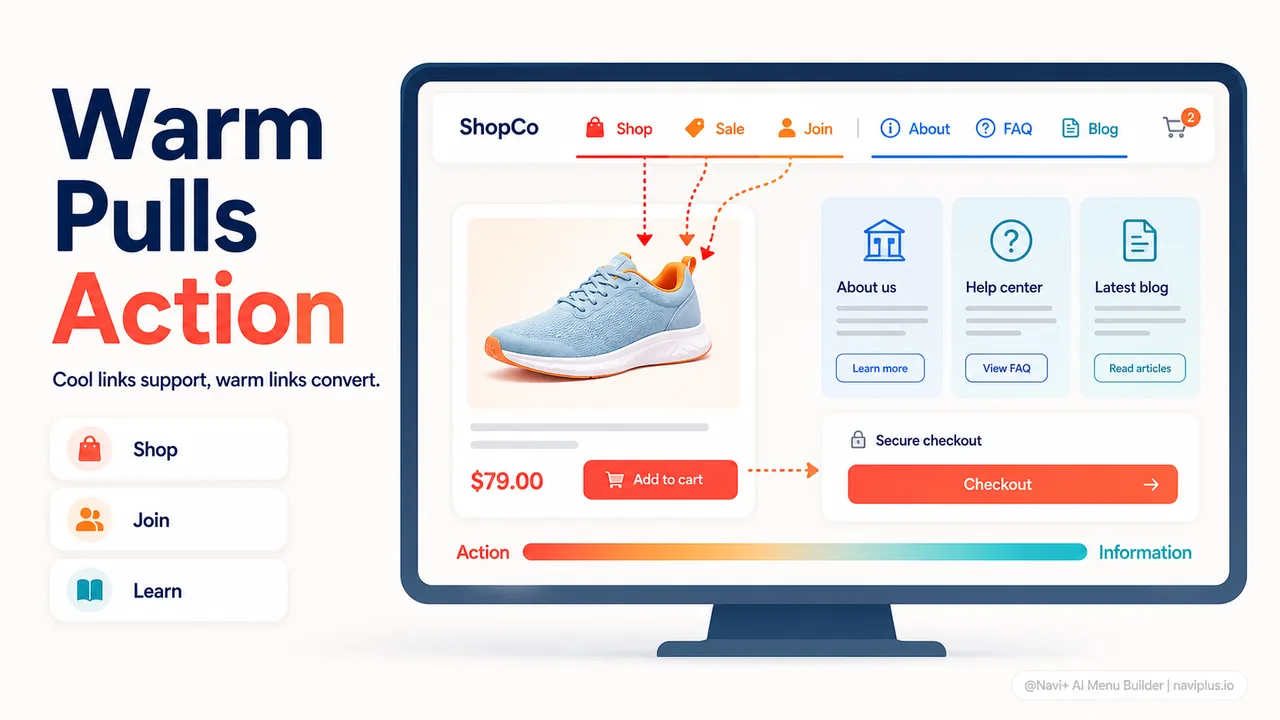
The warm-cool action gradient
Warm colors (red, orange, yellow) psychologically “advance” toward the viewer and feel active. Cool colors (blue, green, purple) “recede” and feel passive.
Application: Use warm colors for action-oriented navigation items (“Shop,” “Buy,” “Join”) and cool colors for informational items (“About,” “FAQ,” “Blog”).
Testing and iteration: finding your winning colors
Color psychology provides hypotheses, not certainties. The only way to know what works for your store is to test.
What to test
A/B test these color variables:
- Primary CTA color: Test 2-3 distinct colors (e.g., orange vs. green vs. blue) for your main navigation button
- Link hover color: Test high contrast vs. subtle color change
- Background color: Test light vs. dark navigation bar
- Accent color placement: Test colored text vs. colored background for emphasis
Don’t test:
- Tiny shade variations (#0066cc vs. #0066dd)—users can’t tell the difference
- More than 3 variables at once—you won’t know what drove the change
- Anything for less than 2 weeks—you need statistical significance
How to measure success
Track these metrics for each color variation:
- Click-through rate on navigation items (primary success metric)
- Time to first click (faster = more obvious)
- Bounce rate (if it increases, your colors might be confusing or off-brand)
- Conversion rate (ultimate measure, but influenced by many factors beyond color)
Use tools like Google Optimize, VWO, or your Shopify theme’s built-in A/B testing features. If you’re using a navigation builder like Navi+, you can test color variations without touching code—just duplicate your menu, change the color scheme, and split traffic.
What the data actually tells you
Let’s say your orange CTA gets 35% more clicks than your blue one. Before you declare orange the winner, ask:
- Did it increase conversions, or just clicks? (More clicks on “Sale” that don’t convert might mean you’re attracting browsers, not buyers)
- Does it fit your brand? (A short-term click boost isn’t worth long-term brand confusion)
- Does it work across devices? (Orange might pop on desktop but feel garish on mobile)
The best color choice is the one that improves both clicks and conversions while feeling authentic to your brand.
Common color mistakes that kill navigation performance
Even with good intentions, it’s easy to make color choices that hurt rather than help:
Mistake 1: Too many colors
When every menu item is a different color, nothing stands out. Your navigation looks like a circus, and users don’t know where to look first.
Fix: Limit your navigation palette to 2-3 colors maximum—background, primary text, and one accent for CTAs.
Mistake 2: Low contrast to look “modern”
Pale gray text on white backgrounds (#d3d3d3 on #ffffff) has a 1.8:1 contrast ratio—completely unreadable for many users, but it proliferates because minimalism is trendy.
Fix: Modern and accessible aren’t opposites. Use strong contrast (#2a2a2a on #ffffff = 14.7:1) and create visual interest through typography, spacing, and subtle animation instead.
Mistake 3: Ignoring color blindness
About 8% of men and 0.5% of women have some form of color blindness. If your navigation relies on color alone to communicate (e.g., red text for errors, green text for confirmations, with no icons), you’re excluding millions of users.
Fix: Never use color as the only indicator. Pair red/green with icons, bold text, or position changes.
Mistake 4: Changing colors inconsistently
Your homepage navigation is blue, but category pages switch to green, and product pages switch to black. Users feel disoriented and doubt they’re still on the same site.
Fix: Lock in your navigation color scheme and use it everywhere. Consistency builds trust.
Mistake 5: Forgetting mobile
Colors that work on a 27-inch monitor often fail on a 6-inch phone screen in bright sunlight. Pastels vanish. Subtle grays become invisible.
Fix: Test your navigation colors on actual devices in various lighting conditions. Boost contrast for mobile if needed.
Where to start: your navigation color audit
Ready to optimize your navigation colors? Here’s a practical 15-minute audit:
Step 1: Check your contrast ratios
Visit WebAIM’s Contrast Checker and test:
- Your navigation text color against its background
- Your hover state color against its background
- Your CTA button text against its button background
Target: 7:1 minimum for all text. If you’re below 4.5:1, fix it today—you’re failing accessibility standards and losing conversions.
Step 2: Identify your CTA color strategy
Look at your most important navigation action (e.g., “Shop Now,” “Sale,” “Sign Up”). Ask:
- Does it use a color that appears nowhere else in the navigation?
- Does it contrast strongly with the background (not just meet minimum standards, but pop)?
- Does the color match the emotional tone of the action (warm for urgency/action, cool for trust/information)?
Target: Your primary CTA should be unmistakable—the first thing users notice.
Step 3: Count your colors
How many different colors appear in your navigation (not counting hover states)?
- 1-2 colors: Probably too minimal, might lack visual hierarchy
- 3-4 colors: Ideal range for most sites
- 5+ colors: Likely too busy, consider consolidating
Target: 3 colors—background, primary text, CTA accent.
Step 4: Test mobile visibility
Pull up your site on your phone and step outside. Can you clearly read every navigation item in direct sunlight?
- If yes: your contrast is solid
- If no: increase contrast for mobile specifically (most responsive themes let you set device-specific colors)
Step 5: Run a 5-second test
Show your navigation to someone unfamiliar with your site for 5 seconds, then hide it. Ask: “What was the most important action you could take?”
- If they name your primary CTA: your color strategy is working
- If they say “I don’t know” or name the wrong item: your colors aren’t guiding attention effectively
Target: 80%+ of test subjects should identify your primary CTA.
The bottom line
Color psychology in navigation isn’t about memorizing “red = urgency, blue = trust.” It’s about understanding how color, contrast, and consistency shape user behavior—then testing relentlessly to find what actually drives action for your specific audience.
The store owner from the beginning of this article didn’t just change her navigation color randomly. She looked at her brand (energetic, handmade, personal), her audience (design-conscious millennials), and her competitors (mostly using safe blues and grays). Warm coral made sense emotionally and strategically—and the data proved it.
Your winning color might be coral, or navy, or black, or bright green. The only way to know is to audit your current contrast, establish a clear hierarchy, test variations, and measure what actually increases clicks and conversions.
Start with accessibility (7:1 contrast minimum), add strategic color differentiation (reserve one bold accent for CTAs), maintain consistency (same colors across all pages and devices), and test everything (A/B test your hunches).
Navigation color isn’t decoration. It’s conversion design. Treat it that way.