You open your Shopify store one morning to find twenty new products waiting to be added to the menu. They’re part of a new category launch — “Outdoor Gear” — and you’re excited because the products are strong. You log into your theme editor, navigate to the menu settings, and start adding links.
Then you hit the wall.
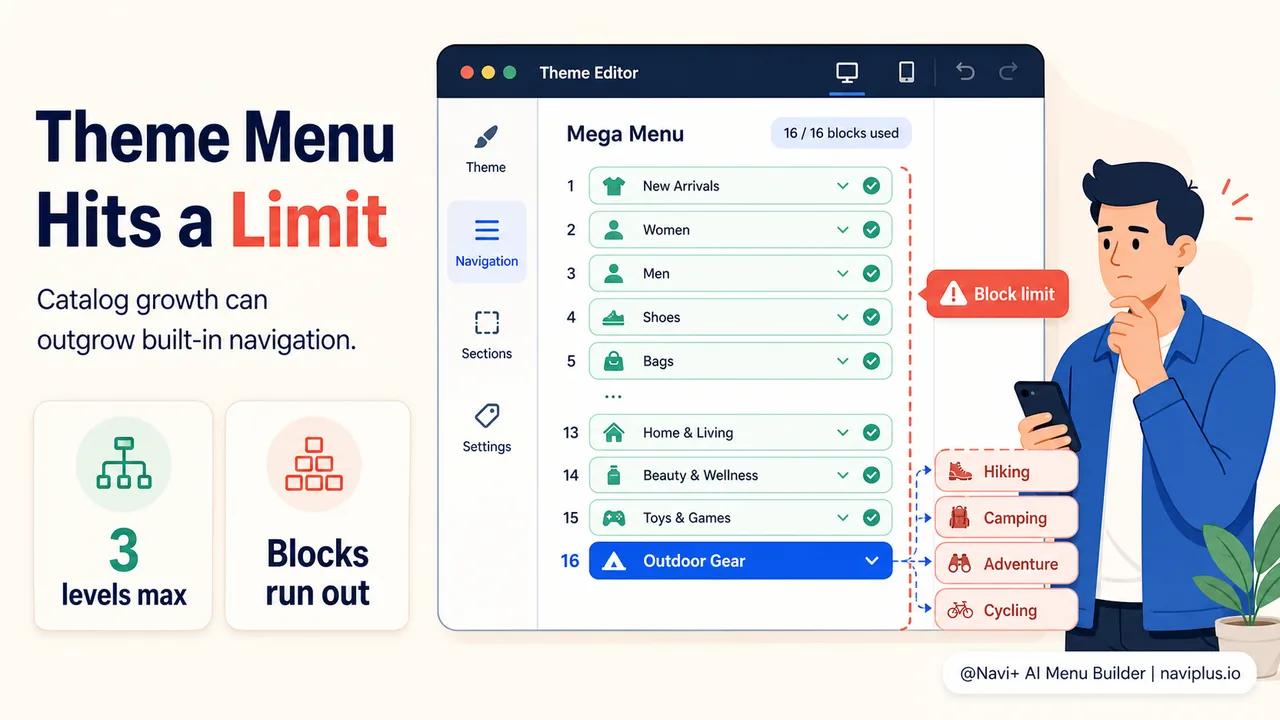
Your theme’s mega menu block can only display 16 items per section. You have 23 subcategories under “Outdoor Gear” alone. You try adding another block, but the layout breaks — items overlap, the dropdown extends below the fold, and on mobile the menu becomes a scrolling nightmare. You realize the theme wasn’t built for a catalog this large.
This is the moment when a Shopify theme menu stops working for your store. Not because the theme is poorly made, but because your store has outgrown what the theme was designed to handle. The menu structure that worked beautifully at 50 products starts to buckle at 500, and by the time you reach 1,000 products across dozens of categories, the theme’s navigation becomes a bottleneck between your customers and your catalog.
- Shopify themes have hard limits on menu depth (3 levels), blocks per section (50 max, often 16), and mobile layout flexibility.
- Stores with optimized navigation see 30–60% higher conversion rates — menu visibility directly impacts revenue.
- Menu apps remove theme constraints and add mobile-first patterns (tab bars, slide menus) that convert 15–25% better than hamburger menus.
- The decision point: if you have 20+ categories, need mobile optimization, or hit theme block limits, an app becomes the practical choice.
The hidden limits in Shopify theme menus
Shopify themes come with built-in navigation tools that work well for most stores starting out. You can create menus in the admin, link them to collections and pages, and configure them through the theme editor. For a store with 5–10 top-level categories and straightforward navigation, this system is perfectly functional.
But Shopify’s menu system has architectural limits that aren’t obvious until you encounter them:
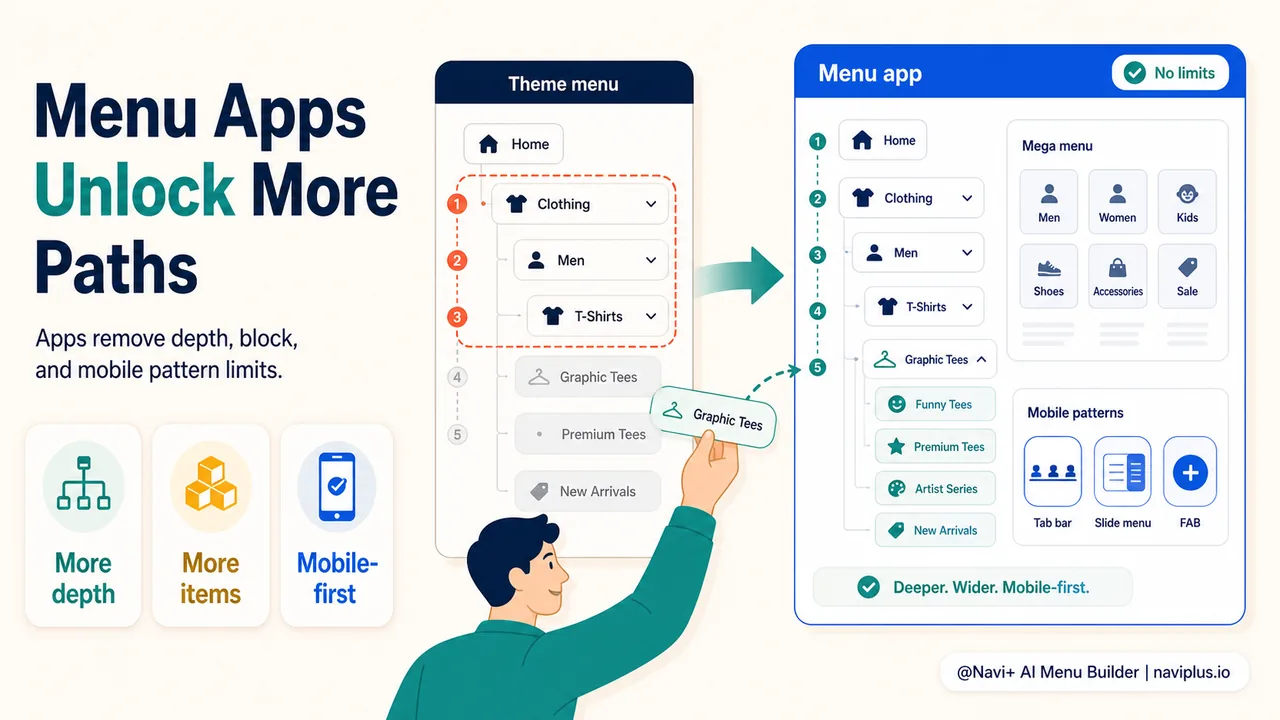
Menu depth is capped at three levels. You can nest links up to three levels deep — a main category, a subcategory, and one level below that. For stores with complex catalogs (clothing with categories like Women → Tops → Blouses → Long Sleeve), three levels often isn’t enough. You end up flattening the structure or creating artificial groupings that don’t reflect how customers think about your products.
Theme blocks are limited to 50 items maximum per section — and many themes enforce much lower limits. According to Shopify’s developer documentation, Online Store 2.0 themes support up to 50 blocks per section, but individual themes often set their own max_blocks constraint at 16 or even lower. If your mega menu needs to display 30 subcategories, the theme simply won’t allow it.
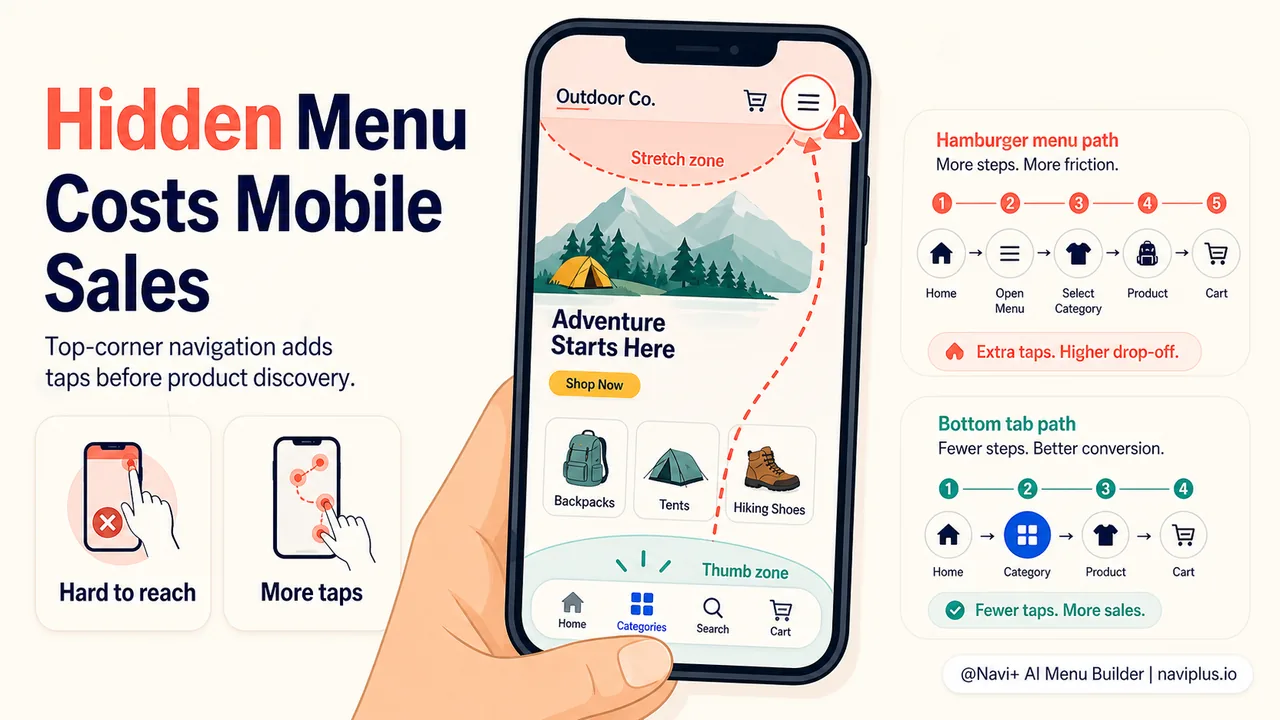
Mobile layouts are an afterthought in most theme menus. The default pattern is a hamburger menu in the top corner — three stacked lines that hide your entire navigation behind a tap. This pattern has measurable conversion costs. The Nielsen Norman Group found that hiding main navigation cuts usage by almost half and lengthens task completion times. For ecommerce specifically, where the average cart abandonment rate sits at 70.22% according to the Baymard Institute, every added step costs you sales.
You can’t mix menu types. Shopify themes give you one menu style per location — typically a horizontal desktop menu and a mobile hamburger. You can’t combine a tab bar at the bottom of the screen with a slide-out menu for deeper categories, even though that’s the pattern most high-converting mobile apps use.
These aren’t bugs — they’re design decisions. Shopify themes are built to serve a wide range of stores, from a 10-product jewelry shop to a 10,000-SKU outdoor retailer. The menu system is designed for the common case, not the complex one.
When theme menus start costing you conversions
The point where a theme menu becomes a conversion obstacle varies by store, but there are clear signals:
Your categories don’t fit in the visible menu space. On desktop, if your top-level categories extend beyond the viewport width, some of them become invisible. Shoppers don’t scroll horizontally in navigation menus — they assume what they see is all you have. Research from ConvertCart shows that stores with clear mega menus saw 12% higher conversion rates compared to simple dropdowns, specifically because the mega menu made the full catalog visible at a glance.
Your mobile menu requires multiple taps to reach popular categories. If a shopper has to tap the hamburger, scroll down a long list, tap a category, scroll again, and tap a subcategory just to reach “Men’s Running Shoes,” you’ve added three unnecessary steps between arrival and product discovery. Data from LibauTech’s navigation research shows that bottom tab bars drive 15–25% mobile conversion lift versus hamburger menus because navigation stays visible during scroll.
You’re manually managing separate mobile and desktop menus. Some store owners create a simplified mobile menu with fewer items to make the hamburger menu more manageable, then maintain a separate desktop menu with the full catalog. This doubles the maintenance work every time you add a category or run a seasonal promotion.
Your menu looks cluttered or breaks on certain screen sizes. Theme menus often assume a specific number of items. Add too many, and the layout starts to fail — overlapping text, broken dropdowns, or items that fall off the edge of the screen. These visual bugs signal that the theme’s menu system wasn’t built for your catalog size.
The cumulative effect is measurable. According to Forrester Research, a well-designed user interface can increase conversion rates by up to 200%, with thoughtful UX design yielding rates up to 400% higher. Navigation is one of the highest-leverage parts of that interface — roughly 69% of users rely on navigation or search as their primary method to find products.
What menu apps can do that themes can’t
Menu apps aren’t just theme menus with more features — they’re built on a fundamentally different architecture. While theme menus are constrained by Shopify’s native menu object and the theme’s block system, menu apps generate navigation dynamically using JavaScript and custom rendering logic. This removes most of the hard limits.
No depth limits. Apps can render 4, 5, or even 6 levels of nesting if your catalog demands it. This is particularly useful for stores with technical products (electronics, auto parts, industrial supplies) where the category hierarchy reflects real-world product taxonomy.
No block limits. Because apps don’t rely on theme blocks, they can display 50, 100, or 200 menu items in a single mega menu panel. The constraint becomes visual design (how much can a shopper parse in one view) rather than technical limitation.
Mobile-first navigation patterns. Apps can implement bottom tab bars, slide menus, and floating action buttons — navigation patterns proven in mobile apps but unavailable in most Shopify themes. The tab bar sits in the thumb zone (the bottom third of the screen where your thumb naturally rests), making it accessible without grip changes. This is a significant ergonomic advantage on phones larger than 6 inches.
Multiple menu types in one install. You can combine a desktop mega menu with a mobile tab bar and a slide-out menu for deeper categories. Each menu type is optimized for its context rather than forcing one pattern across all devices. This is the approach used by Navi+ and similar navigation apps — different menu types for different use cases, all managed from one interface.
Conditional display rules. Want to show certain menu items only to logged-in customers? Or hide a category on mobile but show it on desktop? Menu apps support display logic that theme menus can’t handle without custom Liquid code.
Independent visual styling. Because the app controls the full rendering pipeline, you can style the menu independently of your theme. Change fonts, colors, hover effects, and layouts without editing theme files or worrying about theme updates overwriting your changes.
The tradeoff is complexity. A theme menu is managed entirely through Shopify’s admin and theme editor — no separate interface, no extra configuration. A menu app adds another dashboard, another set of settings, and (in some cases) another monthly cost.
The performance question: do apps slow down your store?
This is the most common objection to menu apps, and it’s rooted in real experience. Apps do add overhead — each app injects scripts, stylesheets, and sometimes tracking code. A theme that loads in 1.8 seconds can slow to 4–6 seconds with 12 apps installed, according to Innovatrix Infotech’s research on Shopify customization.
But not all apps are equally heavy. The performance impact depends on how the app is built:
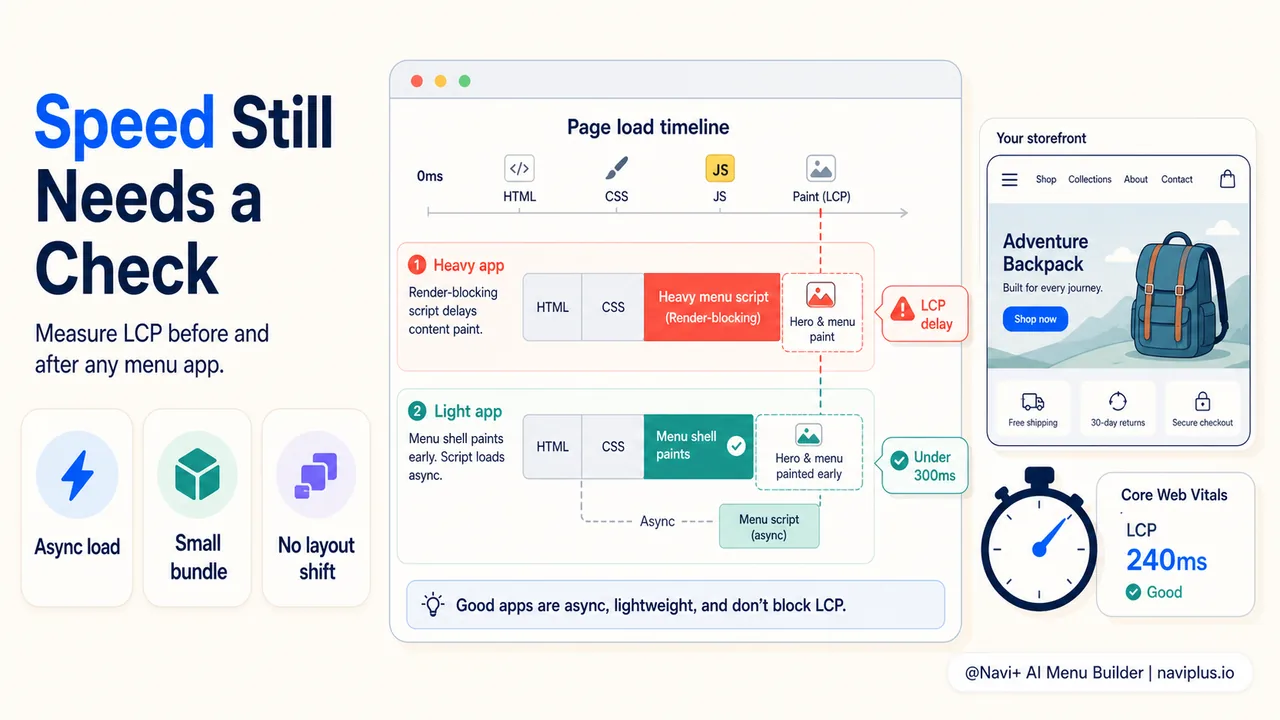
Render-blocking JavaScript is the main culprit. If the app’s script loads synchronously in the page head, it blocks the browser from rendering anything until the script finishes downloading and executing. This adds hundreds of milliseconds to the initial page load.
Large bundle sizes compound the problem. Some menu apps ship 200–300 KB of JavaScript to render a navigation menu — roughly the same size as the entire theme’s JavaScript bundle. On slow mobile connections, this delay is perceptible.
Inefficient rendering creates layout shift. If the menu app waits until the page is fully loaded before injecting the navigation, shoppers see a flash of the theme’s default menu, then a jarring jump when the app menu appears. This creates a poor first impression and hurts Core Web Vitals (specifically Cumulative Layout Shift).
Well-built menu apps mitigate these issues:
- Async loading: The menu script loads asynchronously and doesn’t block the initial page render.
- Lightweight bundles: Modern apps ship 30–50 KB of minified JavaScript rather than 200+ KB.
- Prerendering or SSR: Some apps prerender the menu HTML on the server so the menu appears instantly, with JavaScript only handling interactivity.
- Lazy loading for images: If the menu includes category images or product thumbnails, those load progressively rather than all at once.
The practical test: measure your Largest Contentful Paint (LCP) and Time to Interactive (TTI) before and after installing the app. If LCP increases by more than 200–300ms or TTI by more than 500ms, the app is too heavy for your store. Google’s PageSpeed Insights or Shopify’s built-in speed report will surface these numbers.
For context, ShopThemeFinder’s 2026 mega menu guide notes that built-in theme mega menus are typically the fastest option, but they sacrifice flexibility. Apps are a reasonable tradeoff when the navigation improvement drives enough additional conversions to outweigh the performance cost — and for most stores with complex catalogs, that math works out.
When to stick with your theme menu
Not every store needs a menu app. Theme menus work well in several scenarios:
Your catalog is relatively flat. If you have 5–10 top-level categories with 3–5 subcategories each, and those fit comfortably within three levels of nesting, the theme menu handles this without strain.
Speed is your absolute top priority. If your store competes primarily on price or speed (commodity products, dropshipping, high-volume low-margin items), every millisecond of load time matters. In this case, the performance hit from an app may not be worth the navigation improvement.
You have developer resources. If you have access to a Shopify developer, you can customize the theme’s Liquid templates to extend the menu system. This gives you some of the flexibility of an app without the performance overhead. You can increase block limits, add custom styling, and implement conditional display logic directly in the theme code.
Your mobile traffic is minimal. If 80%+ of your traffic and sales come from desktop, the mobile navigation patterns offered by apps are less valuable. A well-configured desktop mega menu in the theme may be sufficient.
You’re just starting out. For a new store with a small catalog, adding a menu app before you have navigation problems is premature optimization. Start with the theme menu, and revisit the decision when you hit 20+ categories or notice shoppers struggling to find products.
The key question is whether the theme menu is actively limiting your store’s growth. If you’re turning down wholesale opportunities because your catalog is too large to navigate, or if mobile shoppers are bouncing at higher rates than desktop (a sign of mobile navigation problems), those are clear signals that the theme menu has become a constraint.
Practical decision framework: theme menu or app?
Here’s a straightforward way to decide:
Evaluate your catalog size and structure:
- Fewer than 20 top-level categories, all fitting within 3 nesting levels → Theme menu likely sufficient
- 20–50 categories with some going 4+ levels deep → App starts making sense
- 50+ categories or large seasonal menu changes → App becomes necessary
Check your mobile metrics:
- Mobile bounce rate 10%+ higher than desktop → Mobile navigation is a problem
- Mobile conversion rate significantly lower than desktop (after accounting for typical device differences) → Mobile navigation needs work
- High exit rates on collection pages viewed from mobile → Shoppers can’t find what they want
Test your theme’s limits:
- Try adding all your current and planned categories to the theme menu
- Check how it looks on a 375px mobile viewport (iPhone SE)
- Ask five customers to find a specific subcategory on mobile and time them
- If any of these tests reveal friction, document exactly where the theme fails
Estimate the revenue impact:
- Calculate your current mobile revenue per session
- If mobile navigation improvements could lift mobile conversion by even 10% (conservative based on the research cited earlier), multiply that by your monthly mobile traffic
- Compare the potential monthly revenue gain to the app’s cost
Example: A store doing $50,000/month with 50% mobile traffic and a 2% mobile conversion rate earns $25,000 from mobile. A 10% conversion lift (2.0% → 2.2%) adds $1,250/month. If a menu app costs $19/month and takes two hours to set up, the ROI is clear.
Consider the maintenance burden:
- How often do you add or reorganize categories?
- Do you run seasonal promotions that require menu changes?
- Do you have multiple people managing the store who need to update the menu?
Apps with visual editors reduce the skill level required to make menu changes. If your theme menu requires editing Liquid code for anything beyond basic link changes, an app’s interface may pay for itself in reduced maintenance time.
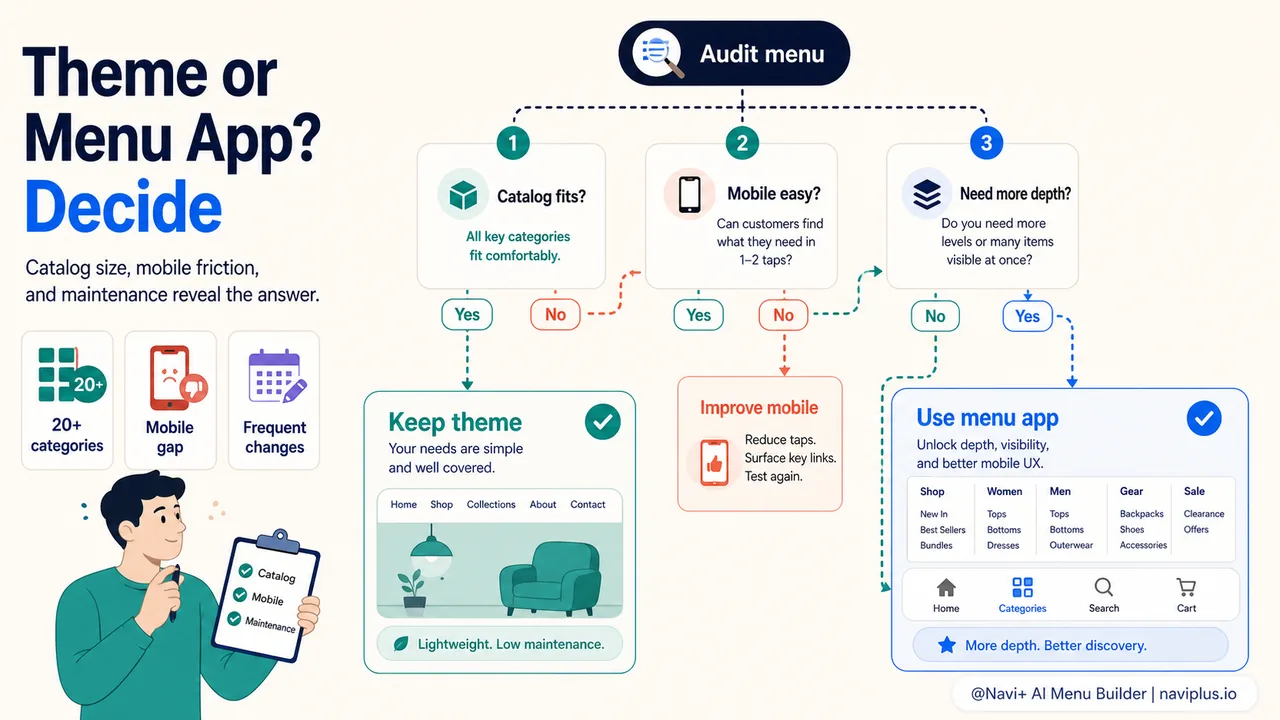
Where to start: auditing your current navigation
Before installing an app or investing in custom development, audit your existing navigation to identify exactly where it’s failing:
Run a mobile navigation audit:
- Open your store on a phone (not desktop browser in mobile view — an actual phone)
- Try to reach your three best-selling categories from the homepage
- Count the taps required and note any scrolling or hunting
- Check if any categories are unreachable or hidden on mobile
- Test the navigation with one hand while holding something in the other (simulating real shopping context)
Review your analytics:
- In Google Analytics or Shopify Analytics, compare mobile vs desktop conversion rates
- Look at exit pages — if collection pages have high exit rates, navigation may be the culprit
- Check bounce rate by device — mobile bounce 10%+ higher than desktop suggests friction
- Review site search queries — if shoppers search for category names, they can’t find them in the menu
Get customer feedback:
- Add a simple survey to your mobile site: “Did you find what you were looking for?”
- Read recent customer service tickets — how many mention difficulty finding products?
- If you have user testing access (UserTesting.com, Lookback, etc.), watch 3–5 sessions of people navigating your store on mobile
Document the gaps:
- List categories that don’t fit in the theme menu
- Note any category nesting that exceeds 3 levels
- Count how many taps mobile users need to reach popular categories
- Screenshot any visual bugs or layout breaks in the current menu
This audit gives you concrete data to justify the investment in a menu app, and it also tells you exactly which features you need. If the main problem is mobile navigation, you need a tab bar and slide menu. If it’s too many categories for the dropdown, you need mega menu with higher limits. If it’s visual customization, you need independent styling controls.
The goal isn’t to install the most feature-rich app — it’s to solve the specific navigation problems limiting your store’s growth. Start with the audit, identify the constraints, and choose the solution (app, custom development, or theme change) that removes those constraints with the least overhead.
And if your audit reveals that your theme menu is working fine? Then stick with it. The best navigation is the one your customers don’t notice — the one that simply gets them where they want to go.