A store owner came to me last month with a question I hear often: “I just redesigned my menu, sales are flat, and Google Search Console is showing a drop in impressions. Could navigation be the problem?”
The answer was yes — but not because the menu looked bad. It looked great. The problem was that Google’s crawler couldn’t follow the links. The new menu was built entirely in JavaScript, and the links didn’t exist in the raw HTML. From Google’s perspective, the store’s category pages had become orphans — no internal links pointing to them, no clear hierarchy, and no way to understand the site structure. The pages were still indexed from the sitemap, but they’d lost the context and authority that comes from being part of a well-structured navigation tree.
Navigation isn’t just a user experience concern. It’s also the primary way search engines understand your site architecture, distribute crawl budget, and pass link equity through your store. A menu that looks perfect to a customer but invisible to Googlebot is a problem that costs you traffic.
This article covers how to make sure your navigation is crawlable, what Google needs to see, and how to audit your menu to catch the issues that hurt rankings.
- Google crawls navigation links to understand site structure and distribute crawl budget.
- JavaScript-only menus without HTML fallback are invisible to crawlers — use real anchor tags.
- Internal linking through navigation passes authority to category and product pages.
- Audit with View Source, Google Search Console, and mobile-first indexing checks.
Why navigation matters for SEO
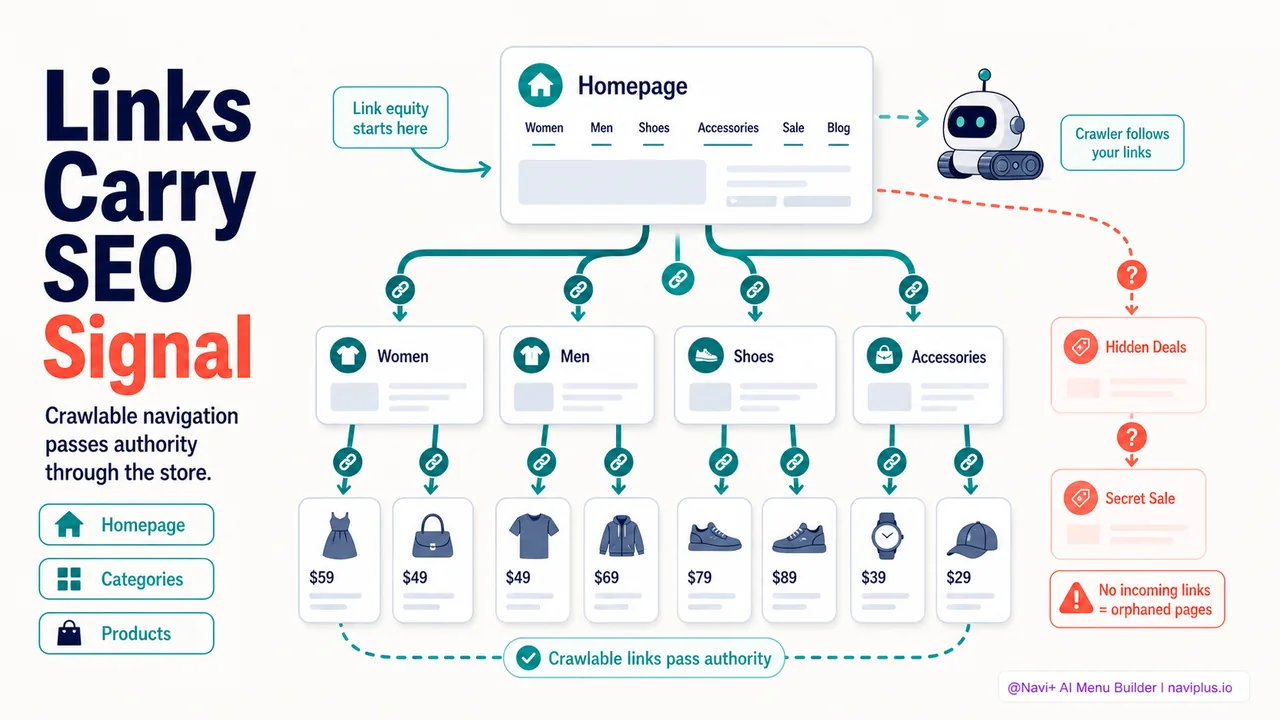
When Google crawls your store, it follows links. The crawler starts at your homepage (and any URL in your sitemap), reads the HTML, extracts every link it finds, and queues those URLs to crawl next. Navigation menus are the most prominent, consistent set of internal links on your site — they appear on every page and point to your most important category and collection pages.
This makes navigation a critical part of three SEO functions:
1. Site architecture discovery
Google uses navigation structure to understand how your store is organized. A clear hierarchy — homepage → category → subcategory → product — tells Google which pages are important and how they relate to each other. A flat structure where every page is only one click from the homepage signals that all pages are roughly equal in importance. A deep structure where some pages require five clicks suggests those pages are less important.
If your navigation doesn’t provide a clear hierarchy, Google has to infer structure from other signals (URL paths, sitemaps, internal linking patterns). That inference isn’t always accurate.
2. Crawl budget allocation
Google doesn’t crawl every page on your site every day. For large stores, the crawler allocates a finite budget — a certain number of pages per day. Google prioritizes pages it considers important, and importance is inferred partly from internal linking. Pages linked from your main navigation are crawled more frequently than pages buried five clicks deep or linked only from low-traffic pages.
If your best-selling category page isn’t linked in the navigation (or is linked only through JavaScript that Google can’t follow), it gets crawled less often. New products added to that category take longer to appear in search results. Inventory updates and price changes aren’t indexed promptly.
3. Link equity distribution
Every internal link passes a small amount of authority (often called “link juice” or PageRank) from the source page to the destination page. Your homepage typically has the most authority because it receives the most external backlinks. Navigation links from the homepage to category pages pass some of that authority along, making those category pages rank better.
When navigation is broken or invisible to Google, that link equity doesn’t flow. Category pages lose ranking power. The effect compounds over time — as the category pages lose authority, the product pages linked from those categories also suffer.
What makes navigation crawlable
A crawlable navigation menu is one that Google can parse and follow without executing JavaScript. The key requirement: real anchor tags with real href attributes in the raw HTML.
Real anchor tags
Google’s crawler can follow standard HTML links:
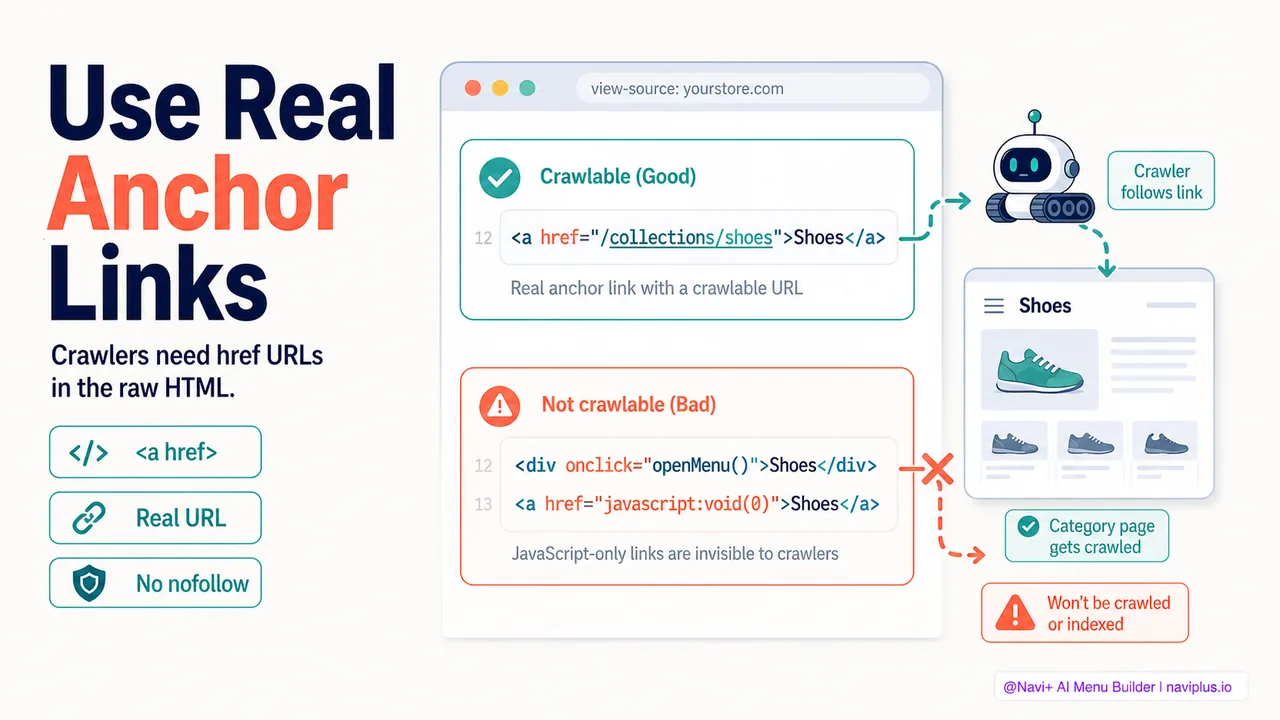
<a href="/collections/summer-shoes">Summer Shoes</a>
This is a real link. It exists in the HTML source before any JavaScript runs. Google can see it, extract the URL, and queue /collections/summer-shoes for crawling.
Contrast that with a JavaScript-only menu:
<div class="menu-item" data-url="/collections/summer-shoes" onclick="navigateToCategory(this)">
  Summer Shoes
</div>
This is not a real link. It’s a div with a data attribute and a click handler. The URL exists in the data attribute, but Google’s crawler doesn’t execute JavaScript event handlers when discovering links. It only looks for <a> tags with href attributes. This menu item is invisible to the crawler.
Modern Google crawlers can execute JavaScript, so there’s nuance here — but JavaScript rendering is a second-pass process that happens after the initial HTML crawl. Not all pages get rendered. Pages that rely entirely on JavaScript for navigation are at a disadvantage.
href attributes that point to real URLs
The href attribute must contain an actual URL, not a JavaScript function or a fragment identifier used only for client-side routing.
Good:
<a href="/collections/summer-shoes">Summer Shoes</a>
<a href="/products/sandal-model-x">Sandal Model X</a>
Bad:
<a href="javascript:void(0)" onclick="openCategory('summer-shoes')">Summer Shoes</a>
<a href="#summer-shoes">Summer Shoes</a>
The javascript:void(0) link tells the browser to do nothing when clicked — the real navigation happens in the onclick handler. Google sees the link but can’t extract a crawlable URL from it.
The #summer-shoes fragment identifier is a client-side anchor. It doesn’t correspond to a unique server-side URL. Google might treat it as the same page as the base URL (without the fragment) or ignore it entirely. Either way, it doesn’t help the crawler discover your category page.
No nofollow on navigation links
The rel="nofollow" attribute tells Google not to follow the link or pass link equity. It’s useful for user-generated content, paid links, and links to untrusted domains — but it’s a mistake on internal navigation links.
If your main navigation has rel="nofollow" on every link:
<a href="/collections/summer-shoes" rel="nofollow">Summer Shoes</a>
Google will see the link but won’t follow it during the initial crawl, and it won’t pass authority to the destination page. Your category pages lose both crawl priority and ranking power.
This is an easy mistake to make when building custom navigation or using a third-party menu app that adds rel="nofollow" by default as a misguided attempt to “control crawling.”
Common navigation patterns that hurt crawlability
JavaScript-only mega menus
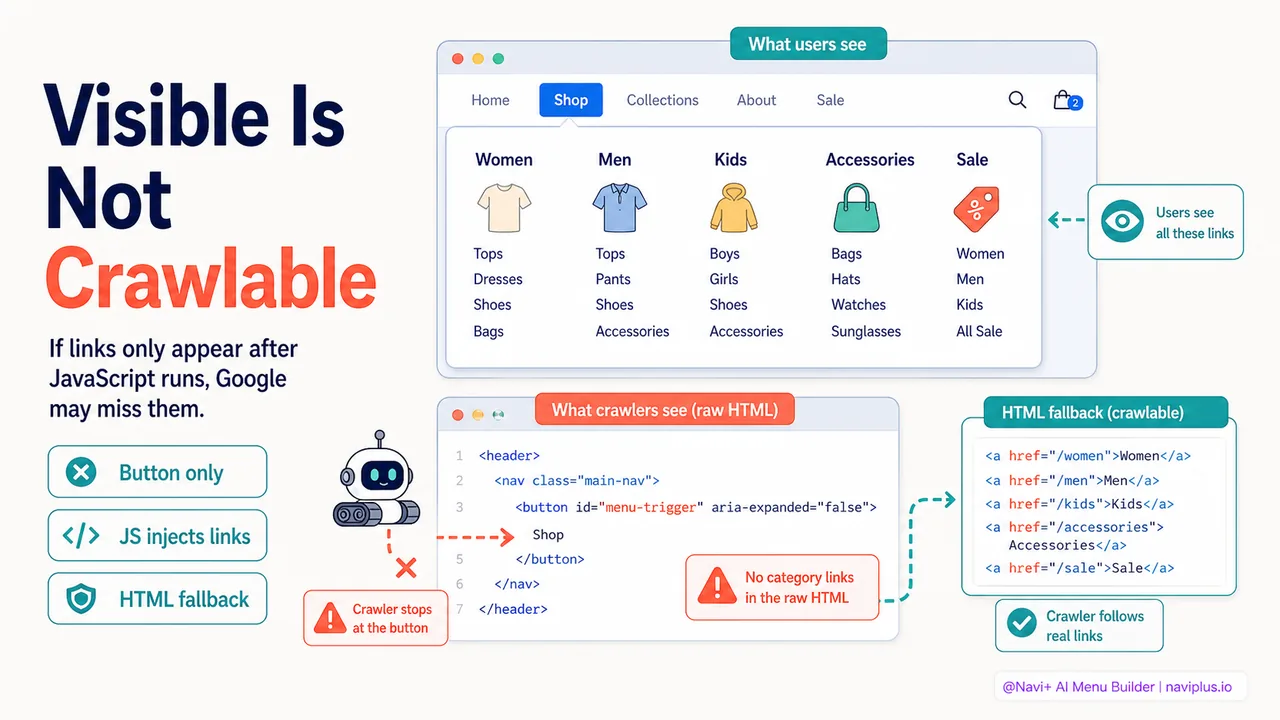
Many modern menu apps build mega menus entirely in JavaScript. The initial HTML contains only a trigger button:
<button id="menu-trigger">Shop</button>
When the user hovers or clicks, JavaScript fetches the menu structure from an API or builds it from a JSON object embedded in the page, then injects the full mega menu DOM (including all the <a> tags) into the page.
From a user experience perspective, this works fine. From a crawler perspective, the links don’t exist until JavaScript runs. Google’s initial HTML crawl sees only the button. The mega menu links are invisible.
The fix: render the mega menu links in the HTML on the server side, then progressively enhance with JavaScript for animation and interaction. The links exist in the raw HTML, so Google can crawl them. JavaScript adds the visual polish.
Navi+ renders all navigation links in the initial HTML payload, then enhances the interaction with JavaScript. The menu is crawlable from the start.
Single-page apps with client-side routing
Stores built with React, Vue, or other single-page app frameworks often use client-side routing: the URL changes in the browser’s address bar, but the page doesn’t actually reload. All navigation happens through JavaScript updating the DOM.
If the menu links use the framework’s router component:
<RouterLink to="/collections/summer-shoes">Summer Shoes</RouterLink>
The framework might render this as a <a> tag with a proper href (good), or it might render a <span> with a click handler (bad). It depends on the framework and how it’s configured.
Even if the framework does render an <a> tag, the destination page might not exist as a separate HTML file that Google can crawl. The entire app might be a single HTML shell (/index.html) with all routes handled in JavaScript. Google crawls /index.html and sees the homepage content, but the category page content at /collections/summer-shoes only appears when JavaScript runs and updates the DOM.
The fix: server-side rendering (SSR) or static site generation (SSG). The server renders the full HTML for each route, including all navigation links, so every page is crawlable as a standalone HTML document.
Mobile-only hamburger menus hidden by default
On mobile, many stores hide the navigation behind a hamburger icon. When CSS uses display: none to hide the menu by default:
.mobile-menu {
  display: none;
}
.mobile-menu.is-open {
  display: block;
}
The menu HTML exists in the page source, but it’s hidden. Google’s mobile crawler can see it (because the links are in the HTML), but the hidden state can sometimes signal lower importance. More importantly, if the menu is hidden with JavaScript (the links don’t exist in the HTML until the hamburger is tapped), Google doesn’t see the links at all on mobile.
Since Google uses mobile-first indexing (the mobile version of your site is the primary version Google crawls and indexes), a mobile-only hamburger menu that hides links via JavaScript can hurt your entire site’s crawlability.
The fix: make sure the hamburger menu links exist in the HTML, just hidden by CSS. Avoid building the menu DOM on-demand when the user taps the hamburger.
Infinite scrolling navigation
Some stores use infinite scroll for category pages: the initial page load shows 20 products, and more products load automatically as the user scrolls down. The “Load more” action is triggered by JavaScript watching the scroll position.
If the next page of products is only accessible through that JavaScript scroll trigger (no “Next page” link with a real URL), Google can’t reach those products through normal crawling. They’re orphaned unless they appear somewhere else on the site (search results, sitemap, related products).
The fix: provide pagination links with real URLs (?page=2, ?page=3) in addition to the infinite scroll JavaScript. Users get the seamless infinite scroll experience; Google gets crawlable links to every page.
How to audit your navigation for crawlability
You don’t need technical SEO expertise to check whether your navigation is crawlable. Here are three methods, ranked from simplest to most thorough.
Method 1: View Source
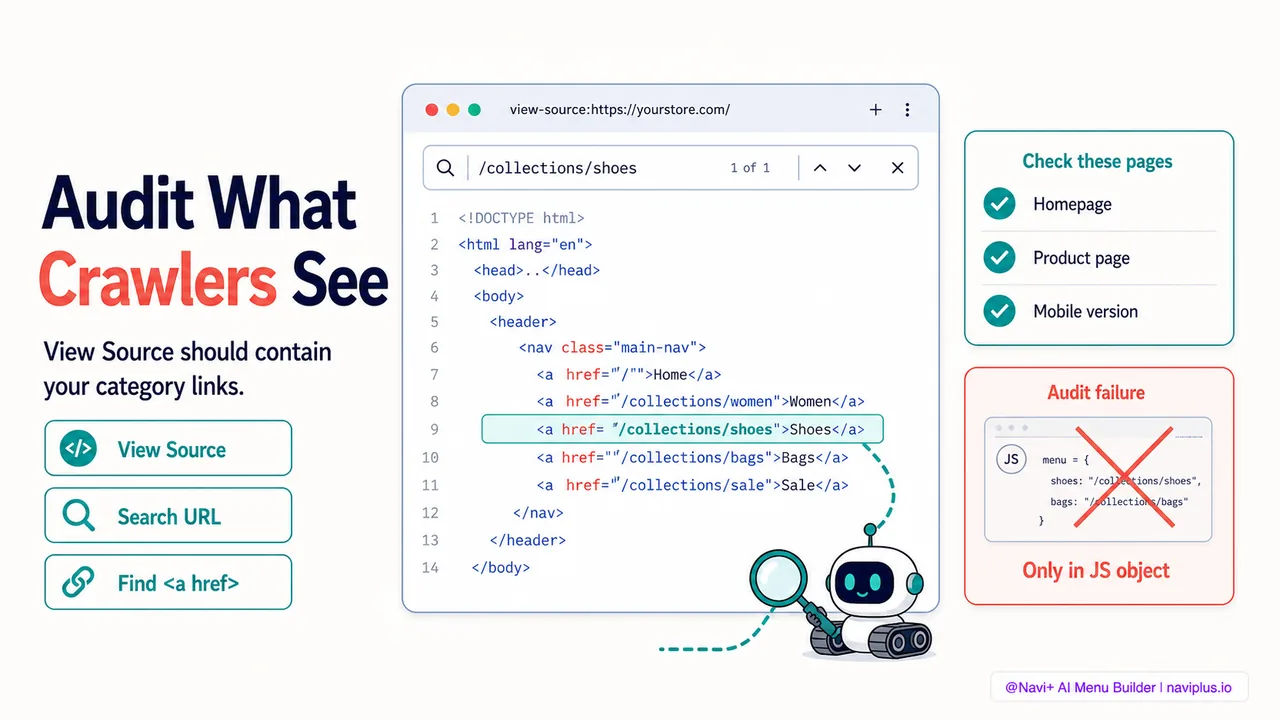
Open your store’s homepage in a browser. Right-click anywhere on the page and select “View Page Source” (or press Ctrl+U on Windows, Cmd+Option+U on Mac).
This shows the raw HTML that the server sent to the browser — before any JavaScript ran. Search for one of your category page URLs (for example, /collections/summer-shoes). If it appears in an <a href="..."> tag, your navigation is crawlable. If it doesn’t appear at all, or it only appears in a data- attribute or a JavaScript object, your navigation relies on JavaScript and may not be crawlable.
Do this check on both desktop and mobile (use Chrome DevTools device emulation to view the mobile version of your site). If the mobile version uses a different menu implementation, you need to check both.
Method 2: Disable JavaScript
Most browsers let you disable JavaScript temporarily. In Chrome: open DevTools (F12), open Settings (F1), scroll to Debugger, and check “Disable JavaScript.” Reload your homepage.
If your navigation menu still appears and all the links work (clicking a category link navigates to the category page), your navigation is crawlable. If the menu disappears or the links don’t work, your navigation depends on JavaScript.
This test simulates what a very basic crawler sees. Google’s crawler is more sophisticated (it can run JavaScript), but JavaScript execution isn’t guaranteed for every page, so relying on it is risky.
Method 3: Google Search Console coverage report
Google Search Console shows which pages Google has crawled and indexed, and which pages it discovered but didn’t index (and why).
Log in to Search Console, go to Coverage (or Pages, depending on the interface version), and look for pages with the status “Discovered – currently not indexed.” These are pages Google found (usually through your sitemap) but decided not to index.
If many of your category or product pages fall into this bucket, one possible reason is that Google doesn’t see them as important — because they’re not linked prominently in your navigation, or the navigation links aren’t crawlable.
Another useful report: Crawl Stats (under Settings → Crawl Stats). This shows how many pages Google crawls per day and how that number changes over time. If crawl rate drops after you redesign your navigation, it’s a signal that Google is finding fewer links to follow.
Method 4: Mobile-first indexing check
Google uses the mobile version of your site for indexing and ranking. If your mobile navigation is less complete than your desktop navigation (fewer links, collapsed sections, hamburger menu that hides categories), that’s the version Google sees.
To check: use Google’s Mobile-Friendly Test tool (search for “Google Mobile-Friendly Test” and enter your homepage URL). The tool shows a screenshot of how Google’s mobile crawler renders your page. Scroll through the screenshot and verify that your navigation menu appears with all the links visible (or at least present in the HTML, even if hidden by CSS).
If the mobile navigation is missing links that appear on desktop, Google might not crawl those pages at all — or might consider them less important.
How to fix uncrawlable navigation
If your audit reveals that your navigation isn’t crawlable, here’s how to fix it.
If you’re using a menu app
Check the app’s documentation or settings for an option to “render links in HTML” or “SEO-friendly mode.” Some apps build menus in JavaScript by default but offer a server-side rendering mode that outputs HTML links.
If the app doesn’t offer this option, consider switching to an app that does. Navi+ renders all navigation links in the initial HTML, so they’re crawlable from the start.
If you’re using a custom theme or single-page app framework
Implement server-side rendering or static site generation. Every page should exist as a standalone HTML document with all navigation links present in the HTML source. Client-side JavaScript can enhance the interaction (animated transitions, lazy-loaded images), but the core navigation structure must exist in the HTML.
For Shopify stores using Liquid templates, this is straightforward: Liquid renders on the server, so navigation links are in the HTML by default. Make sure you’re using <a href="..."> tags, not <div onclick="..."> elements.
For headless Shopify stores using React or Vue, use a framework like Next.js (React) or Nuxt (Vue) that supports SSR or SSG.
If you’re using a hamburger menu on mobile
Make sure the hamburger menu links exist in the HTML, just hidden by CSS (display: none or transform: translateX(-100%)). Avoid building the menu DOM with JavaScript only when the user taps the hamburger.
If your mobile menu is a simplified version of the desktop menu (fewer links, collapsed sections), consider whether that’s an SEO tradeoff you’re willing to make. Google indexes the mobile version, so links missing from mobile navigation are less likely to be crawled.
If you’re using infinite scroll
Add pagination links with real URLs to every collection page. You can hide them visually (with CSS or by placing them in the footer where users rarely scroll) if you want to preserve the infinite scroll UX, but the links must exist in the HTML for Google to follow.
Shopify’s default pagination uses ?page=N query parameters. Make sure those URLs are present as <a href="..."> links somewhere on the page.
Internal linking beyond the main navigation
Navigation menus aren’t the only way to link to category and product pages. Other internal linking patterns that help SEO:
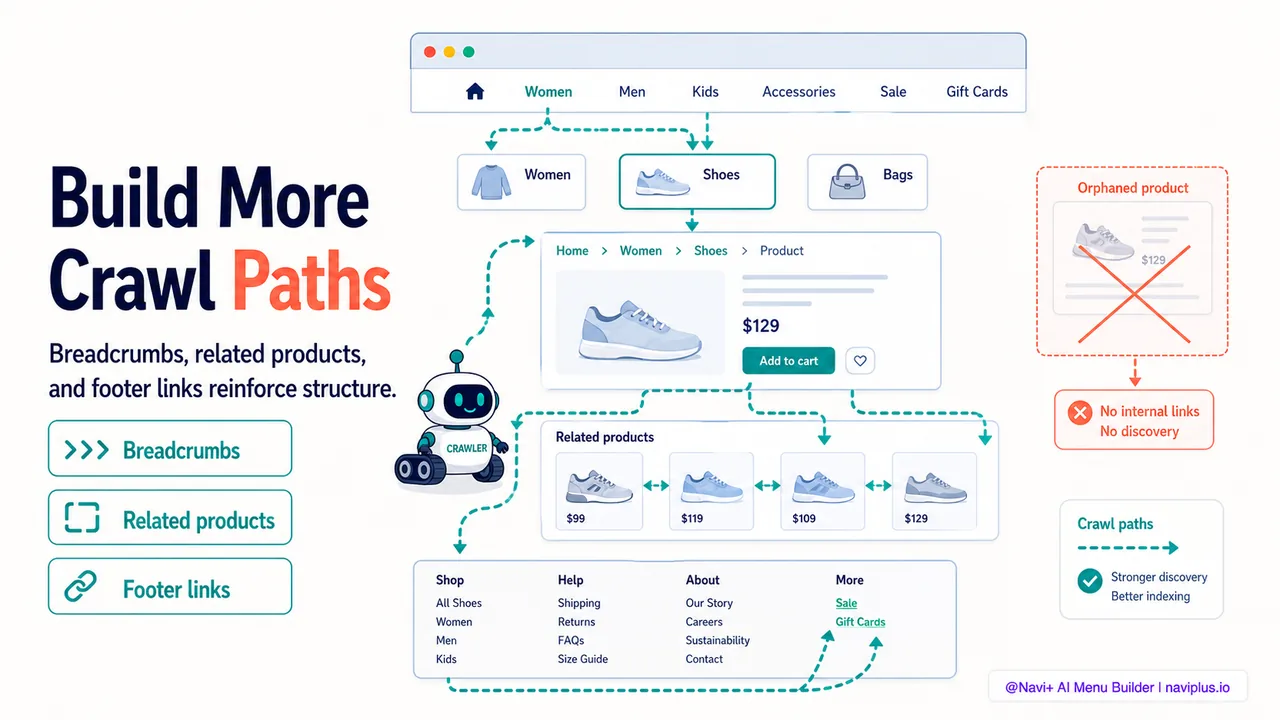
Breadcrumbs: A breadcrumb trail (Home > Women’s Clothing > Dresses) on every product page creates additional internal links to category pages. Breadcrumbs also appear in Google search results (as structured data), giving users a preview of your site structure.
Related products: “Customers also bought” and “You may also like” modules on product pages create links between products. This helps Google discover products that might not be linked from any category page (discontinued items, seasonal items, low-stock items).
Footer links: Many stores include a sitemap or quick links section in the footer. These links appear on every page, so they’re crawled frequently. Use them to link to important category pages, especially categories that don’t fit in the main navigation (Sale, New Arrivals, Gift Cards).
Internal search results: If your store has a search bar, the search results page should use real links to products and categories, not JavaScript click handlers. Google sometimes crawls internal search results pages (especially if they’re linked from the sitemap or referenced in other pages), and those pages can serve as discovery mechanisms for products.
All of these patterns should use real <a href="..."> tags, not JavaScript navigation.
Navigation structure and crawl depth
Crawl depth is the number of clicks required to reach a page from the homepage. Pages one click from the homepage (top-level category pages linked in the main navigation) are depth 1. Pages two clicks away (subcategory pages) are depth 2. And so on.
Google prioritizes shallow pages. Pages at depth 1 or 2 are crawled more frequently than pages at depth 5 or 6. For large stores, deep pages might be crawled once a month or less, meaning new products or inventory updates take weeks to appear in search results.
Navigation structure determines crawl depth. A flat navigation with all categories at the top level keeps everything at depth 1. A hierarchical navigation (categories → subcategories → sub-subcategories) pushes some pages to depth 3 or deeper.
For most stores, the optimal structure is a compromise: group related categories under top-level headings (to avoid a cluttered navigation), but make sure the most important category and product pages are no more than 2-3 clicks from the homepage.
If you have a large catalog (hundreds or thousands of products), consider these strategies to keep crawl depth low:
Mega menus: A mega menu can expose 30-50 subcategories in a single dropdown, keeping them all at depth 1 from the homepage. This is one reason mega menus are popular among large ecommerce sites.
Faceted navigation: Allow users to filter category pages by attributes (size, color, brand). Each filter combination is a unique URL that Google can crawl. This creates thousands of entry points into your catalog, reducing crawl depth for products that match multiple filters. (Be careful with faceted navigation — too many filter combinations can create duplicate content issues. Use canonical tags and URL parameter handling in Search Console to manage this.)
Featured products on the homepage: Link to best-selling or seasonal products directly from the homepage. This keeps high-priority products at depth 1, even if they’re buried deep in the category hierarchy.
Where to start
Quick auditOpen your store's homepage in an incognito window. Right-click and select View Source. Search for the URL of one of your main category pages. If it appears in an anchor tag (``), your navigation is crawlable. If it doesn't appear at all or only appears in a JavaScript object, you have a crawlability problem.</p> Run the View Source test on both your homepage and a product page. Check both desktop and mobile versions. Make a list of any navigation links that don't appear in the raw HTML. Those are the links Google can't reliably follow. If you find issues, the fix depends on your setup. For Shopify stores using Liquid templates, make sure navigation links use `` tags. For menu apps, check whether the app has an SEO-friendly mode. For custom headless setups, implement server-side rendering. Navigation crawlability isn't the only factor in SEO, but it's foundational. If Google can't follow your links, the rest of your SEO work — content optimization, backlinks, technical improvements — loses much of its impact. Start with crawlable navigation, then build from there.