Mobile commerce accounts for roughly 75% of all ecommerce traffic. Yet mobile conversion rates remain stubbornly lower than desktop. Baymard Institute’s research puts mobile cart abandonment at approximately 80%, compared to about 66% on desktop. That gap — 14 percentage points — represents millions of potential purchases lost to friction that exists only on phones.
The causes are well documented: small screens make forms harder to fill, typing is slower on a touchscreen keyboard, and the checkout flow competes with notifications, app switches, and real-world interruptions. But navigation plays a role that’s often overlooked. How the shopper finds the cart, how they move between cart and checkout, and how many ways the checkout offers to leave — these navigation details directly affect whether a mobile shopper finishes buying.
- Mobile cart abandonment is ~80% — higher than desktop — and navigation friction is a significant contributor.
- Thumb-friendly placement, minimal headers, and simplified checkout navigation reduce mobile-specific friction.
- A persistent cart icon in a bottom tabbar keeps the cart accessible throughout the browsing journey.
Why mobile checkout is harder
The physical constraints of a phone create friction that doesn’t exist on desktop. A laptop has a full keyboard, a mouse for precise clicking, and a large screen that shows forms and product details simultaneously. A phone has a thumb, a keyboard that covers half the screen, and a viewport narrow enough that even a simple form requires scrolling.
These constraints compound during checkout because checkout is the most form-intensive part of shopping. Name, email, shipping address, payment details — each field requires typing, each field has a keyboard that covers the content below it, and each field is a point where the shopper might give up.
Navigation friction adds to this. If the checkout header is cluttered with the full site menu, the screen space for the form shrinks further. If the path from cart to payment requires multiple page loads, each load is an interruption. If the back button takes the shopper out of the checkout flow instead of back one step, the shopper has to start over.
Deep-diveRead the full guide → Mobile checkout barriers: why phone buyers abandon more
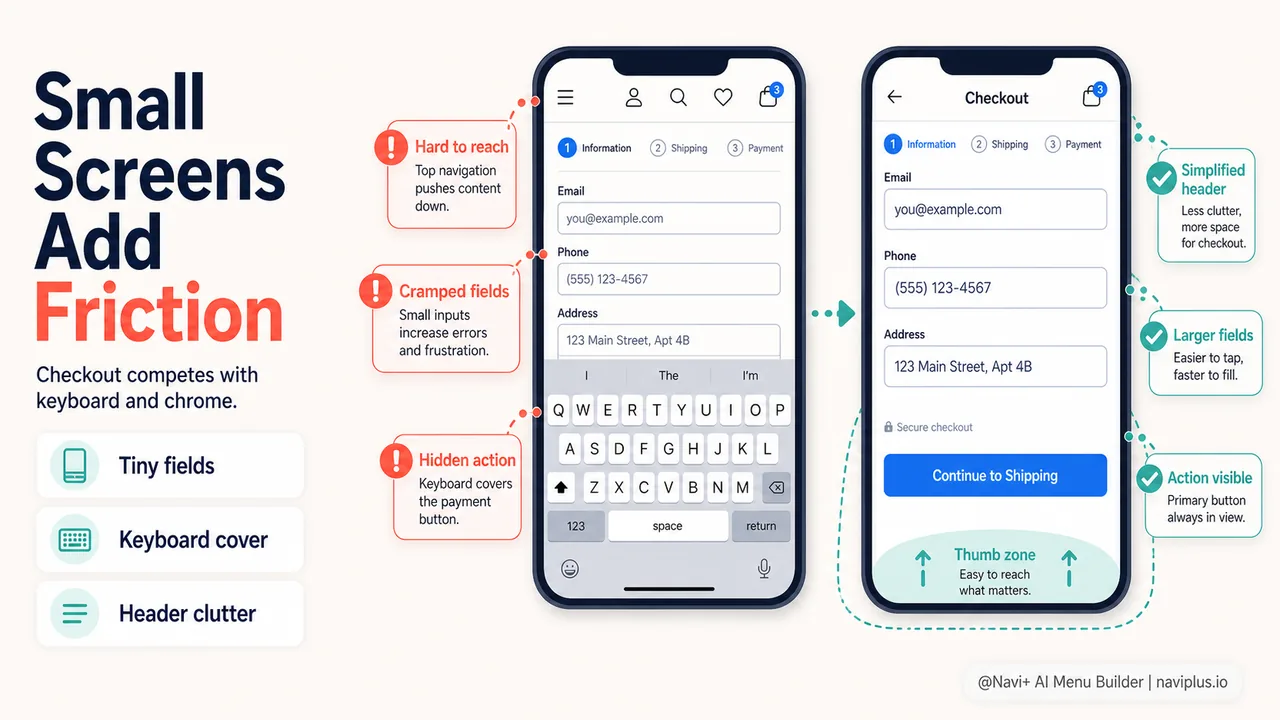
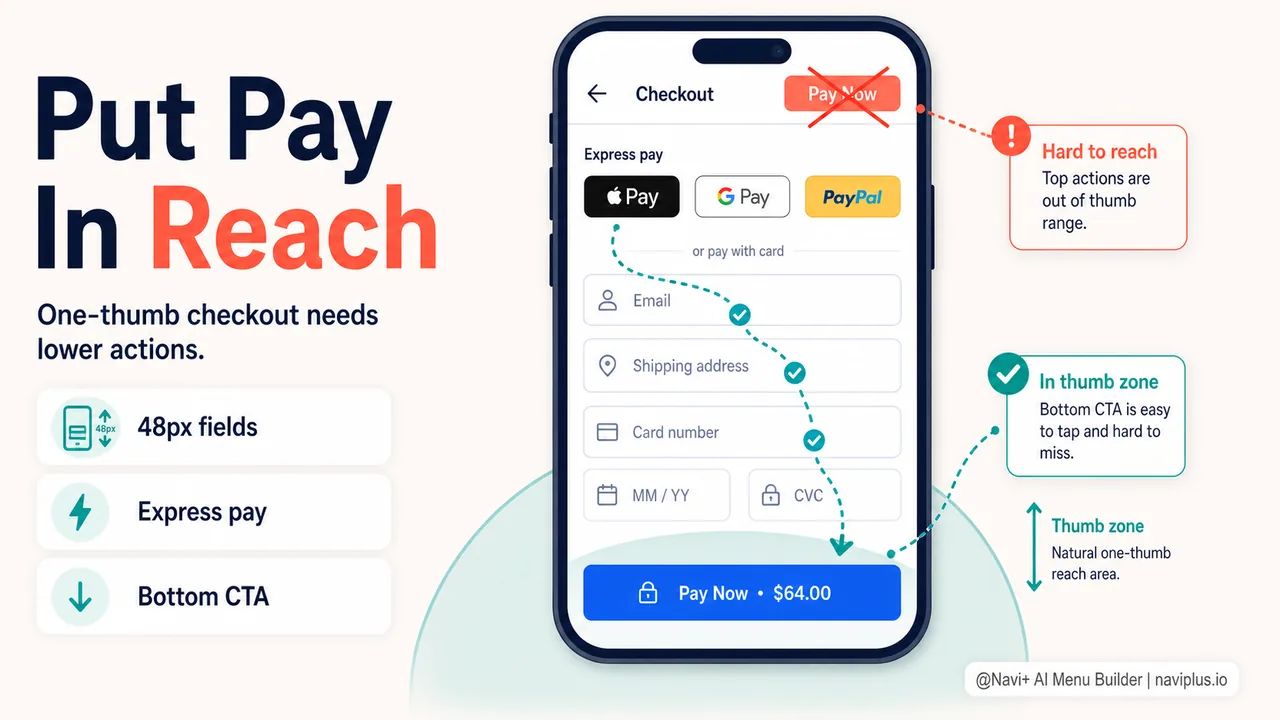
Thumb-friendly checkout design
The same thumb zone principles that apply to mobile navigation apply to checkout. The submit button (“Pay now,” “Complete order”) should be at the bottom of the screen, in the easy zone. Form fields should be large enough to tap accurately. Progress indicators should be visible without scrolling.
Apple Pay, Google Pay, and Shop Pay reduce mobile checkout friction dramatically because they replace form-filling with a single tap or biometric confirmation. A shopper who uses Apple Pay goes from product page to completed purchase with three taps: Add to Cart, Checkout, Face ID. No typing, no scrolling through forms, no navigation decisions.
For stores where express checkout isn’t available or where the shopper prefers traditional checkout, the form design becomes critical. Large input fields (at least 48px tall), autofill-friendly field naming, and inline validation (showing errors immediately instead of after submission) all reduce friction.
Deep-diveRead the full guide → Thumb-friendly checkout: designing for one-hand purchase
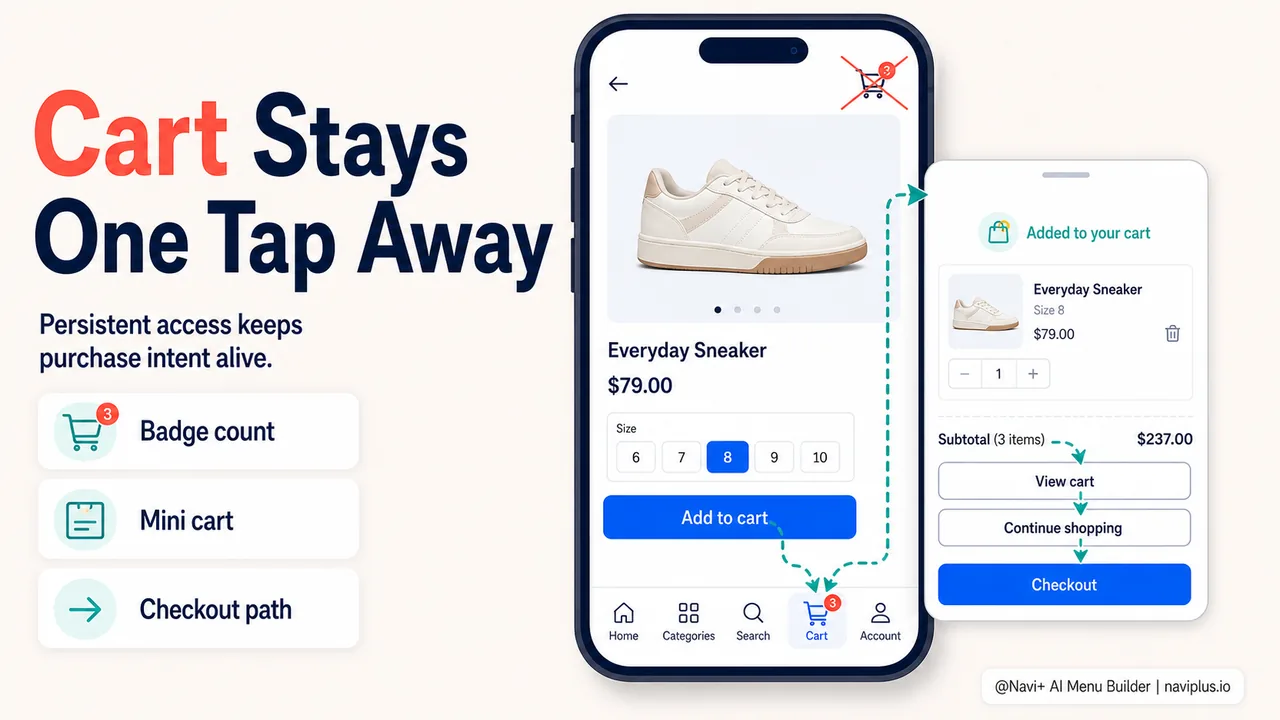
Persistent cart access throughout the journey
The path to checkout starts long before the checkout page. It starts when the shopper adds the first item to the cart. From that moment, the shopper needs to know the cart is accessible — that they can review it, add more items, and proceed to checkout whenever they’re ready.
On mobile, a cart button in the bottom tabbar serves this need perfectly. It’s visible on every page, it shows the item count, and it’s one tap away. The shopper doesn’t have to scroll to the header, hunt for a small icon, or remember where the cart is. It’s always there, in the thumb zone, with a badge showing how many items are waiting.
The moment of adding to cart is also a navigation moment. After tapping “Add to cart,” the shopper needs confirmation (the item was added) and a path forward (view cart, continue shopping, or proceed to checkout). A mini cart drawer that slides up showing the item just added, a “View cart” button, and a “Continue shopping” button gives the shopper three clear options without leaving the page.
Deep-diveRead the full guide → Cart shortcuts on mobile: one-tap access patterns
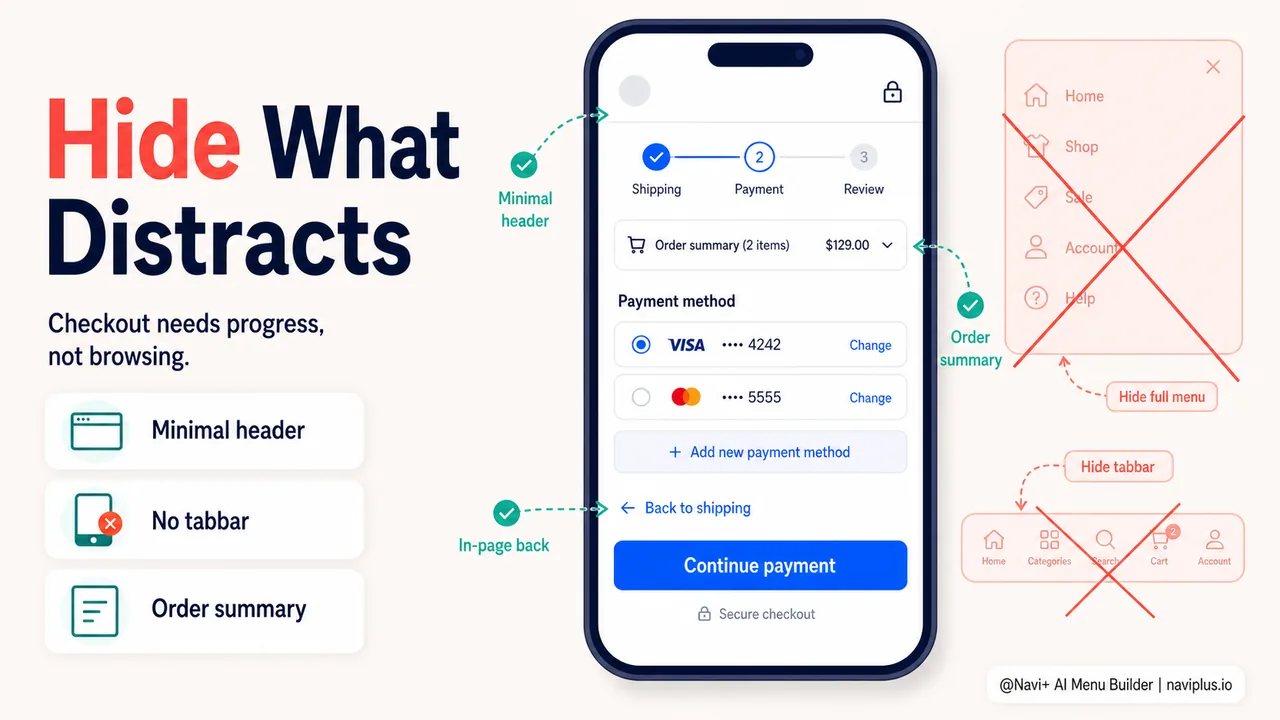
What to show and what to hide during checkout
Once the shopper enters the checkout flow, the navigation decisions shift. The goal changes from “help them explore” to “help them finish.” Every navigation element that’s not serving the checkout is a potential distraction.
On mobile, this means:
- Hide or minimize the header. Replace the full site header with a slim checkout header showing just the logo and a progress indicator.
- Hide the tabbar. The bottom tabbar is valuable during browsing but counterproductive during checkout — it offers four ways to leave the flow. With Navi+, you can configure the tabbar to hide on checkout pages.
- Show order summary inline. A collapsible order summary at the top of the checkout lets the shopper verify their items without leaving the flow.
- Provide in-page back navigation. Instead of relying on the browser’s back button (unpredictable behavior), show a “← Back to shipping” link within the checkout form.
The principle is the same as desktop checkout simplification, but the stakes are higher on mobile because every pixel of screen space matters more.
Deep-diveRead the full guide → Mobile checkout navigation: what to show and what to hide
Where to start
Quick testComplete a purchase on your store using only your phone and one hand. Count the friction points — every stretch to reach a button, every confusing back-button behavior, every extra tap to find the cart.
Do the one-hand test. Pick up your phone, hold it with one hand, and complete a purchase on your own store. Don’t cheat with two hands. Don’t use the desktop to shortcut anything. Just buy something, from browsing to payment, with one thumb.
Count the moments of friction: every time your thumb can’t reach a button, every time the keyboard covers something important, every time you’re unsure where the cart is or how to go back one step. Those friction points are what your customers experience every day. Each one is a small reason to abandon, and together they explain the gap between your desktop and mobile conversion rates.
The fixes are often small: add a tabbar with a cart button (Navi+), hide the header during checkout, make form fields larger, offer express payment. None of these require a redesign. Together, they can close the conversion gap measurably.
Explora los temas
Esta guía enlaza a artículos específicos — profundiza en cada uno.