You open PageSpeed Insights, paste in your store URL, and wait. The LCP number comes back at 4.1 seconds. Red. You scroll down the diagnostics list looking for the usual suspects — heavy hero image, maybe a slow server — but the biggest render-blocking resource is something you did not expect: your navigation menu.
This is not a rare scenario. The menu sits at the very top of the page, it loads on every single page of your store, and depending on how it is built, it can delay everything else from appearing. Not because the menu itself is the largest painted element, but because the resources it demands — JavaScript, CSS, fonts, icons — compete with the content your customer actually came to see.
This article breaks down exactly how navigation menus interfere with LCP, why it matters more than most merchants realize, and what you can do about it without touching a single line of code.
- Navigation menus rarely are the LCP element, but their scripts and styles delay everything else on the page.
- Render-blocking JavaScript is the most common way a menu pushes LCP past 2.5 seconds.
- On mobile, the impact is two to five times worse than on desktop because of slower processors.
- You can measure the exact cost of your menu in under ten minutes with free tools.
- Fixing the problem often requires choosing the right menu architecture, not manual code optimization.
What LCP Actually Measures (And Why Your Menu Is Involved)
Largest Contentful Paint measures the moment the biggest visible element finishes rendering on screen. On a product page, that is usually the hero image. On a collection page, it might be the first row of product cards or a banner. Google considers an LCP under 2.5 seconds “good,” between 2.5 and 4 seconds “needs improvement,” and above 4 seconds “poor.”
Here is the part most merchants miss: the menu is almost never the LCP element itself. Your hero image is larger. Your headline is more prominent. So it is natural to assume the menu has nothing to do with LCP. But the browser does not work that way.
A browser builds a page in a strict sequence. It reads the HTML from top to bottom. When it encounters a script or stylesheet, it has to stop and process that resource before it can continue. According to Google’s own documentation on render-blocking resources, a synchronously loaded JavaScript file halts the entire page construction until the file is downloaded, parsed, and executed.
Your menu lives at the top of the page. Its code loads early. If that code is loaded synchronously — without async or defer — the browser freezes everything else while it handles the menu script. The hero image cannot render. The headline cannot paint. The LCP element sits in a queue, waiting for a navigation bar to finish loading.
The menu is not the bottleneck your customer sees. It is the bottleneck the browser sees.
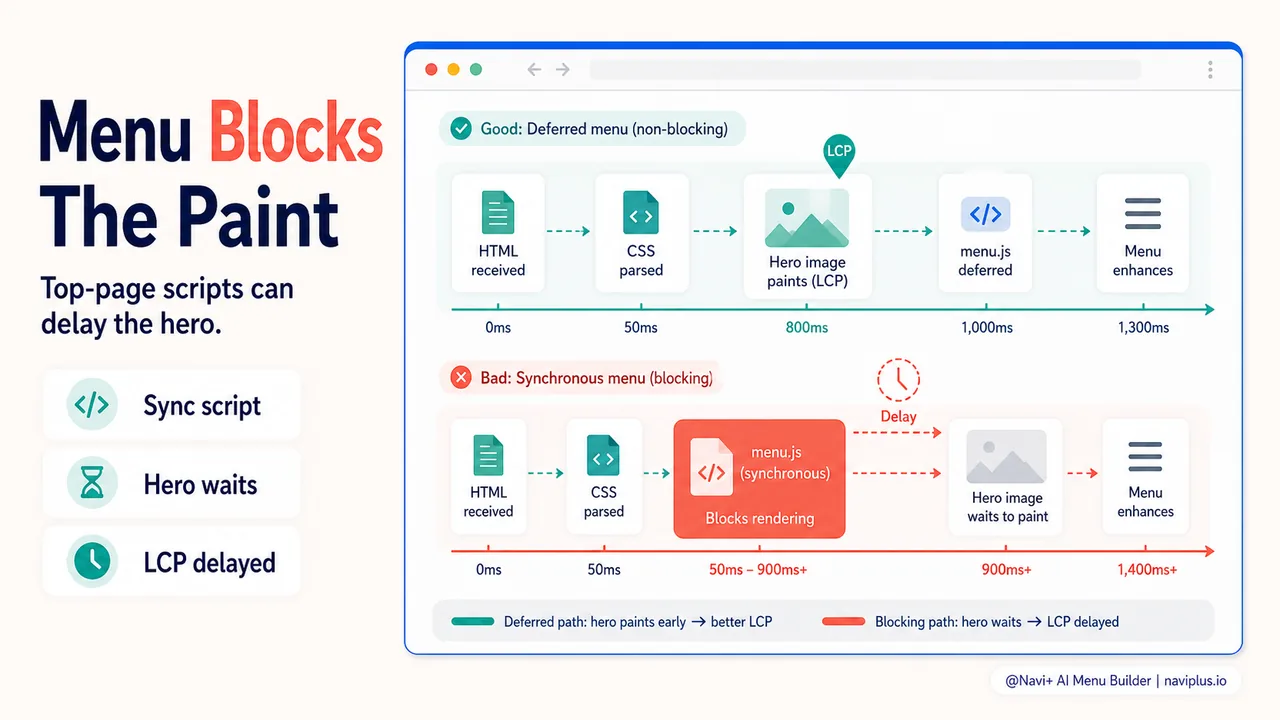
The Three Ways a Menu Blocks LCP
Not every menu causes problems. But when one does, the mechanism usually falls into one of three categories.
1. Render-Blocking JavaScript
This is the most impactful culprit. A menu app that loads its JavaScript synchronously in the document head or early body forces the browser to pause page rendering until the script completes. The cost depends on the script size and the device.
A 150KB menu script takes roughly 50 milliseconds to parse on a flagship phone. On a mid-range Android device — the kind most shoppers use — that same script takes 150 to 300 milliseconds. Add download time on a 4G connection and you are looking at 400 to 600 milliseconds of delay, just from the menu script alone.
That delay does not affect only the menu. It pushes back the paint time of every element below it in the document, including the hero image that determines your LCP score.
2. CSS That Holds Up First Paint
Every CSS file linked in the head of a page is render-blocking by default. The browser will not paint a single pixel until all stylesheets are downloaded and parsed. If your menu app adds a large stylesheet — or worse, several stylesheets — the render-blocking chain grows.
Consider a typical scenario: a theme loads its main CSS file (say, 180KB). A menu app adds another 40KB of CSS for icons, animations, and layout. A second app adds 25KB more. The browser now has to download and parse 245KB of CSS before anything appears on screen. On a slow 3G connection, that CSS chain alone can add over a second to your LCP.
The problem compounds because CSS files are downloaded in parallel but parsed sequentially. More files mean more round trips and more parsing time.
3. Font and Icon Payloads
Many menu apps ship with custom icon fonts — Remix Icon, Font Awesome, Material Icons — or load a custom typeface for menu labels. Each font file is an additional HTTP request, typically 50 to 150KB.
While font files themselves are usually not render-blocking in the traditional sense, they cause a related problem: Flash of Invisible Text (FOIT). The browser reserves space for the menu text but shows nothing until the font loads. If the menu font loads slowly, the menu area appears blank, which can influence how the browser calculates when significant content has rendered.
On mobile, where network conditions are unpredictable, a single large icon font can add 200 to 500 milliseconds of latency.
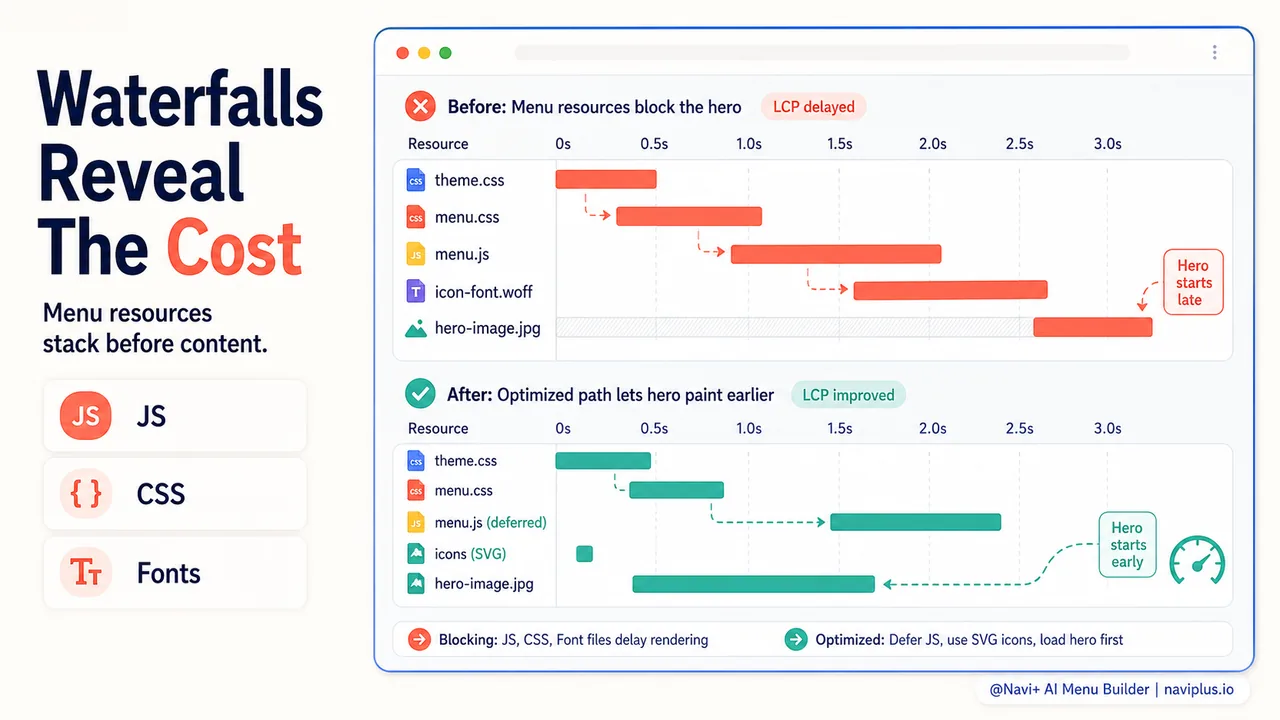
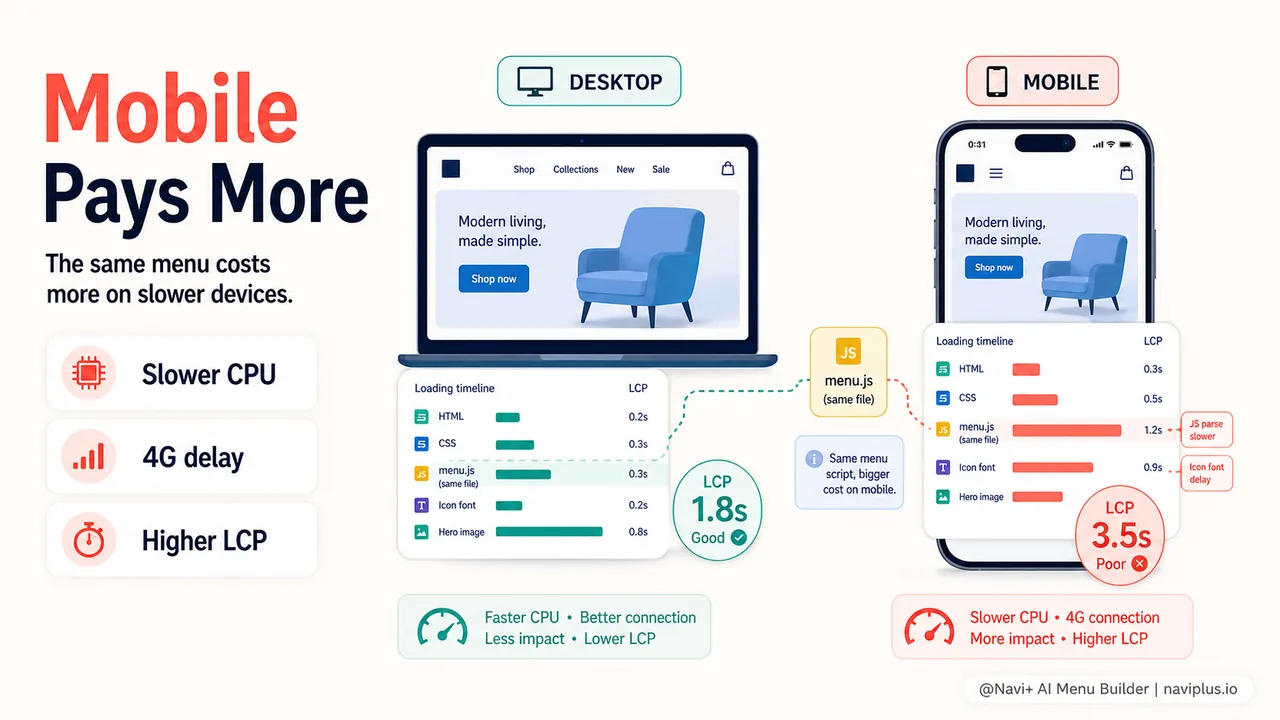
Mobile Amplifies Everything
If you only test your store on your laptop over Wi-Fi, you are seeing the best-case scenario. Your customers are mostly on phones.
According to Shopify’s own data, mobile accounts for over 70% of e-commerce traffic globally. Statista reports that in 2024, mobile e-commerce represented 60% of total e-commerce sales worldwide. These are not power users on flagship devices. A significant portion of shoppers use mid-range phones with processors that are three to five times slower than a MacBook.
Here is what that means in practice:
| Resource | Desktop (M1 MacBook, Wi-Fi) | Mobile (Mid-range Android, 4G) |
|---|---|---|
| 150KB JS parse + execute | ~50ms | 150–300ms |
| 40KB CSS parse | ~5ms | 15–30ms |
| Icon font download | ~20ms | 100–400ms |
| Combined menu overhead | ~75ms | 265–730ms |
The same menu that costs 75 milliseconds on your laptop can cost 730 milliseconds on a customer’s phone. That is not a rounding error. That is the difference between a “good” LCP and a “poor” one.
Google measures Core Web Vitals at the 75th percentile of real-user visits, and it evaluates mobile and desktop separately. Your mobile LCP score reflects the experience of your actual customers, not your own testing environment.
The Hidden Cost: LCP Affects Revenue
A slow LCP is not just a technical metric that Google penalizes. It directly correlates with conversion rates.
Portent’s research found that pages loading in 1 second had a conversion rate three times higher than pages loading in 5 seconds. Deloitte’s study for Google (“Milliseconds Make Millions,” 2020) documented that a 0.1-second improvement in mobile load speed increased conversion rates by 8.4% for retail sites and 10.1% for travel sites.
The Baymard Institute reports that the average cart abandonment rate across e-commerce sits around 70%. Among the top reasons: “the process was too slow” and “the site had errors.” A sluggish LCP feeds both of those perceptions.
Your menu is on every page. A 500-millisecond delay on every page load does not just affect the homepage. It compounds across the entire browsing session: homepage, collection page, product page, cart. Four page loads with an extra half-second each means two full seconds added to the customer’s journey. That is the kind of friction that makes someone close the tab.
How to Measure Your Menu’s LCP Impact
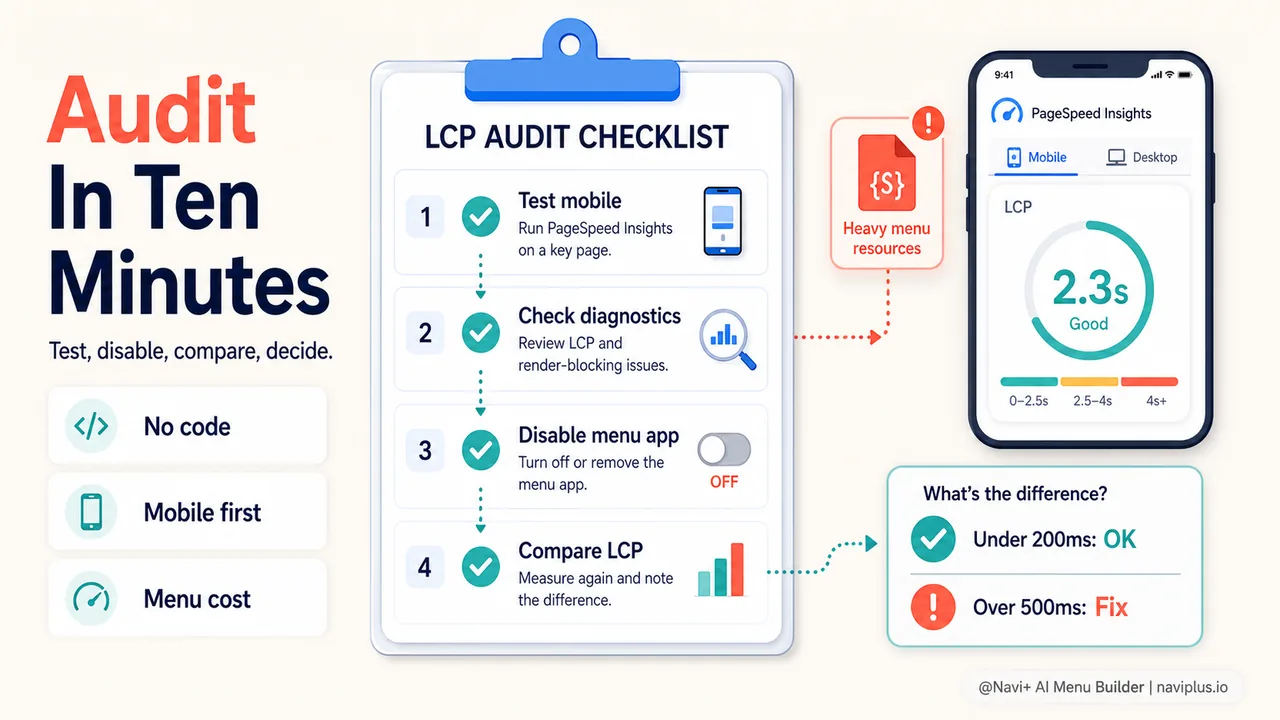
You do not need to be a developer to figure out whether your menu is the problem. Here is a ten-minute audit.
Step 1: Get Your Baseline
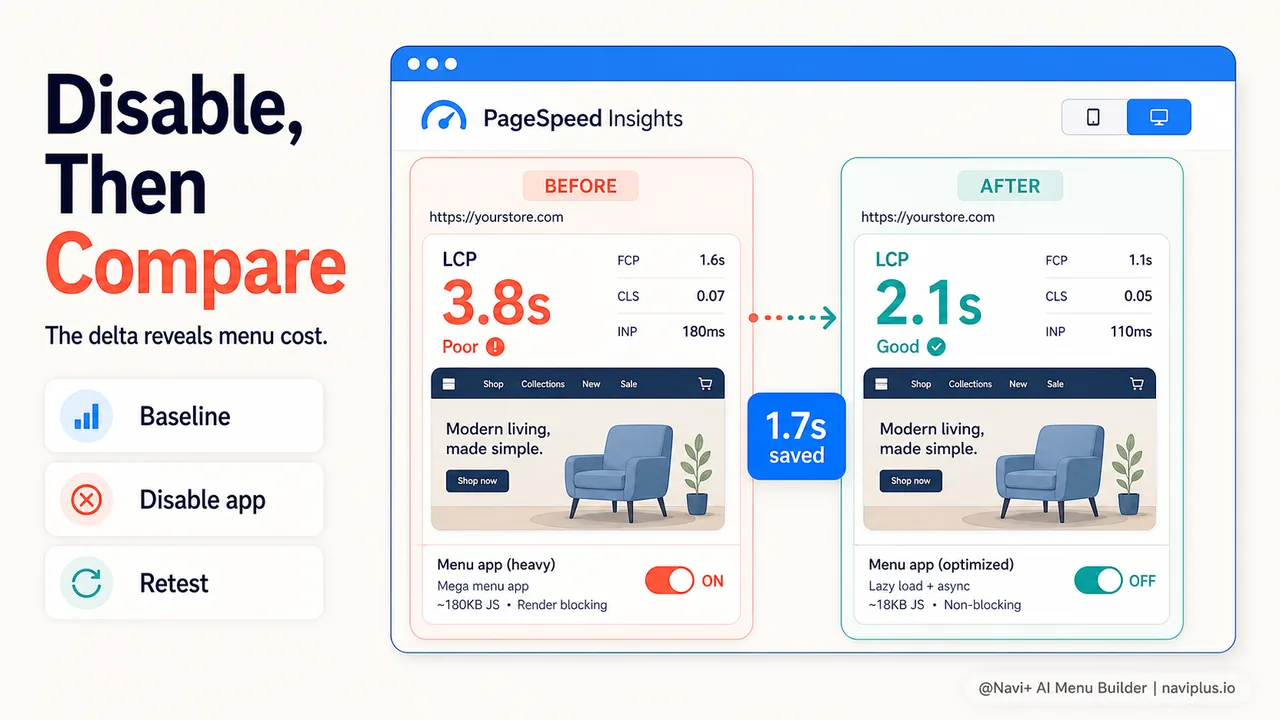
Open PageSpeed Insights and test your homepage on Mobile. Write down three numbers: LCP, CLS, and INP. Do the same for one product page and one collection page.
Step 2: Check the Diagnostics
Scroll down to the “Diagnostics” section and look for these specific items:
- Reduce render-blocking resources — if a file related to your menu or navigation app appears here, it is blocking LCP.
- Reduce unused JavaScript — large unused JS bundles from menu apps inflate download and parse time.
- Avoid enormous network payloads — font files and icon libraries from menu apps show up here.
Step 3: Use Chrome DevTools for Detail
Open your store in Chrome. Press F12, go to the Network tab, and reload the page. Filter by “JS” to see JavaScript files, then by “CSS” and “Font.” Look for files whose names relate to your menu app. Note their size and how long they take to load.
Then switch to the Performance tab. Click Record, reload the page, and stop the recording. Look at the bottom summary bar:
- Yellow (Scripting): Time spent running JavaScript
- Purple (Rendering): Time spent calculating layout
- Green (Painting): Time spent drawing pixels
If scripting dominates the early part of the timeline and you can trace it to menu-related files, your menu is in the critical path.
Step 4: The Disable Test
This is the most conclusive test. Temporarily disable your menu app (most Shopify apps have an enable/disable toggle, or you can disable the app embed in theme settings). Run PageSpeed Insights again on the same pages. If LCP drops significantly, you have your answer.
What a Speed-Friendly Menu Architecture Looks Like
The fix is not “remove your menu.” Customers need navigation. The fix is choosing a menu that is built to stay out of the critical rendering path. Here is what that looks like technically.
Deferred Script Loading
A properly built menu app loads its JavaScript with defer or async. The browser downloads the script in parallel with page rendering and executes it only after the HTML is parsed. The hero image, the headline, and the product grid all paint without waiting for the menu script. The menu appears a fraction of a second later — imperceptible to the customer, but significant for LCP.
Minimal Critical CSS
Instead of loading the entire menu stylesheet upfront, a speed-conscious menu app inlines only the few lines of CSS needed to reserve space for the menu (preventing layout shift) and defers the rest. The full styling loads after the page is visible.
No Heavy Icon Fonts in the Critical Path
Modern approaches use inline SVG icons instead of loading an entire icon font library. An inline SVG for a home icon is a few hundred bytes. An icon font library that contains 2,000 icons you will never use is 150KB.
CDN-Served Assets
Menu assets — JavaScript, CSS, images — served from a Content Delivery Network load from the server closest to the customer. A shopper in Berlin does not have to wait for a round trip to a server in Virginia.
Space Reservation
A well-built menu reserves its layout space in CSS before the JavaScript runs. This prevents CLS (content jumping) and also signals to the browser that the content area above the fold is accounted for, allowing LCP calculation to proceed normally.
Tools like Navi+ are built along these principles: deferred loading, lean scripts, CDN delivery, separate mobile and desktop configurations, and they carry the Built for Shopify badge, which requires meeting Google’s Core Web Vitals thresholds. But regardless of which tool you choose, these are the architectural qualities to look for.
Common Mistakes That Make It Worse
Even with a decent menu app, some configuration choices inflate LCP unnecessarily.
- Loading mega menu content for mobile visitors. A mega menu with images in every dropdown is appropriate for desktop. Loading all of that DOM and imagery on mobile — where it is hidden behind a hamburger — wastes resources. Use separate mobile and desktop menu configurations.
- Adding animations that trigger on page load. Entrance animations on the menu (fade-in, slide-down) require JavaScript execution and can delay the first meaningful paint. If the animation runs during the critical rendering window, it competes with LCP.
- Stacking multiple navigation apps. Some stores install a mega menu app, a separate mobile menu app, and a sticky header app. Each one adds its own scripts and styles. Consolidate into one app that handles all menu types.
- Custom fonts for menu labels. Using a special typeface for your navigation labels means loading an extra font file. System fonts (the ones already on the customer’s device) cost zero additional bytes.
Where to Start
You can audit your menu’s LCP impact in under ten minutes. Here is the sequence.
- Test now. Open PageSpeed Insights, test your homepage on Mobile, and write down your LCP score.
- Check the diagnostics. Look for render-blocking resources or large JavaScript bundles associated with your menu.
- Disable and re-test. Temporarily turn off your menu app, test the same page again, and compare the LCP numbers. The difference is the cost of your current menu.
- Decide. If the difference is under 200 milliseconds, your menu is probably fine. If it is 500 milliseconds or more, it is time to look at alternatives that load asynchronously and stay out of the critical path.
The menu is one of the few elements that loads on every page of your store. A 500-millisecond penalty on every page adds up to seconds across a browsing session. And seconds, as the research consistently shows, translate directly into lost sales. The good news is that this is one of the most measurable and fixable speed problems a store can have. You just have to look.