A menu that loads slowly on a phone does more damage than no menu at all. The shopper taps the menu icon, waits half a second for the animation, then waits another half second for the categories to render. By the time the menu is usable, the shopper has already started wondering whether the store is broken.
Mobile performance matters more than desktop because phones have slower processors, less memory, and often slower network connections. A menu that renders instantly on a laptop might take 200 milliseconds on a mid-range phone. That 200 milliseconds is perceptible — the shopper notices the delay between tapping and seeing results.
Google’s Core Web Vitals — LCP, INP, and CLS — directly measure the kind of problems that slow menus cause. A heavy menu script that blocks rendering pushes LCP higher. A menu that takes time to respond to taps degrades INP. A menu that loads after the page and shifts the layout affects CLS. All three metrics are ranking factors, meaning a slow menu can hurt not just user experience but search visibility.
- Menu scripts and styles contribute to Core Web Vitals — LCP, INP, and CLS are all affected by heavy navigation.
- On mobile, every kilobyte of JavaScript and every DOM node costs more than on desktop.
- A performance budget for navigation — under 50KB JS, under 100 DOM nodes — keeps menus fast.
How menus affect LCP
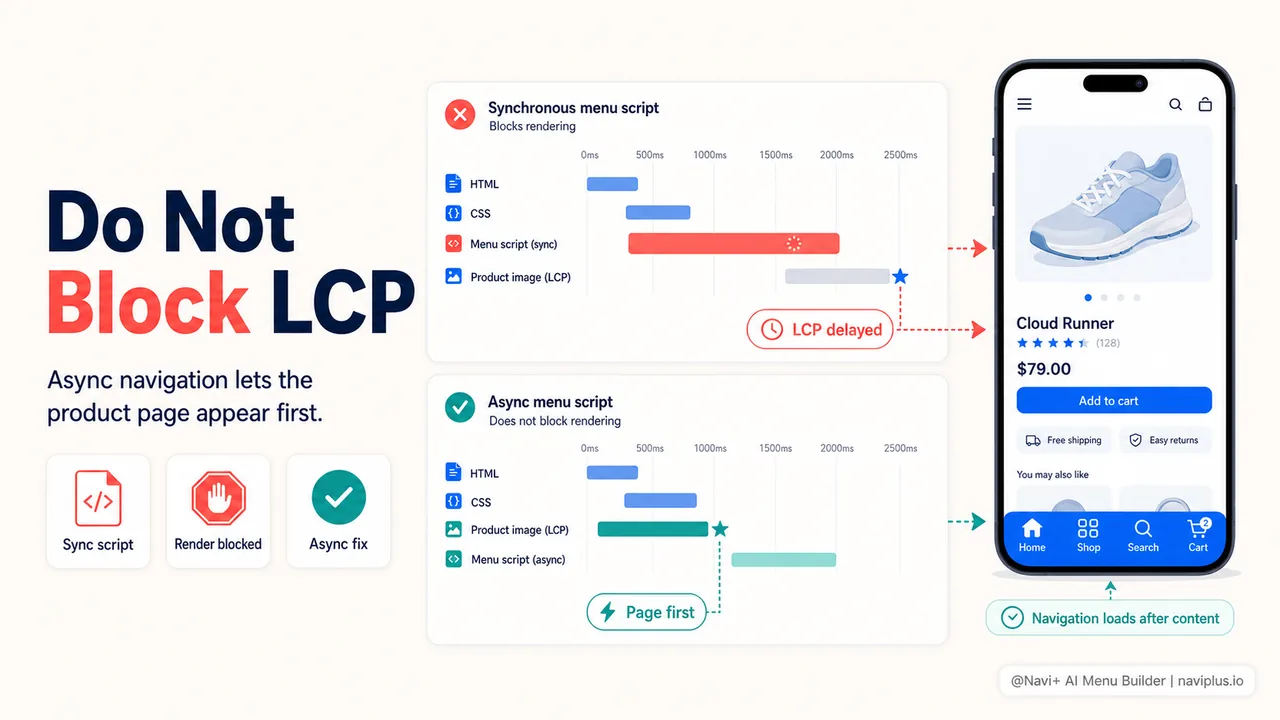
Largest Contentful Paint (LCP) measures how long it takes for the largest visible element on the screen to render. On a product page, this is usually the hero image. On a collection page, it might be the first product image. The menu itself is rarely the LCP element, but it can delay LCP by blocking the browser from rendering other content.
A menu app that loads a large JavaScript file synchronously forces the browser to download and execute the script before rendering anything else. If the menu script is 200KB and takes 300 milliseconds to parse on a mid-range phone, that’s 300 milliseconds added to the render of everything on the page — including the LCP element.
The fix is async loading. Menu scripts should load with async or defer attributes, or better yet, load after the initial page content is visible. Navi+ is designed with this in mind — the menu script loads asynchronously and renders after the page content is already visible, so it doesn’t compete with LCP.
Deep-diveRead the full guide → Mobile LCP and menus: how navigation affects loading speed
JavaScript weight and DOM complexity
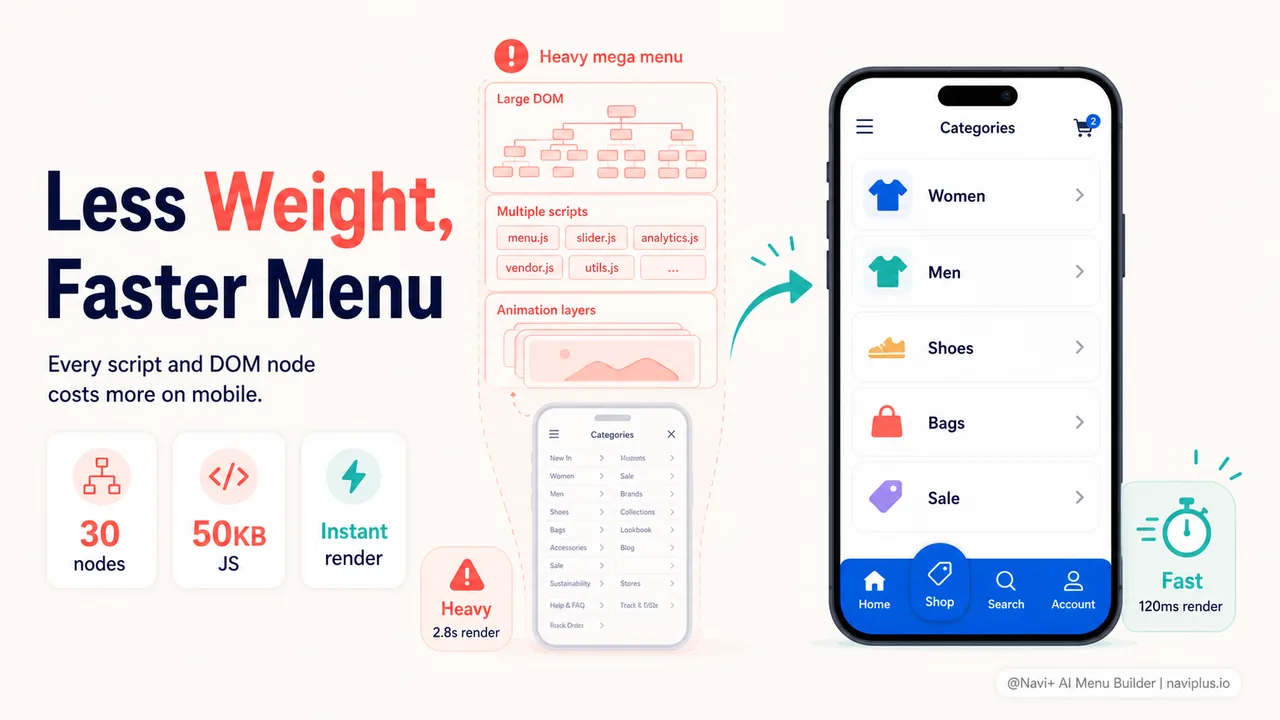
Every kilobyte of JavaScript has a cost on mobile. The browser has to download, parse, compile, and execute the script. On a flagship phone, this is fast. On a mid-range phone (which is what most shoppers use), a 100KB script can take 100–200 milliseconds to process.
Menu apps vary widely in their JavaScript weight. Some simple menus require 20–30KB. Complex mega menu apps can require 200–500KB or more, especially if they include animation libraries, font packages, or analytics tracking. Each additional library adds download time, parse time, and potential for bugs.
DOM complexity matters too. A mega menu with hundreds of links, images, and nested containers creates hundreds of DOM nodes. The browser has to lay out and paint each node. On mobile, where the GPU and CPU are less powerful, a DOM-heavy menu can cause visible stuttering during animations.
The principle is straightforward: less JavaScript, fewer DOM nodes, simpler CSS = faster menu. A tabbar with five buttons and a slide menu with 30 items renders in single-digit milliseconds. A mega menu with nested panels, images, hover effects, and animations in every subcategory can take 50–100 milliseconds to render on a phone.
Deep-diveRead the full guide → Menu render cost: JavaScript, CSS, and DOM weight
Tap delay and responsiveness
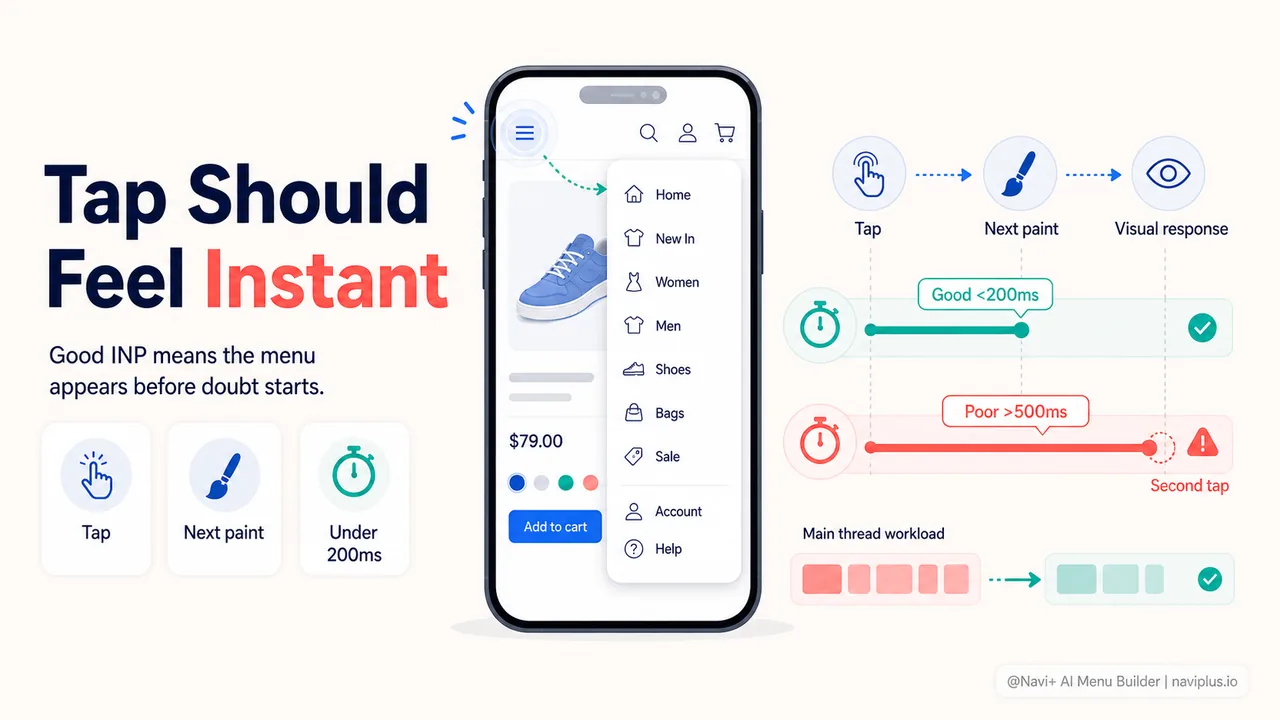
INP (Interaction to Next Paint) measures how long the browser takes to respond visually to a user interaction — like tapping a menu button. Google considers INP under 200 milliseconds “good.” Over 500 milliseconds is “poor.”
When a shopper taps the menu icon and the menu takes 300 milliseconds to appear, that’s 300 milliseconds of INP. The shopper perceives the delay as sluggishness. If the delay is over 500 milliseconds, the shopper might tap again, thinking the first tap didn’t register — which can cause double-actions or confusion.
Common causes of tap delay in menus:
- Heavy JavaScript execution on the main thread blocking the response
- Complex CSS animations that require layout recalculation
- Loading menu content on demand (fetching from server after the tap)
- Event listeners that do too much work before triggering the visual change
The fix: keep the main thread clear, use CSS transitions instead of JavaScript animations where possible, preload menu content, and minimize the work done between the tap event and the first visual change.
Deep-diveRead the full guide → Tap delay and interaction responsiveness
Setting a performance budget
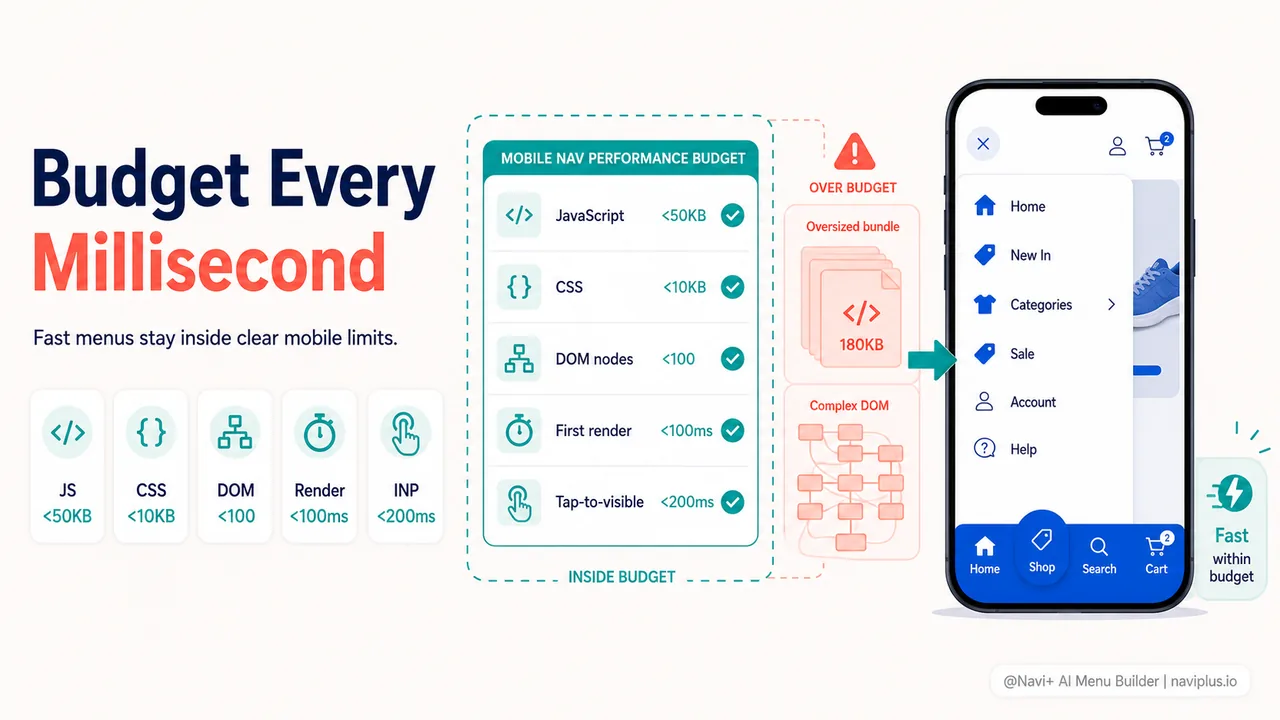
A performance budget is a threshold that the menu should not exceed. If the menu’s JavaScript, CSS, images, and DOM nodes stay within the budget, performance remains acceptable. If they exceed it, the developer knows to optimize before shipping.
A reasonable performance budget for mobile navigation:
- JavaScript: Under 50KB compressed (ideally under 30KB)
- CSS: Under 10KB compressed
- DOM nodes: Under 100 for the menu elements
- First render: Under 100 milliseconds on a mid-range device
- Tap-to-visible (INP): Under 200 milliseconds
These numbers are not arbitrary — they’re based on what mid-range phones can handle without perceptible delay. A flagship phone can handle much more, but your performance target should match the devices your customers actually use.
Navi+ is built to stay within these thresholds. The menu script is lightweight, loaded asynchronously, and designed to render with minimal DOM footprint. The result: navigation that feels instant on phones, doesn’t hurt Core Web Vitals, and doesn’t slow down the rest of the page.
Deep-diveRead the full guide → Mobile performance budget for navigation
Where to start
Quick checkRun PageSpeed Insights on your store's homepage from a mobile device. Check the "Reduce unused JavaScript" and "Minimize main-thread work" sections — your menu app may be listed there.
Run Google PageSpeed Insights on your store’s mobile homepage. Look at the Largest Contentful Paint score and the Total Blocking Time. If they’re in the red or orange, check whether your menu app is contributing — it often shows up under “Reduce unused JavaScript” or “Avoid long main-thread tasks.”
Then test responsiveness by opening your store on your phone and tapping the menu icon. Does it open instantly, or is there a perceptible delay? If the delay is noticeable, the menu script is doing too much work on the main thread.
The easiest wins for menu performance: ensure the script loads asynchronously, remove unused CSS and JavaScript from the menu app, and reduce the number of DOM nodes in the menu. If the current menu app is too heavy and can’t be optimized, switching to a lighter tool (like Navi+, which is built for performance) is often the most practical solution.
Themen entdecken
Dieser Leitfaden verlinkt auf gezielte Artikel — vertiefen Sie jedes Thema.