You have probably seen this before: a store owner redesigns their mobile menu, picks a beautiful set of icons, removes the text labels because “it looks cleaner,” and two weeks later wonders why fewer people are finding the collections page. The icons were perfectly chosen. The problem wasn’t taste — it was assumptions about what shoppers actually understand at a glance.
The question of icons versus text in navigation sounds like a design preference. It is not. It is a usability question with real revenue implications, especially on mobile where screen space is tight and every tap matters. This article breaks down when icons work alone, when text works alone, when you need both, and how to make the right call for your Shopify store.
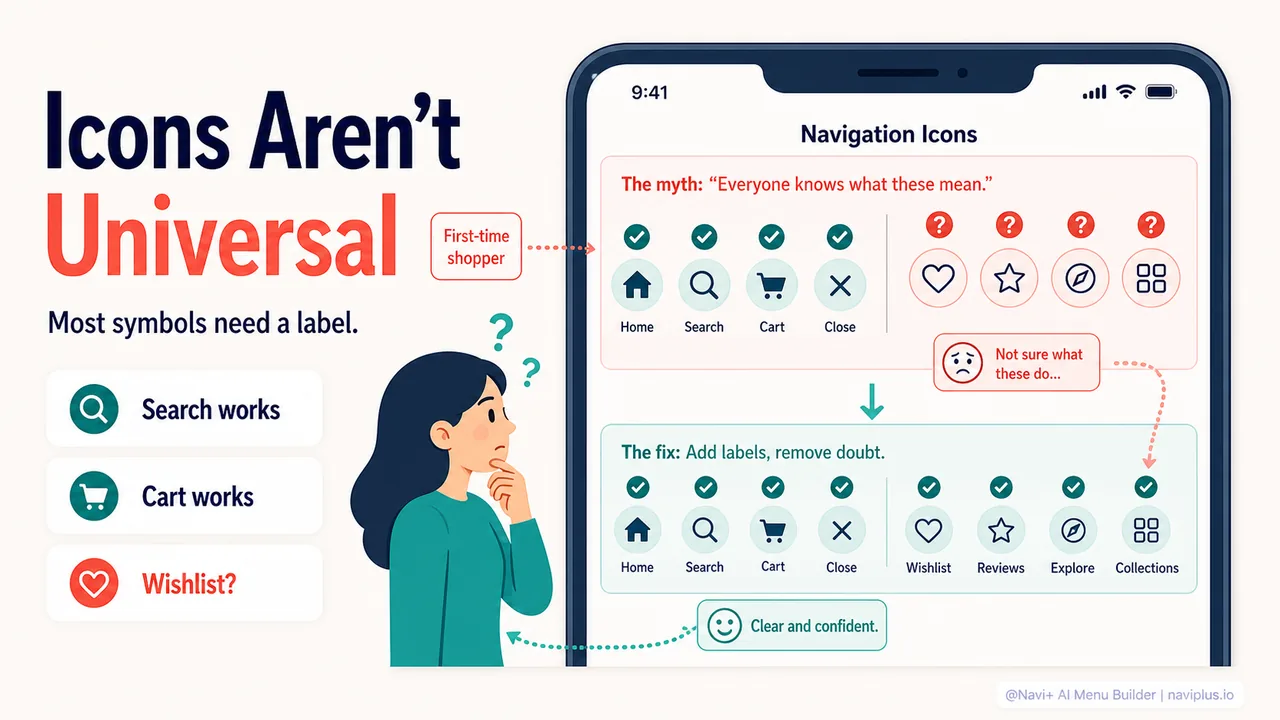
- Only a handful of icons are universally understood — home, search, cart, and close. Everything else needs a text label.
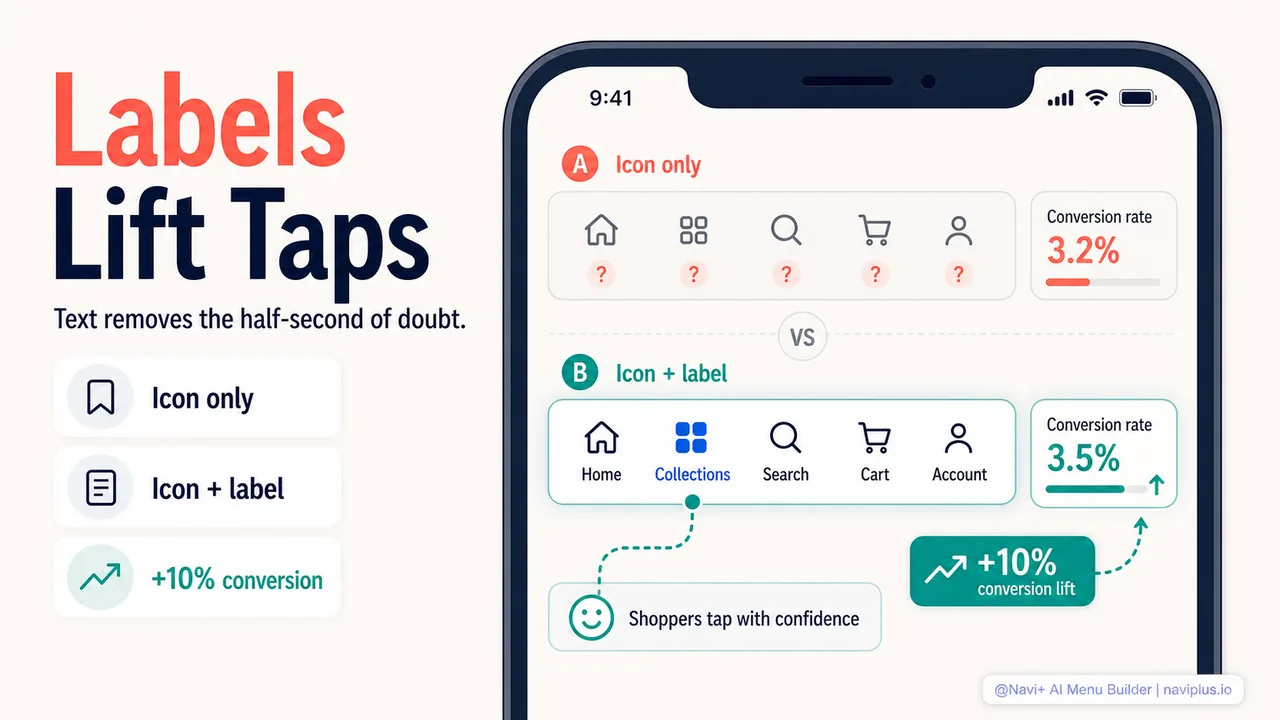
- Adding text labels to navigation icons has been shown to increase mobile conversion rates by over 10% in A/B tests on ecommerce stores.
- Both Apple and Google require text labels on bottom navigation bars in their official design guidelines.
- The best approach for most stores: icons plus short labels for primary navigation, text-only for secondary navigation.
The universal icon myth
There is a widespread belief in web design that icons are a universal language. The thinking goes: a magnifying glass means search, a heart means wishlist, a person means account. Everyone gets it. No explanation needed.
The Nielsen Norman Group tested this assumption directly. Their research on icon usability found that only a very small number of icons enjoy near-universal recognition among users. The short list: home (a house), print (a printer), and the magnifying glass (search). Outside of these examples, most icons are ambiguous. The same icon can mean different things on different platforms, and users interpret them based on their own experience — which varies enormously.
Think about the heart icon. On Instagram it means “like.” On a Shopify store it often means “wishlist.” On a health app it might mean “health data.” A first-time visitor to your store has to guess which meaning applies here. Some will guess right. Others will not bother guessing and will skip the icon entirely.
The star icon has the same problem. Is it favorites? Ratings? Premium features? The answer depends entirely on context, and context is exactly what a standalone icon fails to provide.
What the research says about icons with labels
The data on adding text labels to icons is surprisingly consistent. It points in one direction: labels help.
A Shopify-focused A/B test run by Blend Commerce tested mobile navigation with icon-only versus icons with text labels. The version with text labels produced a 10.37% increase in conversion rate and a 2.95% increase in revenue per visitor. The test ran exclusively on mobile devices, where screen space is most constrained — the exact situation where you would expect icon-only to win on efficiency. It did not.
The Nielsen Norman Group’s research on hamburger menus found a related pattern. When they tested the hamburger icon (three lines) against the word “MENU” as a text label, the text version generated 20% more clicks across 434,000 mobile visits. Users were simply more likely to tap something they could read.
This pattern shows up at the platform level too. Both Apple’s Human Interface Guidelines and Google’s Material Design guidelines explicitly recommend showing text labels on bottom navigation bars. Apple advises keeping between three and five tabs with labels always visible. Google’s Material Design specifies a “labeled” mode where text appears beneath each icon. These are not theoretical preferences — they come from extensive user testing across billions of devices.
The reason is straightforward: text removes doubt. When a shopper sees an icon paired with the word “Collections,” they do not have to decode anything. They know what they are tapping before they tap it. That saved half-second of decision-making compounds across thousands of store visits.
When icons work without text
Despite everything above, there are situations where an icon alone is perfectly fine. The key is knowing which situations those are.
Icons that work solo:
- Search (magnifying glass): Near-universal recognition. One of the most tested icons on the web. Safe to use alone in almost any context.
- Shopping cart or bag: Decades of ecommerce have made this icon unmistakable. The bag icon that Shopify themes use is understood by virtually every online shopper.
- Close (X): Everyone knows what X means. No label needed.
- Home (house): Widely understood, though its usefulness in ecommerce navigation is debatable since the logo usually serves the same function.
- Back arrow: Directional arrows for navigation are intuitive across cultures.
Conditions that support icon-only:
- The icon has been standardized across major platforms for years.
- Users encounter it repeatedly (like a persistent tab bar they see on every page).
- Space is genuinely too tight for labels — for example, a toolbar with many actions on a very small screen.
- The target audience is highly tech-literate and uses similar apps daily.
Even in these cases, icon-only works best when combined with a small badge or indicator. The cart icon with a number badge showing “3” items is more useful than the cart icon alone.
When text works without icons
Text-only navigation has its own strengths, and it is underrated in ecommerce. Many successful Shopify stores use plain text links for their main navigation — especially on desktop — and it works because text is the most direct form of communication.
Where text-only shines:
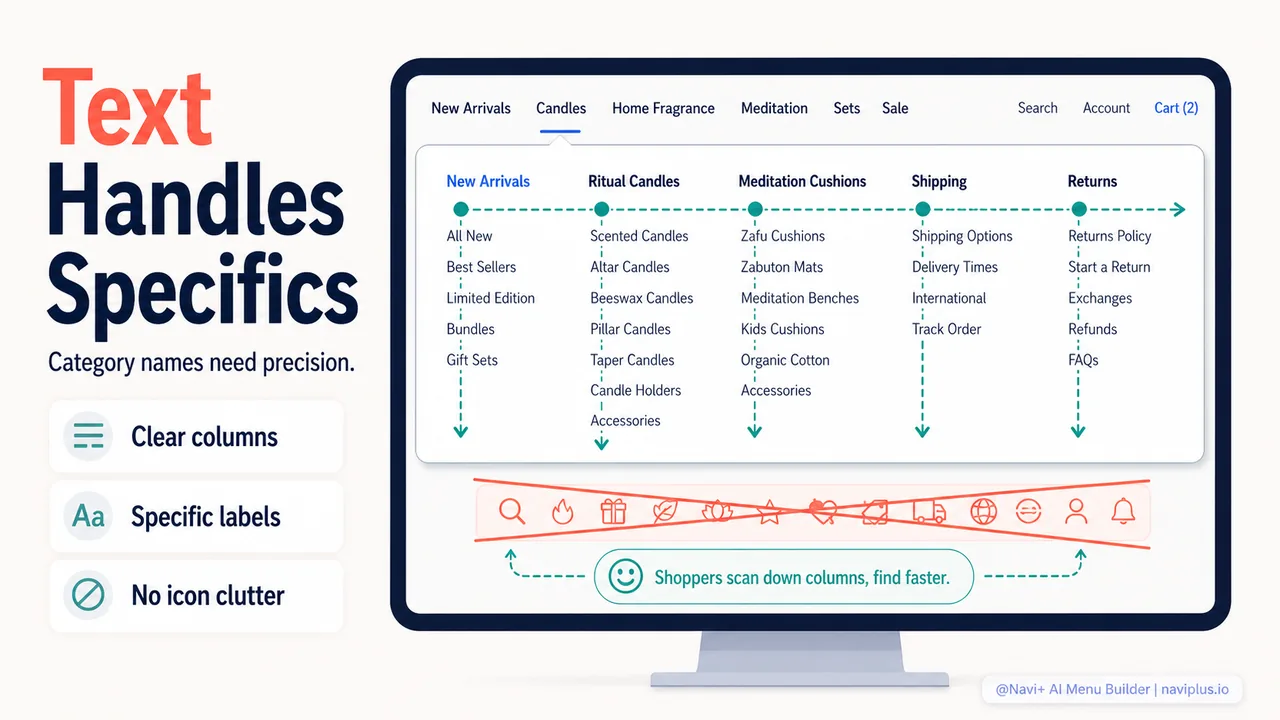
- Category names that are specific to your store. If your store sells “Ritual Candles” and “Meditation Cushions,” no standard icon exists for those. Text is the only way to communicate these categories clearly.
- Desktop mega menus. When a menu expands to show dozens of subcategories, icons would create visual noise. Text organized into clean columns is faster to scan.
- Secondary navigation. Links like “Shipping Policy,” “Return Policy,” “FAQ,” and “Contact” do not benefit from icons. Text is cleaner and more scannable.
- Navigation items that need specificity. “New Arrivals This Week” cannot be communicated with an icon. “Sale — Up to 40% Off” cannot be communicated with an icon. Text carries information that icons simply cannot.
The advantage of text is precision. The disadvantage is that text takes up more space and is slower to recognize at a glance than a familiar icon. In navigation that appears once (like a dropdown), this tradeoff usually favors text. In persistent navigation that stays on screen (like a tab bar), this tradeoff favors adding icons alongside text.
When you need both — and why this is usually the answer
For most Shopify stores, the practical answer is: use icons and text together for your primary mobile navigation. Here is why.
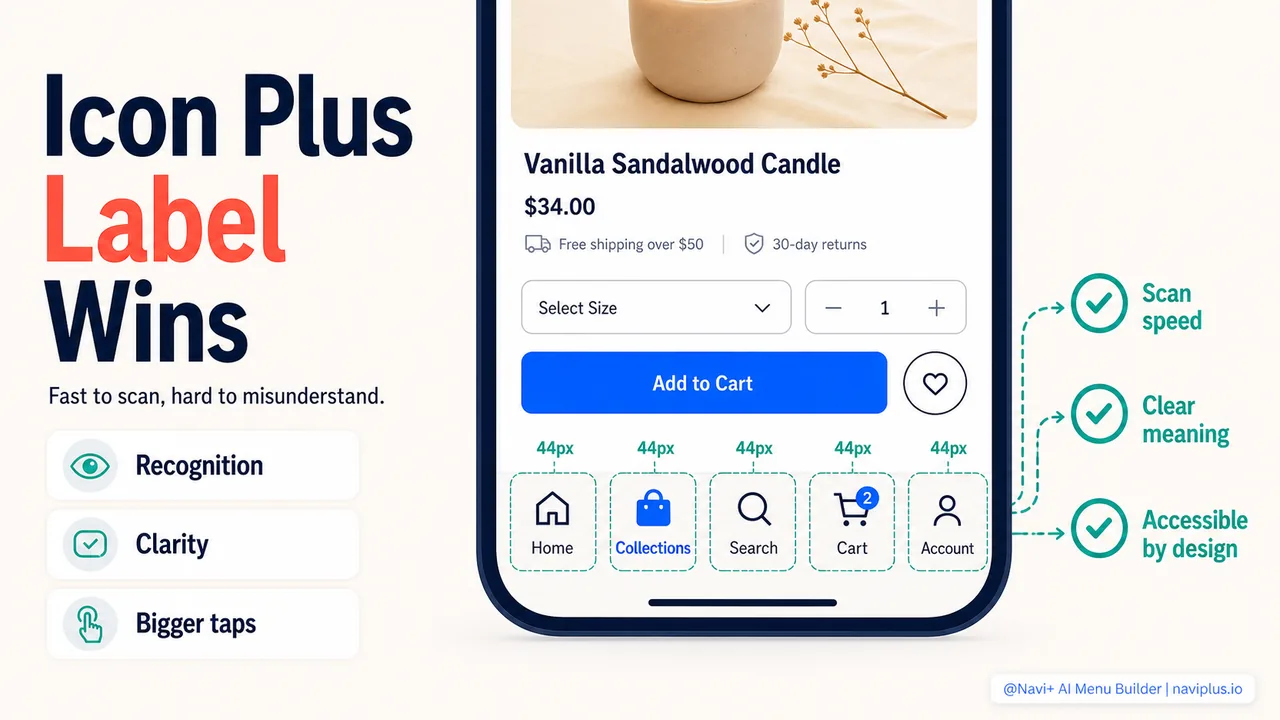
Recognition speed plus clarity. Icons give you fast visual scanning — the eye can pick out a magnifying glass faster than it can read the word “Search.” Text gives you unambiguous meaning — no one has to guess what “Collections” means. Together, they cover both needs.
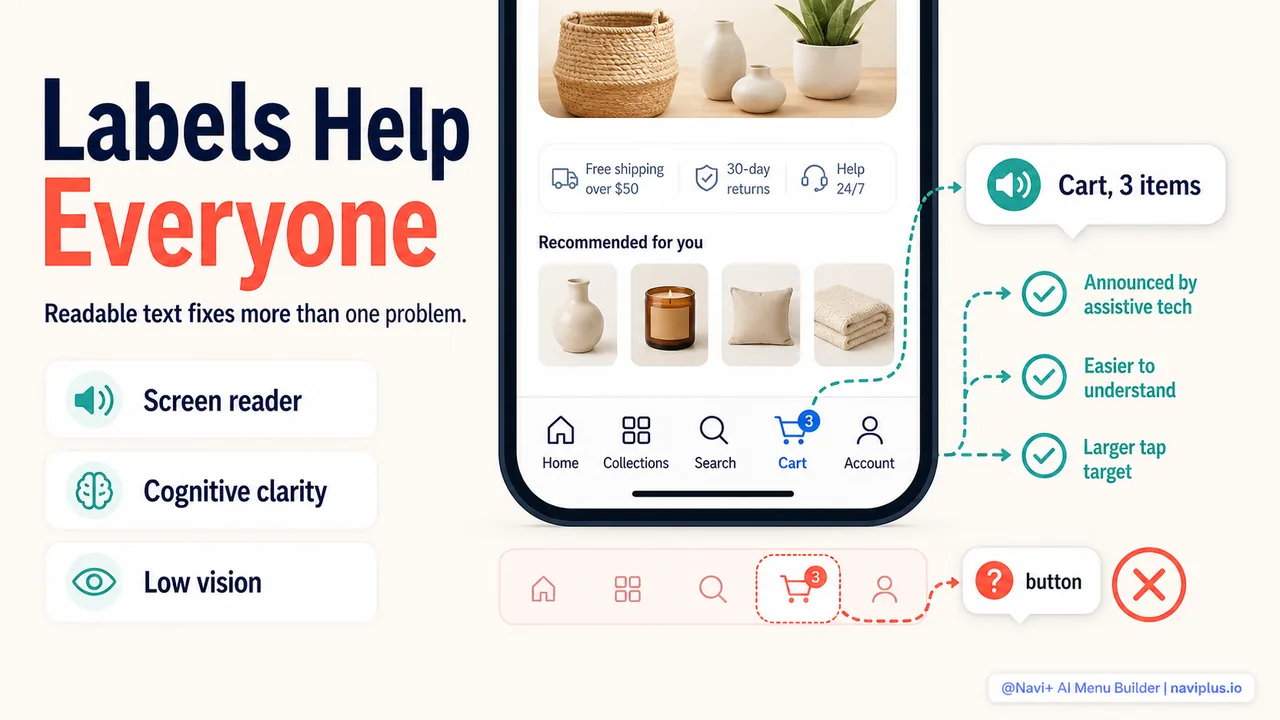
Accessibility. Screen readers can announce the text label. Users with cognitive disabilities benefit from having both a visual symbol and a word. Users with low vision may see the icon shape when text is too small. The combination serves the widest range of people, which is not just ethical — it is also good for conversion. Research from WebAIM and the Baymard Institute has consistently shown that accessibility improvements tend to improve usability for everyone.
Consistency with user expectations. Every major mobile app — Instagram, Amazon, banking apps, food delivery — uses icons with text labels in its bottom navigation. Shoppers arrive at your store with those patterns already learned. Matching that expectation means zero learning curve.
Here is a practical framework for deciding:
| Navigation element | Recommended approach | Why |
|---|---|---|
| Mobile tab bar (3-5 items) | Icons + text labels | Persistent, high-traffic, needs instant recognition |
| Slide-out menu | Text-only or icons + text | More space available, categories may be store-specific |
| Desktop mega menu | Text-only | Dozens of items, icons would create clutter |
| Desktop header bar | Text-only or icons + text for utilities | Category names need precision, utility icons (cart, search) are universal |
| FAB (floating action button) | Icon + optional tooltip | Single action, icon is usually sufficient |
| Footer navigation | Text-only | Secondary links, plenty of space |
Common mistakes to avoid
Knowing when to use icons, text, or both is half the job. The other half is avoiding the mistakes that undermine even good decisions.
Using obscure icons without labels. A grid icon for “Collections,” a tag icon for “Sales,” a compass for “Explore” — these all sound logical to the person who chose them. They are not obvious to a first-time visitor. If you cannot be certain that 90% of your visitors will understand an icon instantly, add a label.
Hiding labels to “save space” on mobile. This is the most common mistake. Store owners see that removing text makes the tab bar look cleaner, so they remove it. The bar looks better. Engagement drops. The space you save is measured in pixels. The engagement you lose is measured in revenue.
Using inconsistent icon styles. Mixing outlined icons with filled icons, or using icons from different sets with different visual weights, creates a sense of disorder that users feel even if they cannot articulate it. Pick one icon set and stick with it.
Making icons too small. Apple’s guidelines recommend touch targets of at least 44 by 44 points. Google recommends 48 by 48 dp. Icons that are too small to tap accurately frustrate users, especially on smaller phones. When you add a text label beneath an icon, the combined element naturally becomes a larger, easier tap target — another practical benefit of the icon-plus-text approach.
Forgetting hover and active states. On desktop, an icon needs to change visually when hovered. On mobile, it needs a pressed state. Without these, users are unsure whether they tapped the right thing. This is a small detail that quietly damages confidence.
Over-decorating icons with badges and animations. A number badge on a cart icon is useful. Animated bouncing icons on every tab are distracting. Use motion to communicate information, not to decorate.
The accessibility angle you cannot ignore
Web accessibility is not optional — it is a legal requirement in many markets and a growing expectation among shoppers. Navigation icons sit at the intersection of several accessibility concerns.
Screen readers need text. If your navigation uses icon-only buttons without aria-label attributes or visible text labels, screen reader users will hear “button” with no description. This is not a theoretical edge case — screen reader usage among ecommerce shoppers is higher than most store owners assume, and it extends beyond people with permanent visual disabilities to include anyone using voice control, anyone with a temporary injury, and anyone browsing in bright sunlight with reduced screen visibility.
Visible text labels solve this problem at the source. When you add a text label beneath an icon, you simultaneously solve the screen reader problem (it reads the visible text), the cognitive accessibility problem (users do not have to decode the icon), and the usability problem (everyone benefits from clarity). It is one change that addresses three concerns at once.
If you must use icon-only navigation for a specific element — say, a floating action button or a compact toolbar — make sure every icon has an aria-label that describes its action in plain language. “Open search” is better than “search.” “View shopping cart, 3 items” is better than “cart.”
Where to start: a five-minute navigation audit
You do not need to redesign your entire menu to apply what is in this article. Start with a quick audit of your current navigation. Open your store on your phone and answer these five questions:
-
Can you identify every navigation icon without reading a label? If you hesitate on even one icon, your customers are hesitating too. Add labels to any ambiguous icons.
-
Does your mobile tab bar (if you have one) show text labels? If it shows icons only, adding short labels — one or two words — is the single highest-impact change you can make. Tools like Navi+ let you toggle labels on and off in the menu builder, so you can compare both versions in seconds.
-
Are your category names communicable through icons alone? If your categories are specific to your niche (and most interesting stores have specific categories), text is doing the real work. Make sure it is prominent.
-
Do your icons come from a single, consistent set? Open your navigation and look at all the icons together. If they look like they were drawn by different people, switch to a single icon library.
-
Check your tap targets. On your phone, try tapping each navigation item with the pad of your thumb (not the tip). If you frequently miss or hit the wrong item, your targets are too small. Icons with text labels beneath them naturally create larger, more forgiving tap areas.
The pattern that works for the majority of Shopify stores is straightforward: icons plus short text labels for the primary mobile navigation (tab bar or bottom menu), text-only for mega menus and secondary links, and icon-only reserved exclusively for universally understood symbols like search and cart. Start there, measure the results, and adjust based on what your own data tells you.