Checkout header design: simplify or remove navigation entirely?
You’ve spent months optimizing your product pages, perfecting your copy, and A/B testing your call-to-action buttons. Traffic is up. Add-to-cart rates are climbing. But when you look at your analytics, 70% of shoppers who make it all the way to checkout are still abandoning their carts.
The problem might not be your shipping costs or your forms. It might be your header.
Most Shopify stores use the same navigation header across their entire site—homepage, product pages, and checkout. It makes sense from a consistency standpoint. But by the time someone reaches checkout, they’ve already decided to buy. Your job at that point isn’t to help them explore. It’s to stay out of the way.
- 70% of shoppers abandon checkout, and Baymard Institute research shows better checkout design alone can recover up to 35% of those lost sales
- Every link in your checkout header is a potential exit point—simplified navigation bars show 2.4% conversion lift and 5.5% revenue per visitor gain in A/B tests
- Minimal headers (logo + trust signals only) reduce cognitive load during the highest-intent moment of the customer journey
- The best checkout headers vary by store type: logo-only for focus, breadcrumb for reassurance, or simplified menu for specific support needs
- Start by auditing what's actually in your checkout header right now—most stores have 6-12 navigation links competing with the "Place Order" button
Why checkout headers matter more than you think
When someone lands on your homepage, navigation is essential. They need to explore categories, find products, and understand what you sell. But checkout is fundamentally different. By the time a shopper reaches your payment page, they’ve crossed a psychological threshold. They’re no longer browsing—they’re buying.
Every element on your checkout page either moves them toward completing the purchase or gives them a reason to hesitate. And here’s the uncomfortable truth: 70.19% of shoppers abandon their carts before completing checkout. While unexpected costs and complicated forms are the primary culprits (39% and 18% respectively), visual distractions and competing navigation play a measurable role.
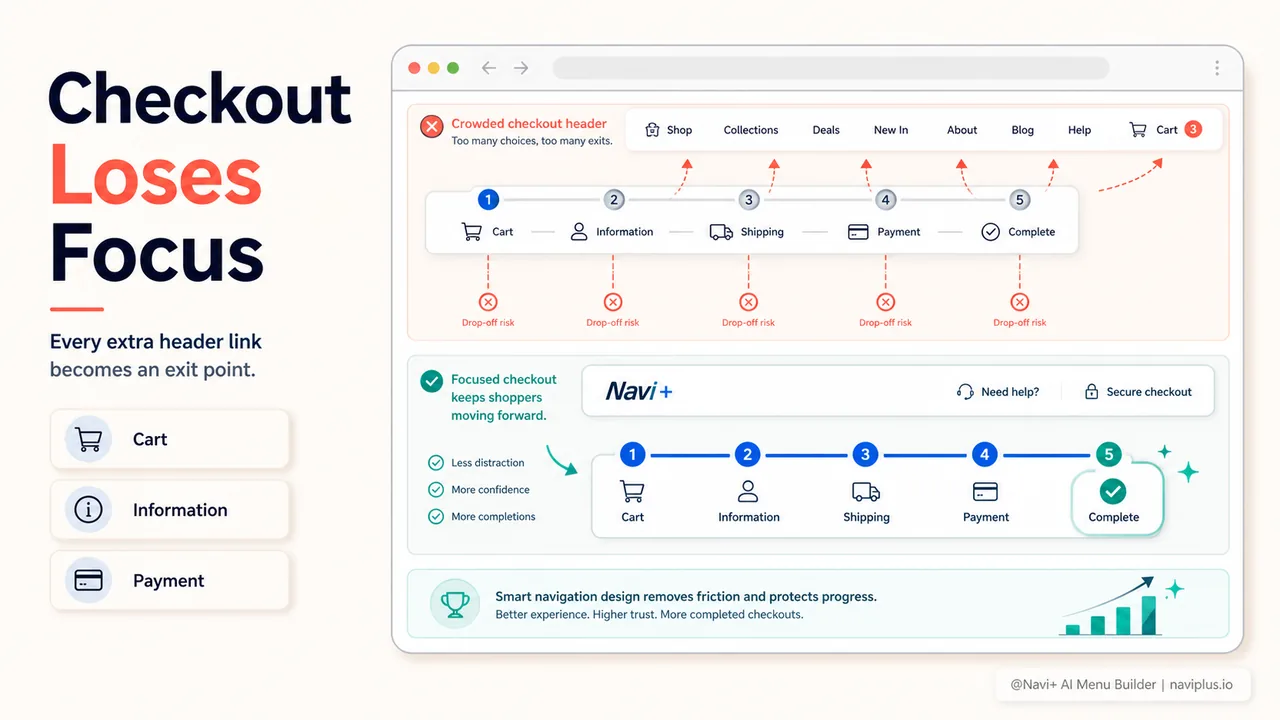
Think about it from the shopper’s perspective. They’re entering credit card information—a moment of heightened anxiety and focus. Then they glance up and see links to “New Arrivals,” “Sale,” “About Us,” and “Blog.” Each link is a cognitive interruption. Each one whispers: Maybe I should keep looking. Maybe there’s a better deal. Maybe I don’t need this right now.
Research from Baymard Institute confirms that site-initiated overlays and aggressive navigation during checkout “interrupt and distract users at a critical time in their site experience, slowing their progress and contributing to abandonment risk.”
The average checkout has 23.48 form fields. The optimal number? 12-14. That same principle of ruthless simplification applies to your header. If it’s not actively helping someone complete their purchase, it’s hurting your conversion rate.
What the data says about simplified checkout headers
AB testing tells us exactly what happens when you strip down checkout navigation. A simplified navigation bar test showed impressive results across the board:
- Conversion rate: +2.4%
- Average order value: +3.0%
- Revenue per visitor: +5.5%
- Orders: +1.6%
That 5.5% RPV lift is particularly significant because it’s compounding—better conversion and higher basket sizes working together. For a store doing $500,000 in annual revenue, that’s an extra $27,500 without spending a dollar on ads.
Another case study from The Ticket Factory found that “by removing visual distractions and ensuring that the checkout CTA was always visible, we created a more focused and efficient pathway to purchase, significantly reducing the chances of users abandoning their shopping baskets.”
The math is straightforward. Large ecommerce businesses can improve conversion by as much as 35.26% through better checkout design alone, according to Baymard Institute data. And header simplification is one of the lowest-effort, highest-return changes you can make.
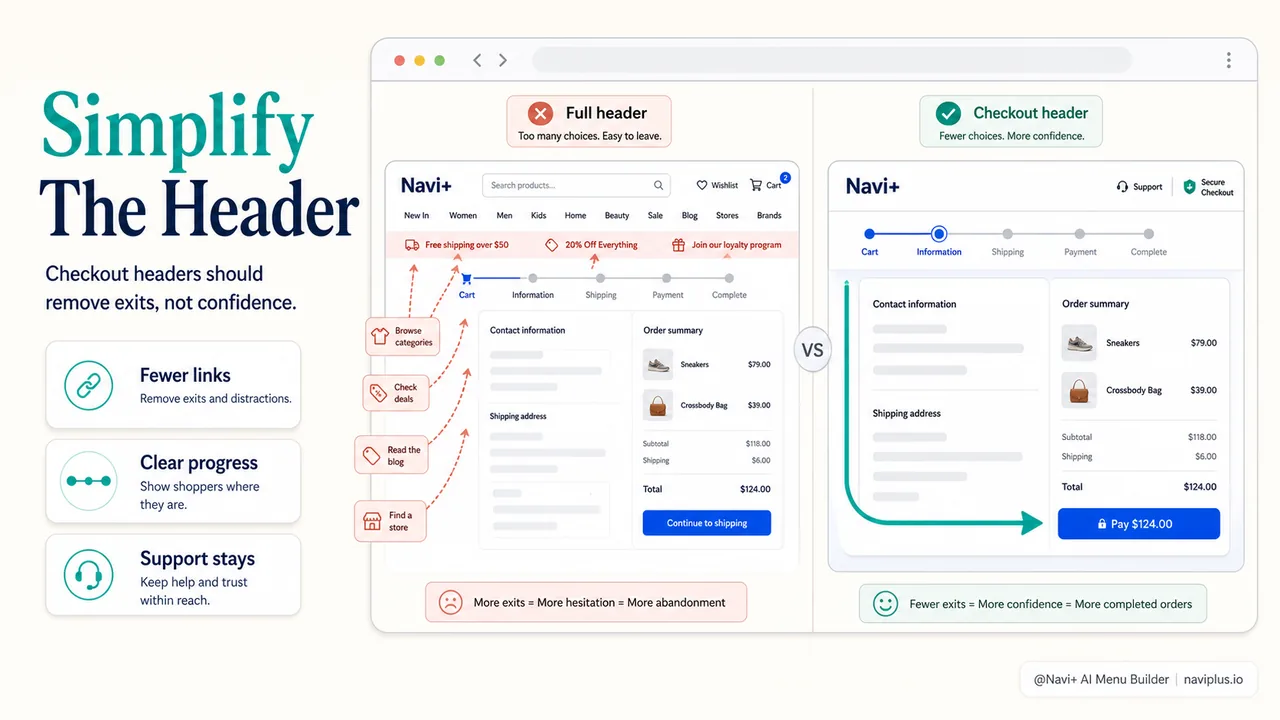
But here’s where it gets nuanced. “Simplified” doesn’t automatically mean “removed entirely.” The best approach depends on your store, your customers, and your checkout flow.
Three checkout header strategies that work
Strategy 1: Logo only (maximum focus)
This is the nuclear option. Remove everything except your logo, which links back to the homepage. No navigation menu. No search bar. No category links.
When it works:
- Single-step checkout (one page, all fields visible)
- Digital products or services with simple fulfillment
- High-average-order-value items where decision fatigue is the enemy
- Mobile checkout, where screen space is premium
When it doesn’t:
- Multi-step checkout where shoppers need to see progress
- Complex products requiring support access during purchase
- B2B stores where buyers may need to reference product details
Nielsen Norman Group research on mobile checkout emphasizes that “effective mobile checkout uses immediate feedback” and minimal navigation, since mobile screens can’t afford the same visual hierarchy as desktop.
The logo-only approach works because it creates what psychologists call “commitment and consistency.” Once someone enters checkout, you’re reinforcing that they’re in a transaction flow, not a browsing session. The lack of navigation options makes the path forward obvious: complete the form or abandon the purchase. There’s no middle ground, no “maybe I’ll just look at one more thing.”
Strategy 2: Logo + breadcrumb (reassurance without distraction)
This adds a subtle breadcrumb trail: Home > Cart > Checkout. It gives shoppers a sense of progress and control without offering easy exits.
When it works:
- First-time customers who need reassurance
- Stores with accordion or multi-step checkout
- Higher-consideration purchases (furniture, electronics, jewelry)
When it doesn’t:
- Single-page checkout where progress is already visible
- Repeat customers who know your flow
- Impulse or low-cost items
The breadcrumb serves a psychological purpose more than a navigational one. Research on checkout UX shows that shoppers need to know where they are in the process. A breadcrumb provides that without the cognitive load of a full navigation menu.
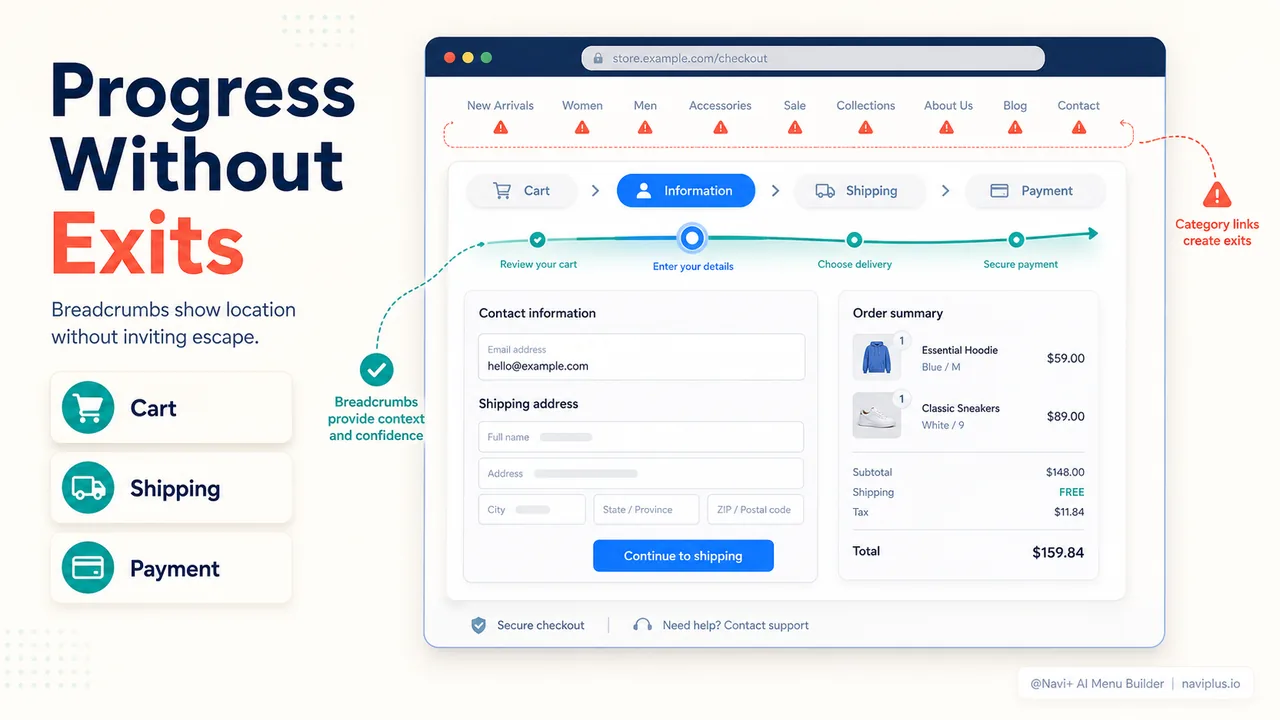
One important note: make sure your breadcrumb links are one-way only. Clicking “Cart” should take them backward in the checkout flow, not to your main shopping cart page with all its distractions. You’re creating a controlled environment, not an escape hatch.
Strategy 3: Logo + support link (minimal but helpful)
Keep your logo and add one single link: “Need help?” or “Contact Support.” Nothing else.
When it works:
- Complex products requiring potential customer service during purchase
- High-ticket items where buyers have questions
- International stores where payment or shipping questions are common
- Any checkout flow longer than 2 minutes
When it doesn’t:
- Self-service products with clear, simple checkout
- Stores with comprehensive inline help or tooltips
- Extremely short checkout flows
The support link serves as a pressure valve. For 90% of shoppers, it’ll go unnoticed. For the 10% who need it, it prevents abandonment. Research shows 18% of users abandon due to trust concerns, and visible support access is one of the strongest trust signals you can provide.
Critically, this link should open help in a new tab or an overlay—not navigate away from checkout. You want to answer their question, not derail their purchase.
What about trust signals in the header?
Here’s where things get interesting. Trust signals—security badges, payment logos, satisfaction guarantees—do increase conversions. But placement matters more than you’d think.
One case study found a 19% conversion lift by moving trust signals from the header to near the CTA button. Another study showed that a security badge in the footer converted 3% worse than the same badge placed 40 pixels above the “Place Order” button.
The lesson: trust signals work, but they belong near the point of friction (entering payment info, clicking “Purchase”), not in the header competing for attention.
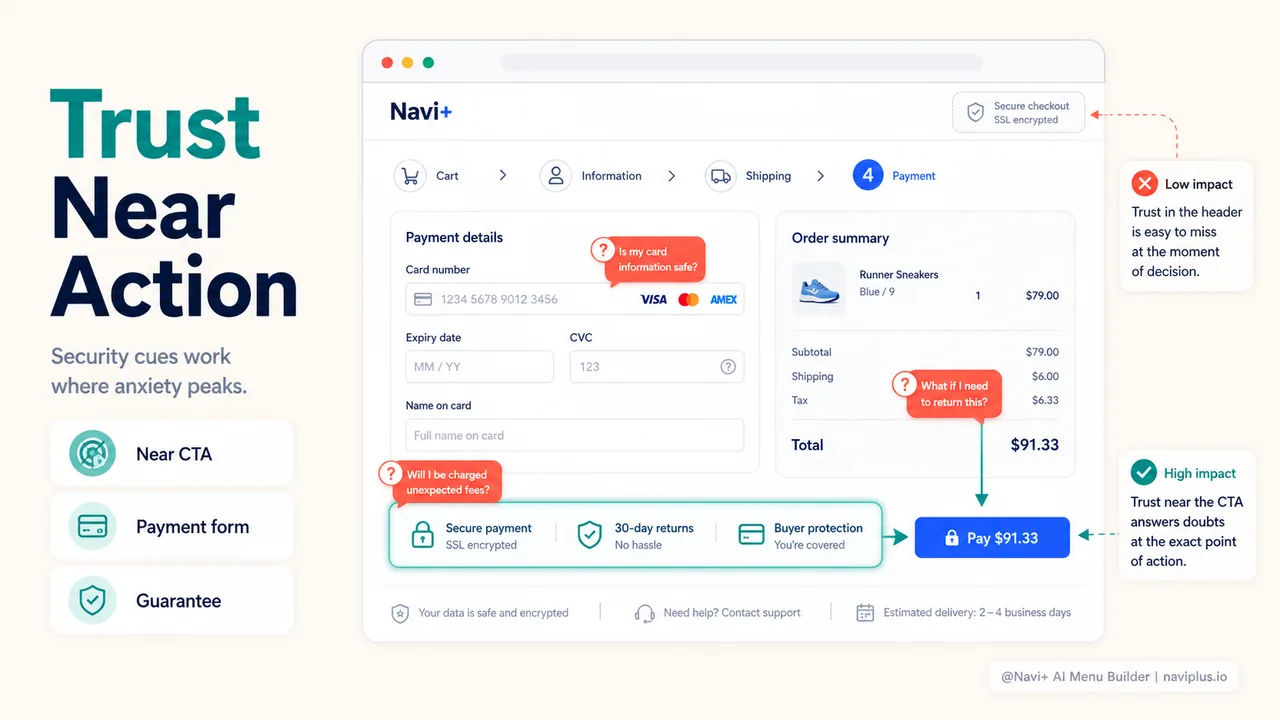
Where to put trust signals instead of the header:
- Payment logos: directly above or below the payment form
- Security badges: next to credit card input fields
- Money-back guarantee: near the final “Place Order” button
- Shipping/return info: in an expandable section within the form
Your header should establish identity (logo) and provide escape hatches (support). Trust signals belong in the conversion zone, where doubt actually occurs.
The mobile checkout exception
Mobile changes everything. Over 60% of ecommerce traffic comes from mobile, but mobile checkout converts 30-50% lower than desktop. Screen space is limited. Attention is fractured. Typing is harder.
On mobile, your checkout header should be even more minimal than desktop. Logo-only is often the best choice. If you absolutely need a support link, make it an icon (phone or chat bubble) rather than text.
Mobile checkout research from Nielsen Norman Group emphasizes that “sticky navigation is especially valuable on mobile since it keeps critical navigation elements accessible without forcing users to scroll.” But “critical” here means progress indicators and support—not category links or search bars.
Interestingly, Shopify’s checkout on mobile automatically streamlines the header compared to desktop. It’s a tacit acknowledgment that mobile checkout is all about focus and friction reduction.
What major brands do
Let’s look at how some of the biggest ecommerce players handle checkout headers:
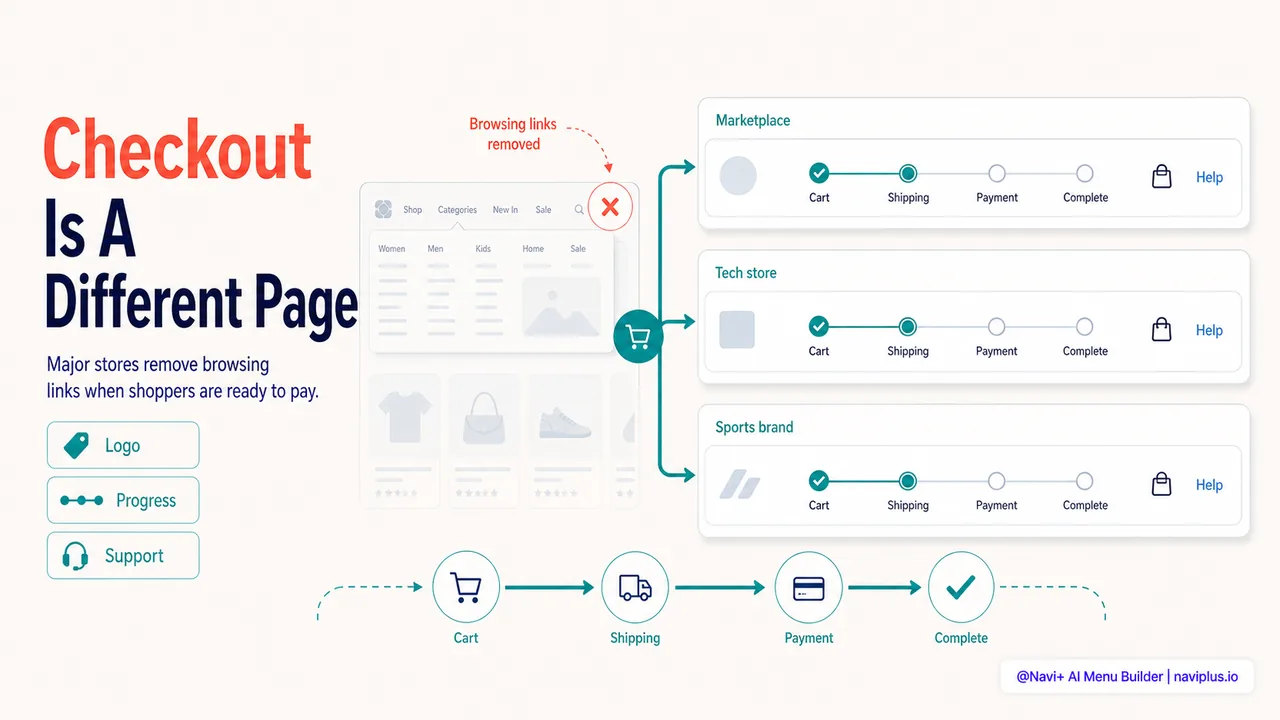
Amazon: Uses a special checkout header completely separate from their regular navigation. It shows a progress bar (Cart > Sign in > Shipping > Payment) but no product categories, no search, no deals. Just logo + progress + help link.
Apple: Logo, breadcrumb, and bag icon only. No main navigation menu appears in checkout. Support is available via the bag icon, which opens an overlay rather than navigating away.
Nike: Similar to Apple—logo and bag icon only during checkout. Their regular mega menu disappears entirely.
Shopify stores using Navi+ Menu Builder: Many high-converting stores hide their main navigation during checkout using conditional display rules, showing only a simplified header with logo and essential links.
The pattern is clear: major brands treat checkout as a distinct experience, not just another page on the site.
Common objections (and why they’re wrong)
“But shoppers might want to keep browsing while checking out.”
No, they don’t. If someone is in checkout and wants to continue shopping, they’ll use the browser back button or open a new tab. What you’re actually doing by offering navigation is creating decision fatigue and exit opportunities. AB testing consistently shows that simplified navigation increases conversion, not decreases it.
“We need navigation for brand consistency.”
Brand consistency matters on pages where shoppers are exploring and forming impressions. Checkout isn’t one of those pages. It’s a transaction flow. The Amazon checkout looks nothing like the Amazon homepage, and no one thinks less of the brand because of it.
“Our checkout is on a separate subdomain/third-party platform and we can’t change the header.”
Fair point. Platforms like Shopify Plus and BigCommerce give you extensive checkout customization, but some legacy setups or payment processors don’t. In that case, focus on what you can control: the last page before checkout (cart page) should clearly signal the transition. Use design, copy, and progressive disclosure to create a mental shift before they hit the checkout header you can’t change.
“What if they need to edit their cart?”
Your checkout should show cart contents with inline edit capability. If someone needs to go back to the cart page, provide that option within the checkout flow—not via the header navigation.
Technical implementation on Shopify
Shopify’s checkout customization varies by plan:
Shopify Standard: Limited header customization. You can edit checkout.liquid (if you have access) to modify the header, but you’re working within Shopify’s checkout architecture.
Shopify Plus: Full checkout customization via checkout.liquid. You can completely rebuild the header, add custom CSS, and create distinct experiences for different customer segments.
If you’re using a navigation app like Navi+ Menu Builder, you can set display rules to hide your custom menu on checkout pages. This gives you rich navigation everywhere else while keeping checkout clean.
Basic implementation:
- Identify your checkout pages (cart, information, shipping, payment)
- Add conditional logic to hide navigation on checkout templates
- Create a simplified header specifically for checkout
- Test across devices—mobile especially
For stores using headless commerce or custom React/Vue frontends, you have complete control. Create a dedicated checkout component with minimal header and import it only for checkout routes.
Where to start: a 10-minute checkout header audit
You don’t need to redesign everything today. Start by understanding what you currently have:
Step 1: Open your checkout page (add something to cart and proceed to checkout)
Step 2: Count every link in your header—navigation items, search, account, language selector, social icons, everything clickable except your logo
Step 3: Ask yourself: Does this link help someone complete their purchase, or does it create an exit opportunity?
Most Shopify stores have 6-12 header links visible during checkout. That’s 6-12 ways to leave without buying.
Step 4: Screenshot your current checkout on mobile and desktop
Step 5: Use Inspect Element to temporarily hide navigation elements and see what your checkout would look like simplified
Step 6: Check your analytics—what’s your current cart abandonment rate? (Google Analytics > Conversions > Ecommerce > Shopping Behavior)
Now you have a baseline. Any improvement you make can be measured against these numbers.
Quick wins you can implement this week:
- Remove or collapse your mega menu on checkout pages
- Hide search bar during checkout
- Remove promotional banners or announcement bars from checkout
- Simplify your logo (if it’s large or contains taglines, use a simplified version)
- Move trust signals from header to near payment fields
These changes take minutes to implement and can show measurable conversion lift within days.
The real question: what are you optimizing for?
Here’s the thing most articles about checkout optimization miss: you need to know what you’re optimizing for.
If you’re a content-driven store where shoppers read blog posts and guides before buying, you might need accessible navigation even in checkout. If you sell complex B2B products where buyers regularly jump between checkout and product spec sheets, a hidden menu could frustrate rather than help.
But for the vast majority of ecommerce stores—especially direct-to-consumer Shopify shops selling physical products—the goal is singular: get the buyer from “I want this” to “Order confirmed” as smoothly as possible.
Every link, every menu item, every design element should be evaluated through that lens. Does this help someone complete their purchase? If the answer isn’t a clear yes, remove it.
Your checkout header isn’t about design aesthetics or brand guidelines. It’s about conversion. And sometimes the best navigation is no navigation at all.
Where to start
Open your checkout page right now. Count the links in your header. Pick three to remove or simplify. Use AB testing if you have the traffic, or just implement the change and monitor your cart abandonment rate for two weeks.
The stores that convert best aren’t the ones with the most features. They’re the ones that remove everything standing between “Add to Cart” and “Order Confirmed.” Your checkout header is the easiest place to start.