Accessible navigation means navigation that works for everyone — including people using screen readers, keyboard-only navigation, voice control, or other assistive technologies. It’s not a separate version of the menu. It’s the same navigation, built in a way that announces correctly to screen readers, can be operated entirely with a keyboard, and makes sense to someone who can’t see the visual layout.
Roughly 15% of the global population has some form of disability. Many of these people shop online, and they face significant barriers when ecommerce sites are built without accessibility in mind. A mega menu that requires hover doesn’t work for keyboard users. A menu with no ARIA labels confuses screen reader users. A slide menu that traps keyboard focus prevents navigation entirely.
Building accessible navigation isn’t about compliance or checking a box. It’s about building navigation that actually works for the full range of human abilities and assistive technologies.
- Accessible navigation works for screen readers, keyboard users, voice control, and other assistive technologies.
- ARIA labels, semantic HTML, and proper focus management make menus understandable to assistive tech.
- Keyboard navigation requires visible focus indicators, logical tab order, and escape-key dismissal.
Screen readers: what assistive technology users hear
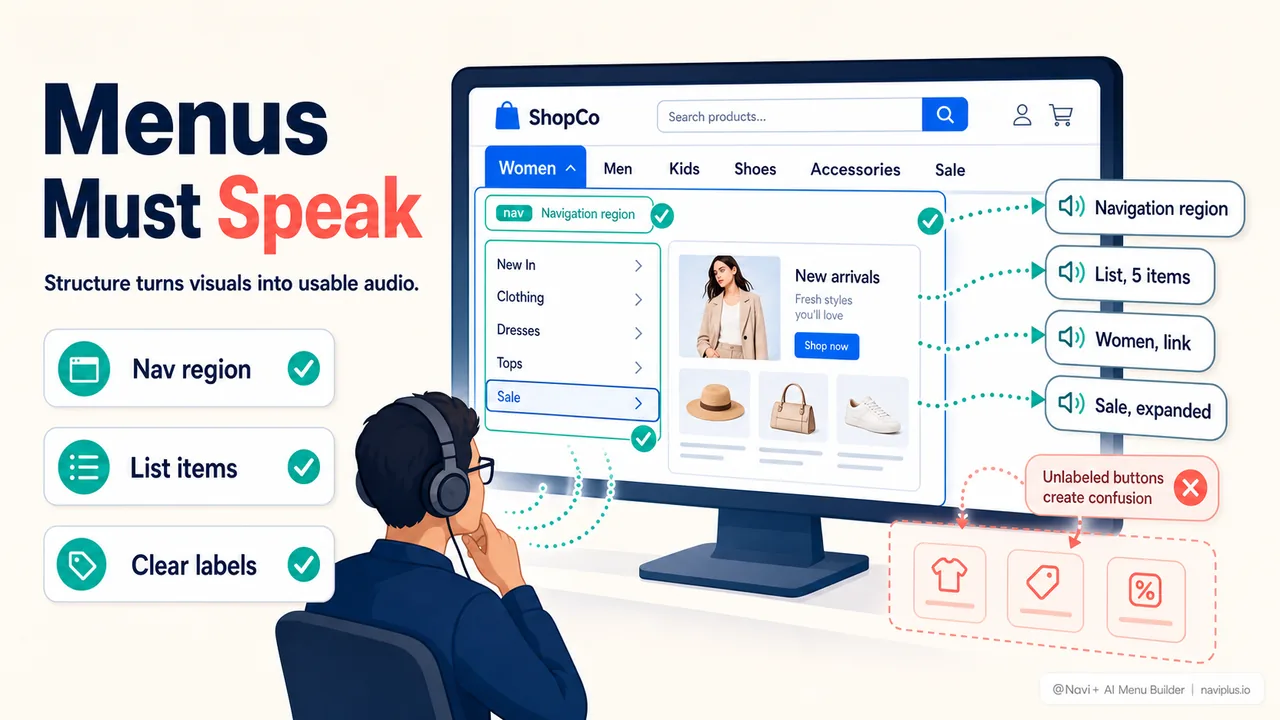
A screen reader user navigates a website by listening to the content. The screen reader announces each element: “heading level 1, navigation region, button, link.” The user hears the structure of the page, the labels of interactive elements, and the relationships between them.
For navigation, this means the menu needs semantic structure. A list of links should be a <nav> element containing a <ul> and <li> items. Each link should have meaningful text — not “Click here” but “Women’s Clothing.” Dropdowns should announce their expanded/collapsed state. The currently active page should be indicated with aria-current="page".
When these basics are in place, the screen reader user hears: “Navigation region, list, 5 items. Women’s Clothing, link. Men’s Shoes, link. New Arrivals, link…” They understand the menu structure and can navigate it efficiently.
When these basics are missing, the screen reader user hears a jumble of unlabeled buttons, unannounced dropdowns, and links with no context. They can’t tell what’s a menu and what’s not. They can’t tell which items have submenus. Navigating becomes guesswork.
Deep-diveRead the full guide → Screen reader navigation: what assistive technology users hear
Keyboard navigation: tab order and focus
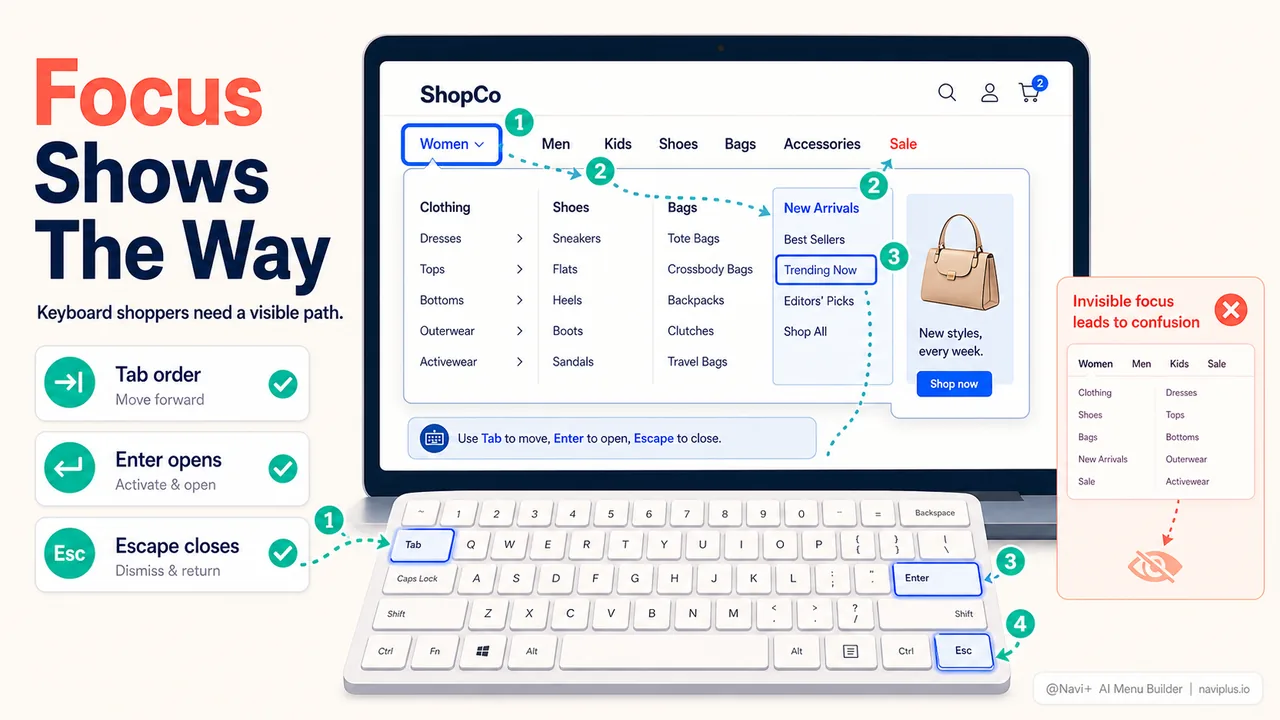
A keyboard user navigates a website using the Tab key (to move forward), Shift+Tab (to move backward), Enter (to activate), and Escape (to dismiss). They can’t use a mouse, so every interactive element must be reachable with Tab and operable with Enter or Space.
For navigation, this means:
- All menu items must be in the tab order (not hidden with
display: noneorvisibility: hiddenwithout removingtabindex) - The tab order must be logical (top to bottom, left to right)
- Focus must be visible (a clear outline or highlight showing which element is focused)
- Dropdowns must open with Enter/Space, not just hover
- Dropdowns must close with Escape
- Focus must not get trapped inside a menu (the user can always Tab out)
A mega menu that only opens on hover is unusable for keyboard users. A slide menu that traps focus (preventing the user from tabbing out) is unusable. A menu with invisible focus indicators leaves the keyboard user guessing where they are.
Deep-diveRead the full guide → Keyboard navigation: tab order and focus management
ARIA labels and landmarks
ARIA (Accessible Rich Internet Applications) provides attributes that help assistive technologies understand dynamic content and complex widgets. For navigation:
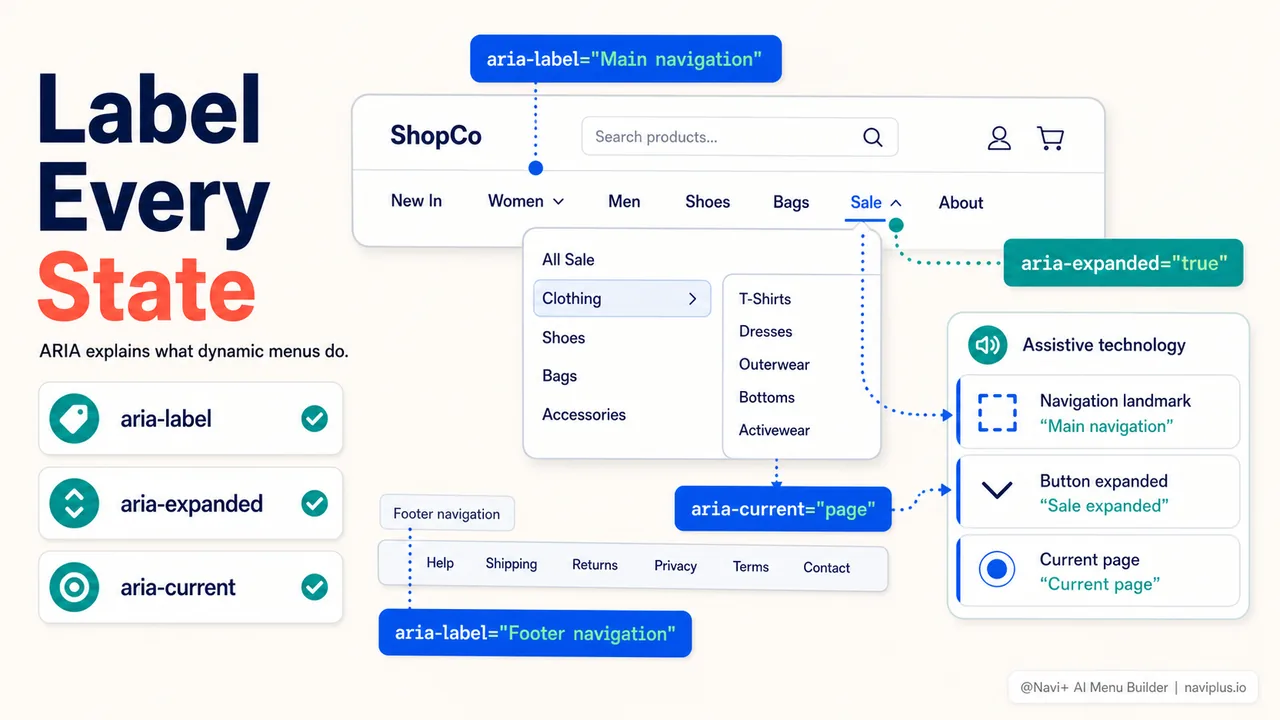
<nav> landmark: The <nav> element marks a navigation region. Screen readers announce it as “navigation” or “navigation region,” helping users find and skip to the menu.
aria-label on <nav>: If there are multiple navigation regions (header menu, footer menu, sidebar), each should have a unique aria-label. “Main navigation,” “Footer navigation,” “Related products.” This lets the screen reader user choose which navigation to use.
aria-expanded on dropdowns: A button or link that opens a dropdown should have aria-expanded="false" when closed and aria-expanded="true" when open. The screen reader announces “collapsed” or “expanded,” so the user knows the state.
aria-current="page" on the active link: The link to the current page should have aria-current="page". The screen reader announces “current page,” helping the user understand where they are in the site structure.
aria-haspopup="true" for dropdowns: Indicates that an element has a popup menu or submenu. Combined with aria-expanded, this tells the user what to expect when activating the element.
Deep-diveRead the full guide → ARIA labels and landmarks for ecommerce menus
Mobile accessibility: touch and assistive tech
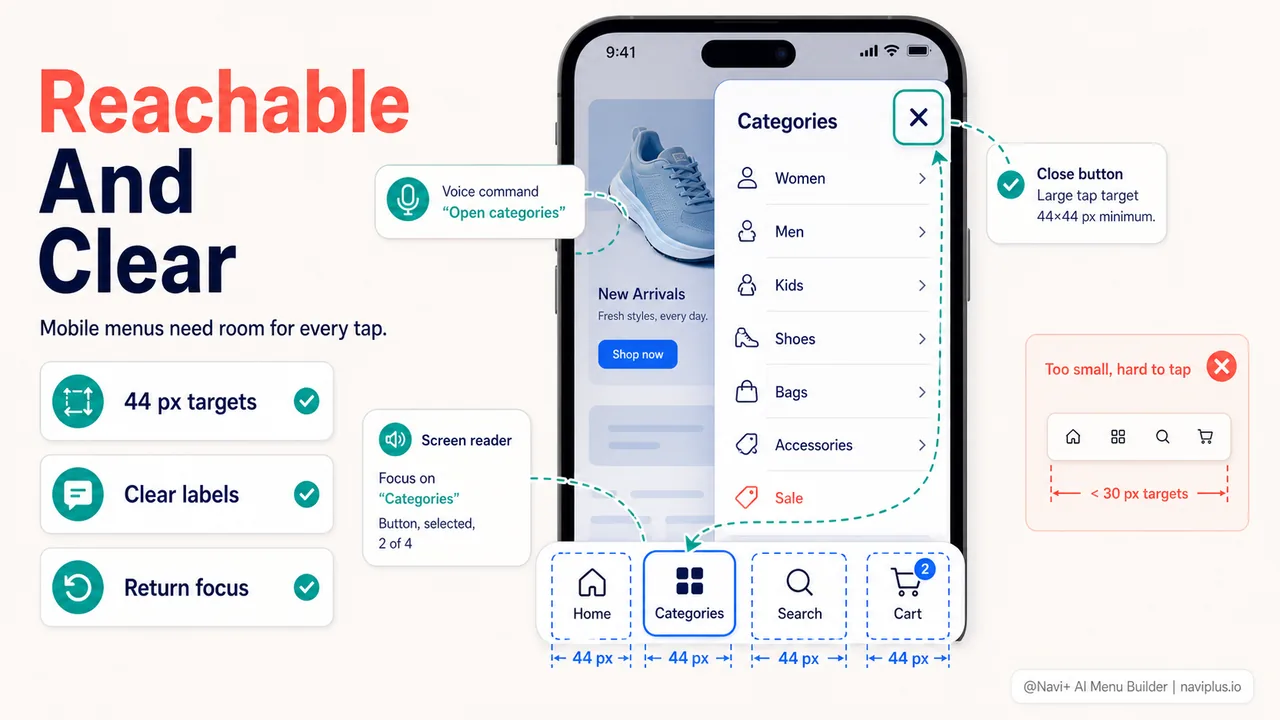
Mobile accessibility overlaps with but differs from desktop. Touch targets need to be large enough (44×44 pixels minimum). Focus management needs to account for virtual keyboards. Screen reader gestures on mobile are different from keyboard commands on desktop.
For mobile navigation:
- Touch targets (buttons, links) should be at least 44 pixels tall with adequate spacing
- Swipe gestures should have keyboard equivalents (if swiping opens a menu, a button should too)
- Dismissing menus should work with a close button, not just a swipe or tap-outside
- Focus should return to the trigger when a menu is dismissed
A bottom tabbar (via Navi+) is inherently accessible if built correctly: large touch targets, clear labels, semantic HTML. A slide menu becomes accessible when it has proper focus management, ARIA labels, and keyboard dismissal.
Deep-diveRead the full guide → Accessible mobile navigation: touch, voice, and assistive tech
Testing for accessibility
Automated tools (Lighthouse, axe, WAVE) catch some accessibility issues — missing alt text, low contrast, missing ARIA labels. But they can’t catch everything. Many navigation issues only reveal themselves through manual testing:
- Navigate the entire site using only the keyboard (no mouse)
- Turn on a screen reader (VoiceOver on Mac/iOS, TalkBack on Android, NVDA on Windows) and try to navigate
- Check that focus indicators are visible on all interactive elements
- Verify that dropdowns announce their state and can be opened/closed with keyboard
- Test that focus doesn’t get trapped in modal menus
Real-world accessibility requires real-world testing. If you can’t complete a purchase using only the keyboard, your keyboard users can’t either. If the screen reader doesn’t announce the menu structure, your screen reader users are navigating blind.
Where to start
Quick testUnplug your mouse. Try to navigate your store and complete a purchase using only the keyboard. If you can't, your keyboard users can't either.
Do the keyboard test. Navigate your store without a mouse. Tab through the menu. Open a category with Enter. Navigate to a product. Add it to the cart. Go through checkout. If any step is impossible or confusing without a mouse, that’s a barrier for keyboard users and likely for screen reader users too.
Then check the basics:
- Does your menu use semantic HTML (
<nav>,<ul>,<li>)? - Do dropdown triggers have
aria-expandedthat updates when opened/closed? - Is there a visible focus indicator on links and buttons?
- Can dropdowns be opened with Enter and closed with Escape?
These basics cover a large portion of navigation accessibility. More advanced patterns (complex mega menus, slide-out drawers with nested subcategories) require more detailed ARIA and focus management, but starting with semantic HTML and keyboard operability takes you most of the way there.
Explore the topics
This guide links out to focused articles — dive deeper on each.